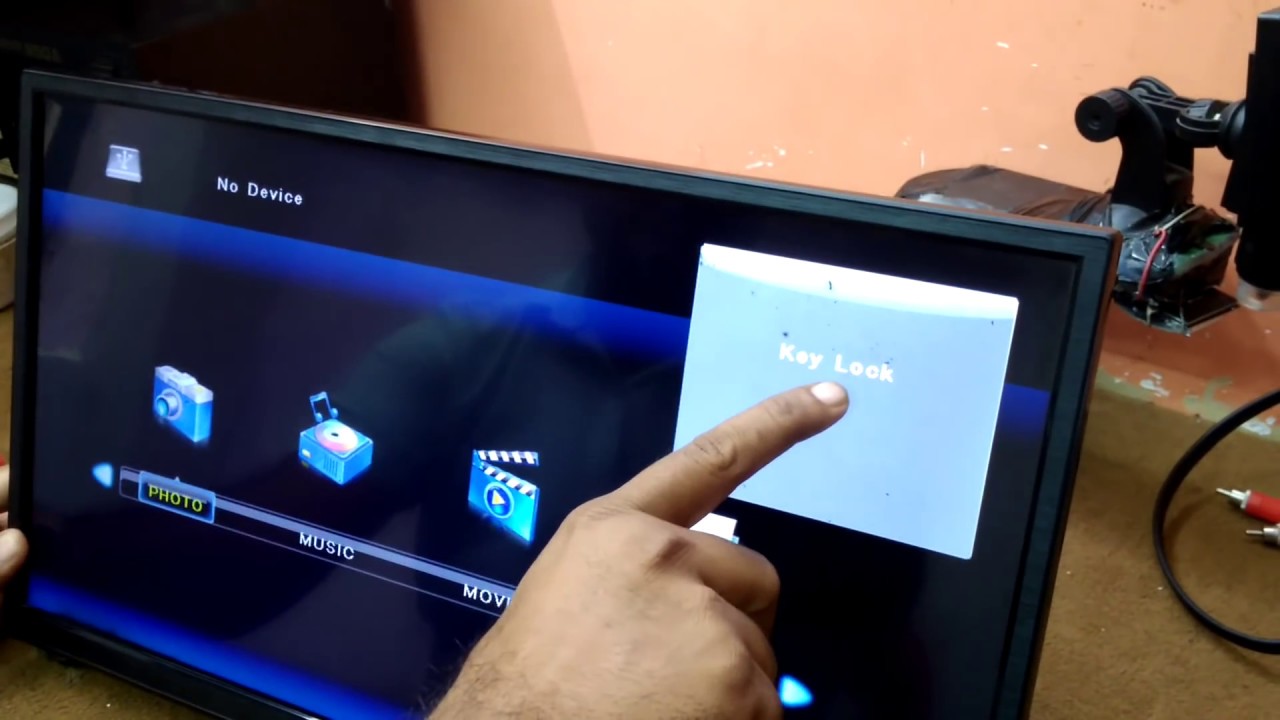
To unlock your TV key lock without a remote, locate the physical control panel on your TV, usually a joystick or a set of buttons on the bottom or side edge, and use it to navigate the on-screen menu to the lock or security settings. Press the menu button, then use the directional controls to find and disable the "Key Lock" or "Child Lock" option, confirming with the OK or enter button.
How to unlock TV key lock without remote using the control panel
Start by finding the physical buttons or joystick on your LED TV. These are typically hidden along the bottom bezel, on the back panel, or on the side edge. Press the "Menu" or "Settings" button to open the TV's main menu. Select that option and press "OK" or "Enter." If the TV asks for a password, try a common default code (covered below). Once inside the lock menu, toggle the key lock setting to "Off" or "Disabled." Confirm your selection and exit the menu. Your TV should now respond to all button presses normally.
What to do if the panel buttons are also locked
For many TV models, you can try force-unlocking the panel by pressing and holding a combination of physical buttons for several seconds. Try these combinations while the TV is on. If the screen flashes or a lock icon disappears, the panel is now free. Be sure to distinguish between a key lock (which locks only the remote) and a child lock (which locks the panel buttons). A child lock often shows a padlock icon on screen when you press any button. If you see that icon, you are dealing with a child lock, and the same button sequences above should disable it. If the remote itself is the problem, you can use LG smart TV without magic remote by navigating menus with the physical joystick button, and once unlocked you may need to setup Samsung smart TV without remote to complete the initial configuration.
Entering the default password to disable the lock
When navigating the lock menu using the control panel, the TV may prompt you for a PIN or password. After entering all four digits, press "OK" or "Enter" to submit. If the code is accepted, the lock menu will open and you can disable the key lock. If none of these defaults work, check your TV's user manual for the specific factory code, or try the last four digits of your TV's serial number if you have it handy.
When to try a hard reset as a last resort
If the panel buttons are completely unresponsive and no button sequence works, a simple unplug will not fix a persistent key lock. You need to perform a factory reset using only the physical buttons. While the TV is on, try pressing and holding a combination of physical buttons (such as "Menu" and "Power") for several seconds, or until the TV restarts. If the TV enters a factory reset mode, follow the on-screen prompts using the panel buttons to confirm the reset. Warning: this will erase all custom settings, including network connections, picture adjustments, and installed apps. Only use this method if you have exhausted all other options. After the reset, the key lock will be disabled, and the TV will be in its out-of-box state.
For the wider topic, see use my Samsung smart TV remote.