If the Apple TV HDR format is greyed out, your HDMI cable, TV's HDMI port, or the port's capabilities can't support that specific format. You must check your physical hardware setup and TV's HDMI signal format configuration to make the option available. Apple TV 4K requires a compatible cable and a port that can handle the bandwidth for 4K HDR or Dolby Vision. Many modern TVs hide the necessary HDMI enhancements behind a menu toggle that defaults to a standard mode, which blocks high-dynamic-range signals entirely. If you share the device, you can also add users to Apple TV app so each person’s personalized video settings don’t override your calibrated HDR preferences. On older hardware that can't resolve the greyed-out HDR, you might simply add apps to old Apple TV to keep it useful as a secondary streamer.
Check your HDMI cable and port for Apple TV HDR
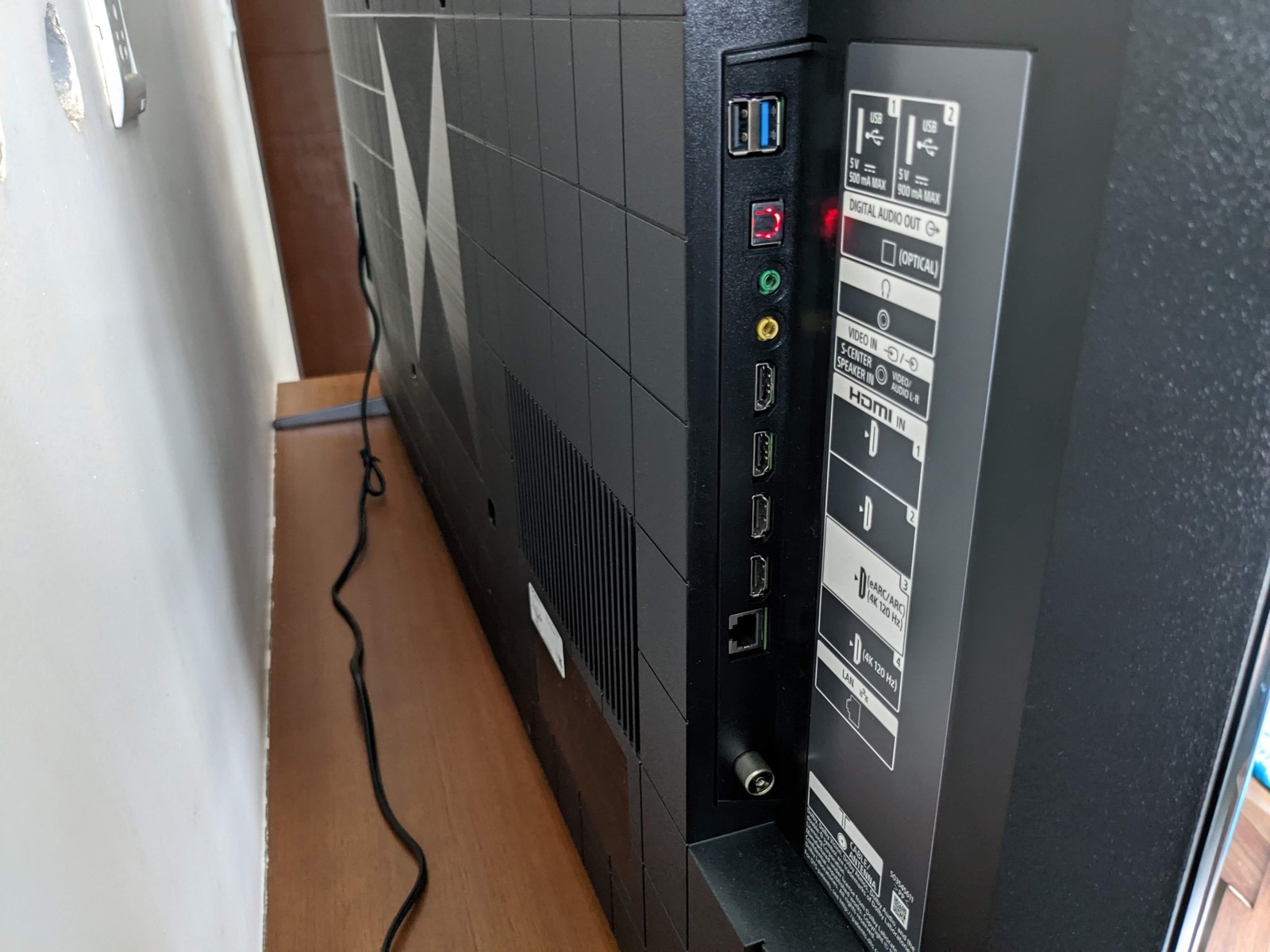
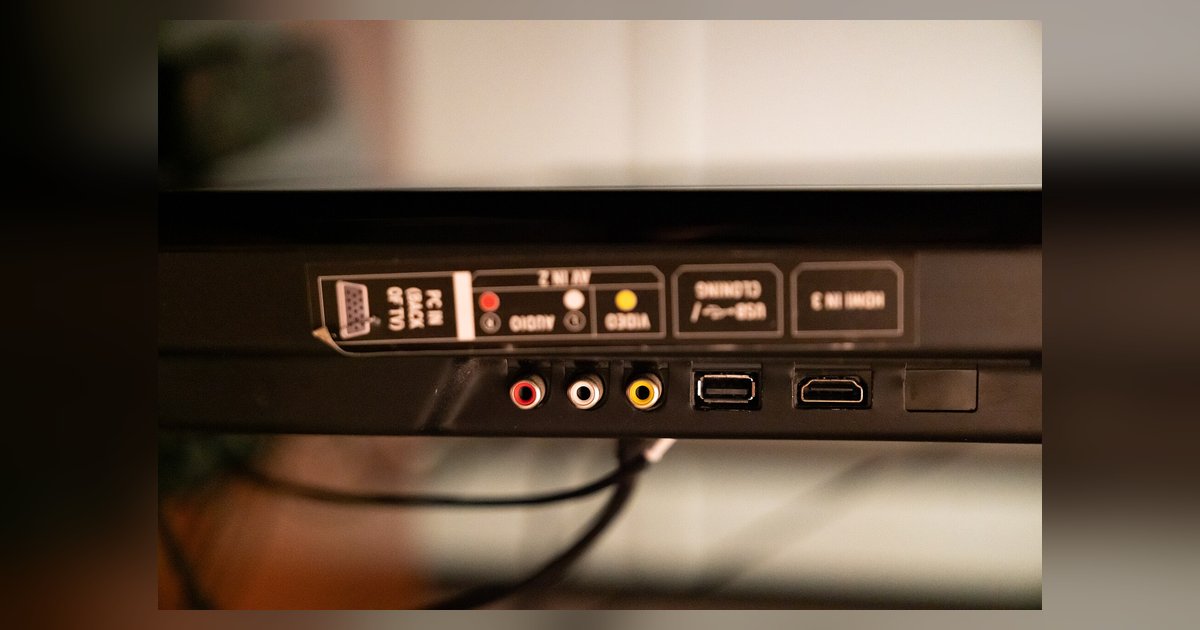
Start by verifying the HDMI cable itself. The "4K HDR" option will remain greyed out if you are using a standard HDMI cable rated for 1080p or 4K at 30 Hz. Apple recommends HDMI cables with the 'Compatible Dolby Vision' mark or Ultra High-Speed HDMI cables for 4K HDR video. Apple recommends Ultra High-Speed HDMI cables for optimal performance with Dolby Vision or 4K at 60 Hz with HDR10+, especially for HDMI 2.1. Inspect the cable’s packaging or printed markings for the "Premium High Speed" or "Ultra High Speed" logo. If you are unsure, swap in a cable that you know is certified for 18 Gbps or higher. Next, check the physical HDMI port on your TV. Some TVs only support 4K HDR on specific ports, which may include those labeled "HDMI ARC" or "HDMI eARC." Other ports may be limited to 4K at 60 Hz without HDR or even 4K at 30 Hz. Connect your Apple TV to the port that matches the format you want. For Dolby Vision, you need a port that supports 4K HDR and Dolby Vision. If you plug into a port designed for older devices, the greyed-out option will persist.
Enable enhanced HDMI on your TV
The most common reason the 4K HDR option stays locked is that your TV’s HDMI port is set to a standard or basic signal format. To make the format available, you must navigate your TV’s on-screen menus and enable a feature often called "HDMI Deep Color," "HDMI Enhanced Format," "HDMI UHD Color," or "HDMI 2.0 Mode." On LG TVs, look for a setting such as 'HDMI Deep Color' in the Picture menu and turn it On for the port your Apple TV uses. On Sony TVs, look for a setting such as 'HDMI Signal Format' or 'Enhanced format' in the External Inputs or Watching TV menus and select the enhanced option for 4K HDR. On Samsung TVs, look for a setting such as 'HDMI UHD Color' in the General or External Device Manager menu and enable it for the correct port. On TCL and Hisense models, look for an HDMI enhanced format setting in the Input or System configuration. After enabling this, your TV will accept the full 18 Gbps signal required for 4K HDR. Then, on your Apple TV, you can get to settings on Apple TV by going to Video and Audio > Format, and the 4K HDR and Dolby Vision options should become selectable. If they remain greyed out, power cycle both the TV and the Apple TV by unplugging them for 30 seconds.
When the option is still not available
If you have confirmed a certified cable, used the correct HDMI port, and enabled the enhanced HDMI format on your TV, but the 4K HDR option remains greyed out, your specific TV model or that particular HDMI port simply cannot support the format you are trying to select. Some older 4K TVs may only support HDMI 1.4, which can limit 4K output to 30 Hz without HDR. Some TVs limit HDR support to only one port, so other ports will never show the option. Additionally, if your TV supports Dolby Vision but the Apple TV detects an incompatible EDID handshake, the system will hide the format. In this failure case, you have two options: use a different HDMI port that does support the format, or accept the highest available format that is not greyed out, such as 4K SDR at 60 Hz. And if you are using a T-Mobile internet connection with your Apple TV, you can sign into Apple TV with your T-Mobile account to stream content, but that will not change the HDMI hardware limitation on your TV. A greyed-out option means the hardware chain cannot deliver the signal, so the setting is intentionally disabled to prevent a blank screen or flickering output. The Apple TV 4K enforces a strict hardware handshake before revealing its top-tier video formats.