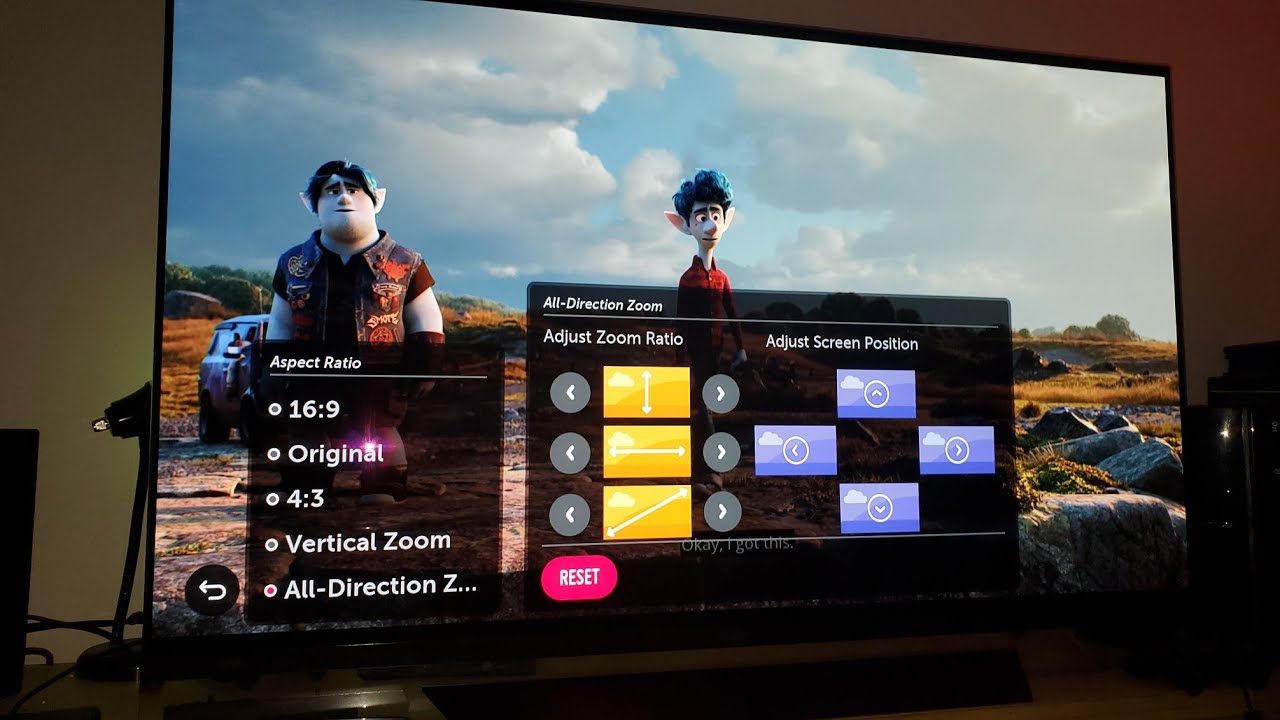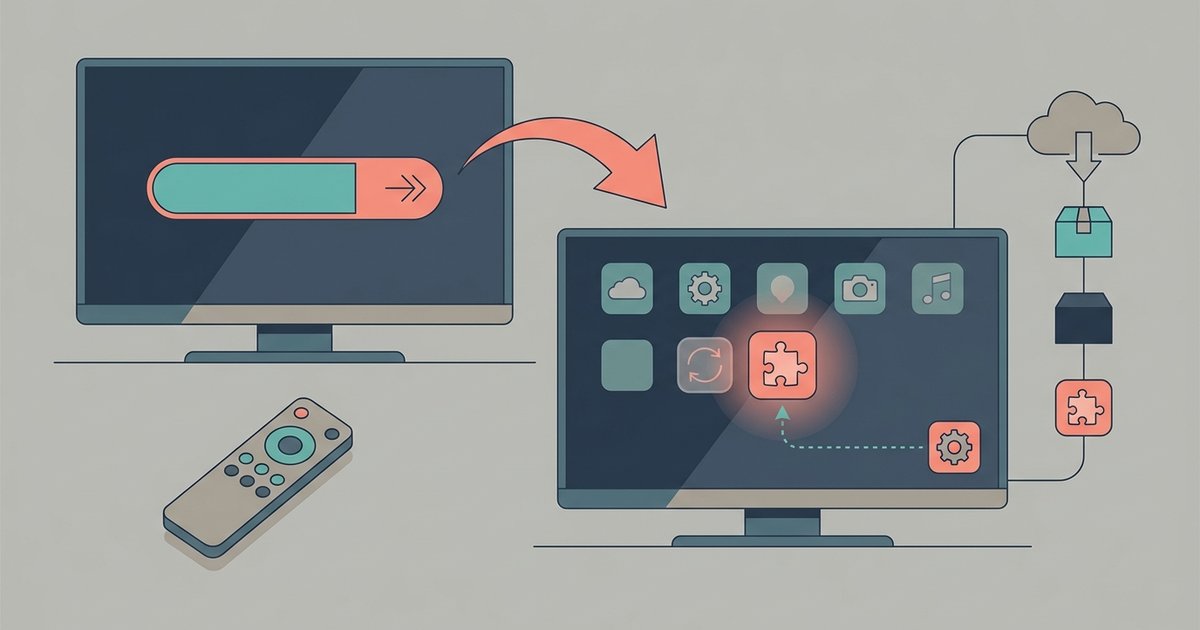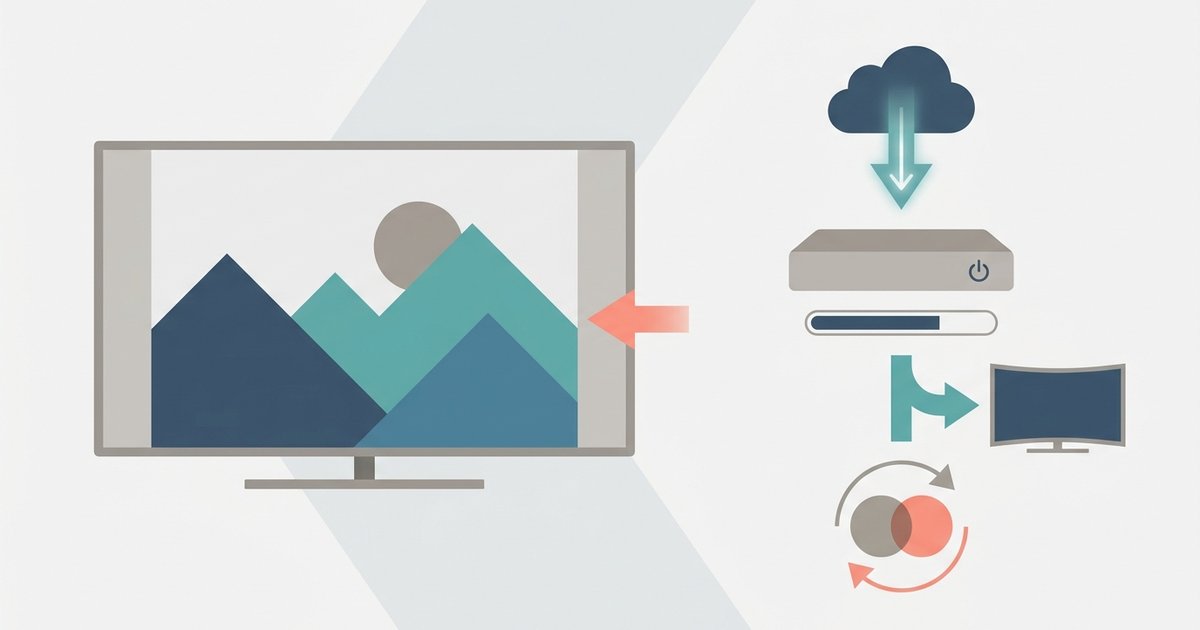
The software update likely reset your aspect ratio setting to a default or introduced a mismatch with your source device's output. Go into the TV's picture settings and look for 'Aspect Ratio' or 'Screen Fit', then set it to '16:9' or 'Just Scan' instead of 'Auto' or 'Zoom'.
The update reset your TV picture fit settings
Your TV’s firmware update silently reverted your custom picture size to a default like “16:9 Standard” or “Auto.” This applies a small amount of zoom that cuts off edges or adds black bars. Open your TV’s Picture or Display menu now. Look for a setting labeled “Just Scan,” “Screen Fit,” “Dot-by-Dot,” or “Full Pixel.” Select that option instead of “Auto” or “Zoom.” If you previously used a guide on how to zoom on smart TV to correct a different issue, the update may have reverted that manual tweak back to a zoomed state. Reverse it immediately.
When the aspect ratio setting is grayed out
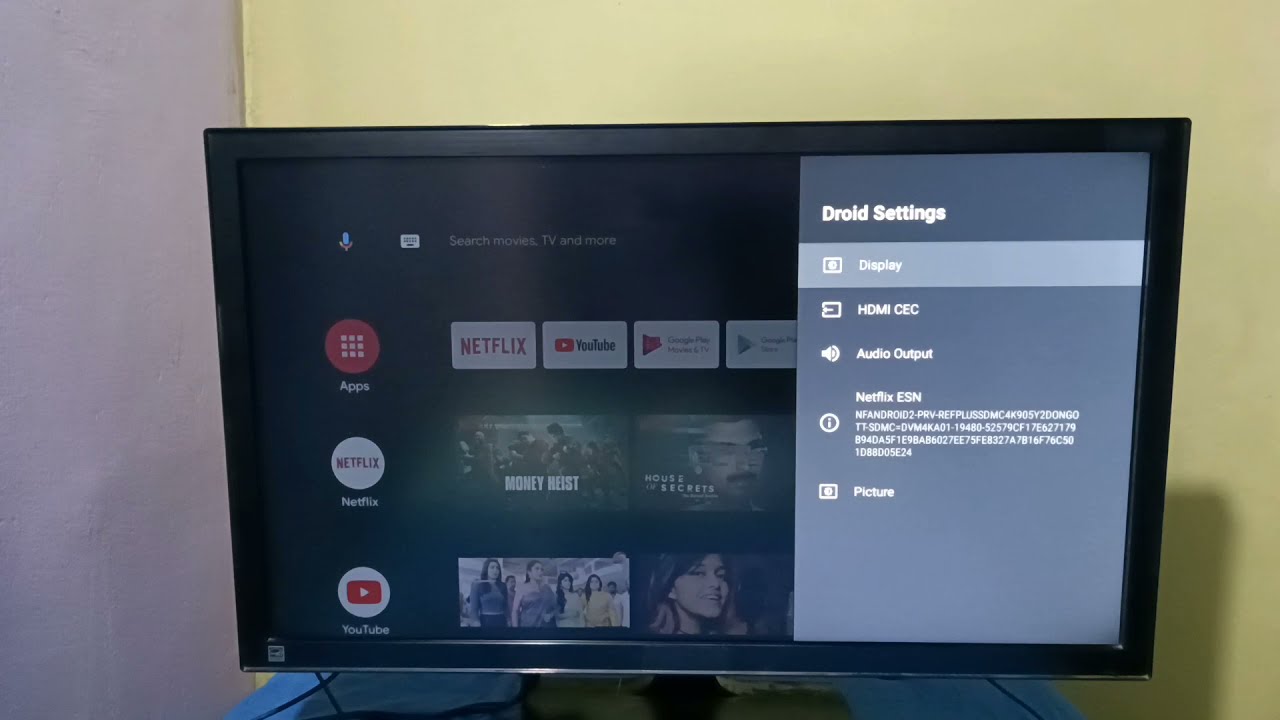
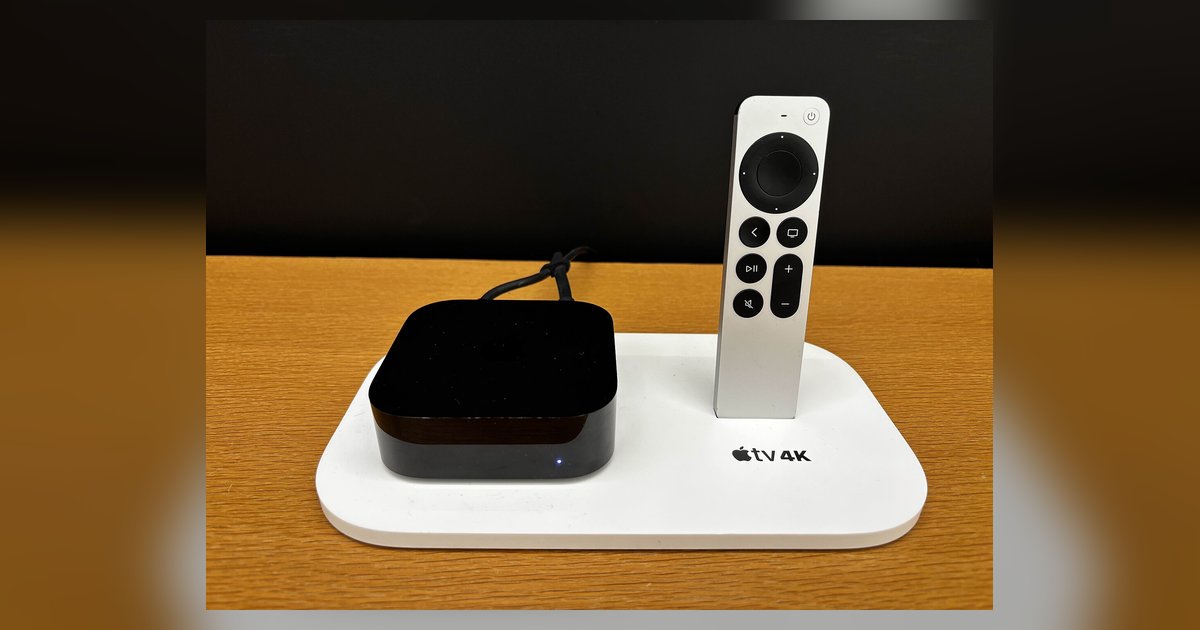
Find the Aspect Ratio option in your picture menu. If it is locked or grayed out, your TV is likely in Game Mode, PC Mode, or HDR Mode. These modes disable manual scaling. First, check the HDMI input label on your TV. If the input is labeled “PC,” change it to a different label such as “Blu-ray,” “Game Console,” or “STB” in the input settings. This re-enables manual scaling. If the option remains locked, disable any overscan or zoom on your cable box or streaming stick. Many external devices have their own “Safe Area” setting that overrides the TV. If you previously tried to adjust the picture size on my Vizio smart TV and the menu is now blocked, the update changed how that input is recognized. Rename the input label to restore control.
HDMI handshake changes after an update
Software updates alter the EDID data your TV sends to connected devices. This can force your source to output a mismatched resolution. Unplug the HDMI cable and the source device for 60 seconds. Plug everything back in to force a fresh handshake. If the problem persists, open your TV’s input settings and find “HDMI Format” or “Input Signal.” Toggle the affected port from “Standard” to “Enhanced.” If you previously had to change the picture size on my Hisense smart TV due to a similar mismatch, the update may have switched the HDMI port to a lower bandwidth mode. Set it to “Enhanced” immediately. For Vizio owners, a dedicated guide on how to set full screen on Vizio smart TV may help resolve similar issues. Do this now to re-establish proper EDID communication.
The only fix that works across every brand after a firmware update is to manually force the TV’s aspect ratio away from “Auto” and onto a 1:1 pixel mapping mode like “Just Scan,” then rename the HDMI input label to prevent the TV from locking that setting again.