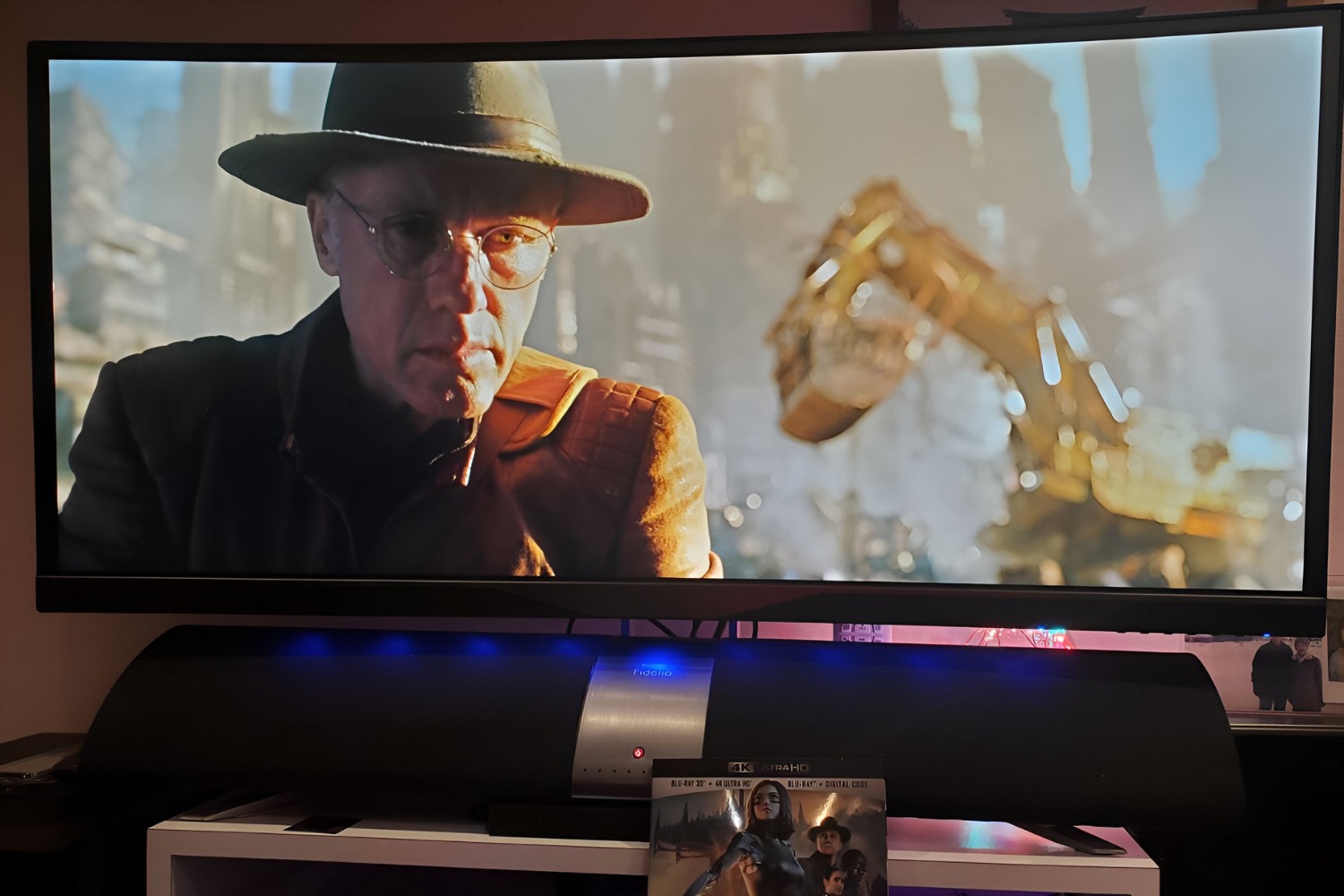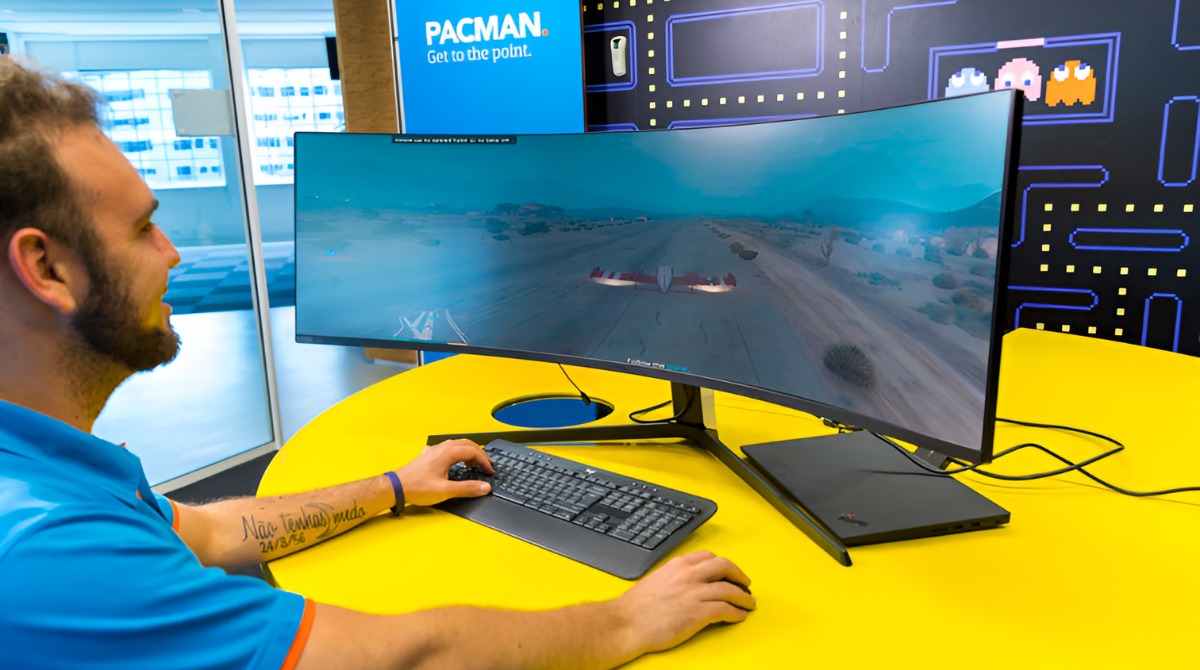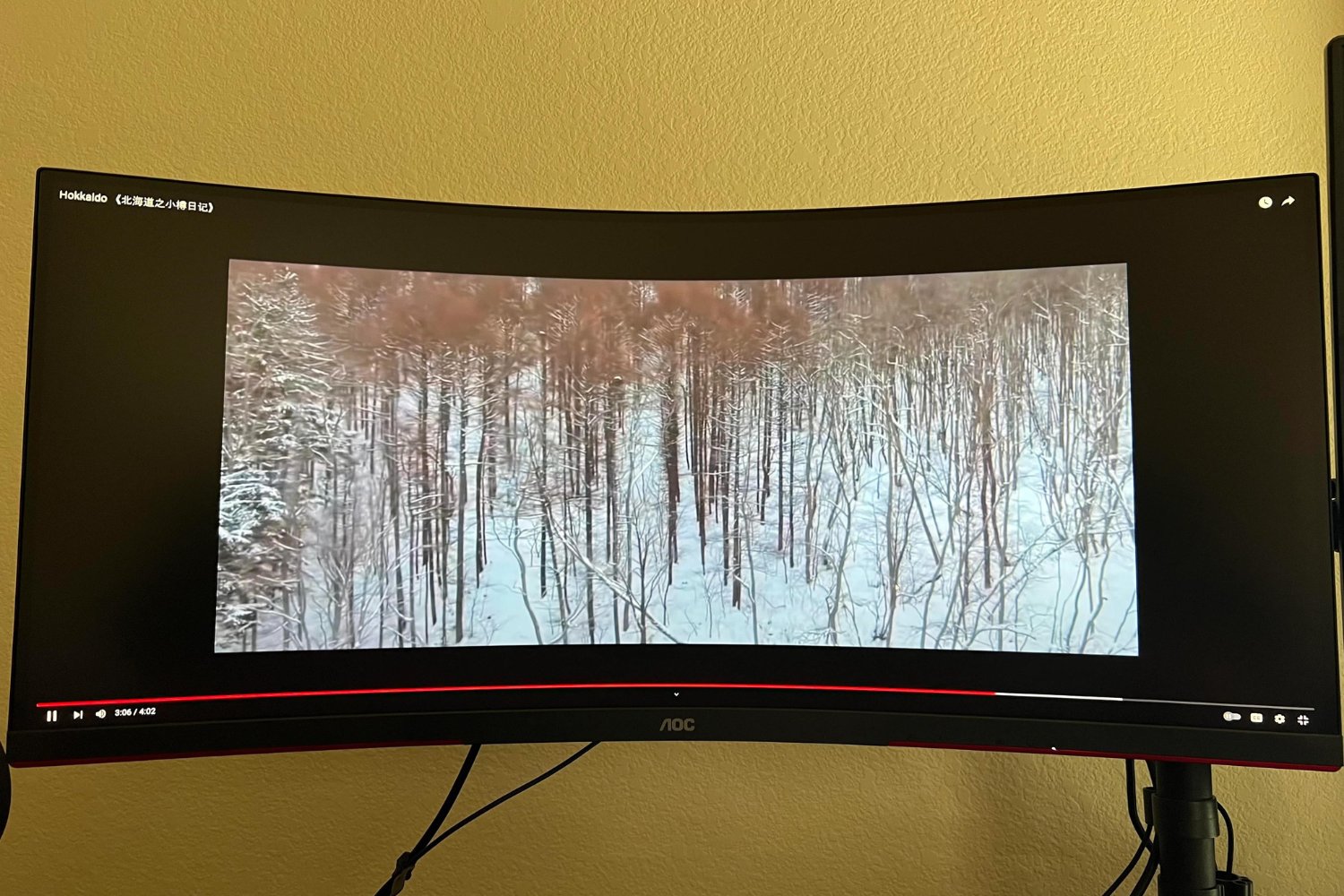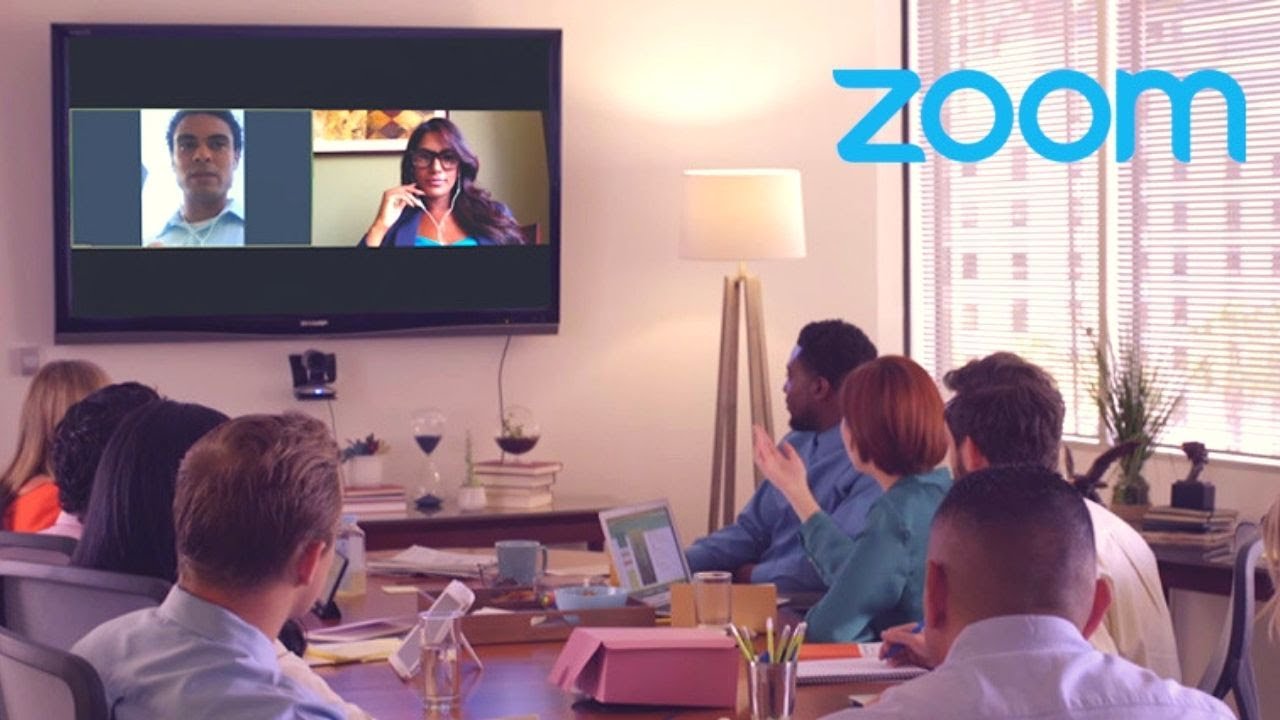
This tag collects articles about controlling how images appear on your screen, whether you are using a smart TV, a streaming device, or an ultrawide computer monitor. It is written for everyday viewers who are frustrated by black bars, cropped edges, stretched faces, or content that simply will not fill the display properly. The guides here are practical, focused on menu settings, remote controls, and operating system options, not on modifying hardware or breaking software.
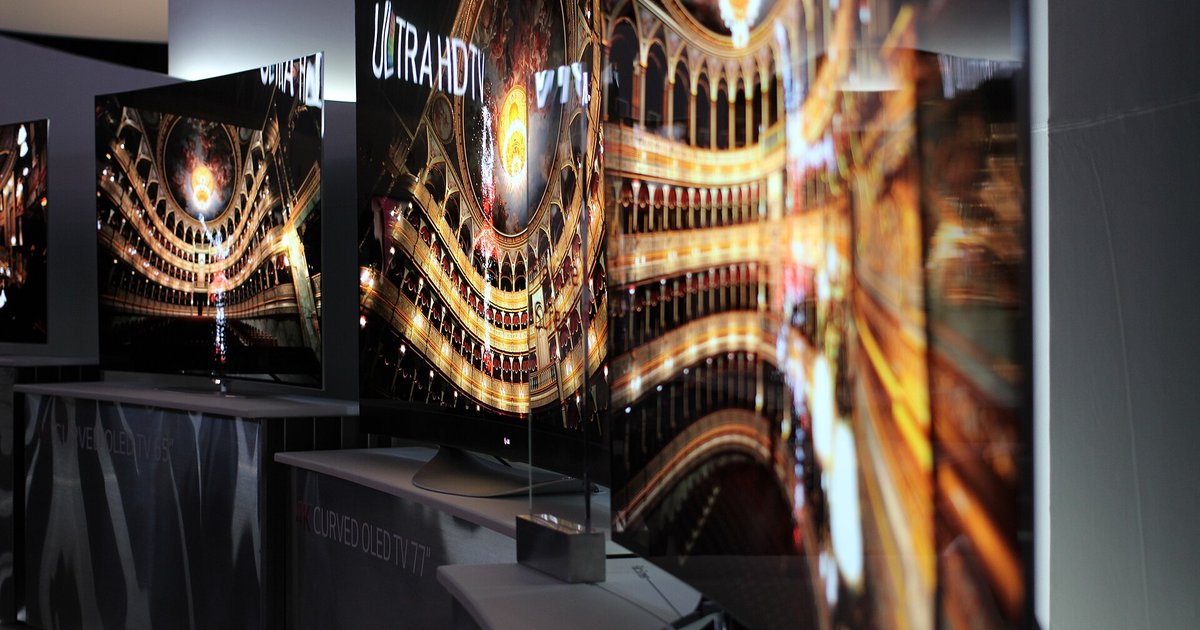
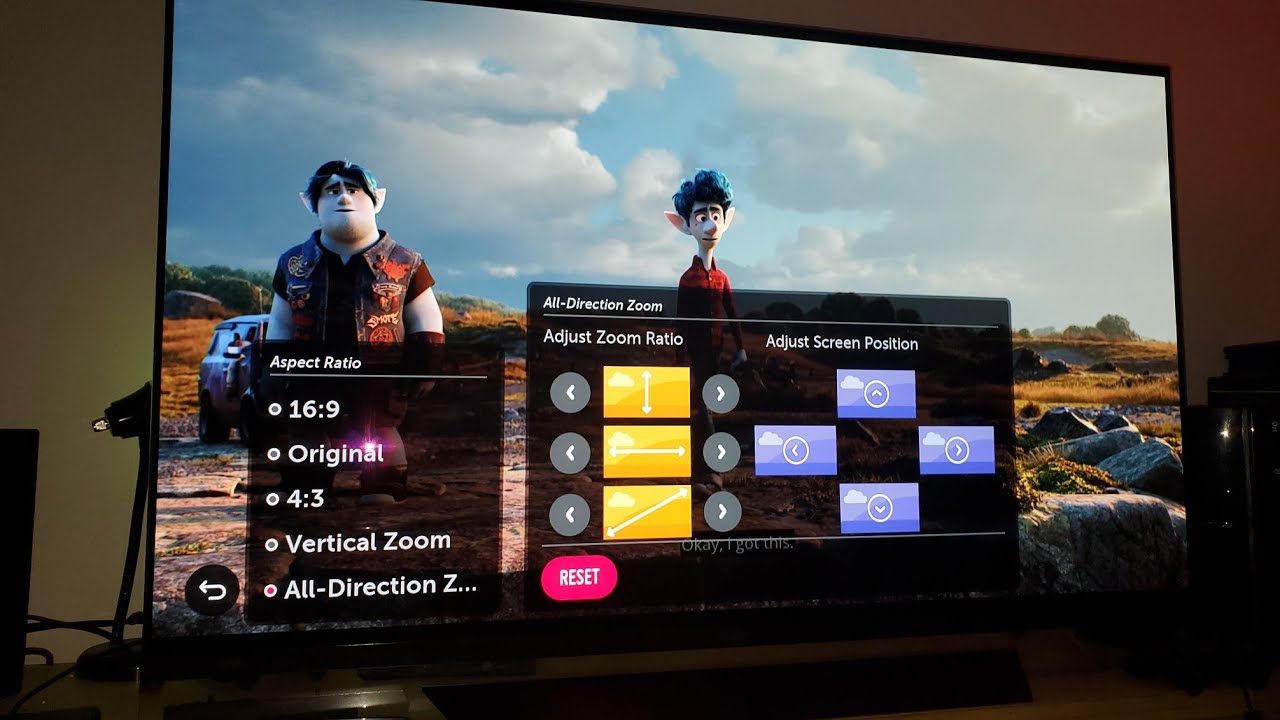
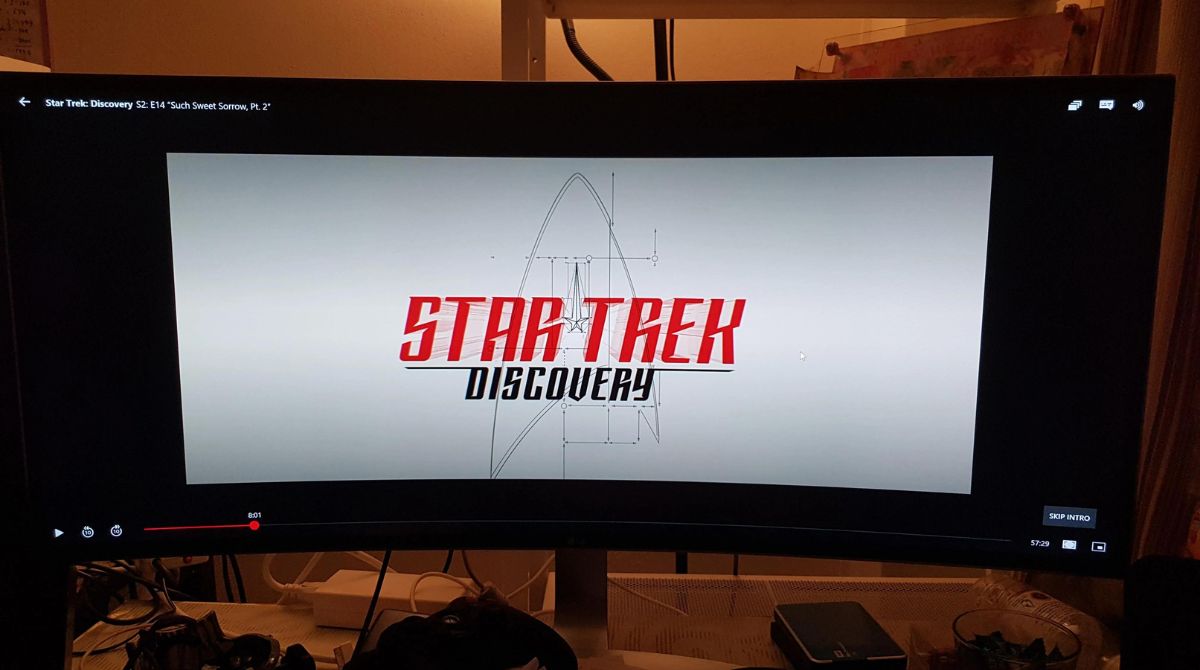
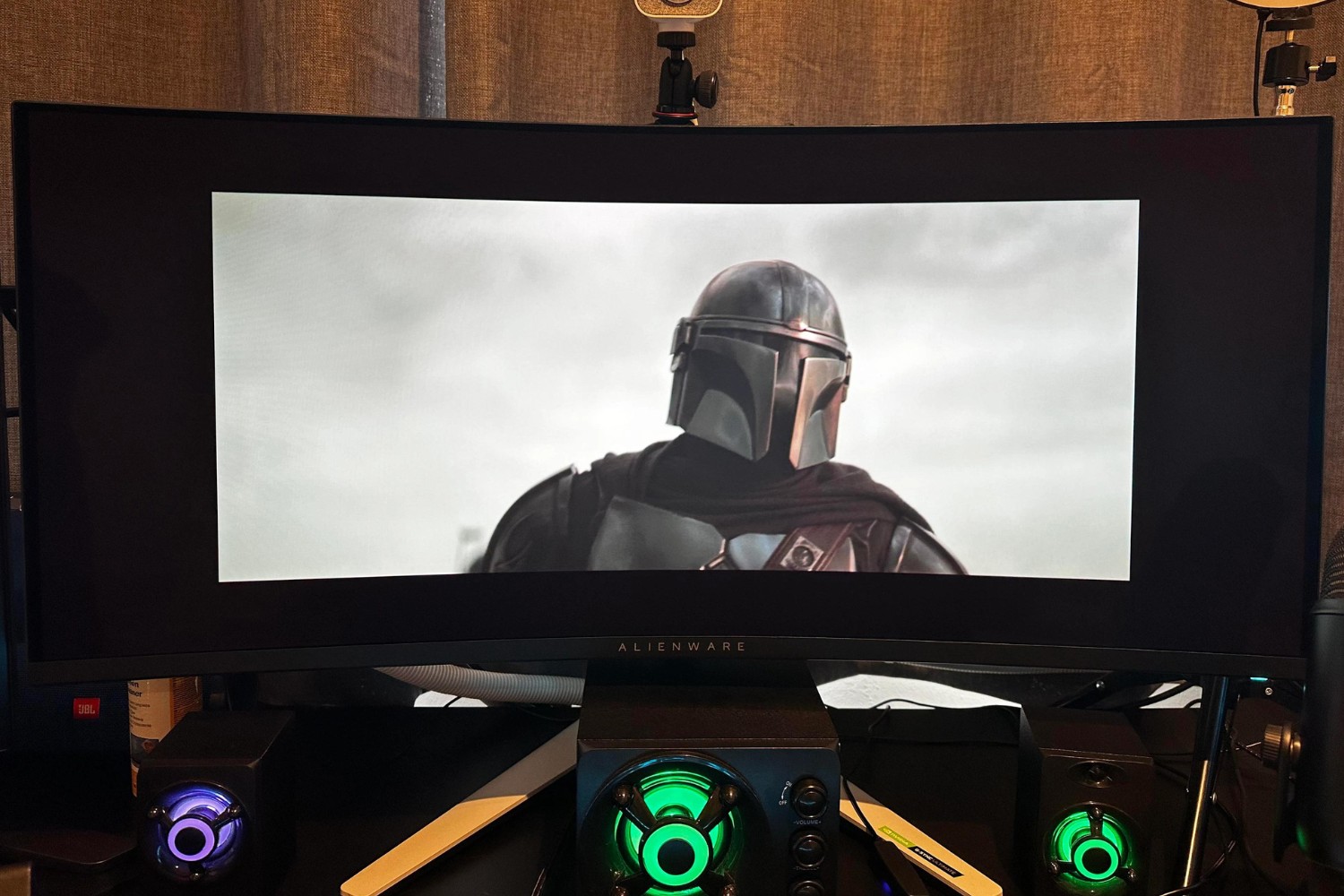
The problems addressed fall into a few clear themes. One is fixing the fit on standard TVs: you will find help with adjusting picture size on Vizio and Hisense models, changing the aspect ratio on LG OLED TVs, and troubleshooting why a TV picture does not fit the screen after a software update. A second theme is making streaming services play correctly on ultrawide monitors, which often involves forcing fullscreen playback for Netflix, Disney Plus, or YouTube videos. A third theme covers everyday computer use, such as getting your desktop to fit an ultrawide display or setting up OBS for recording or streaming without distortion.
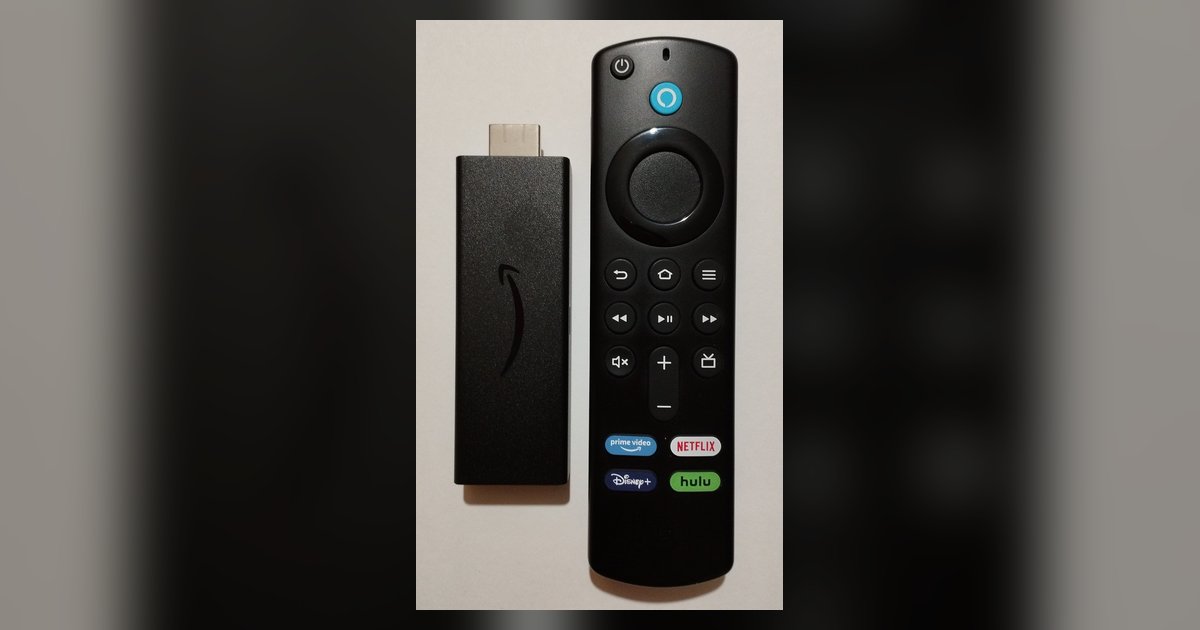
Several articles also explain why a picture looks stretched or distorted, and how to correct that without damaging your display. Others cover the LG OLED screen move feature when it stops working, or how to change aspect ratio on a Fire TV Stick or Roku. These are not hacks or workarounds, they are straightforward instructions for using the settings already built into your devices, so you can watch or work comfortably and correctly.