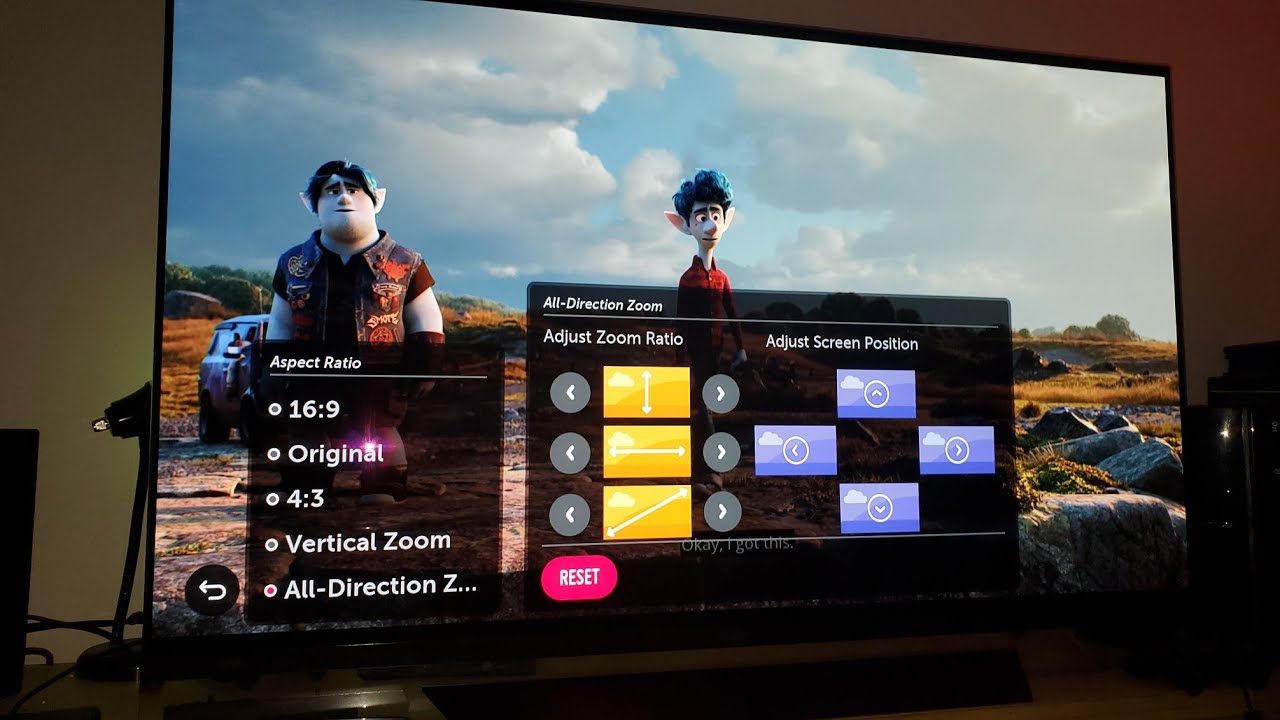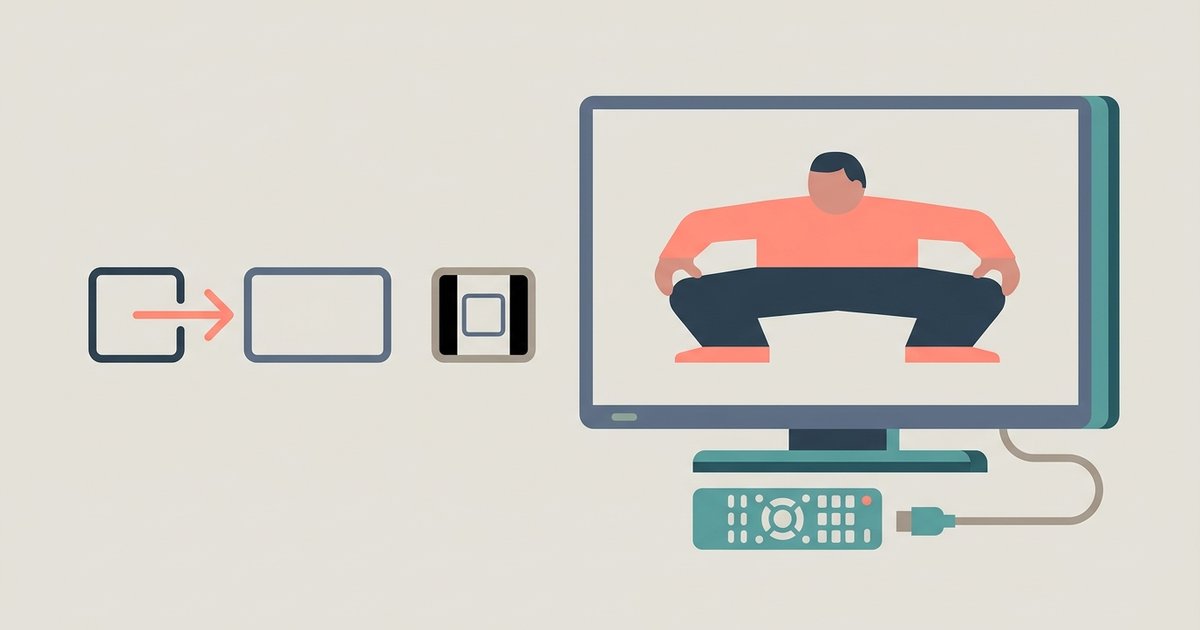
The picture is stretched because the aspect ratio of the incoming video signal does not match the shape of your TV screen, and the current picture mode is forcing the image to fill the width by distorting the geometry. You can fix this by finding the setting labeled 'Aspect Ratio' or 'Picture Size' and selecting 'Normal', 'Auto', or 'Just Scan' instead of 'Wide', 'Stretch', or 'Zoom'.
Why your TV picture stretched: broadcast shape vs screen shape
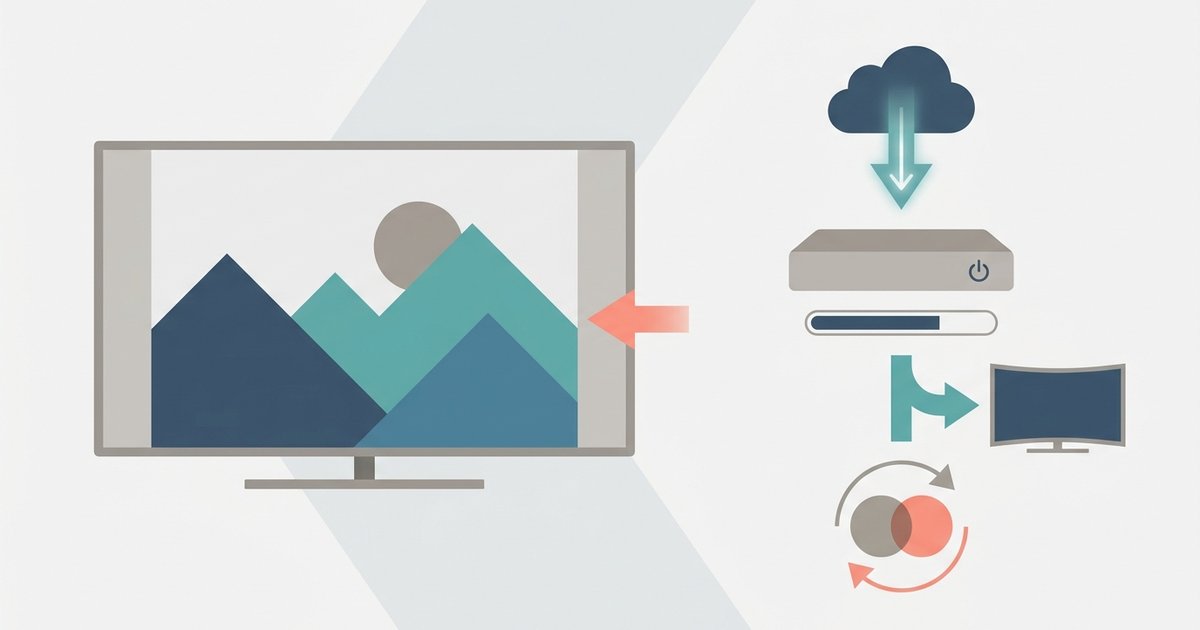
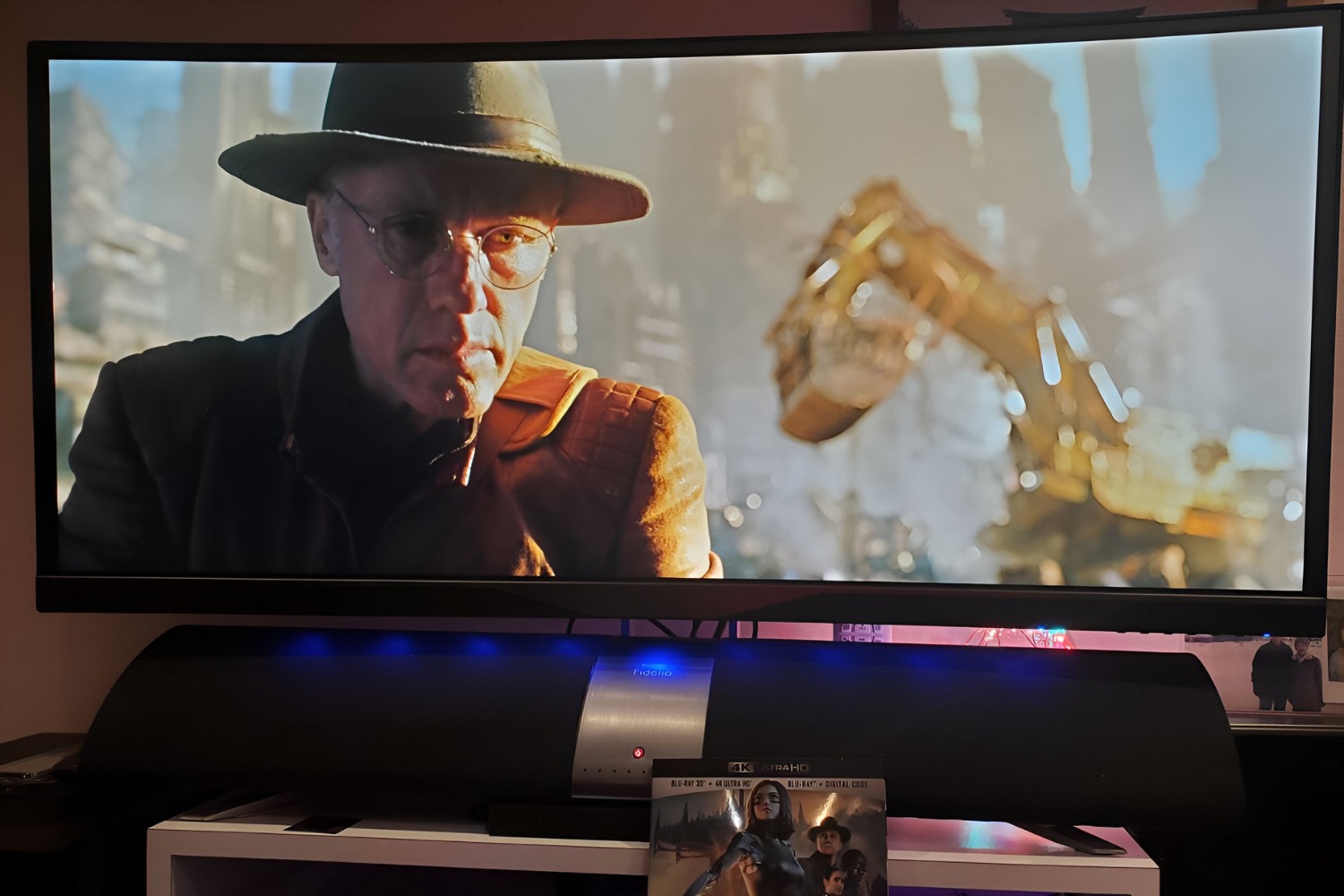
Your TV screen is a rectangle with a width-to-height ratio of 16:9, the standard for high-definition broadcasts. Much of the older content you watch was produced in a squarer 4:3 shape. This includes classic TV shows, movies from before 2005, and standard-definition cable channels. When a 4:3 image is sent to a 16:9 screen, the TV has to decide what to do with the extra horizontal space. The correct behavior is to display the image at its native dimensions, leaving vertical black bars on the left and right sides. These bars are not a defect. They are the mathematically honest way to show the image. Many users mistake these bars for a problem and reach for a setting that eliminates them. That is exactly when the stretching begins.
What the 'wide' and 'stretch' modes actually do to the pixels
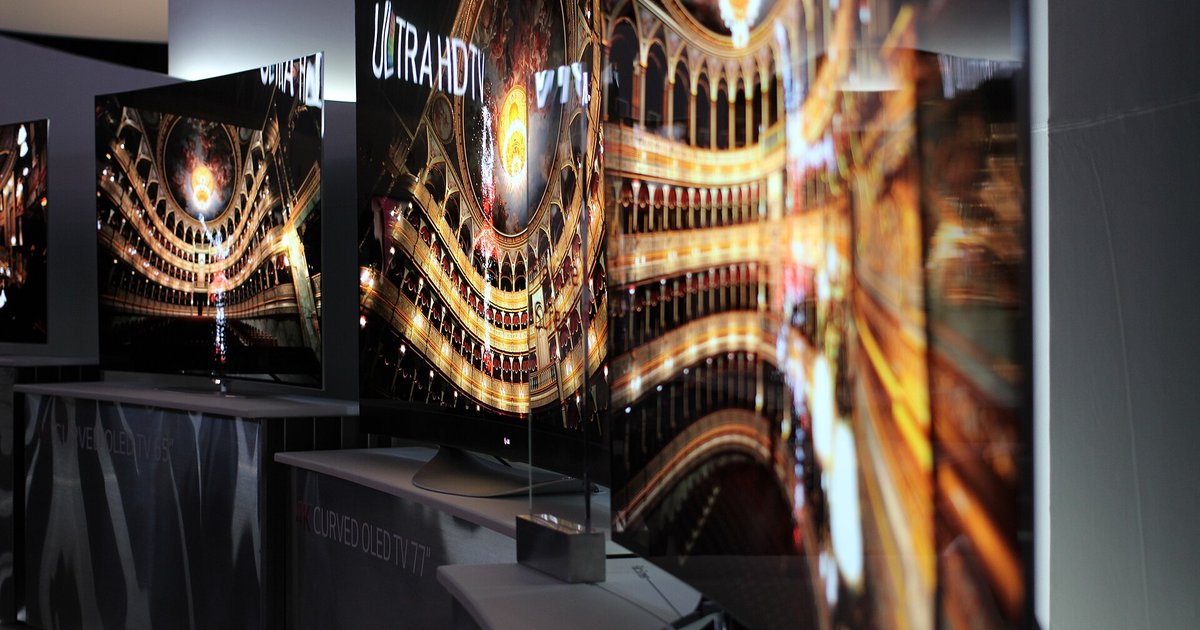
When you select 'Wide' or 'Stretch', the TV applies a non-linear scaling algorithm. Instead of uniformly expanding every pixel, the mode stretches the edges of the frame more than the center. A circle in the center of the screen might look nearly round. A circle near the edge becomes an oval. Faces appear wide, especially toward the sides, because the horizontal pixels are being pulled apart unevenly. The 'Panoramic' mode takes this further. It tries to keep the center region at the correct 4:3 ratio while aggressively stretching the outer 20-30 percent of the image. This creates an unnatural "fishbowl" effect on human faces. The correct fix is to use a setting that preserves the original pixel grid. Look for 'Normal', 'Auto', or 'Just Scan' to keep the image's geometry intact. If you need to fill the screen without distortion, you must accept that the source material is not the same shape as your TV.
When the distortion is not a setting but the source itself
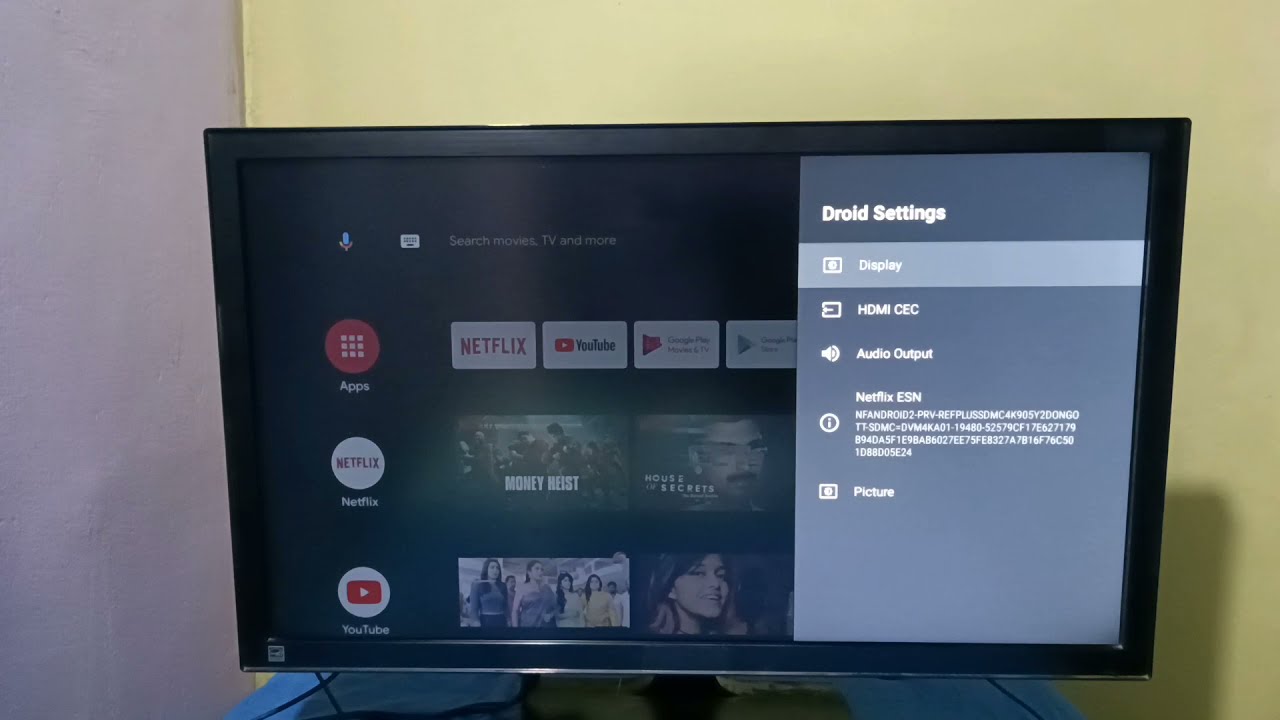
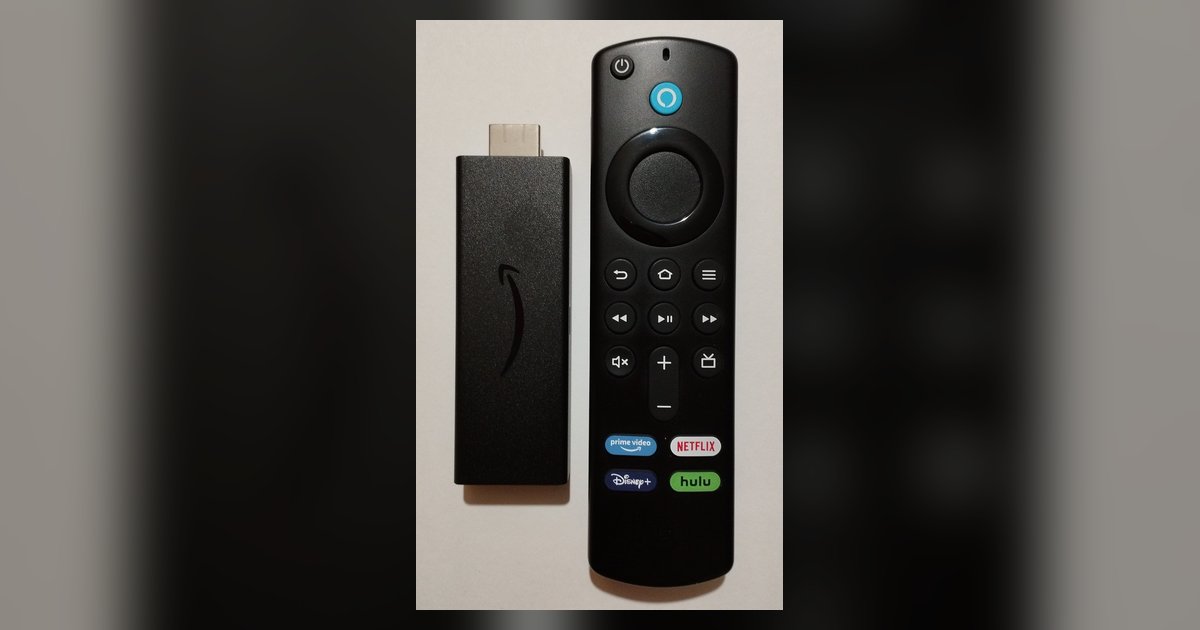
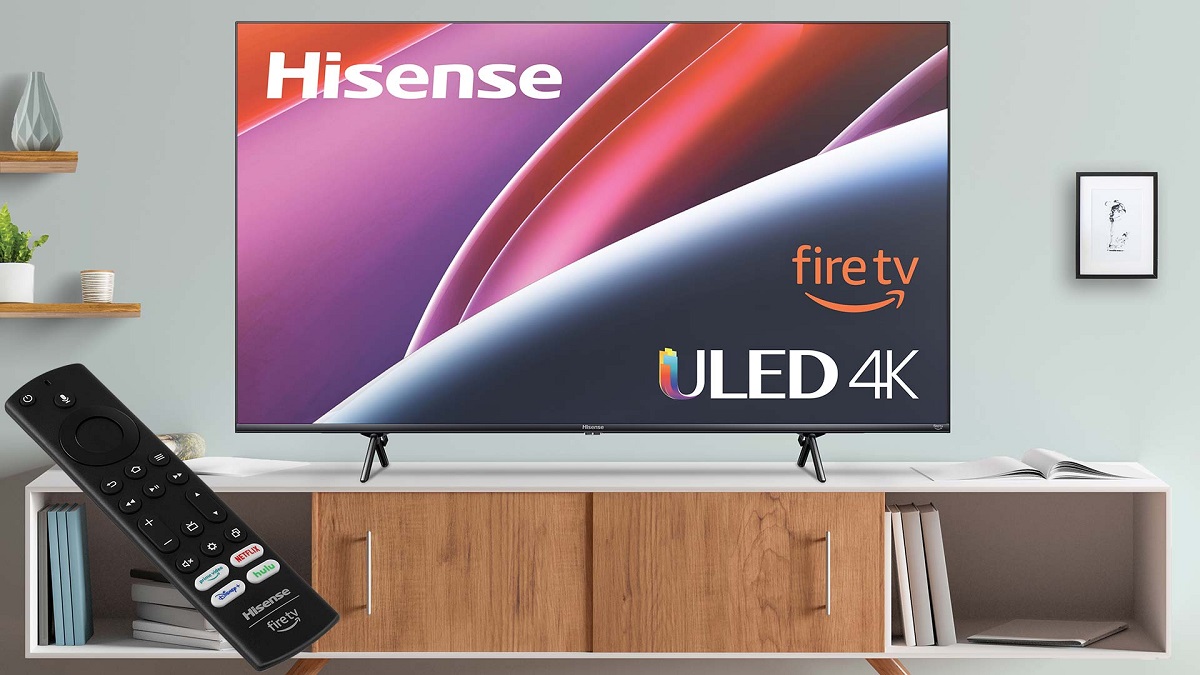
Even after cycling through picture presets, you likely missed the dedicated aspect ratio menu, which is separate from brightness or contrast settings. If your TV's aspect ratio is already set to 'Normal' or 'Just Scan' and the picture still looks stretched or has missing edges, the problem likely originates from the device feeding the signal. Cable boxes, streaming sticks, and game consoles often have their own display settings that override the TV's preferences. A Roku or Fire Stick might be set to output 720p or 480p instead of 1080p or 4K, forcing the TV to stretch a low-resolution signal. Navigate to the external device's settings menu, usually under 'Display', 'Video', or 'Output Resolution', and ensure it matches your TV's native resolution. If you own a Vizio, you can adjust the picture size on your Vizio smart TV by pressing the Menu button, selecting 'Picture', then 'Aspect Ratio', and confirming it is on 'Normal'. Similarly, you can change the picture size on your Hisense smart TV by going to Settings, selecting 'Picture', then 'Aspect Ratio', and choosing 'Direct' or 'Original'. For a full-screen experience without distortion, you may need to set full screen on Vizio smart TV by choosing 'Wide' only when the source is already 16:9 content. For a comprehensive walkthrough of these menus, you can learn how to zoom on smart TV to see every common brand's aspect ratio path. Remember: if the source device is locked to the wrong resolution, no TV setting will fix the geometry.
A setting that can fix stretching without distorting faces is 'Just Scan' on LG and Samsung TVs, because it maps every source pixel directly to one screen pixel with zero overscan.