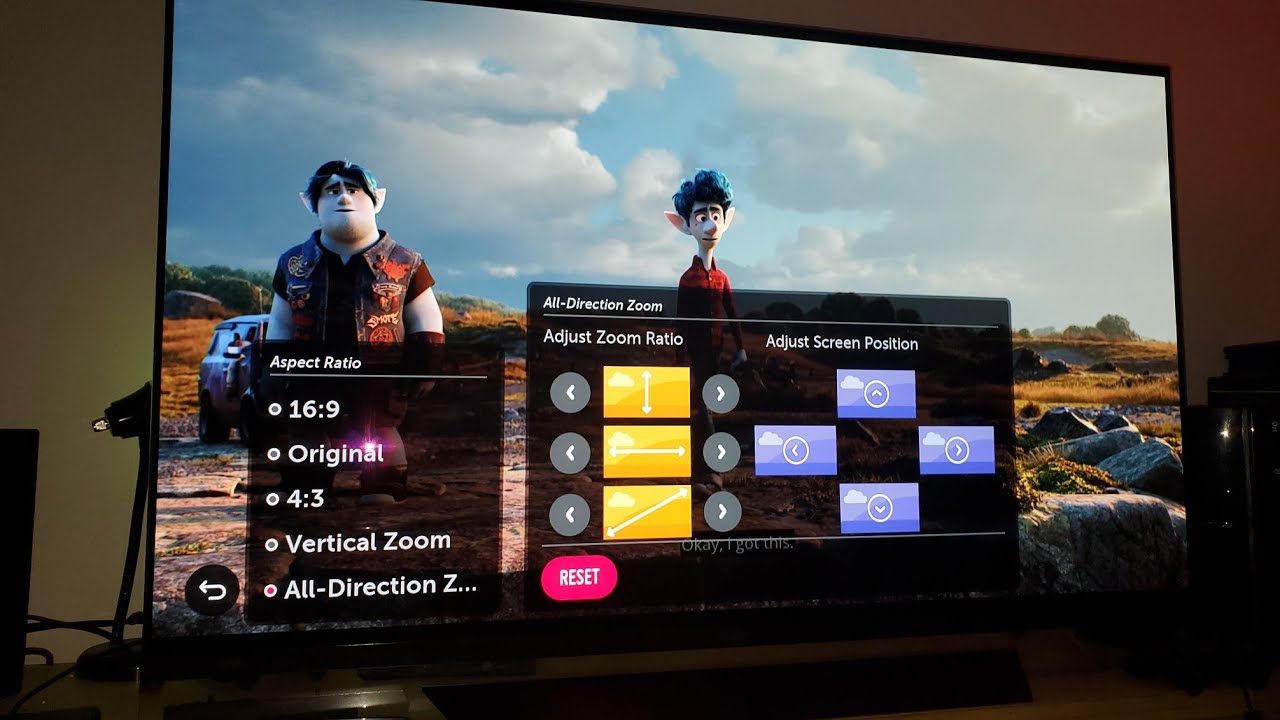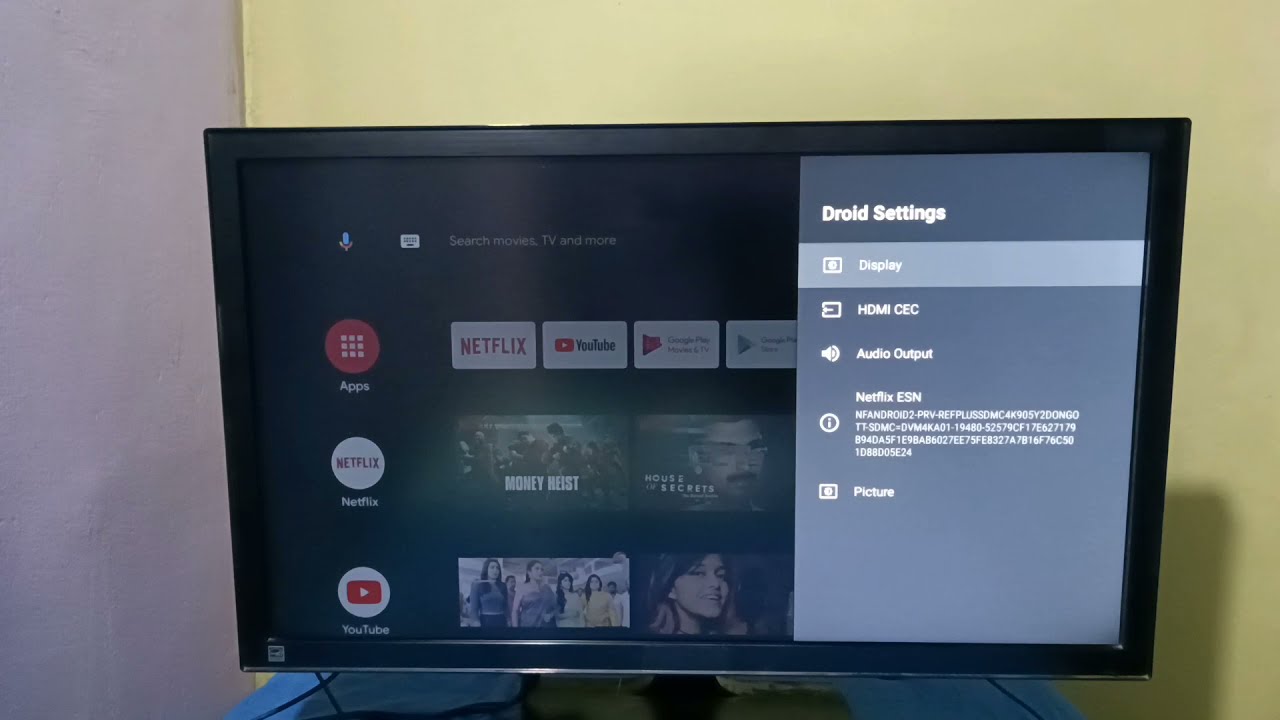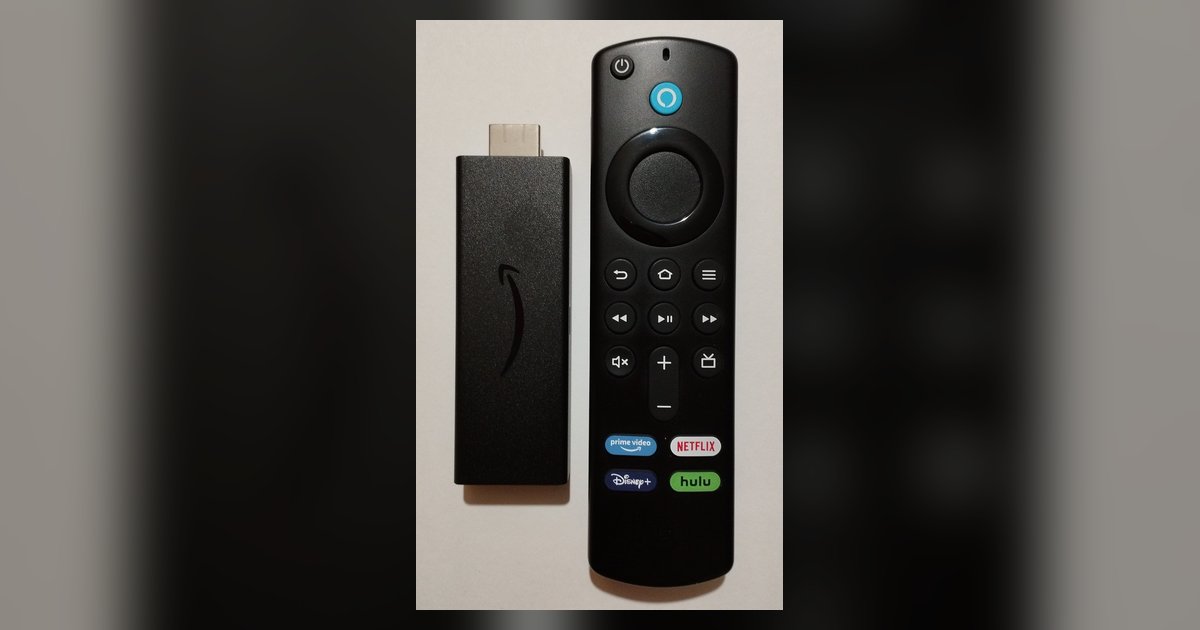
Your TV's aspect ratio is locked because the Fire TV Stick or Roku is sending a fixed 16:9 signal. You must change the display or picture size directly in the streaming device's own settings menu, not the TV's.
The change aspect ratio menu trap
The aspect ratio option appears grayed out on your Samsung, LG, or Vizio television. This happens because the Fire TV Stick or Roku is outputting a digital signal that bypasses the TV's internal scaler. Modern streaming sticks communicate with the TV via HDMI handshake protocols. They declare themselves as a fixed-resolution source, typically 1080p or 4K at 16:9. This forces the television into a "PC mode" or "graphics mode" where aspect ratio adjustments are disabled to prevent signal conflicts. The TV simply trusts the stick's output. Any overscan or stretching you see originates from the streaming device, not the television.
Fire TV Stick screen calibration
On a Fire TV Stick, you cannot directly change the aspect ratio. However, you can correct overscan or zoom issues by adjusting your TV's own picture settings, such as 'Aspect Ratio,' 'Picture Size,' or 'Zoom,' and setting them to 'Standard,' 'Direct,' or 'Fit to Screen.' This screen shows white arrows on each edge. Use your remote's directional pad to shift the image inward until all four arrows are just visible. This effectively trims away overscan, fixing the problem that makes you want to adjust the picture size on your Vizio smart TV from the TV menu. For resolution mismatches, return to Settings > Display & Sounds > Display > Video Resolution. Manually select a lower resolution, such as 720p. This forces the stick to send a clean signal that your TV can then scale without grayed-out controls.
Roku picture size and overscan
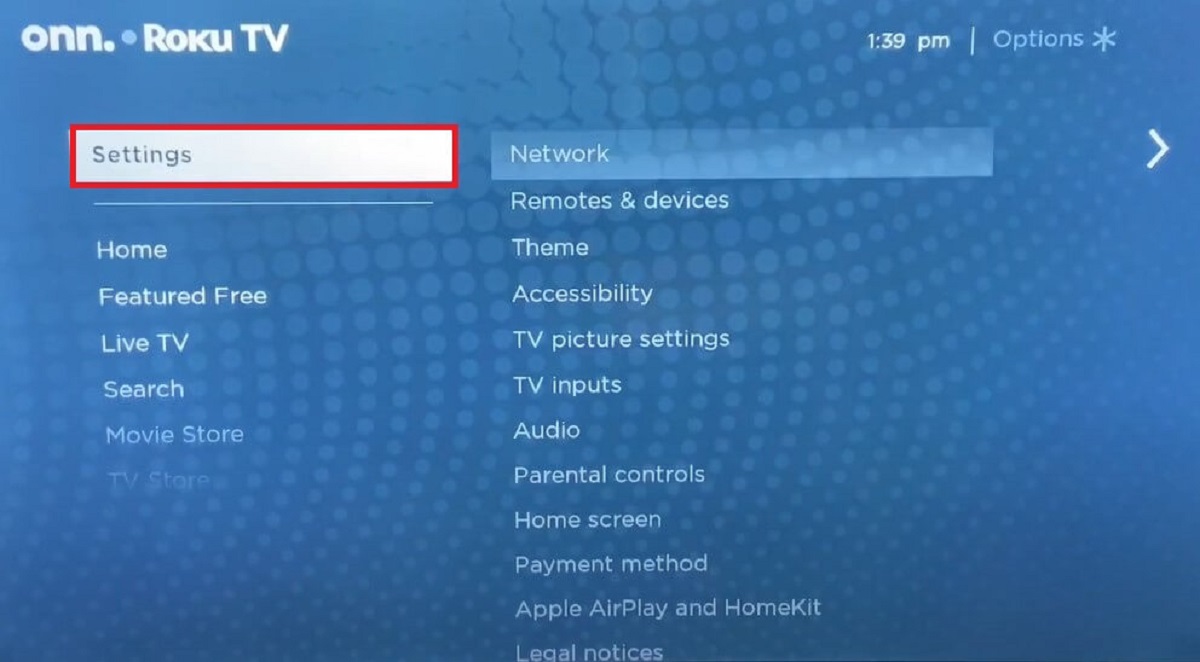
Roku devices provide picture size adjustment through the main settings. Press the star (*) button on your remote, then select "Picture settings" (or "TV picture settings") and then "Picture size" (or "Customize Picture Mode" then "Picture size"). This is the only way to unstretch a picture that appears cropped or zoomed. You can cycle through options like "Normal," "Stretch," or "Zoom" until the image fills the screen correctly. This setting exists because Roku's global settings offer picture size adjustment through the star button menu. The star menu is one tool if you wanted to zoom on your smart TV from the Roku itself. If this menu does not appear, the app itself may be locking the picture.
When the setting is still missing
Certain streaming apps may ignore the device's global picture settings or hide the star-button menu from their playback interface. In these cases, check if the app offers its own playback settings within its interface. If you still cannot fix the issue, you may need to switch to a different app or use the TV's native smart platform for that particular title. For example, if you want to change the picture size on your Hisense smart TV for a Netflix movie, you must launch Netflix from the Hisense's own operating system rather than from the Roku. Similarly, if you need to set full screen on Vizio smart TV for a YouTube video, use the Vizio's built-in YouTube app. That keeps the TV's aspect ratio controls active. Unlike a television, a streaming stick may limit some picture controls depending on the app, so one fix is to use the TV's built-in software if device-level settings are insufficient.