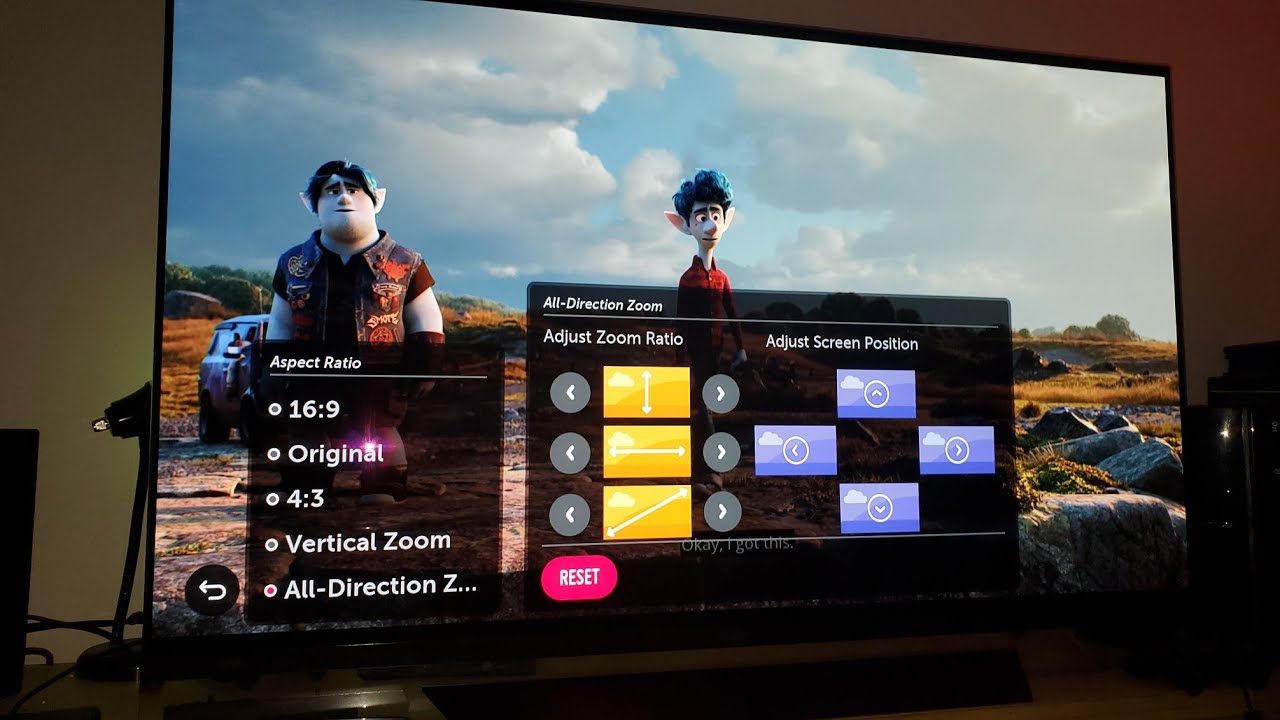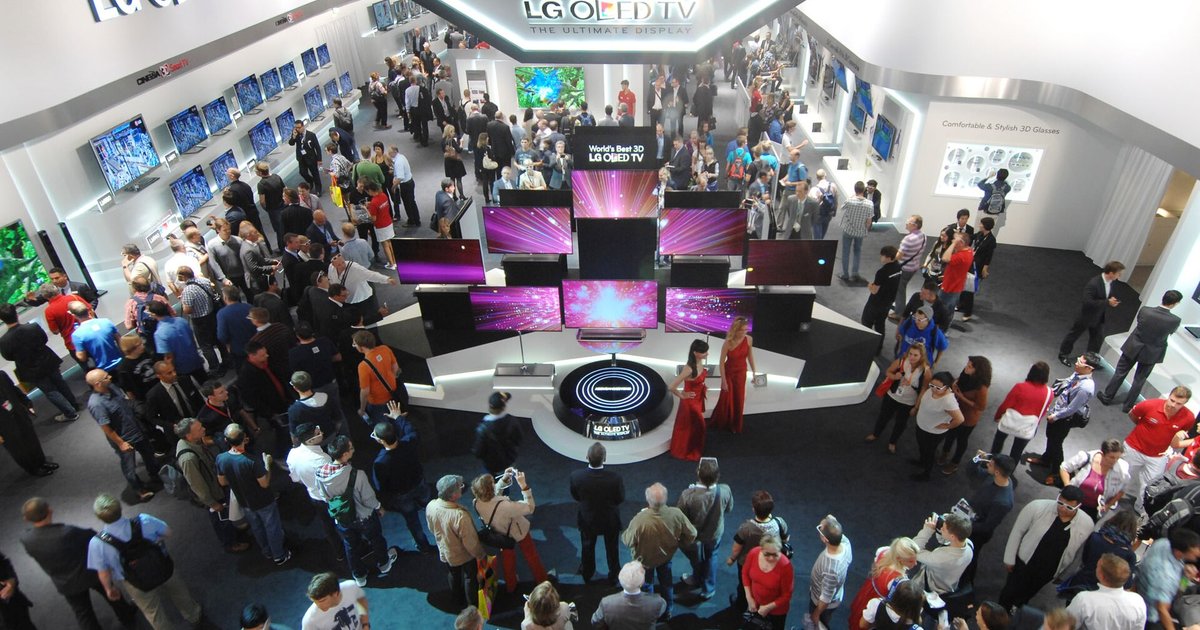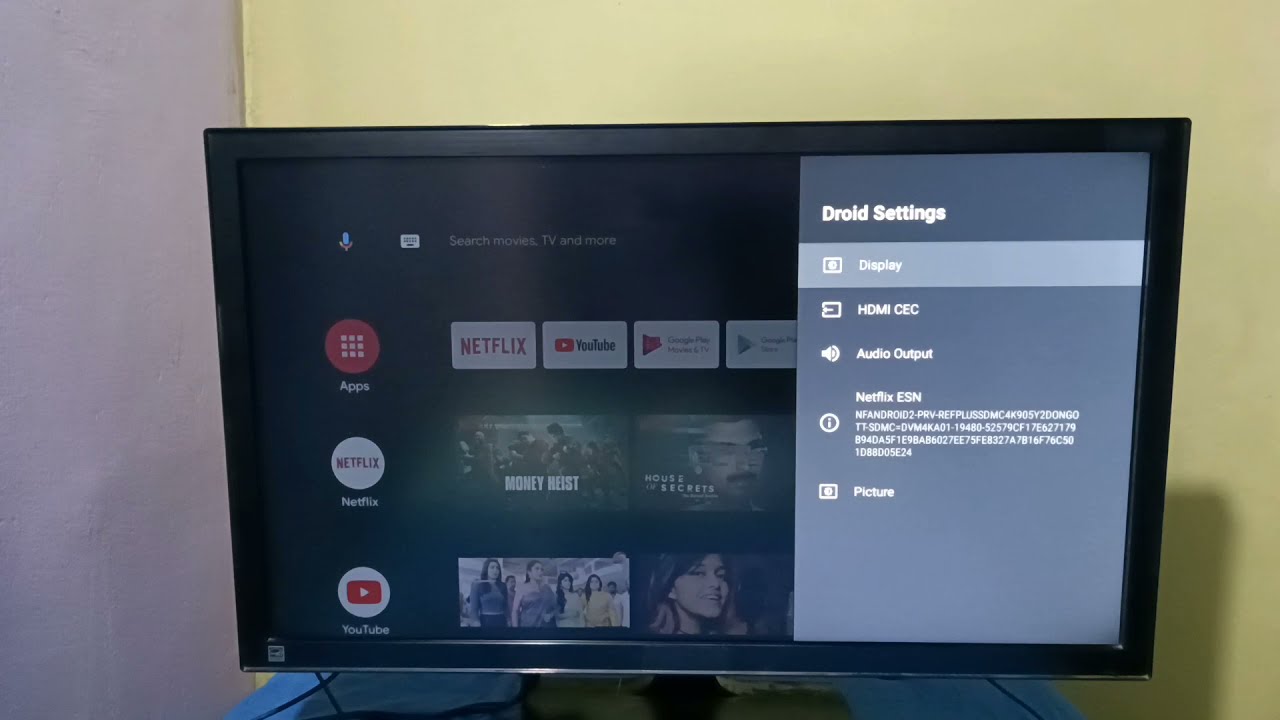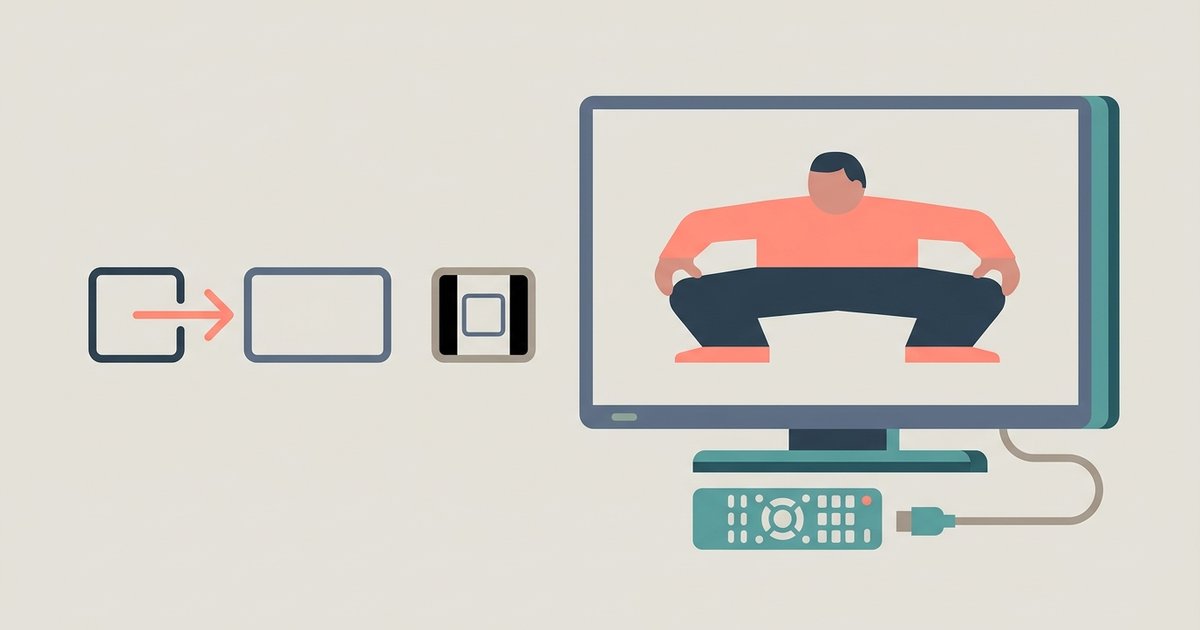
Screen Move is grayed out because you have a 4:3 or 21:9 aspect ratio selected, or the zoom is adjusted beyond the default 16:9 full-screen setting, leaving no physical margin for the screen to shift.
Check your aspect ratio and zoom for LG screen move
This leaves no physical margin for the screen to shift. This is the most common cause, and the fix is immediate once you revert to a standard full-screen format.
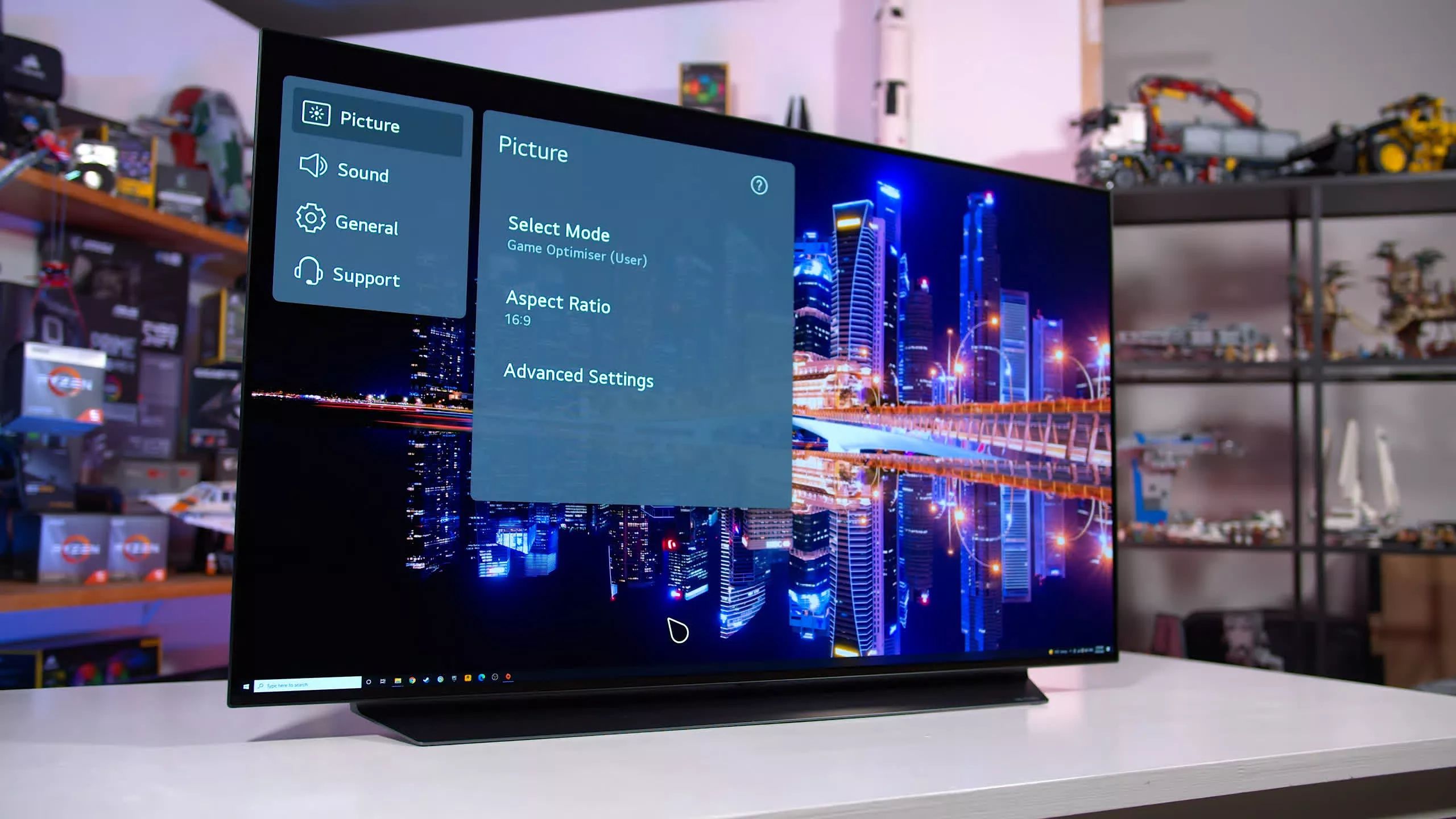
When you select a non-16:9 aspect ratio like 4:3, 21:9 (Cinema Scope), or any zoom mode that crops the image, the LG OLED TV physically lacks the extra pixels needed to shift the entire picture. Screen Move works by moving the whole raster left, right, up, or down by a few pixels over time. If the image already fills the panel edge-to-edge in a non-standard ratio, there is no “buffer zone” of black pixels to slide into. The setting grays out automatically in the OLED Care menu. The same happens if you use ‘Zoom’ or ‘Wide’ picture size settings. To verify, check your TV's aspect ratio or picture size settings and ensure it is set to a standard full-screen format like 16:9. Once you do this, the Screen Move toggle will become selectable again.
When screen move is on but you see no movement
Many owners assume Screen Move is broken because they never notice the image shifting. The feature operates at an extremely slow, imperceptible rate. It typically moves one pixel every few minutes, with a total shift of only 2-4 pixels in any direction over hours. You will never see the movement during normal viewing because the change is slower than your eye can track. To confirm it is active, you can use a test pattern. Display a static white grid on a black background, available from YouTube or a USB test file, then leave it for 15-20 minutes. If you notice the grid lines have drifted by a tiny amount relative to the bezel, the feature works. Alternatively, check the TV’s service menu or simply trust that if the toggle is On and not grayed out, the pixel shifting is running. For other TV adjustments, you might also need to adjust the sound on LG OLED TV settings if audio issues arise, but that is unrelated to Screen Move.
Why screen move won't prevent all burn-in
Screen Move is a useful but limited tool. It only shifts static logos, channel bugs, and menu banners by a handful of pixels, typically 2 to 4 pixels horizontally and vertically. This is enough to spread the wear of a small, dim logo across a slightly larger area. However, it cannot protect against bright, persistent HUD elements in video games or news tickers that span the full width of the screen. A bright red health bar or a white news ticker, for example, will still cause uneven pixel aging because the shift is too small to move the element off the pixels it burns.
The only reliable defense against permanent image retention on an OLED is varying your content daily, because no pixel-shifting algorithm can fully compensate for hundreds of hours of the same static element. For heavy gaming or 24/7 news viewing, you should also enable ‘Logo Luminance Adjustment’ set to High and consider running the pixel refresher manually every few hundred hours. Keep in mind the pixel refresher cannot be interrupted once started. If you need to physically reposition the TV to avoid direct sunlight, refer to a guide on how to install LG OLED TV stand. If you ever lose power, locate the power button on LG OLED TV to restart the system. None of these steps replace the need for mixed content, but they help reduce cumulative damage. For a deeper understanding of all available options, explore your LG OLED TV settings to master the broader topic of LG OLED TV: Settings and Setup.