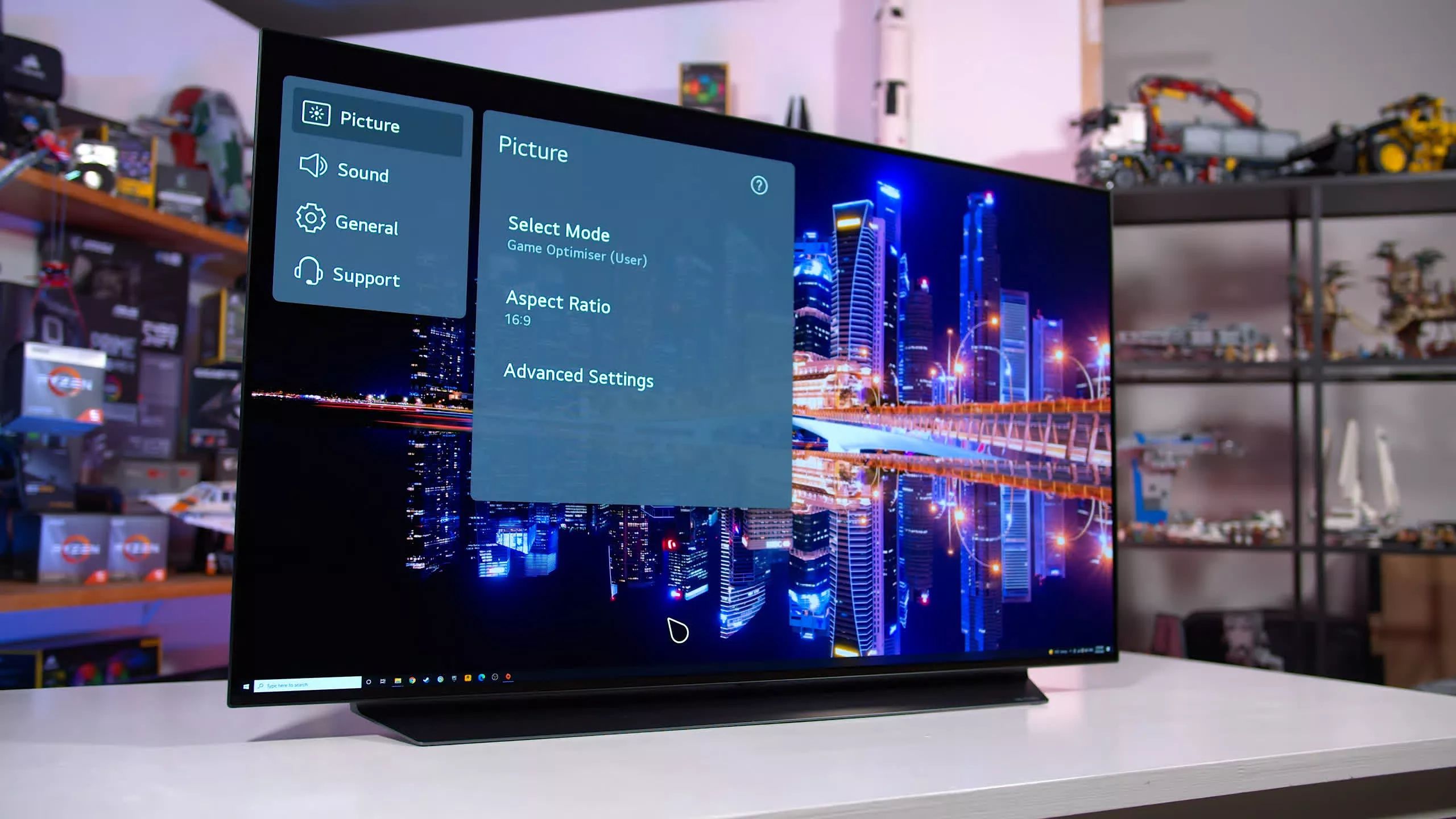
The setting is in the Picture menu, or the General menu on some models. Go to Settings > Picture (or General on some models) > HDMI Ultra HD Deep Color to enable the feature per input.
Exact menu path to enable ultra HD deep color
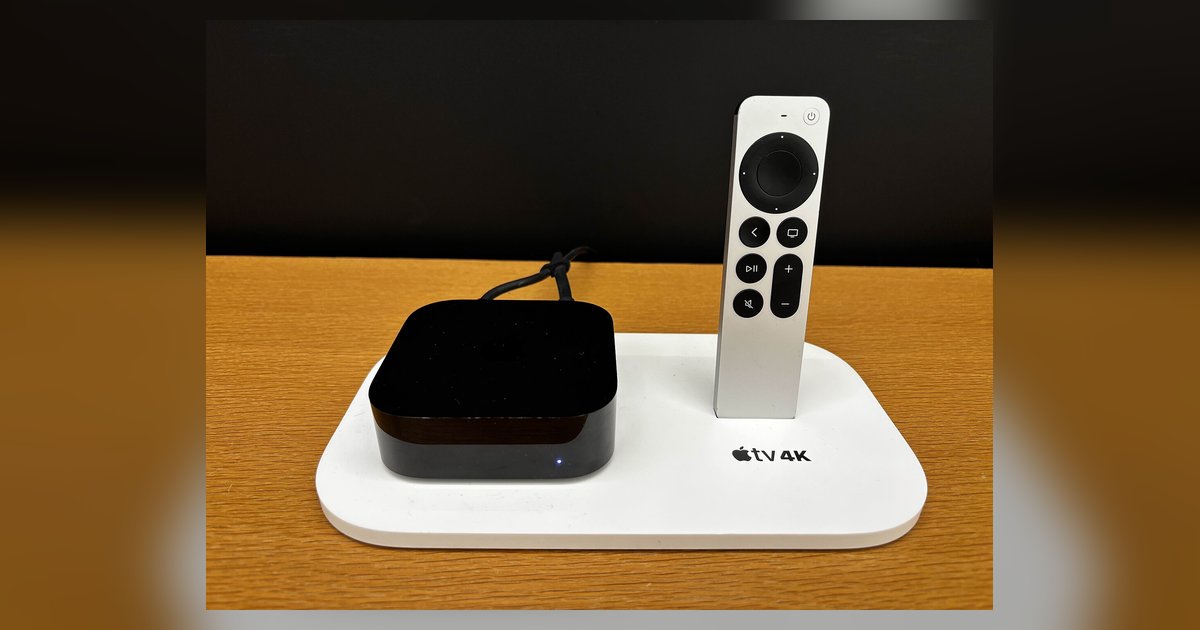
Press the **Settings** gear icon on your LG remote. Then select **All Settings**. That is the three‑dot icon in the top‑right corner if you are on the quick‑settings bar. From the left column, choose **Picture** (or **General** on some models). Scroll down to **HDMI Ultra HD Deep Color** and open it. Inside you will see a list of every HDMI port on your TV. Next to each port is a toggle to enable the feature. Turn the toggle **On** for the input connected to your HDR source. For example, use HDMI 1 for your Apple TV 4K or PS5. If you want to adjust the sound on LG OLED TV separately, you can return to the General menu and open the Sound submenu. The HDMI Deep Color setting itself only changes the video signal path.
Why it is not in the picture menu
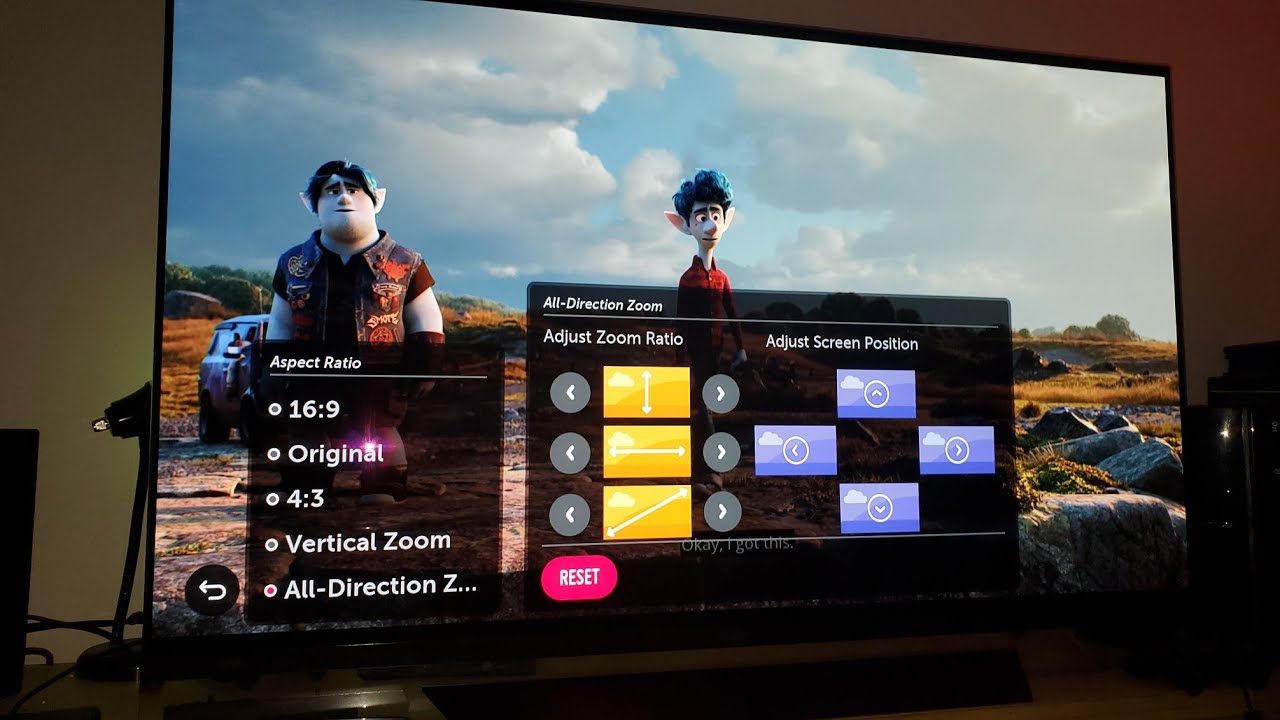
Many users search the Picture menu first because HDR is a visual feature. But HDMI Ultra HD Deep Color is not a picture mode or a calibration tool. It is an HDMI port configuration. It governs the electrical signaling between your source device and the TV’s processor. Grouping it under Picture (or General on some models) makes sense because it controls how the TV negotiates bandwidth with the connected player. This is similar to how you would set HDMI‑CEC or ARC settings in the same menu. Picture menu options like OLED Light, Contrast, and Gamma adjust how the TV renders the image after the signal is received. They cannot change the signal’s bit depth or color space. For reference, an LG OLED TV pixel refresh duration is handled entirely inside the TV’s maintenance menu, not here. That function runs in the background after you turn off the TV for a few hours.
When the option is grayed out or missing
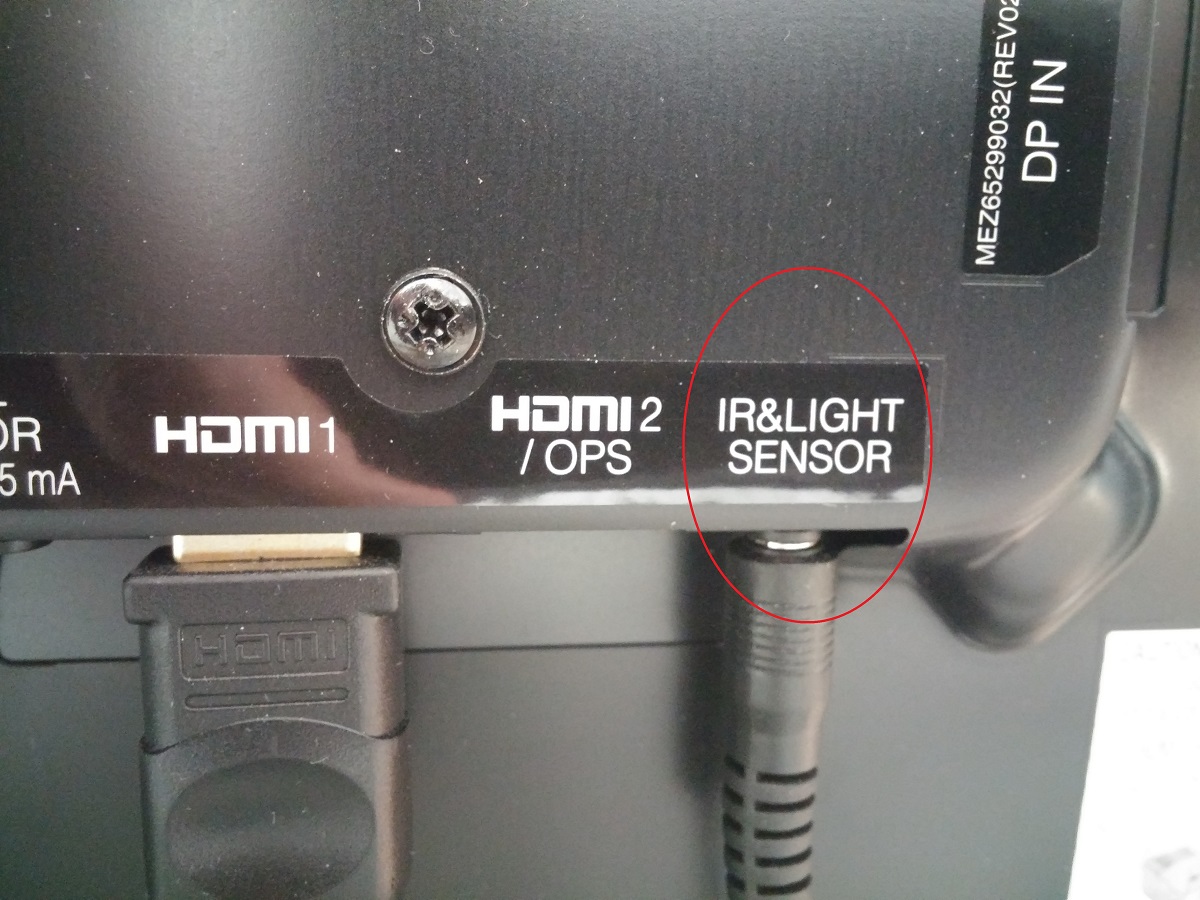
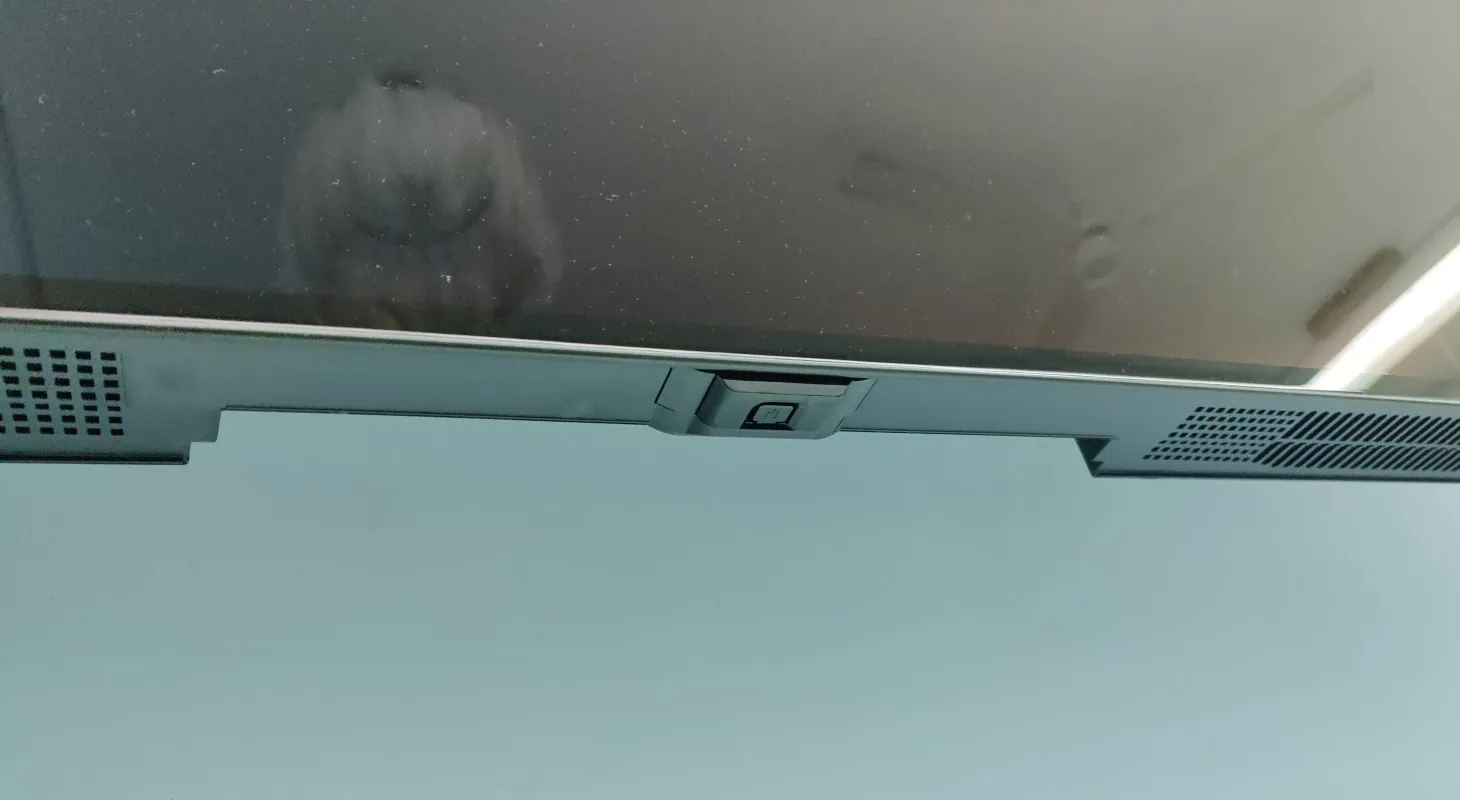
If the toggle for HDMI Ultra HD Deep Color appears grayed out or is completely absent, the most common cause is an active video signal. The TV locks the setting because it detects a live picture on that port. To make the toggle selectable, switch to a different input first. For example, change to HDMI 2 or the TV’s built‑in apps. This makes the port you want to configure go idle. Alternatively, turn off the connected device while staying on that HDMI input. Your Blu‑ray player or game console will work. The TV will then see an inactive link and allow you to change the Deep Color setting. If the option remains grayed out after switching inputs, check your HDMI cable. It must be certified as “High Speed” or “Ultra High Speed.” That means 18 Gbps or 48 Gbps. A standard cable may not support the necessary bandwidth. Finally, you might need to physically move the TV to inspect ports. Consult a guide on how to install the LG OLED TV stand. The stand must be securely attached before tilting the panel. And if you ever need to restart the TV because the setting does not take effect, locate the power button on the LG OLED TV. It is a small joystick‑style button on the bottom‑right edge of the screen, behind the LG logo.
Unlike other TVs that bury this setting under a generic “Input Signal Plus” label, only LG organizes HDMI Ultra HD Deep Color as a per‑port toggle inside the Picture menu (or General menu on some models), giving you independent control over each input’s HDR bandwidth negotiation. For a deeper dive into the broader topic of LG OLED TV settings and setup, exploring the full range of picture and connectivity options will help you get the most out of your display.