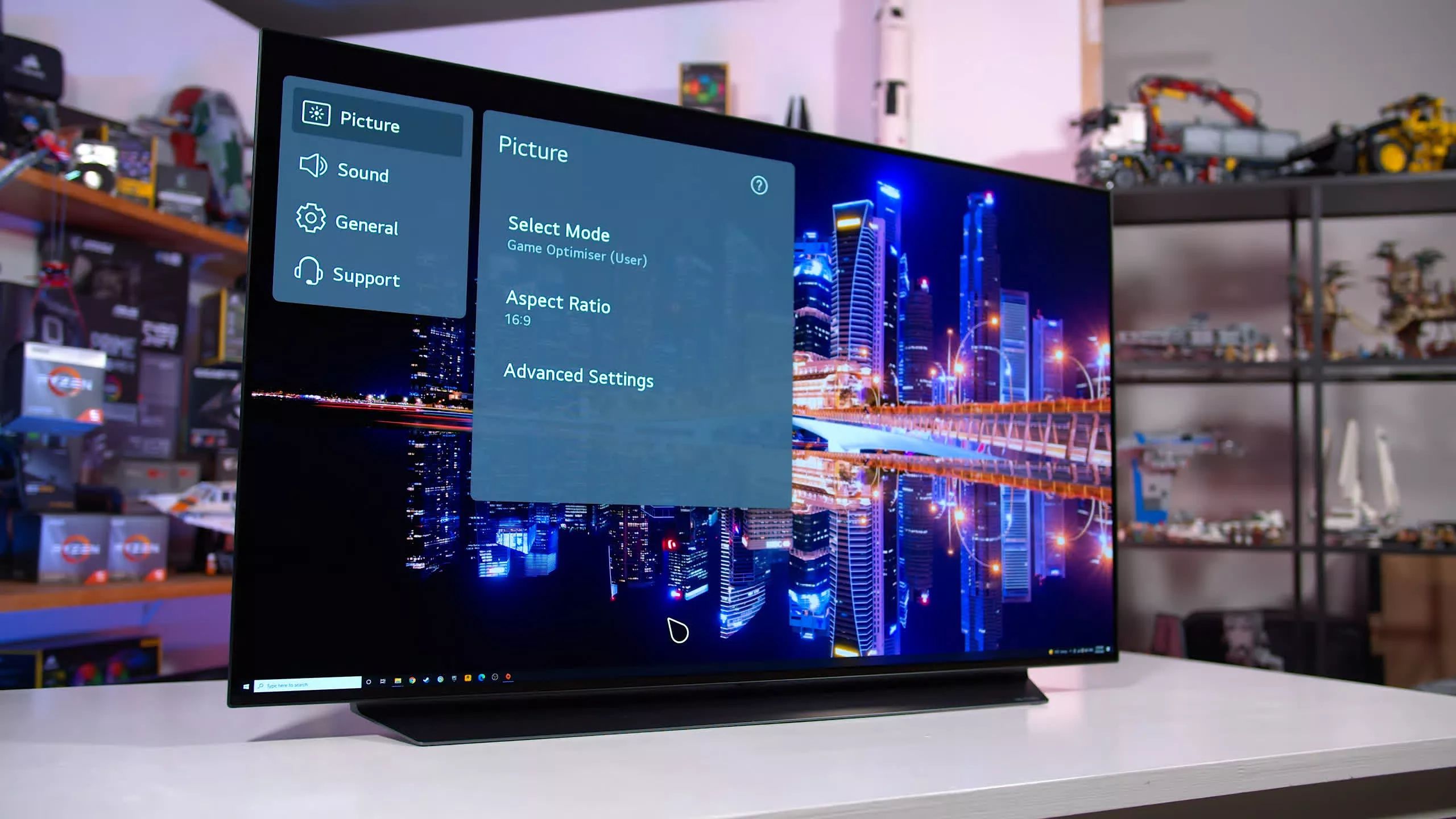
Go to Settings > All Settings > Sound > Advanced Settings > Match Screen and Sound (or Additional Settings > AV Sync Adjustment on older models), turn it on, and use the slider to manually delay the audio until it matches the picture. First try setting 'Bypass' to On in the same menu to output sound without additional delay. If that does not resolve the issue, turn Bypass off and adjust the slider.
LG OLED lip sync: av sync adjustment vs bypass
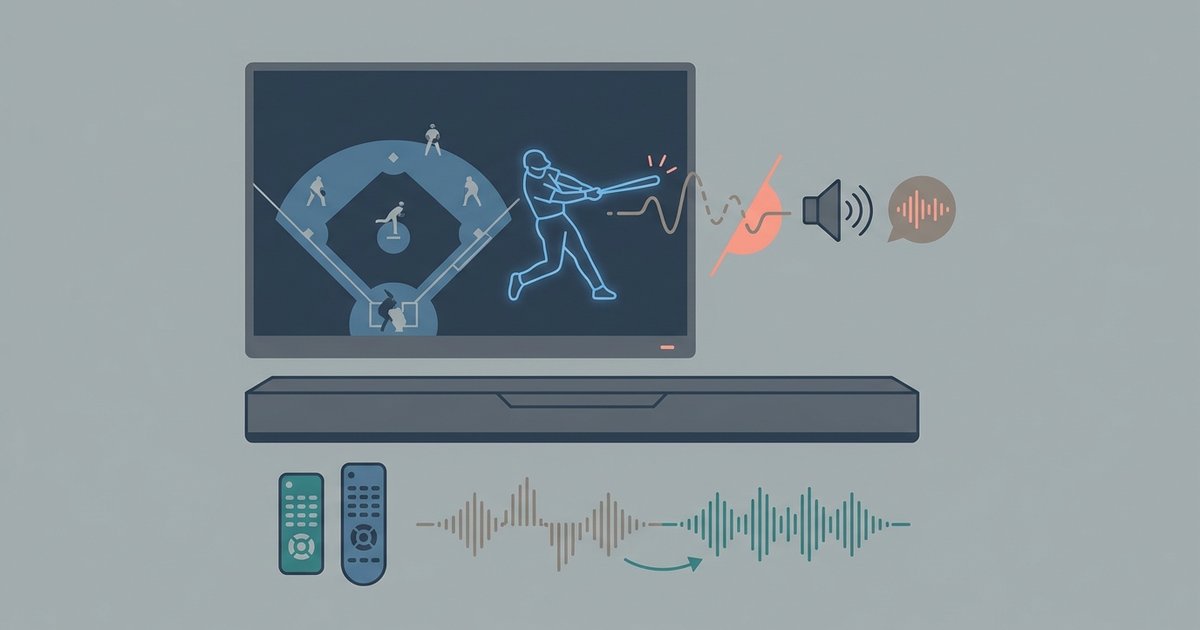
The AV Sync Adjustment slider adjusts audio timing. If the sound arrives too early, adjusting the slider can help. But if the sound lags behind the picture, adding more delay may make the problem worse. This is the more common complaint with soundbars and home theater systems. The Bypass setting is in the same menu. It forces the TV to stop running its internal audio processing pipeline. With Bypass On, the TV sends the raw audio signal directly to your external device without additional delay. Without this, the TV processes the audio twice. It processes once internally and once in your soundbar, doubling the latency. To properly adjust the sound on LG OLED TV, you must toggle Bypass On whenever your external speaker is handling decoding.
LG OLED TVs separate a delay slider from a dedicated Bypass toggle within a single AV Sync Adjustment menu, allowing correction for audio sync issues.
Fixing external device lag with passthrough
Even with Bypass active, HDMI ARC or eARC can introduce its own lag if the TV re-encodes the audio. Navigate to Settings, then Sound, then Sound Out and select "HDMI ARC" or "eARC" if supported. Then go to Settings, then Sound, then Digital Sound Output. Change the option from "Auto" or "PCM" to "Pass Through." This tells the TV to hand off the raw bitstream to your soundbar without any transcoding. Your soundbar then manages its own sync timing, which is usually tighter than the TV’s. If you are using a receiver, ensure it is set to "Direct" or "Pure Audio" mode to avoid additional processing. You can also explore how to change HDMI settings on LG OLED TV under the General, Devices, HDMI Settings menu. Disable "Simplink" (HDMI-CEC) temporarily there. A misbehaving handshake can inject random audio delays.
When the built-in apps are the problem
Streaming apps like YouTube, Netflix, or Disney+ on webOS can drift out of sync independently of the TV’s global audio configuration. This happens because the app’s internal decoder applies its own buffer that conflicts with the TV’s AV Sync Adjustment. To force a resync, open the app and start playback. Then press the Settings gear button on the remote. Look for "Sound" or "Audio" options within the app’s player overlay. Toggle "Audio Passthrough" Off then On again. If that menu is missing, close the app completely. Then go to Settings, Sound, Advanced Settings, HDMI Input Audio Format and set it to "Bitstream" instead of "PCM." This forces the TV’s decoder to reinitialize. For persistent drift in a single app, you can also change the frame rate on your LG OLED TV by enabling "Real Cinema" or "Motion Pro" under Picture configuration. This stabilizes the video clock and reduces sync drift over long playback sessions.
What to do when nothing works
If you have tried AV Sync Adjustment, Bypass, Pass Through, and app-specific toggles without success, the audio delay may be baked into a corrupted firmware state. The nuclear option is a factory reset of audio preferences only. Go to Settings, Sound, and look for an option to reset sound settings to clear all custom sync offsets and processing modes. This clears all custom sync offsets and processing modes. If the issue persists, switch to an optical TOSLINK cable instead of HDMI. Optical bypasses HDMI-CEC entirely and forces the TV to output a simpler PCM signal that many soundbars handle with near-zero latency. Note that an optical connection cannot carry lossless Atmos. But it often fixes stubborn sync problems. A stuck pixel refresh process can temporarily throttle the TV’s processing speed, causing audio to fall out of sync. Power-cycle the TV by unplugging it for 60 seconds, then test again. If nothing resolves the lag, your soundbar or receiver may have its own firmware delay that requires a separate update. For further guidance on optimizing your television, explore broader LG OLED TV settings and setup options to ensure all configurations are aligned.