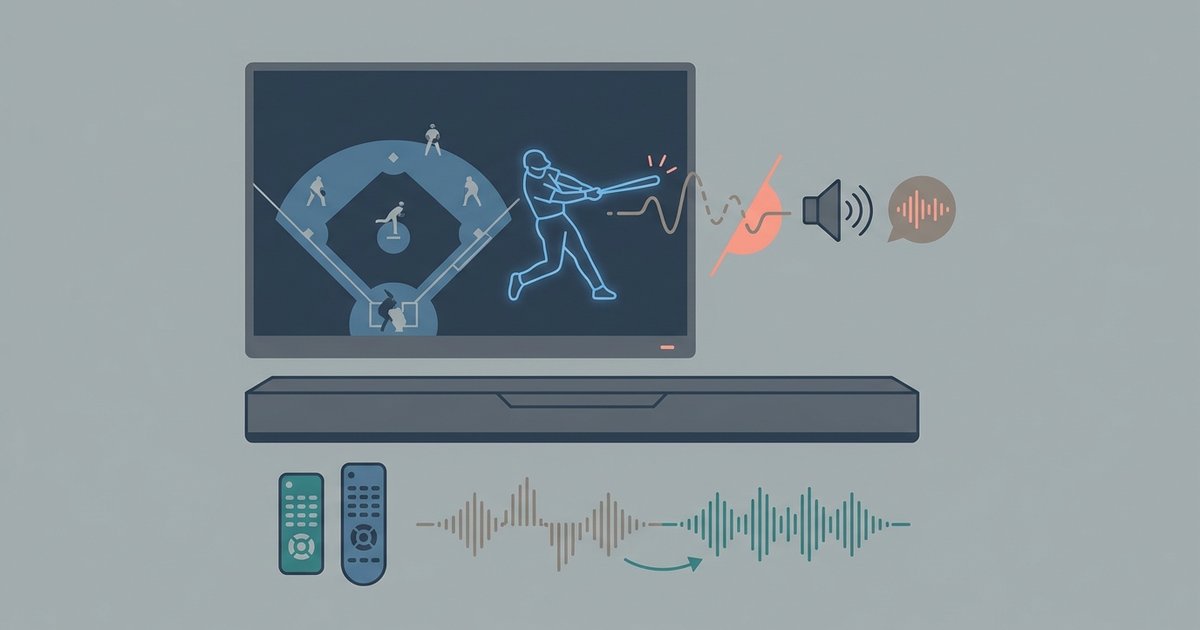
Go into the MLB.TV app video settings and turn off your TV's motion smoothing or game mode, then manually adjust the 'Audio Offset' slider in the app's playback settings to sync the sound.
Turn off motion smoothing to fix mlb TV audio delay
Your TV’s motion smoothing feature, branded as TruMotion on LG, Auto Motion Plus on Samsung, or Action Smoothing on Vizio, creates the “soap opera effect” by inserting extra frames between real ones. This processing delays the video signal by 50 to 100 milliseconds, which makes the audio from your streaming device arrive before the picture updates. To fix this, open your TV’s picture configuration panel and disable any motion interpolation or smoothing option. If you have a dedicated game mode, you may try enabling it, because game mode bypasses most processing and reduces input lag. After making this change, test a live game on the MLB.TV app, which you can install after you get mlb app on LG smart TV. Many users find the audio sync is instantly corrected without touching any other options. If you want to watch MLB.TV on your smart TV without the delay, this is the first step you must take.
Use the in-app audio offset tool
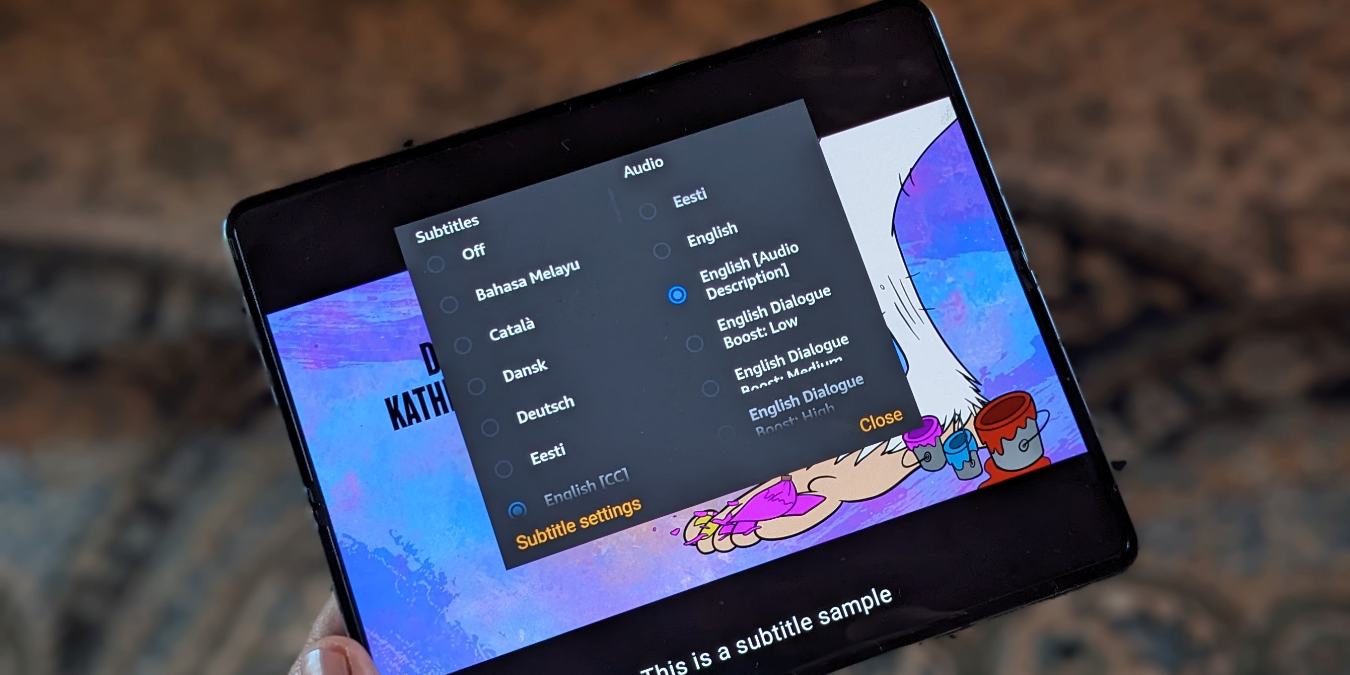
If disabling motion smoothing doesn’t fully align the sound, the MLB.TV app includes a manual audio offset slider. During any live game, access the playback settings to look for an audio offset option. Look for an audio sync adjustment option, which may be located in the app's settings. Adjust the control to sync the audio with the video. The goal is to match the crack of the bat with the swing of the hitter. Start with small adjustments and watch a few pitches to confirm the sync holds. This tool is especially useful if your TV still applies minor processing after you disable motion smoothing. For instance, when you get MLB.TV on a Vizio smart TV, the app’s offset slider can compensate for any residual delay from Vizio’s Clear Action setting.
When the fix doesn't work
If the audio sync drifts back out of time after you’ve adjusted the slider, you’re likely encountering a known app bug on specific platforms like Roku or Fire TV. This bug causes the audio delay to increase gradually over a game, requiring repeated manual corrections. To resolve it, force-stop the MLB.TV app and clear its cache. On a Roku, go to the system menu and select System restart to clear cached data. On a Fire TV, navigate to the applications management area, find MLB.TV, and choose Force Stop, then Clear Cache. After restarting the app, check your TV’s audio output configuration: switching from stereo to surround sound (or vice versa) can reset the audio pipeline and stabilize sync. For a permanent solution, ensure your TV’s firmware and the MLB.TV app are both updated to the latest versions.
The MLB.TV app may include an audio sync adjustment tool in its playback menu that lets you manually fine-tune audio sync after you disable your TV's motion smoothing.