Go to your Samsung TV's sound settings and change the audio output format from Dolby Digital to PCM, then fully close and restart the Xfinity Stream app. If that doesn't fix the sync, use the TV's built-in audio delay slider to manually align the sound.
Why Dolby Digital breaks Xfinity stream no sound
The Xfinity Stream app on Samsung TVs sends audio in a compressed Dolby Digital format. However, many Samsung TV models, especially 2020 and later units, default to a "Dolby Digital+" or "Auto" audio output setting. The Xfinity Stream app cannot properly decode this enhanced surround sound format, causing the TV to either output silence or stutter repeatedly as it tries to re-sync the audio stream. This technical incompatibility means the video plays perfectly while the audio either drops entirely or drifts out of sync by several seconds. The fix is to force the TV to output a simpler, uncompressed format that the app understands reliably.
This direct fix resolves the most common cause of no sound or lip-sync issues when you want to stream Xfinity on Samsung smart TV, which is a mismatch between the app's audio codec and the TV's default processing.
Switch your Samsung TV audio output to PCM
To change the audio format, press the Home button on your Samsung remote, then navigate to Settings > Sound > Expert Settings. Look for "Digital Output Audio Format" (sometimes labeled "HDMI Audio Format" on older models). The default is usually set to "Auto" or "Dolby Digital." Change this to "PCM" (Pulse-Code Modulation). PCM sends a stereo, uncompressed signal that the Xfinity Stream app handles without glitches. After making this change, fully close the Xfinity Stream app by pressing the Back button repeatedly until you return to the TV home screen, then relaunch the app.
Fixing persistent lip-sync delay
If switching to PCM restores sound but the audio still lags behind the video by a half-second or more, use Samsung's built-in audio delay slider. Go back to Settings > Sound > Expert Settings and locate "Digital Output Audio Delay" (sometimes under "AV Sync Adjustment"). Slide this control to a negative value (e.g., -50ms to -150ms) to advance the audio so it matches the video. Start at -50ms, play a scene with visible dialogue, and adjust in 10ms increments until the lips and sound align. Note that this delay setting is global, it affects all apps and inputs, so remember to reset it to 0ms when watching other content. This manual correction is particularly useful after you download Xfinity stream app on smart TV and find that even PCM doesn't perfectly sync on certain Samsung models.
When the app itself is the problem
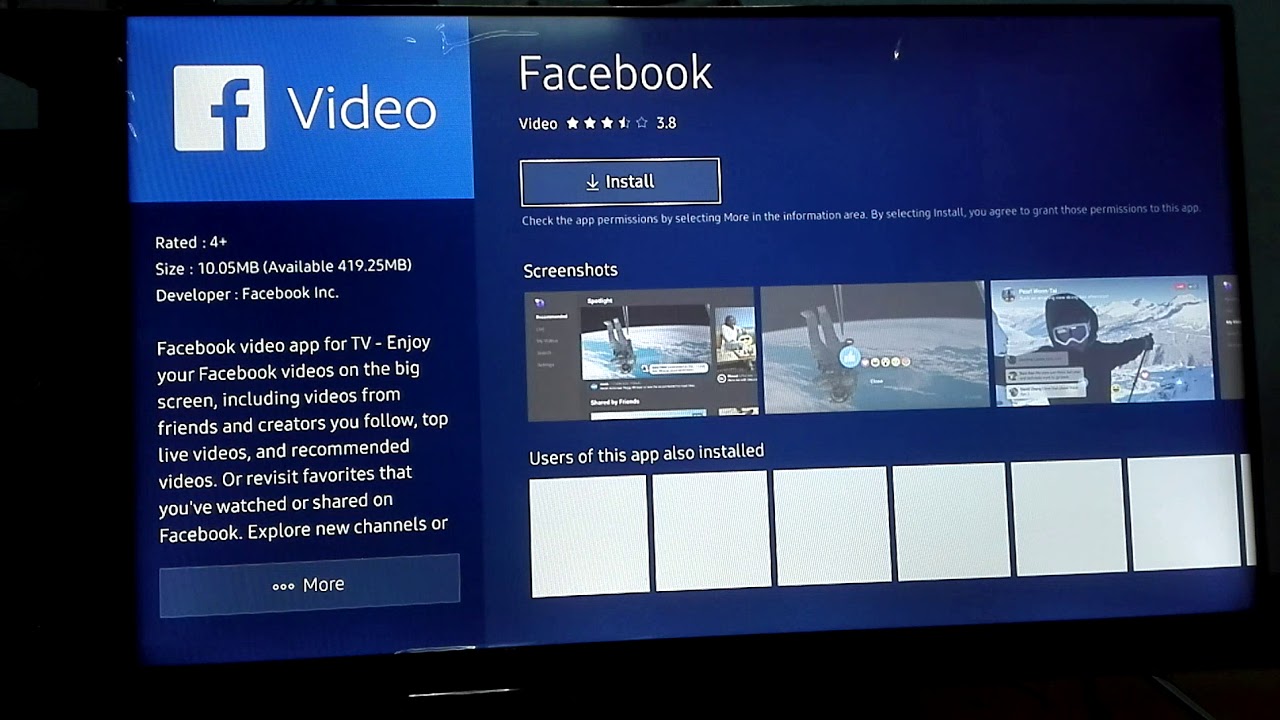
If changing audio output to PCM and adjusting the delay still leaves you with no sound or persistent sync issues, the Xfinity Stream app itself may be corrupted. On your Samsung TV, go to Settings > Apps > Xfinity Stream, then select "Force Stop" to kill the app completely. Next, choose "Clear Cache" (do not clear data, which would log you out). Restart the TV by holding the power button on the remote for over 3 seconds until it fully reboots. If the problem returns, uninstall the app, then reinstall it from the Samsung App Store. This full reset resolves bugs where the app's audio decoder fails to initialize correctly, and if you are troubleshooting heavy app usage, be mindful of your Xfinity stream Samsung TV data usage and caps when re-downloading.