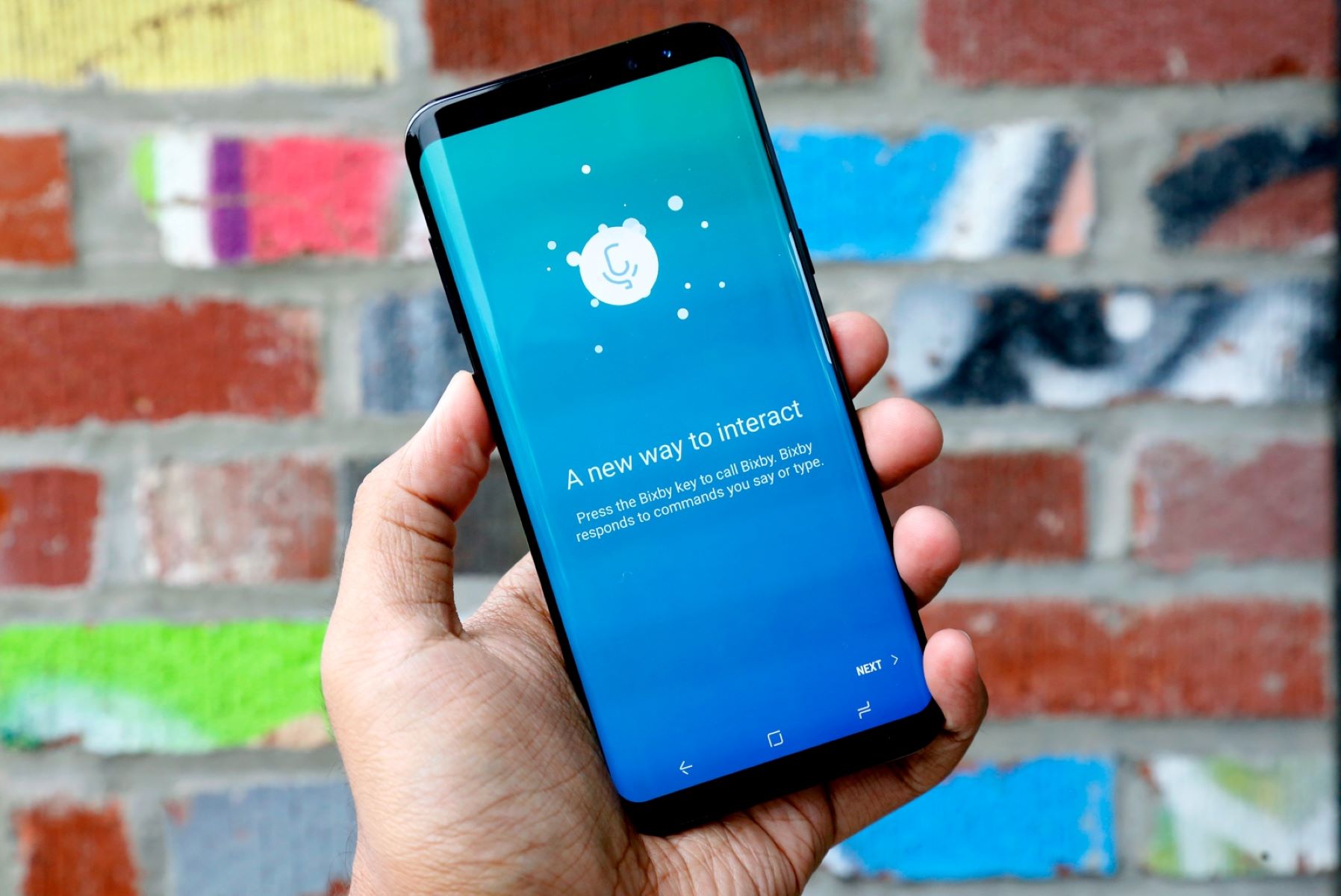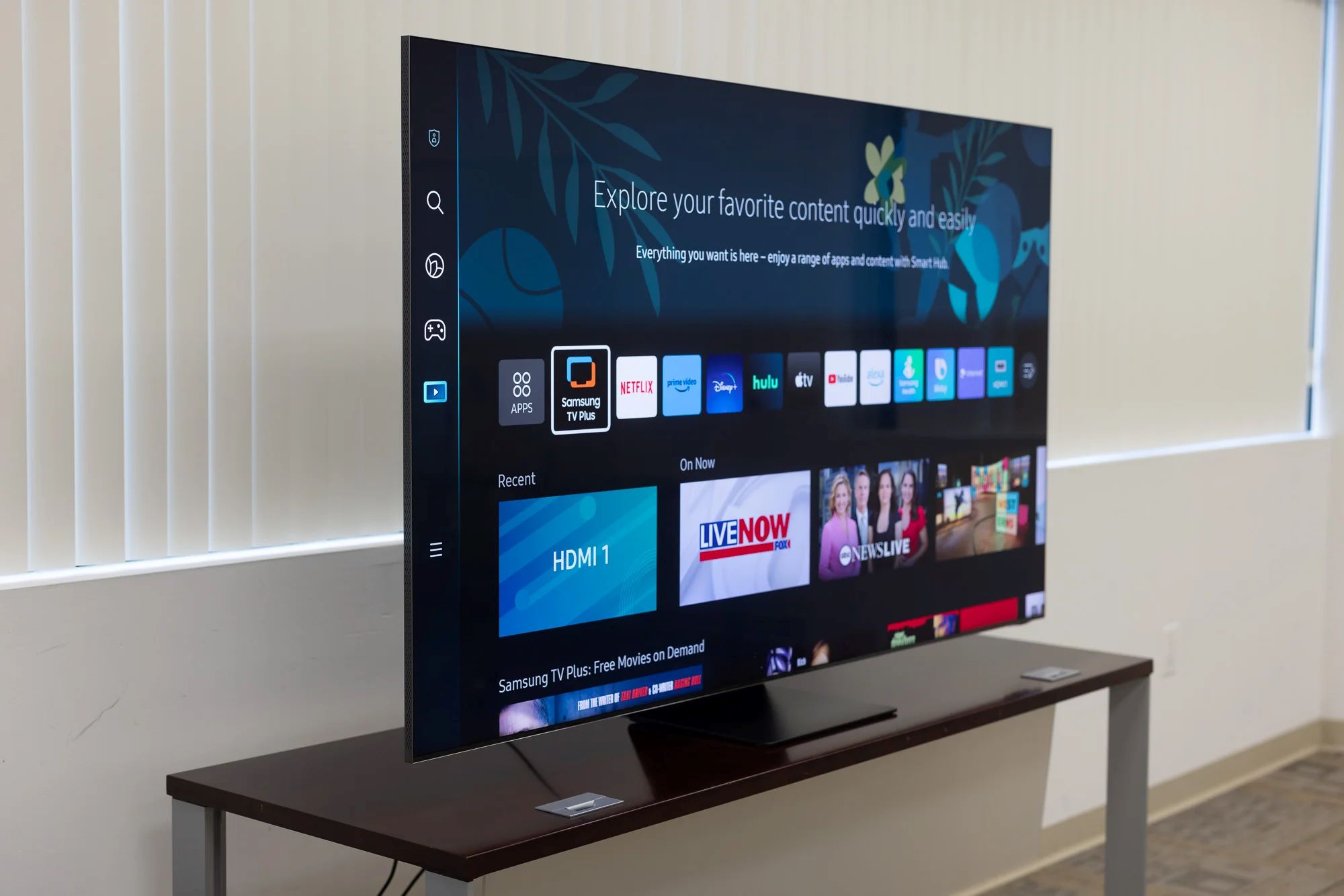
Bixby on Samsung TV is a built-in artificial intelligence voice assistant that lets you control your television, search for content, and manage compatible smart home devices using natural spoken commands. It transforms your TV into a hands-free entertainment hub, allowing you to change channels, adjust volume, launch apps, and get answers to on-screen questions without touching the remote.
What is Bixby on Samsung TV?
Bixby is Samsung’s proprietary virtual assistant, deeply integrated into their smart TV lineup. Unlike a simple voice recognition tool, Bixby uses contextual understanding to process conversational requests. This means you can say “Find action movies” and then follow up with “Show me the ones with high ratings,” and Bixby will remember the context and refine the results. It acts as a personal TV assistant, capable of navigating settings, providing content recommendations based on your viewing history, and even offering details about actors or specific scenes in what you’re watching.
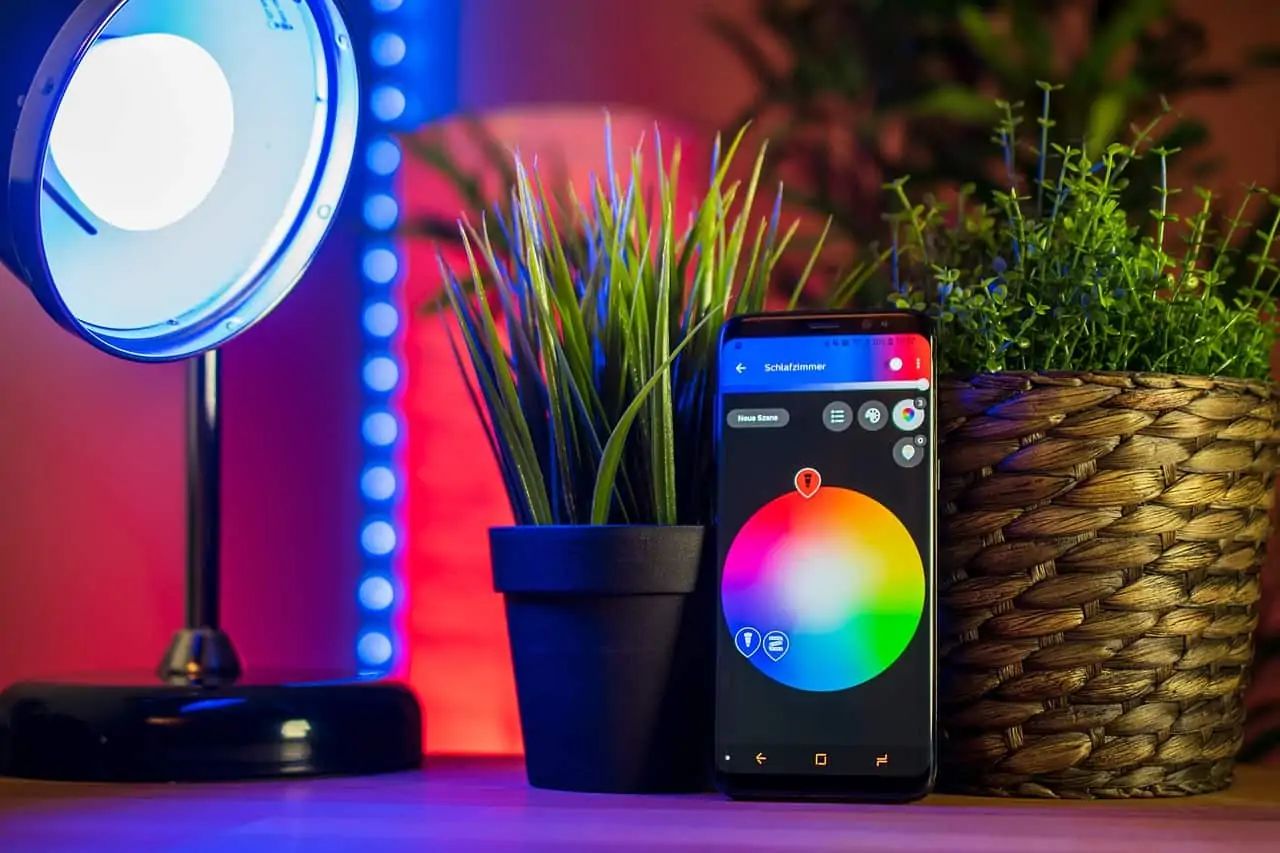
Beyond entertainment, Bixby serves as a central control point for your connected home. Through integration with Samsung SmartThings, you can use your TV to control compatible lights, thermostats, and other smart devices. This makes the television not just a display, but an interactive command center for your entire living space.
What you need before you start
Before you can use Bixby, ensure your setup meets these three essential requirements:
- A compatible Samsung TV: Bixby is supported on most Samsung Smart TVs manufactured from 2018 onwards. However, functionality may vary by model year, so it’s always good to check your specific model’s capabilities.
- An active internet connection: Bixby relies on cloud-based processing to understand and respond to your voice commands. A stable Wi-Fi or Ethernet connection is mandatory for the assistant to work.
- A logged-in Samsung account: You must have a Samsung account registered and actively logged in on the TV. This is required for personalization features and to enable the full suite of Bixby services.
How to activate Bixby on your Samsung TV
There are two primary methods to activate Bixby on your TV. Choose the one that best fits your preference for convenience versus remote battery life.
Method 1: Press the Microphone button
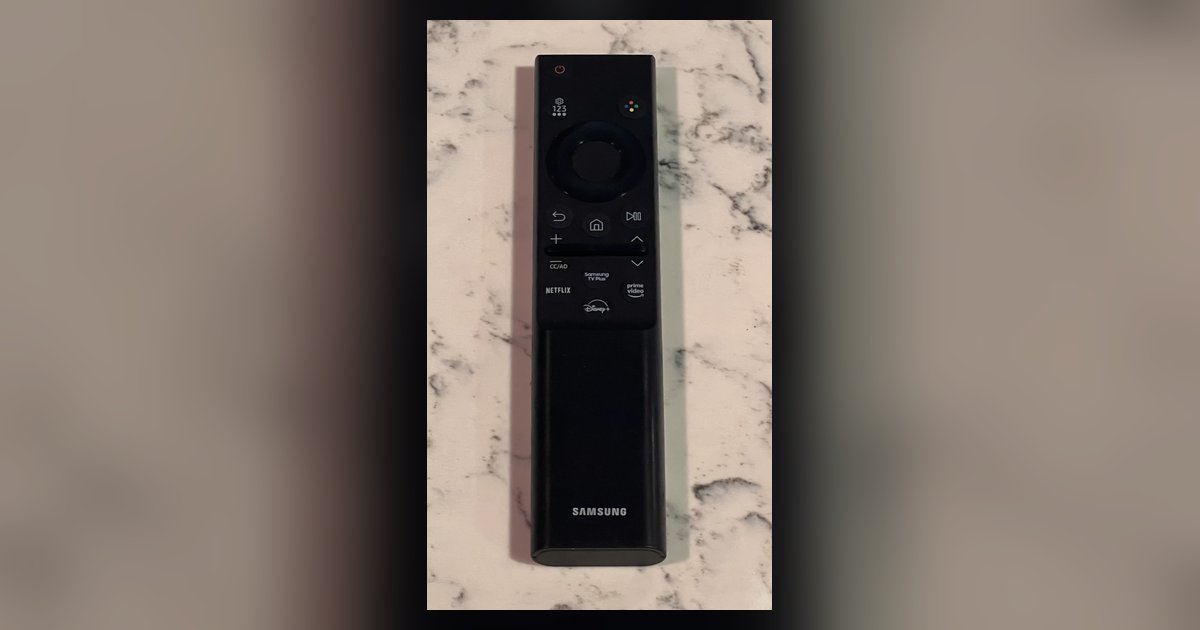
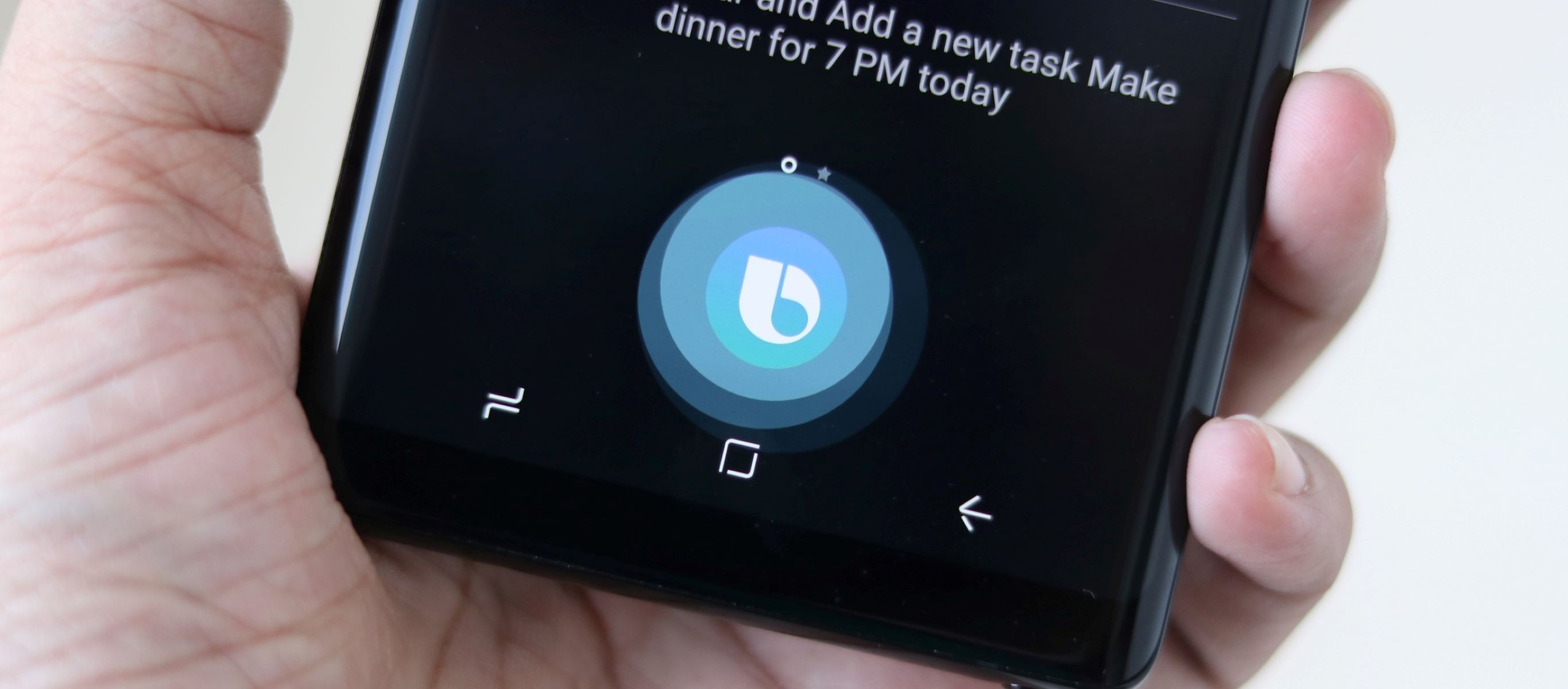
The most straightforward way to activate Bixby is to press the dedicated Microphone (or Bixby) button on your Samsung TV remote. This instantly brings up the Bixby listening interface, ready for your command. This method does not require any special setup and works immediately after your TV is connected to the internet and your Samsung account is logged in.
Method 2: Enable “Hi Bixby” Voice Wake-Up
For true hands-free operation, you can enable the Voice Wake-Up feature. This allows you to simply say “Hi Bixby” to activate the assistant without touching the remote. To turn this on:
- Press the Microphone button on your remote to launch Bixby.
- Select “Explore Now” and then go to “Settings.” Alternatively, navigate to Settings > General > Voice > Bixby Voice Settings on your TV menu.
- Toggle the “Voice Wake-Up” feature to the On position.
Important trade-off: Enabling Voice Wake-Up means the remote’s microphone is always listening, which will significantly shorten the battery life of your remote. If you prefer longer battery life, stick to pressing the Microphone button manually.
How to use Bixby voice commands
Once activated, Bixby can handle a wide range of tasks. Here are practical examples of what you can say:
- Basic TV control: “Turn up the volume,” “Change to channel 5,” “Mute,” or “Go to HDMI 2.”
- Content search: “Find sci-fi movies,” “Search for ‘The Crown’,” or “Recommend a comedy series.”
- App management: “Open Netflix,” “Launch YouTube,” or “Go to the app store.”
- Smart home control: “Turn off the living room lights,” “Set the thermostat to 72 degrees,” or “Start the robot vacuum.”
- Information queries: “Who is the lead actor in this movie?” or “What’s the weather today?”
Bixby also understands follow-up commands. For example, after asking “Find action movies,” you can say “Show me the ones with high ratings” and it will refine the search results accordingly.
Setting up a Bixby voice ID
To personalize your experience and have Bixby recognize your voice specifically, you can register a Voice ID. This helps the assistant tailor recommendations to your preferences and can improve voice recognition accuracy.
- Press the Voice (Microphone) icon on your remote.
- Go to Bixby settings (via “Explore Now” > “Settings” or the menu path above).
- Ensure “Voice Wake-Up” is turned on.
- Select “Start” next to “Voice ID” or “Voice Recognition.”
- Follow the on-screen prompts and speak the displayed sentences aloud so Bixby can learn your unique vocal patterns.
Once completed, Bixby will be able to distinguish your voice from others, offering a more customized and secure interaction.
The new Bixby on 2025 Samsung TVs
On 2025 Samsung TV models, including the Neo QLED and OLED lines, Bixby has been significantly upgraded with Generative AI technology. This new version is far more conversational and contextually aware. Instead of just executing simple commands, you can have natural, multi-turn dialogues. For example, you can ask “What movies are good tonight?” and then follow up with “Why is this one rated so high?” The enhanced Bixby can answer general knowledge questions, provide detailed content recommendations, and help you understand what you’re seeing on the screen at that moment. This represents a major leap forward from the command-based Bixby of previous years, making the assistant feel more like a knowledgeable companion rather than a simple tool.
Troubleshooting and model limitations
While Bixby is broadly supported, there are a few known limitations to be aware of:
- “Turn on” command not supported on some 2018 models: Specific 2018 Smart TV models, including the NU6900, NU6080, NU6070, and N5300, do not support the “turn on” function via Bixby. You will need to use the remote’s power button for these models.
- Cantonese language support: If you wish to use Bixby in Cantonese, you must have a TV model from 2023 or newer. Older models do not offer this language option.
- Feature variability: Some advanced features, like the new Generative AI Bixby, are exclusive to 2025 models. Older TVs will have the standard Bixby functionality but may lack the latest conversational upgrades.
If Bixby is not responding, first check your internet connection, verify your Samsung account is logged in, and ensure your TV’s firmware is updated to the latest version.
\nRelated reading: Samsung TV Remote Microphone Button Not Working, Why Is My Smart Light Unresponsive Alexa, and How To Set Up Alexa Without A Smartphone.