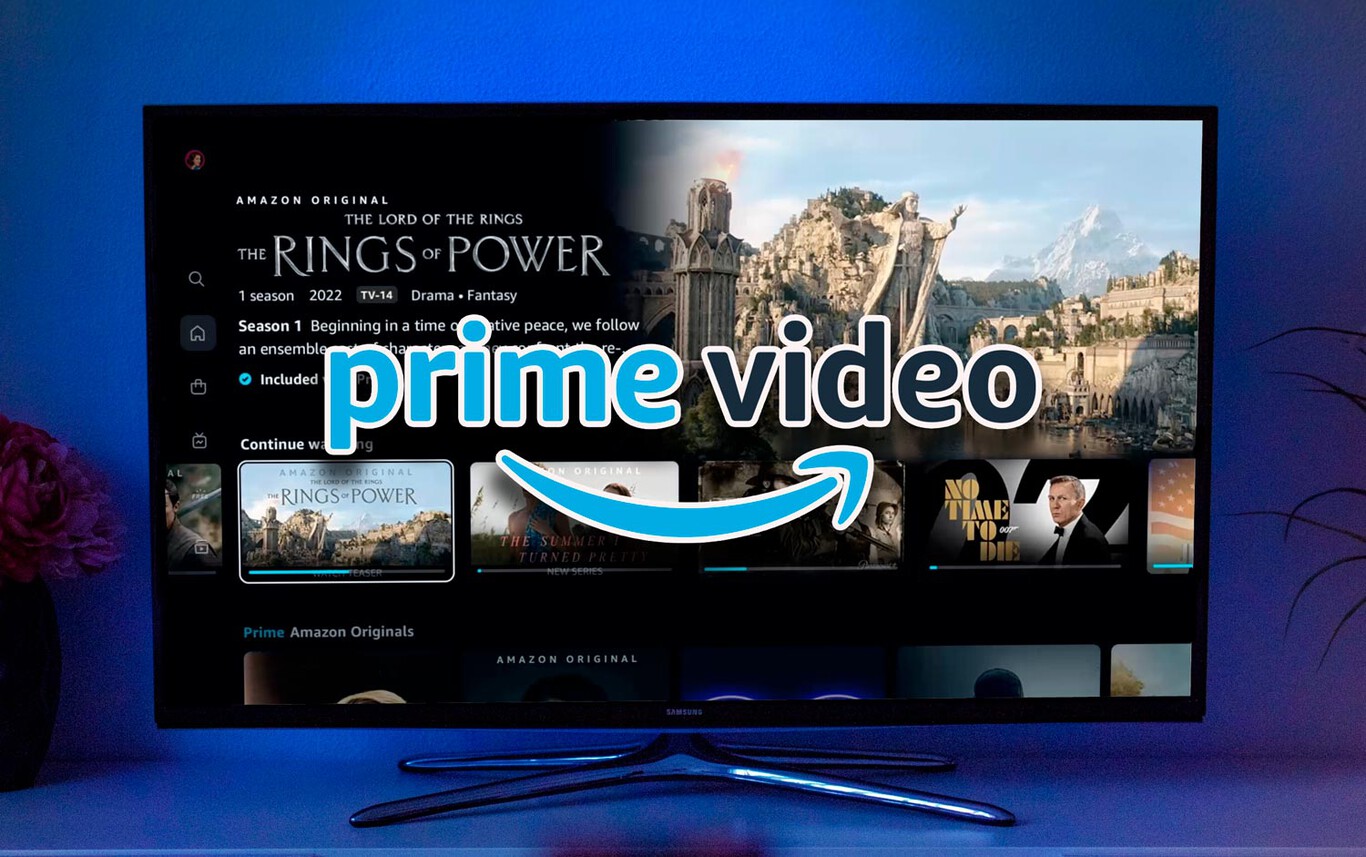
To turn off audio description on Amazon Prime Video, you must change the audio track while a title is playing. The fix is not in any main settings menu; you select the correct audio track during playback.
How to turn off audio description on Amazon Prime Video
Audio description (AD) is a spoken narration of visual elements like actions, expressions, and scene changes. To disable it, you must access the audio menu while a video is actively playing. The setting is not available from the home screen or your account settings.
Turn off audio description during playback
Start playing any movie or TV episode. The audio description control is only accessible when content is running. Pause the video if needed, but do not exit the player.
Find the audio menu on your device
The method to open the audio menu depends on your device:
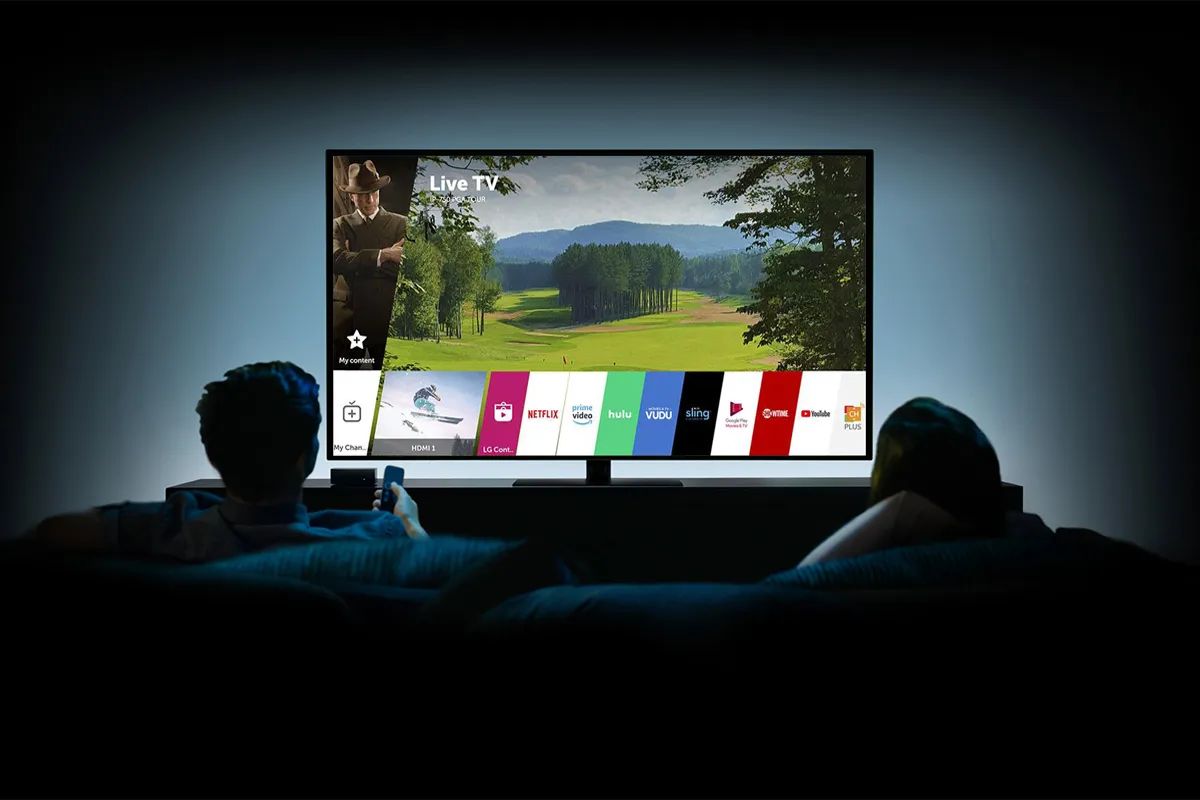
- Smart TV or Fire TV: Press the up button on your remote control to reveal the playback menu.
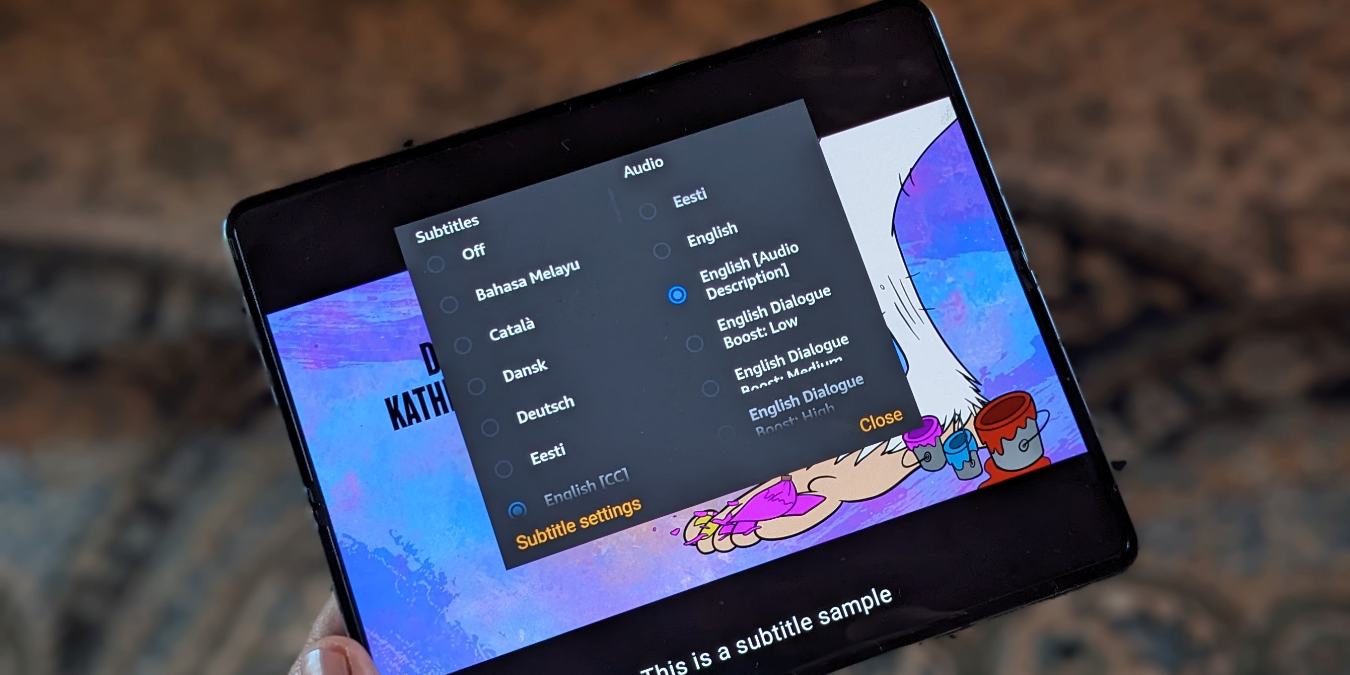
- Web browser or mobile app: Tap or click the "Closed Caption" or "Subtitles" icon (often a speech bubble or "CC" symbol). On some devices, a standalone "Audio" option appears instead.
Select the correct audio track
From the list of available audio tracks, choose the one that does not include "[Audio Description]" or "English AD" in its name. Audio description tracks are explicitly labeled. Not all titles offer an audio description track; availability depends on the specific content and device.
Fix audio description on downloaded videos
If you downloaded a title while audio description was enabled, the narration is baked into the downloaded file. You must delete the downloaded video, switch the audio language selection to a non-AD track, and then download the title again. The change will only apply to the new download.
Why does audio description keep turning on?
For TV series, you may need to turn off audio description for each episode individually. The setting does not always carry over between episodes. Additionally, if you hear narration on every video regardless of the audio track, the issue may be a device-level screen reader (like VoiceOver or TalkBack). To disable that, go to your device's own accessibility settings, not the Prime Video app. If you are instead seeing text on the screen, you may need to turn off closed caption on Amazon prime through a separate menu, or if you want to add subtitles, you can turn on closed caption on Amazon prime from the same dialog. Live events on Prime Video do not offer audio description tracks at all.
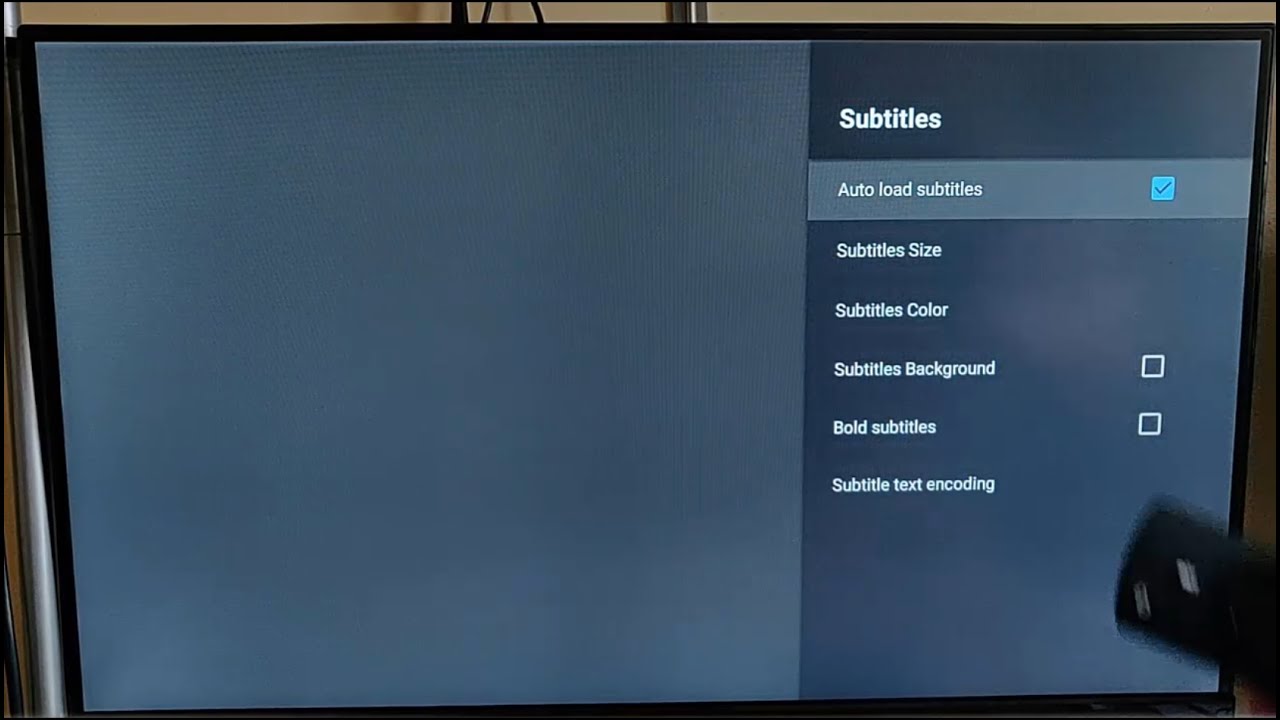
If you want to turn on subtitles, use the same "Subtitles and Audio" menu during playback to select your preferred subtitle language. The process is identical to switching audio tracks, but you choose the subtitle option instead.