The Watchlist on Amazon Prime is a personal, save-for-later list where you can store TV shows, movies, and other video content from the Prime Video catalog, so you can easily find and watch them whenever you’re ready. To get the most out of your queue, you might first read a complete review of its cost and subscription plans. It’s important to note upfront that adding a title to your Watchlist does not guarantee it will remain available on Prime Video forever, nor does it lock in a specific price if the title is available for rent or purchase, and if you see unexpected rental fees, you may want to understand Prime Video charges with Amazon Prime.
What is watchlist on Amazon Prime and how does it work?
At its core, the Watchlist functions as a virtual bookmark for your entertainment. Instead of trying to remember a show’s name or scrolling endlessly through the Prime Video library, you can save anything that catches your eye with a single click. When you’re in the mood to watch something, you simply open your Watchlist and pick from the curated selection you’ve built.
The Watchlist is synced across all your devices, so a title you save on your phone will appear on your smart TV, tablet, or computer. This makes it easy to transition from browsing on the go to watching at home without losing track of your saved content. Beyond simple storage, Amazon uses your Watchlist activity, along with your viewing history and ratings, to generate personalized recommendations, helping you discover new shows and films that align with your tastes.
How to find your Watchlist
Finding your Watchlist on Amazon Prime is quick, but the exact location varies slightly depending on the device you’re using.
On a web browser
When using the Amazon Prime Video website on a computer, look to the top navigation bar. You can typically find your Watchlist under one of three places:
- Your profile icon (often in the top-right corner)
- A bookmark icon (sometimes labeled “Watchlist”)
- The “My Stuff” tab in the main menu
Clicking any of these will take you directly to your saved titles.
On mobile apps and smart TVs
In the Amazon Prime Video app on smartphones, tablets, or streaming devices, the Watchlist is usually accessible from the home screen or the main menu. Look for a section labeled “My Stuff” or “Watchlist” in the bottom or side navigation bar. On smart TVs, the Watchlist is often found in the “My Stuff” row on the home screen. If you don’t see it immediately, use the search function, your Watchlist will appear as one of the filter options.
How to add shows and movies to your Watchlist
Adding a title to your Watchlist takes only a few seconds, and there are two primary ways to do it.
From a title card
While browsing the Prime Video catalog, hover your cursor over a show or movie’s thumbnail (on a computer) or simply tap it (on a mobile device). You’ll see a “+” icon or a bookmark icon appear on the card. Click or tap that icon, and the title is instantly added to your Watchlist. The icon will change to a checkmark to confirm it’s saved.
From a title’s detail page
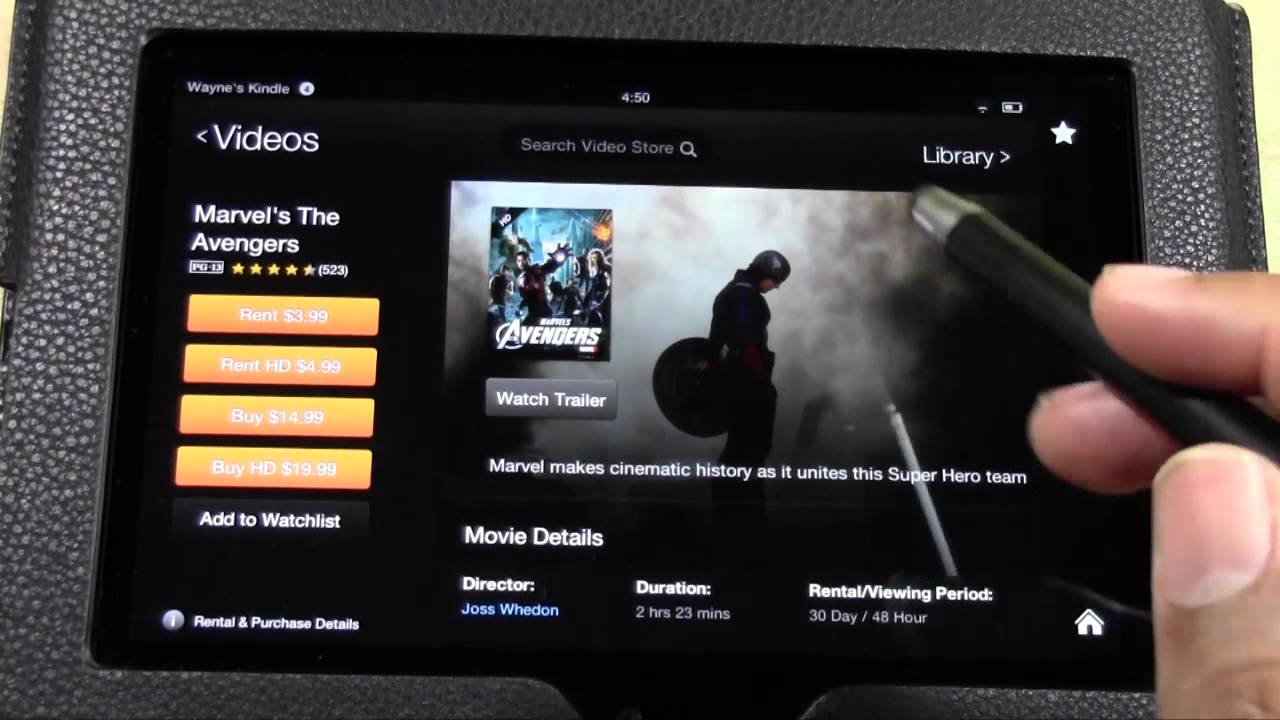
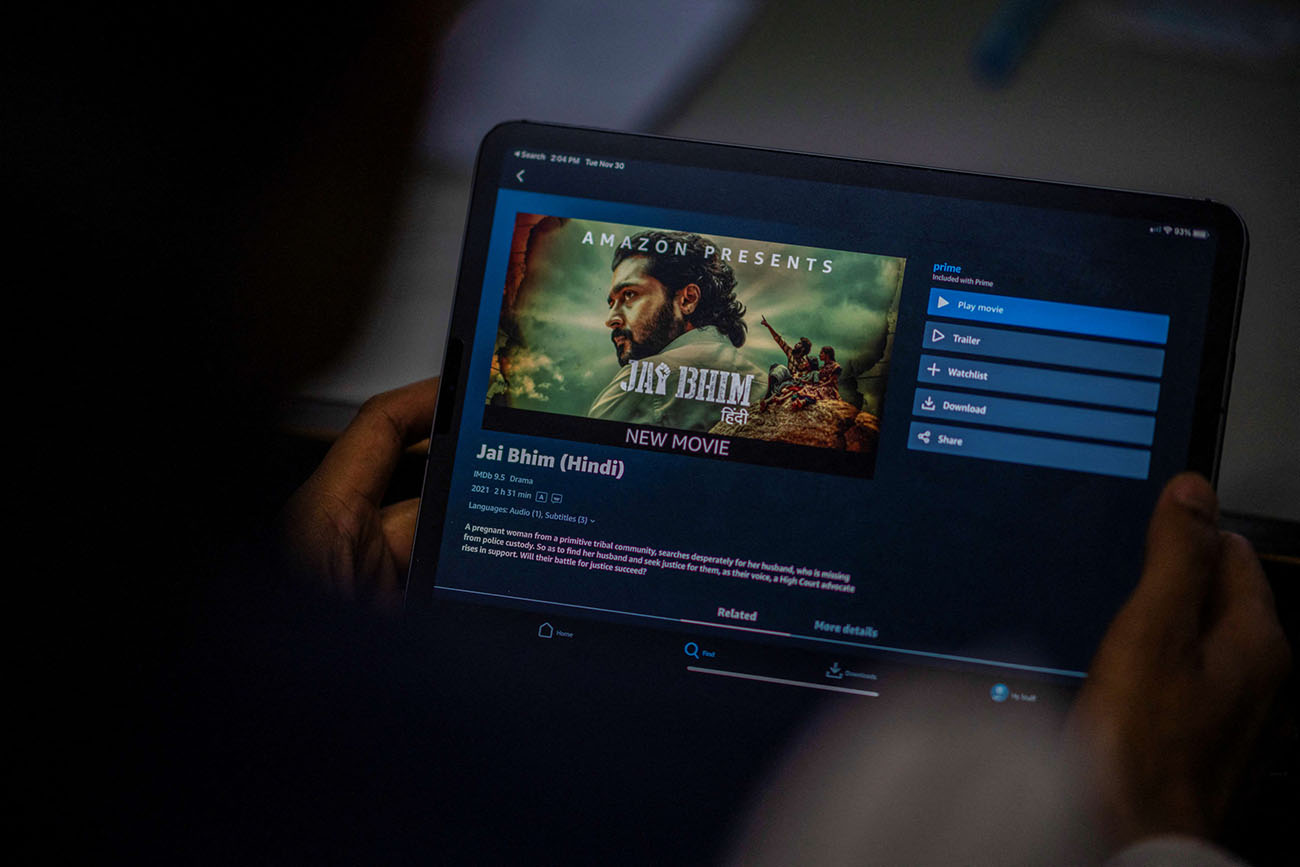
If you’ve already opened a show or movie’s detail page, look for a button labeled “Add to Watchlist.” This button is typically located near the “Watch Now” or “Rent” options. You can repeat this process for as many titles as you like.
Keep in mind that adding a title to your Watchlist does not start playing it. It only saves the item for later viewing, so you can continue browsing without interruption.
How to remove titles from your Watchlist
Removing a title from your Watchlist is just as easy as adding one. This helps keep your list organized and focused on content you actually want to watch next.
Using the title card
Go to your Watchlist and find the title you want to remove. On a computer, hover over the thumbnail; on mobile, tap it. You’ll see a checkmark icon or an “X” icon. Click or tap it, and the title will be removed from your Watchlist immediately. The checkmark will revert to a “+” icon, indicating it’s no longer saved.
Using the detail page
Open the show or movie’s detail page from your Watchlist. Click or tap it, and the title will be removed. You can also find a “Remove” option in the overflow menu (usually represented by three dots) on some devices.
Removing a title from your Watchlist does not delete the content from Amazon Prime Video itself. If you change your mind later, you can always search for the title again and add it back.
Is there a limit to how many titles you can add?
There is no publicly stated maximum limit to the number of titles you can add to your Watchlist on Amazon Prime. You can save as many shows, movies, and documentaries as you want, without worrying about hitting a cap. That said, it’s a good practice to periodically review your Watchlist and remove titles you’ve already watched or are no longer interested in. This keeps your list manageable and ensures that the content you’ve saved remains relevant to your current preferences.
Watchlist recommendations on Amazon Prime
One of the most useful features of the Watchlist is its ability to generate personalized recommendations. Amazon’s recommendation engine analyzes several factors to suggest content you’re likely to enjoy:
- Your viewing habits: The platform looks at what you’ve watched and what you’ve saved. If you add several sci-fi movies, for example, Amazon will suggest other sci-fi titles.
- Popular and trending content: Amazon also takes note of what’s popular among other users and may surface trending shows or movies that align with your interests.
- User ratings and reviews: If you’ve rated or reviewed content, Amazon uses that input to recommend titles with similar ratings or favorable reviews from other users.
- Continued learning: As you watch and remove items from your Watchlist, Amazon refines its recommendations. The more you engage, the more accurate the suggestions become.
These recommendations appear on your home screen and within the Watchlist itself. Checking them regularly can help you discover new content you might have otherwise missed.
Tips for managing your Watchlist
To get the most out of your Watchlist, consider a few simple management strategies:
Rearrange and sort
On many devices, you can reorder your Watchlist by dragging and dropping titles into a preferred sequence. You can also sort the list by release date, genre, or alphabetical order to make it easier to find something specific.
Remove watched content
After you finish a show or movie, remove it from your Watchlist. This keeps your list fresh and prevents it from becoming cluttered with content you’ve already seen.
Use recommendations to refine
Pay attention to the recommendations Amazon generates based on your Watchlist. If a suggested title looks interesting, add it. If not, ignore it. Over time, this feedback loop helps Amazon better understand your preferences.
The Watchlist on Amazon Prime is a straightforward yet powerful tool for organizing your streaming experience. It lets you save titles across all your devices, provides personalized recommendations, and gives you a central place to manage everything you want to watch. While it doesn’t guarantee that a title will remain available or stay at a certain price, it does ensure that you never lose track of a show or movie that caught your attention. By regularly adding, removing, and sorting titles, you can turn your Watchlist into a curated queue that always has something you’re excited to watch.
For the wider topic, see how to use Grubhub with Amazon Prime.