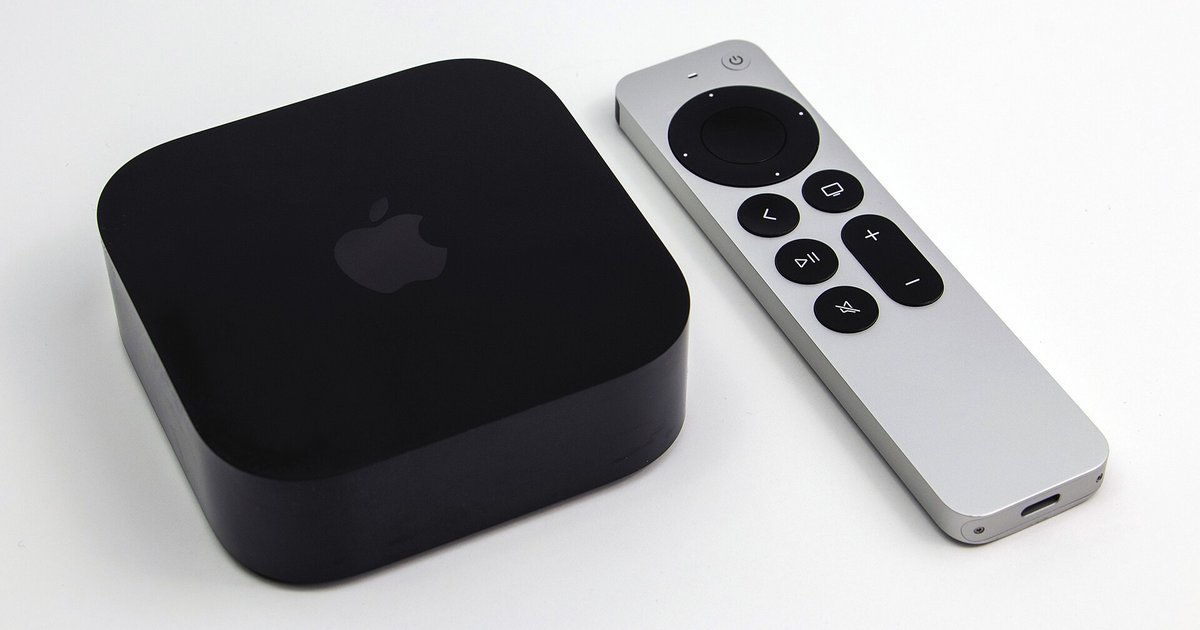
The overlay brightness slider is a temporary per-session adjustment only, not a permanent setting. To make brightness changes stick, you must adjust HDR/SDR luminance in the main Video and Audio settings menu instead.
Why the Apple TV brightness slider resets after each session
When you swipe down on the remote while watching a movie or show, the brightness slider you see is part of the video player’s overlay controls. Apple TV intentionally resets this slider after each viewing session or app change. It is a temporary override meant for quick, on-the-fly adjustments, like dimming a bright scene without altering your permanent picture calibration. The system does not store this value because it treats each playback session as a fresh start. If you want a consistent brightness level across all content, you cannot rely on this slider. Instead, you need to change the underlying display luminance in the system settings, which applies to everything you watch, and you can learn how to turn up brightness on Apple TV for a lasting fix. For example, if you need to find the main menu quickly, you can get to settings on Apple TV from the home screen by selecting the gear icon.
Where the permanent brightness setting actually lives
To make a brightness change that sticks, open Settings from the home screen, then navigate to Video and Audio. Under the Calibration section, you can use the “Color Balance” feature, which utilizes an iPhone X or newer to calibrate the display output, influencing perceived brightness and color accuracy. These are permanent, system-wide values. It is not per-user.
Apple TV's perceived brightness changes are often a result of the device automatically switching video display modes to match the content being played, which can make users rely on system-level settings for consistent picture calibration.
When the slider still resets even after changing settings
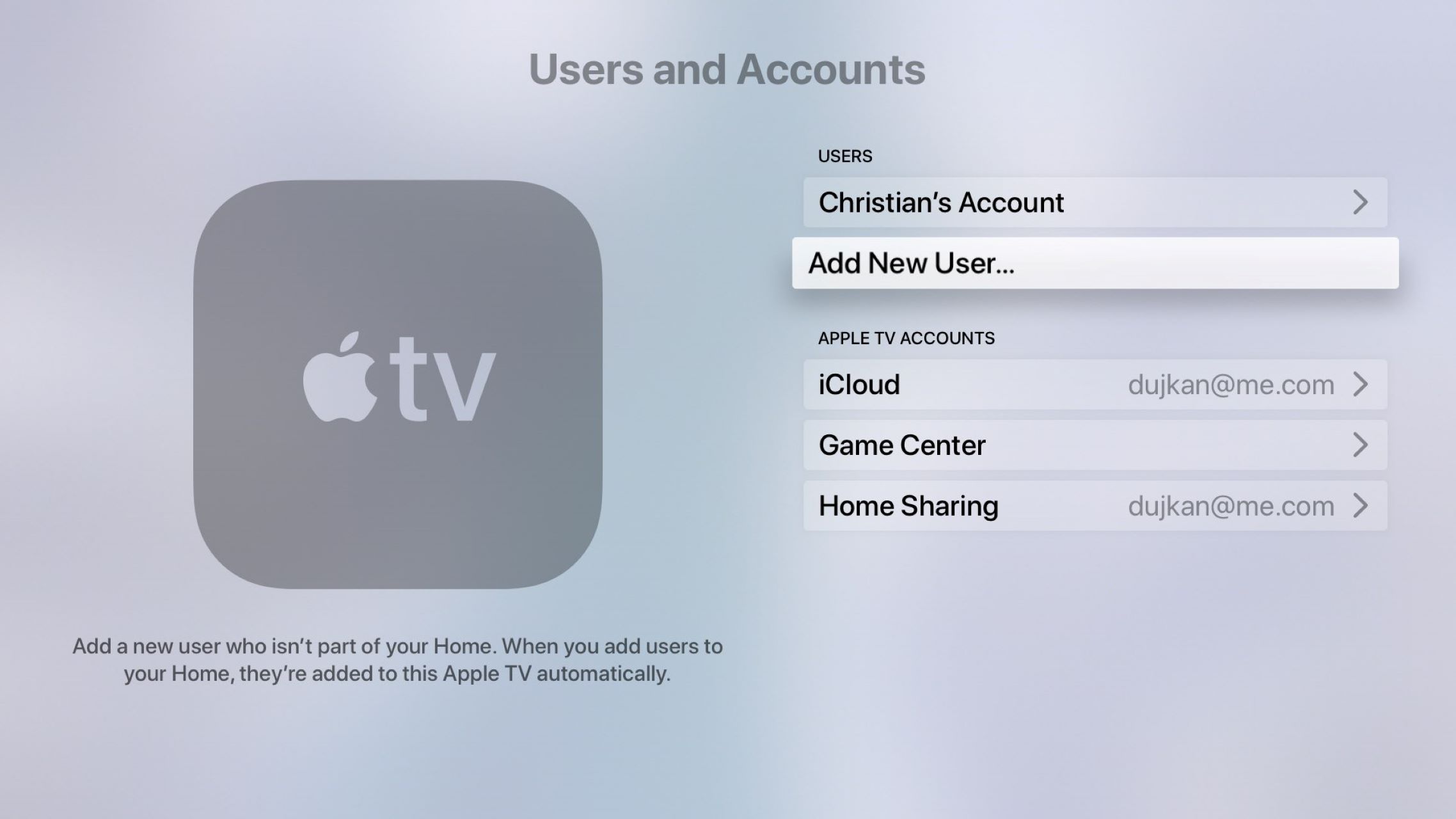
If you have set a permanent brightness value in Video and Audio but the picture still seems to revert to a different brightness when you start a new video, the culprit is usually content range matching. This feature is also called “Match Content” or “Dynamic Range Matching.” When Apple TV automatically switches between SDR, HDR, or Dolby Vision based on the video file, each mode can load a separate brightness profile. For example, a Dolby Vision video may ignore your Reduce White Point setting because Dolby Vision metadata overrides it. To fix this, go to Settings > Video and Audio > Match Content and disable “Match Dynamic Range” and “Match Frame Rate.” Alternatively, set your default format to a single mode (like SDR) and let the Apple TV handle HDR content without switching. Another rare cause: if you have signed in with a carrier account, such as T-Mobile, some carrier-specific profiles may temporarily override the luminance setting, but this is uncommon. Finally, check if your TV’s own picture mode is changing when the Apple TV switches formats, especially if different household members have their own viewing profiles, you can add users to Apple TV app to keep personalized settings separate. A shift from “Cinema” to “Vivid” can also make the slider appear to reset.