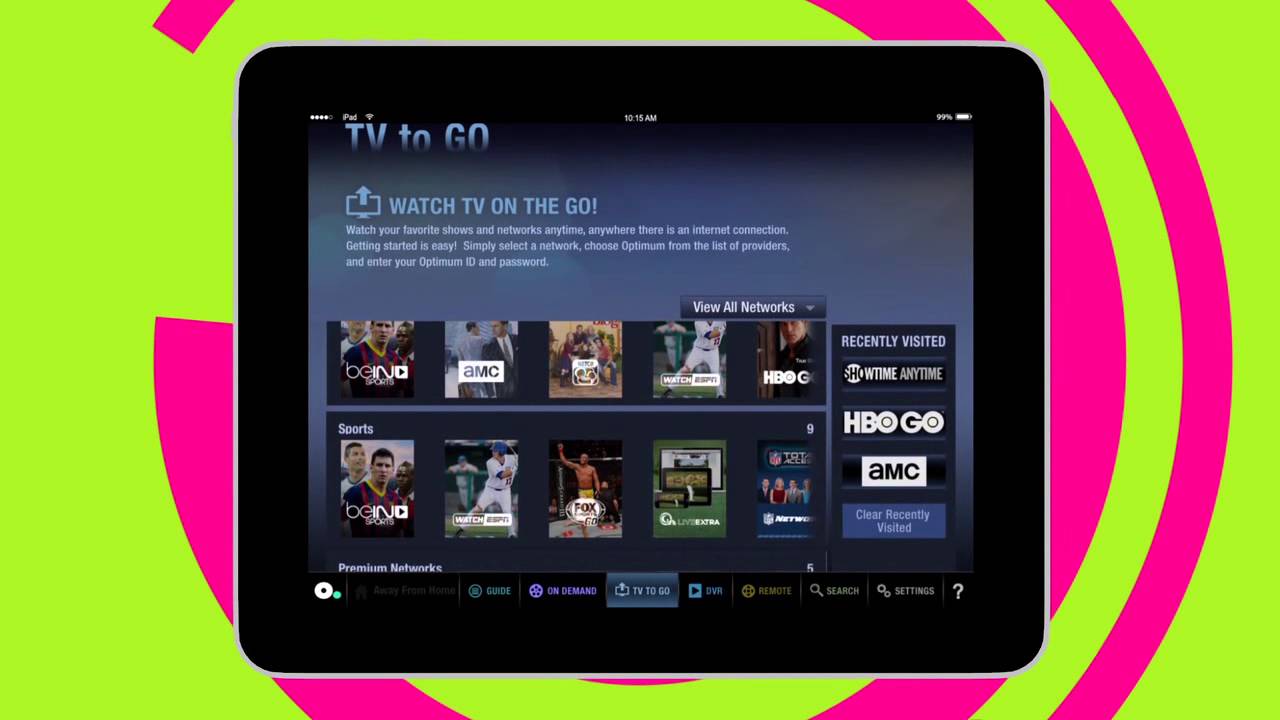
To stream Optimum on a smart TV, you have two direct options: use the Optimum TV app on an Apple TV or connect the dedicated Optimum Stream device to your television. These are the only two ways to watch Optimum programming on a TV screen without a traditional cable box, as Optimum does not offer native apps for most smart TV platforms like Samsung, LG, or Vizio.
How to stream Optimum on a Smart TV: Your equipment options
Optimum subscribers can stream their live TV, On Demand titles, and Cloud DVR recordings through two supported methods. The first is the Optimum TV app, which is available exclusively on Apple TV devices running tvOS 13.0 or later. The second is the Optimum Stream device, a dedicated streaming box that connects directly to your TV via HDMI and combines live Optimum channels with other streaming apps. These two options are the only paths that work with Optimum's service for watching live TV on a smart TV, but if you own a Samsung set you can also stream free movies on Samsung smart TV through its built-in apps.
Requirements to stream Optimum
Before you begin, confirm that you have an active Optimum TV subscription and your Optimum ID and password ready for sign-in. You also need a secure wireless home network (Wi-Fi) for in-home streaming. For hardware, you must have either an Apple TV (with the Optimum TV app installed) or the Optimum Stream device. Note that On Demand streaming through the app requires at least one cable box on your account, so if you have gone fully cord-free, On Demand content will not be available to you.
Set up Optimum on Apple TV
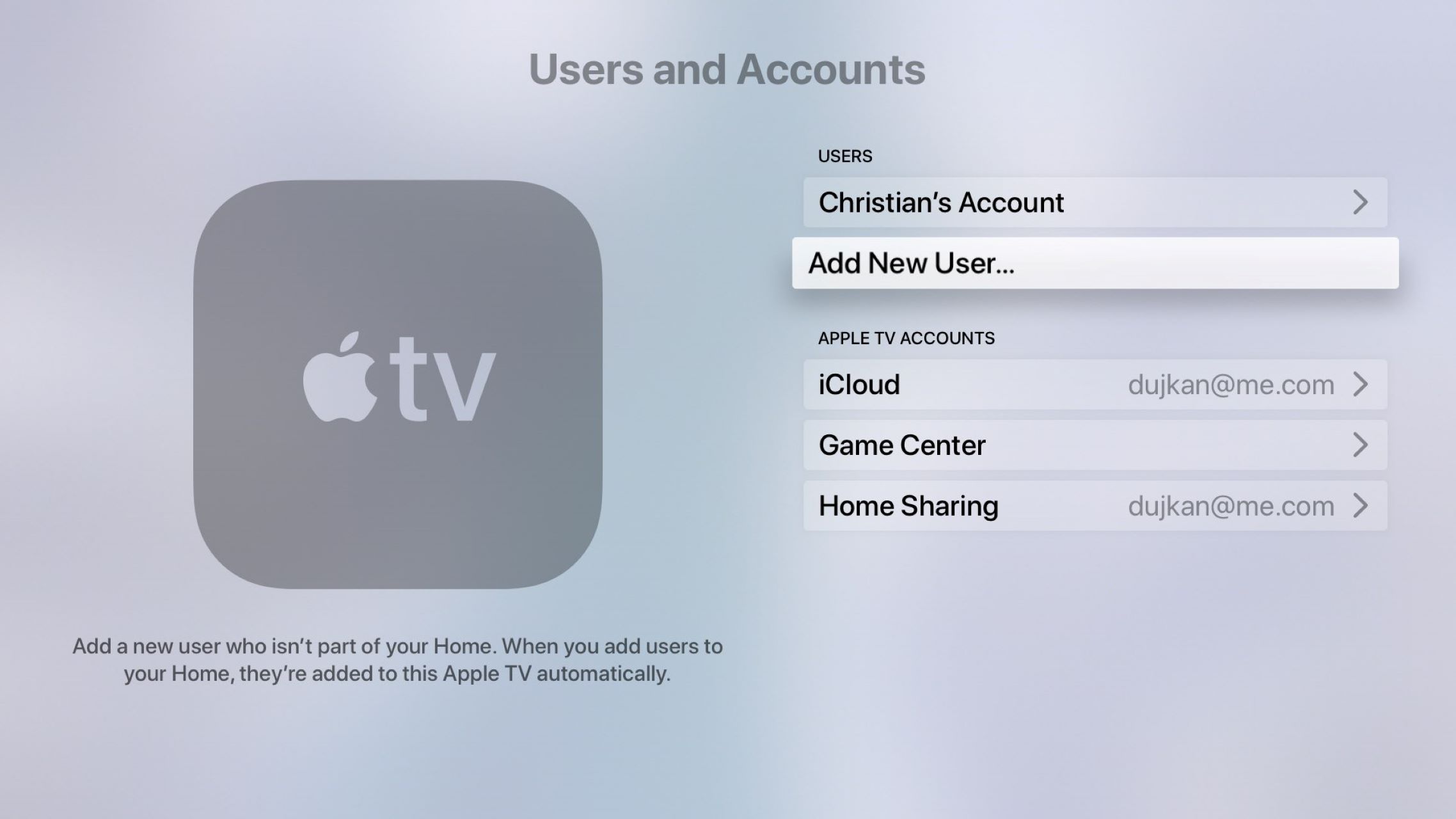
If you own an Apple TV, the setup process is straightforward. Follow these steps to get the Optimum TV app running:
- On your Apple TV, open the App Store from the home screen.
- Search for the Optimum TV app and select it from the results.
- Download and install the app on your device.
- Launch the Optimum TV app and sign in with your Optimum ID and password.
If you purchased your Apple TV directly from Optimum, the Optimum TV app should appear automatically on the Home screen after you complete the initial device setup, so you can skip the download step and go straight to signing in. Once signed in, you can start streaming live channels, On Demand titles, and any Cloud DVR recordings saved to your account.
Set up your Optimum Stream device
The Optimum Stream device is a dedicated streaming box designed to work seamlessly with your Optimum service. To get it running, follow these steps:
- Connect the Optimum Stream device to your TV's HDMI port.
- Plug the power adapter into the device and a wall outlet.
- Turn on your TV and select the correct HDMI input.
- Connect the device to your Optimum Wi-Fi network when prompted.
- Sign in with your Google account credentials.
- Sign in with your Optimum account credentials to activate the service.
Once signed in, the Optimum Stream device supports 4K streaming and includes a voice remote with Google Assistant, so you can search across live TV and apps using voice commands. The device consolidates your live Optimum channels and other streaming services into one interface, making it a convenient all-in-one option.
Navigating the Optimum interface and watching content
After you are signed in on either device, the Optimum interface gives you access to three main categories: live TV, On Demand, and Cloud DVR recordings. Use the remote to browse the channel guide for live programming, or scroll through the On Demand library to find movies and shows. Your Cloud DVR recordings appear in a dedicated section, but keep in mind that DVR management requires both an Optimum TV subscription and a Cloud DVR subscription. Content availability is based on your current programming package, and not all channels or features are available to stream at all times or in all areas.
Troubleshooting Optimum streaming issues
If you run into problems while streaming, work through these steps in order:
- Check that your TV is connected to a stable Wi-Fi network with sufficient bandwidth.
- Restart both your streaming device and your router to clear temporary glitches.
- Verify that at least one cable box exists on your account if you are trying to watch On Demand content.
- Make sure the Optimum TV app and your device's operating system (tvOS for Apple TV) are updated to the latest versions.
- If issues persist, contact Optimum support directly for account-specific assistance.
If you are using a VPN or proxy service, disable it, as these can interfere with streaming. Most playback issues resolve with a simple restart or a network check, but Optimum's support team can help if the problem continues.
\nRelated reading: How To Get Chive TV On Smart TV.