To get NFHS Network on a smart TV, you will almost certainly need a dedicated streaming device like a Roku, Amazon Fire TV, or Apple TV, as most smart TVs do not have a native app for the service. Once you have a compatible device, you can install the official NFHS Network app and sign in with a subscription, which costs $13.99 per month or $79.99 per year.
The Easiest Way to Get NFHS Network on a Smart TV
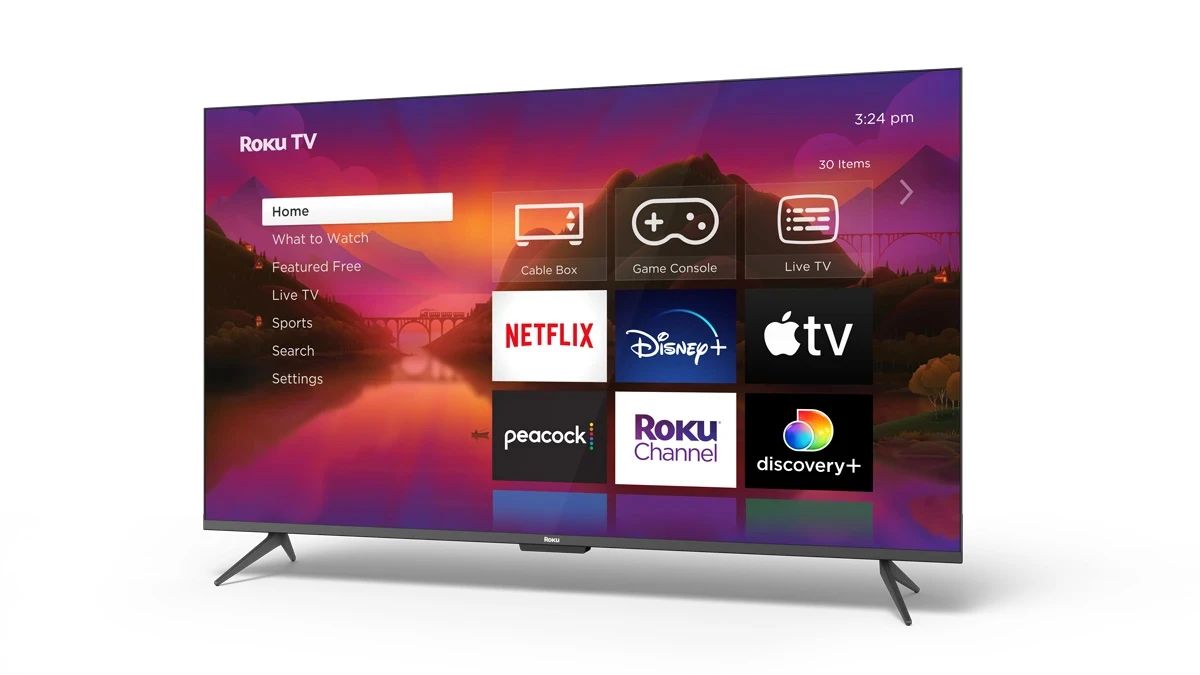
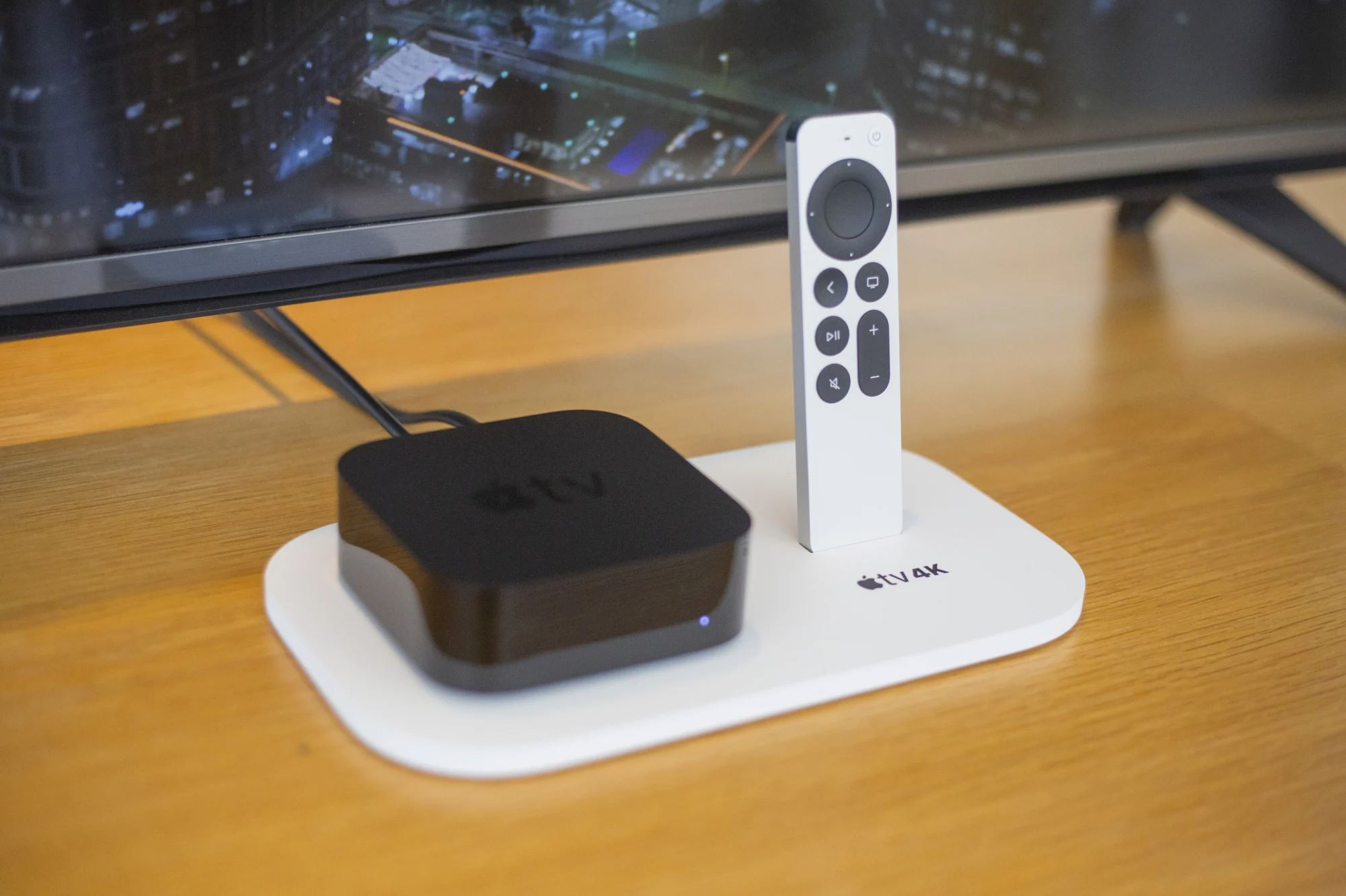
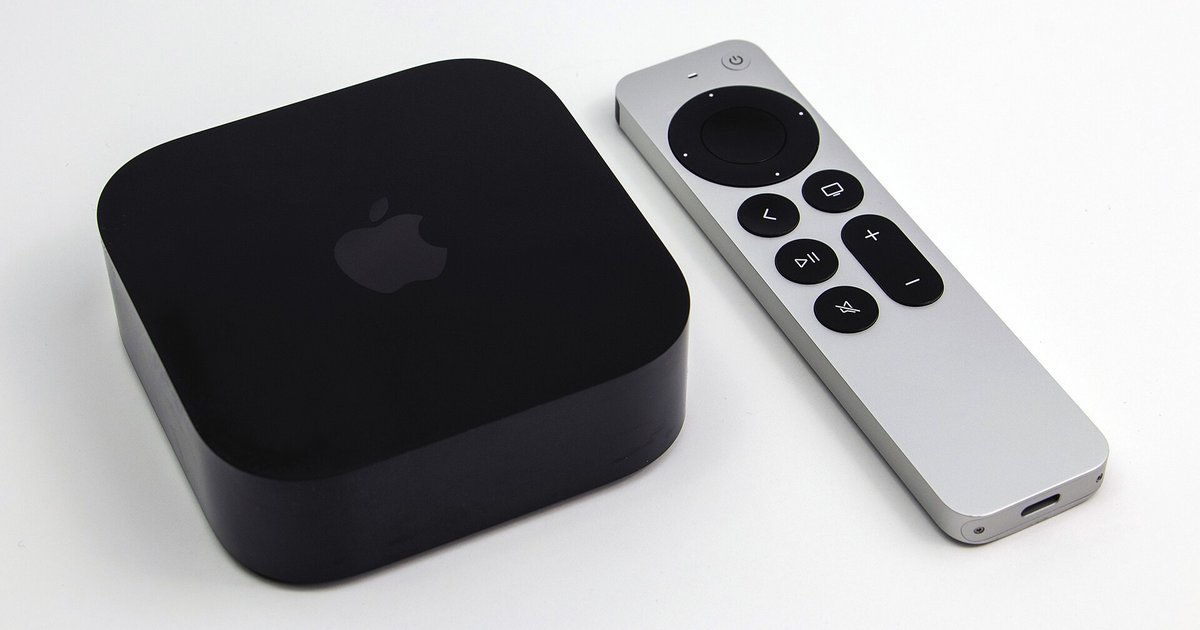
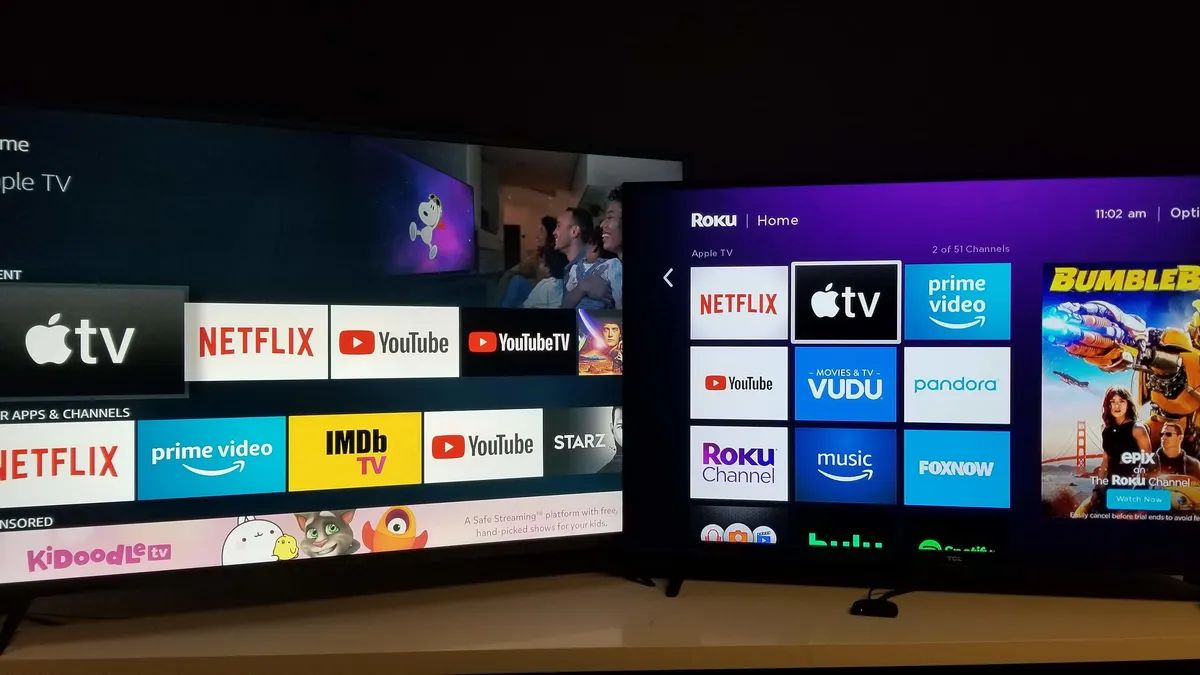
The most direct and reliable method to get NFHS Network on a smart TV is to use a supported streaming device. Most smart TVs lack a built-in NFHS Network app, so a Roku, Amazon Fire TV, Apple TV, or Google TV (Android TV) device is required. After plugging the device into your TV and connecting it to the internet, you simply search for the NFHS Network app in the device's app store, install it, and log in with your subscription. This method provides the best user experience for watching live TV on a smart TV, as it gives you full access to the app's interface and features without relying on a phone or computer.
Stream on a Roku, Amazon Fire TV, or Apple TV
For the most reliable experience, follow these steps to install the official NFHS Network app on a supported streaming device:
- Connect your streaming device (Roku, Amazon Fire TV, Apple TV, or Google TV) to your smart TV and ensure it is connected to the internet. A hardwired Ethernet connection is the most reliable option, but a strong Wi-Fi connection works well too.
- Using your device's remote, navigate to its app store (e.g., Roku Channel Store, Amazon Appstore, Apple App Store, or Google Play Store).
- Search for "NFHS Network" and select the official app from the results.
- Select "Install" or "Get" to download the app to your device.
- Once installed, open the NFHS Network app and sign in using your subscription credentials. If you do not have a subscription, you can create one directly through the app or the NFHS Network website.
- After signing in, browse the available live or on-demand high school sports events and select one to start streaming.
Use AirPlay or Screen Mirroring from Your Phone
If you do not have a supported streaming device, you can still watch NFHS Network on your smart TV by mirroring your phone's screen. This method works as a workaround when no native app or streaming device is available. For iPhone or iPad users, Apple AirPlay allows you to stream from the NFHS mobile app to a compatible Apple TV or AirPlay-compatible smart TV. For Android users, screen mirroring (often called Smart View or Cast) can be used on most modern smart TVs. If you own a Samsung TV, you can also watch NFHS network on Samsung smart TV using its built-in app for a more direct experience. If you also follow rodeo, you can watch the nfr the same way on your TV.
- Ensure your smart TV and mobile device are connected to the same Wi-Fi network.
- On your iPhone or iPad, open the NFHS Network app and start playing a live or on-demand event.
- Tap the AirPlay icon (a rectangle with a triangle at the bottom) within the video player or your device's control center, then select your smart TV from the list of available devices.
- On an Android device, enable screen mirroring from your settings or quick settings menu, then select your smart TV from the list of available devices. Open the NFHS Network app on your phone and play the content you want to watch.
- The video will appear on your TV screen, and you can control playback from your mobile device.
Connect a Computer with an HDMI Cable
As a simple and reliable fallback, you can connect a laptop or desktop computer directly to your smart TV using an HDMI cable. This method ensures any user can watch regardless of their equipment, as it does not require a smart TV app, streaming device, or screen mirroring compatibility.
- Connect one end of an HDMI cable to your computer and the other end to an available HDMI port on your smart TV.
- On your TV, use the remote to switch the input source to the HDMI port you just used.
- On your computer, open a web browser and go to the NFHS Network website.
- Sign in to your subscription account, then select a live or on-demand event to stream. The video will play on your TV screen.