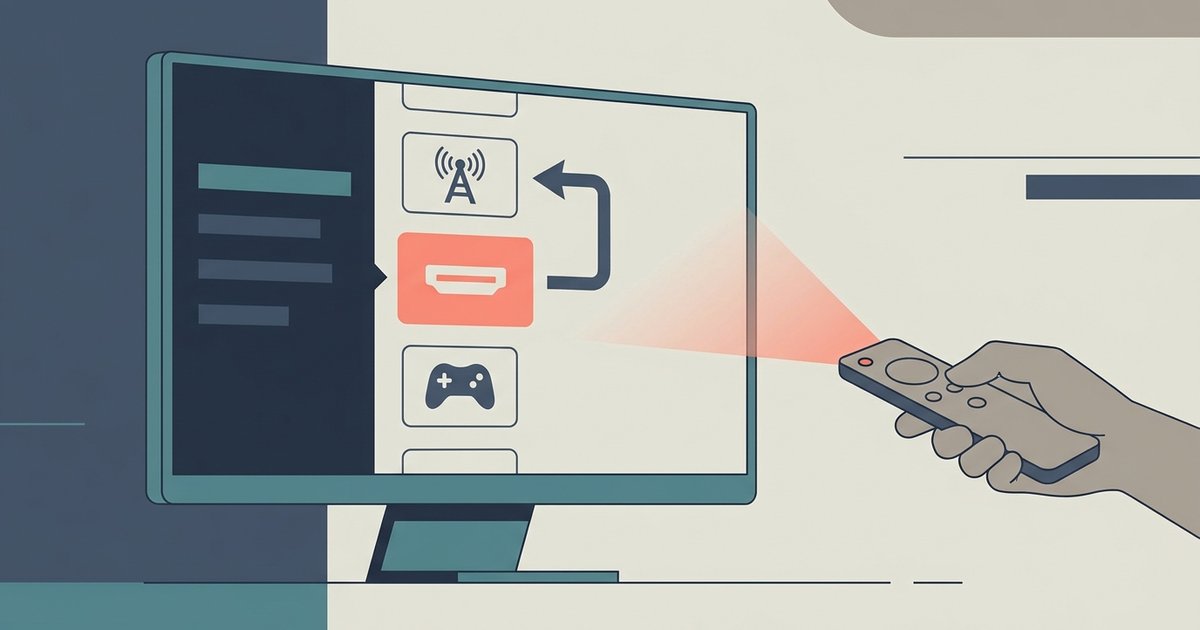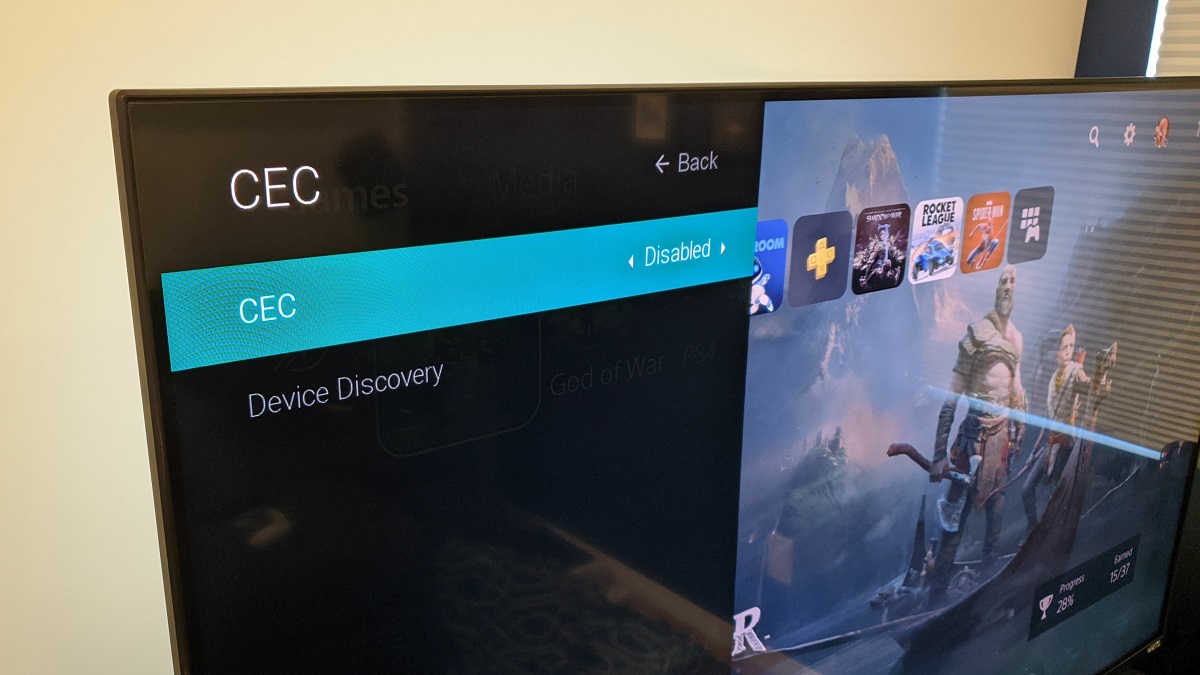
Disable the 'SIMPLINK (HDMI-CEC)' auto-power feature in your LG TV's general settings, or turn off 'CEC' on the specific device causing the hijack. If that fails, physically disconnect the HDMI-CEC pin using an adapter on the offending source.
Turn off Simplink to stop LG TV switching inputs
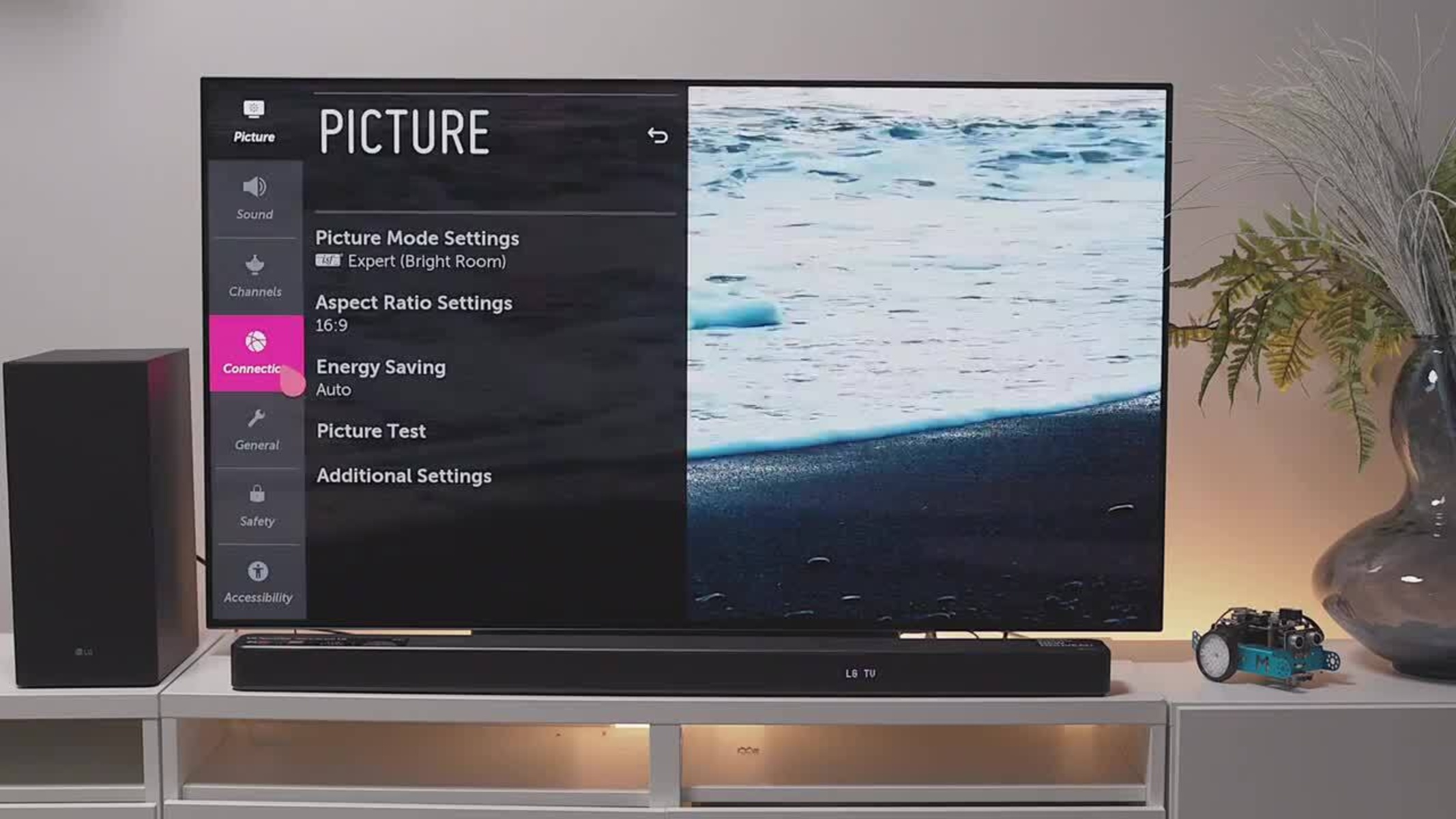
To stop a connected device from hijacking your TV’s input, navigate to the LG TV menu: press the Settings gear icon on your remote, select All Settings, then go to General and find SIMPLINK (HDMI-CEC). Inside this menu, look for the option labeled Auto Power Sync (if available; on newer webOS versions this setting may not appear separately), this is the specific setting that lets a device wake the TV and switch to its HDMI port. Toggle Auto Power Sync to Off. You should also uncheck any sub-options like "Auto Power On" or "Auto Input Switch" if present. This prevents your Blu-ray player, game console, or soundbar from automatically taking over the screen. If you’re unsure about which device is causing the issue, you can turn off the entire SIMPLINK feature by setting the master toggle to Off, which disables all CEC communication. This is the fastest fix for most LG owners and does not affect the channels available on an LG smart TV, which remain fully accessible via your antenna or cable input.
Identify the hijacking device
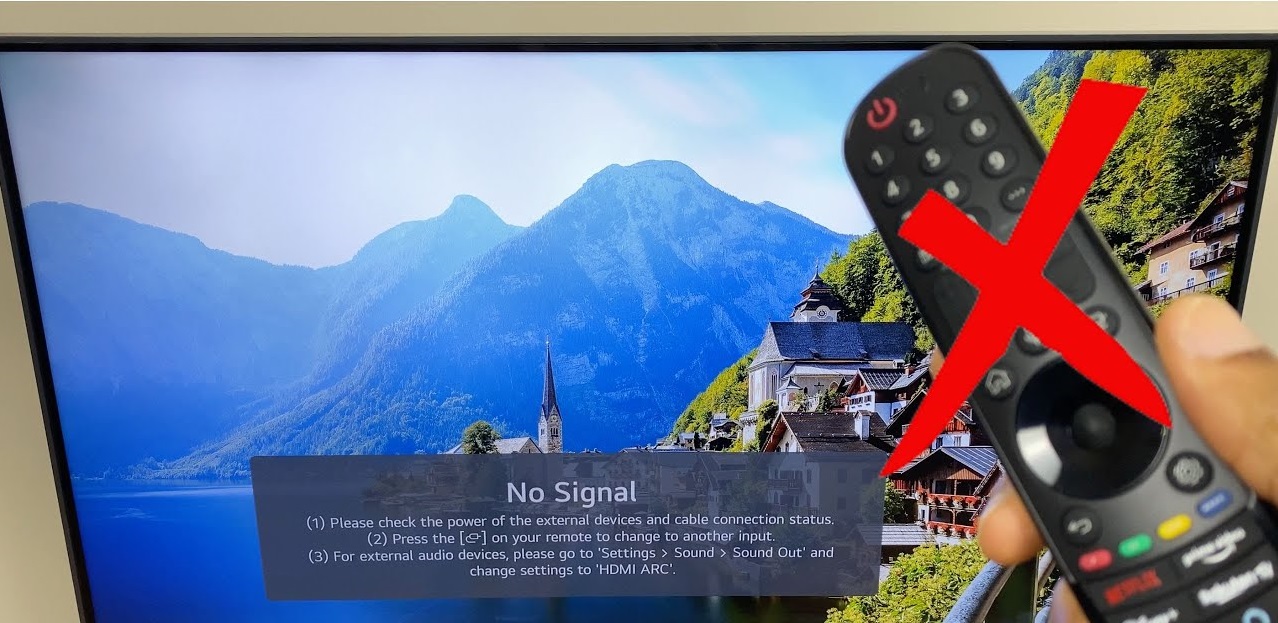
If turning off SIMPLINK doesn’t stop the random input switches, you need to identify which device is broadcasting the CEC command. Start by unplugging every HDMI-connected device except one, then watch the TV normally. If the input switches, plug the next device in and repeat. A common culprit is a streaming stick that sends a CEC "active source" signal when it boots up or installs a background update. Another frequent offender is a soundbar that, when its power state changes, tells the TV to switch to its ARC input. You can confirm the device by checking its physical power LED: if the device’s light turns on or blinks just before your TV switches, that’s the hijacker. Note that this CEC issue does not affect your antenna or cable tuning, it only disrupts HDMI input selection, so scanning channels remains unaffected if you need to do that later. For a more precise test, use a CEC analyzer app to see which device sends the "routing change" message.
When disabling CEC isn't enough
Some faulty or poorly designed devices ignore the "CEC Off" command from your LG TV. For example, an old game console or a cheap HDMI switch may still broadcast CEC signals even after you disable SIMPLINK. In this case, the only reliable solution is a physical HDMI CEC-less adapter, a small dongle that blocks pin 13 while passing through audio and video. Plug this adapter into the HDMI port of the offending device, then connect your cable to the adapter. This stops the hijack without losing picture or sound. If you still want to get local channels on LG smart TV through your antenna, this fix won’t interfere, it only affects the HDMI path, and you can easily connect antenna to LG smart TV for over-the-air broadcasts without disrupting your setup. For example, after blocking CEC, you can freely use the TV’s USB port to view pictures on your LG smart TV without any input interruption. Remember, this is a last resort: try disabling SIMPLINK first, and only buy the adapter if the random switching persists.