Your TV isn't detecting a valid video signal from the device, which usually means the HDMI cable isn't fully seated, the wrong input is selected, or the external device itself is powered off or frozen.
Check the physical connection and smart TV no signal power issues
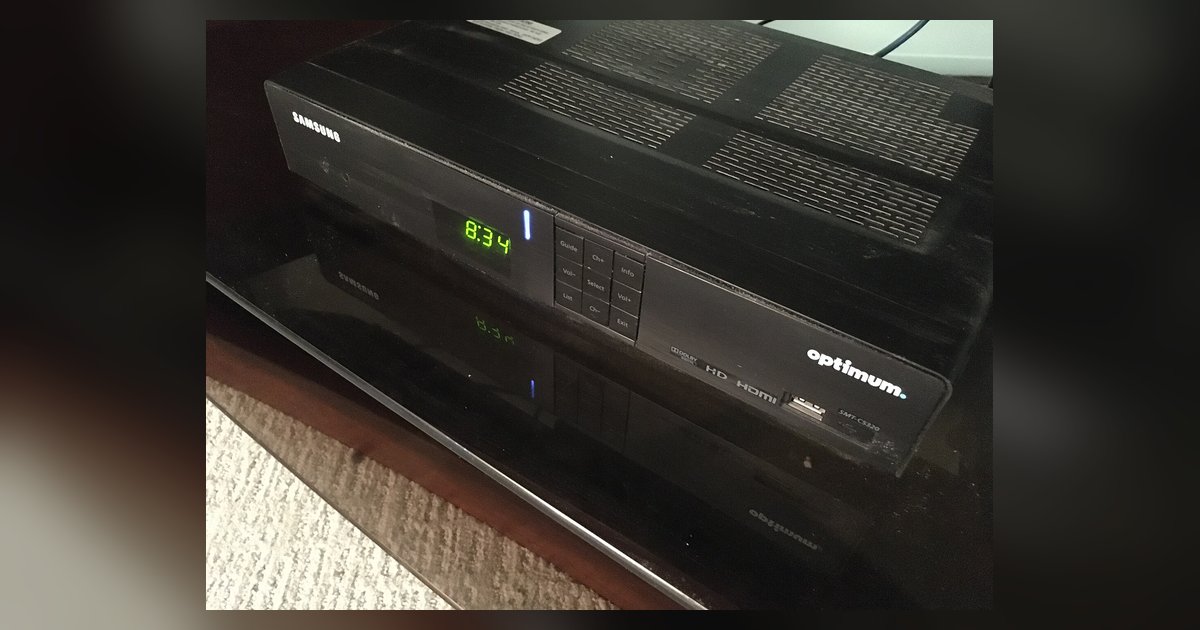
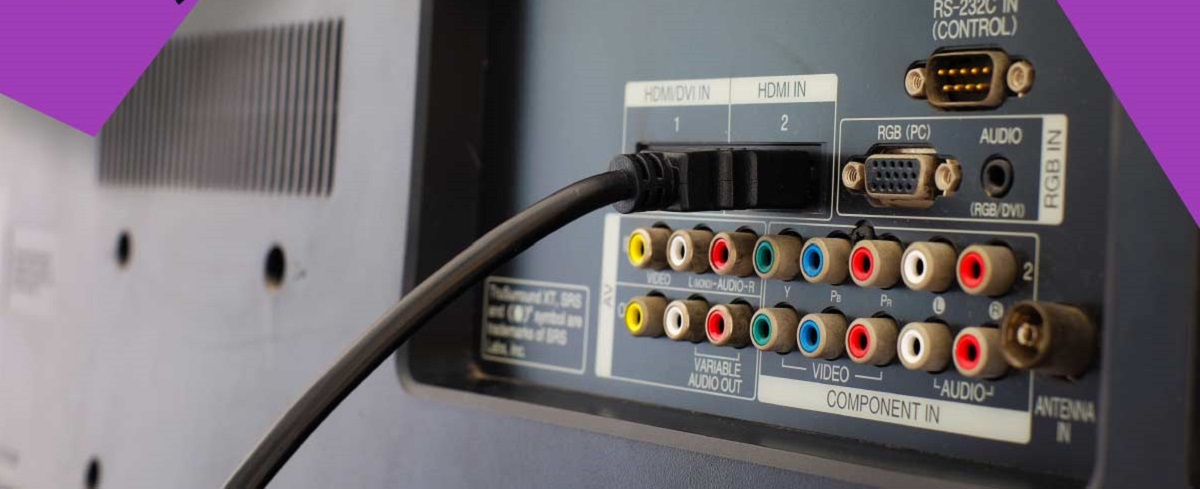
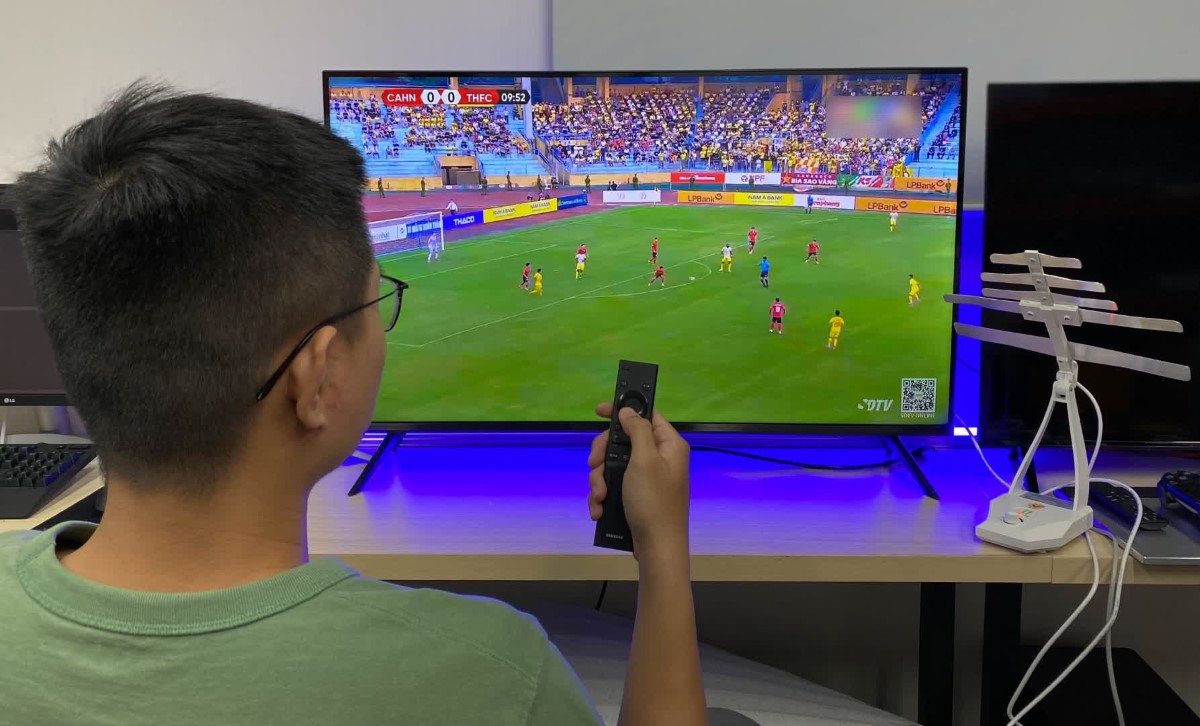
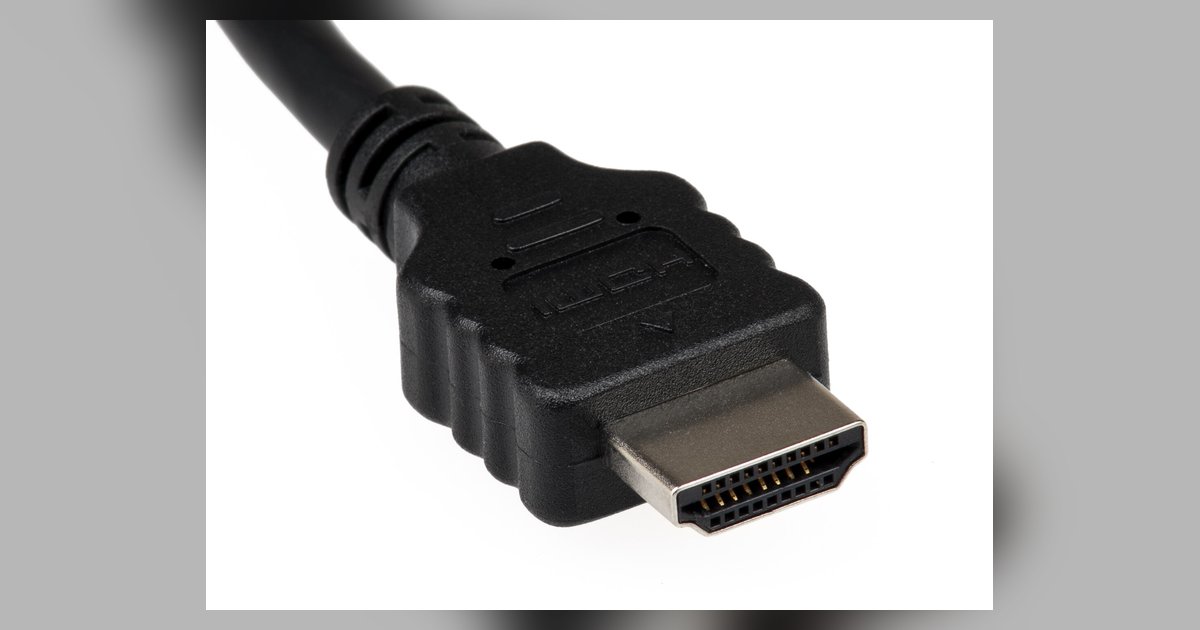
Unplug the HDMI cable from both the TV and the source device. This could be a cable box, streaming stick, or game console. Push it back in firmly until you hear or feel a click. Many smart TVs have multiple HDMI ports, so try a different port to rule out a loose or damaged one. Next, verify the external device actually has power. Look for a glowing LED, a fan noise, or a menu on its own display. A streaming stick that runs off the TV’s USB port might not get enough juice if that port is weak. Plug it into a wall outlet instead. If you’re using a cable or satellite box, ensure it’s turned on and not stuck on a boot screen. If your TV input is set correctly but you still see a blank screen, the issue might instead be a weak broadcast signal, similar to when a smart TV antenna not picking up certain channels, so you may want to confirm an old antenna working with smart TV channel scans before replacing any cables. This step alone resolves about 70% of “no signal” complaints.
When the right input still shows no signal
If you’ve confirmed the cable is seated and the device has power but the screen remains blank, you might be on the wrong input despite thinking otherwise. Cycle through every HDMI input using the TV remote. Don’t trust labels like “HDMI 1” or “HDMI 2” because some TVs rename inputs automatically. To get regular TV on a smart TV, you’d use the tuner input, but for HDMI sources you need the exact port the device is plugged into. A reliable test is to connect a different device to the same HDMI cable and port. Use something like a laptop or a Blu‑ray player. If that works, the original device is the problem. If it doesn’t, perform a power cycle. Unplug both the TV and the source device from the wall for at least 10-60 seconds, then plug them back in. This clears temporary glitches in the HDMI handshake.
Resolution or HDCP handshake failures
Sometimes the TV and the device can’t agree on display settings or copy protection. This causes a black screen even though they’re connected. HDCP is a common culprit. If your streaming stick or cable box outputs a protected signal that the TV can’t decode, you get “no signal.” Force the source device to a lower resolution by using its settings menu. Choose 1080p instead of 4K, for example. You often access this menu while the device is connected to a working display. A different HDMI cable can also break the stalemate by providing better bandwidth. Look for one labeled “High Speed” or “Premium Certified.” If you own a Tizen smart TV, the issue might be that its HDCP version doesn’t match the source. Check your TV’s system menu for options to manage HDCP or external device settings if available.
When the HDMI port or cable is simply dead
If all the steps above fail, the hardware itself may be toast. A bad cable can deliver power but no video signal. Swap it with a known‑working one to confirm. A fried HDMI port on the TV is more serious. Try plugging the device into a different TV or monitor. If it works there, the port is dead and you’ll need a repair or an external HDMI switch. Similarly, the source device might output no video at all. This could be a streaming stick that overheated or a cable box with a failed output chip. Connecting to a Hisense smart TV follows the same steps, but note that some Hisense models have a known issue where a specific HDMI port stops working after firmware updates. Try a factory reset of the TV under “Settings > System > Reset.” For a Vizio smart TV, you can check the port by plugging in a simple device like a DVD player. To watch local TV on a Vizio smart TV, use the coaxial input instead, which bypasses HDMI entirely. Swapping components is the only reliable way to isolate a dead part. You must test the cable, the device, and the TV port.