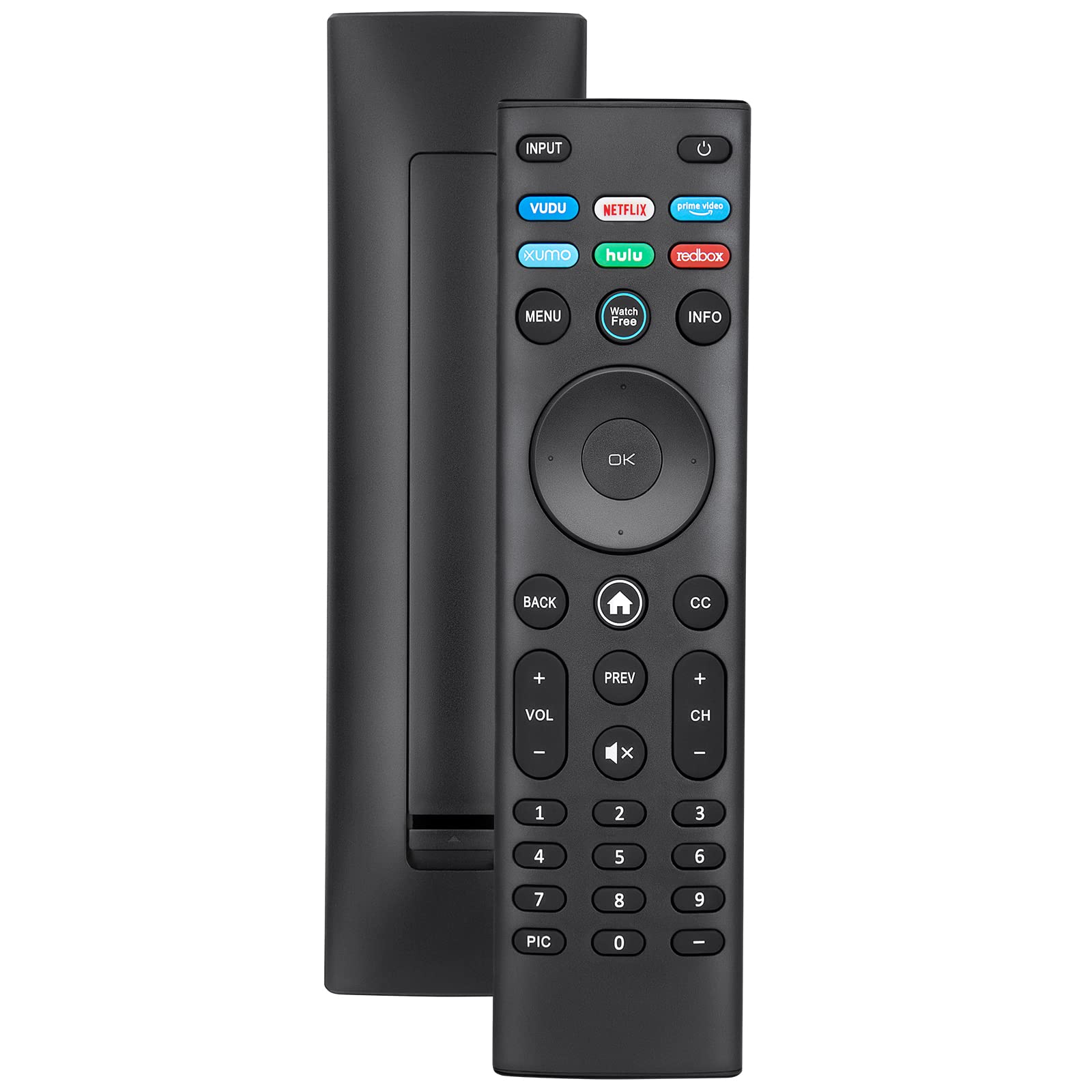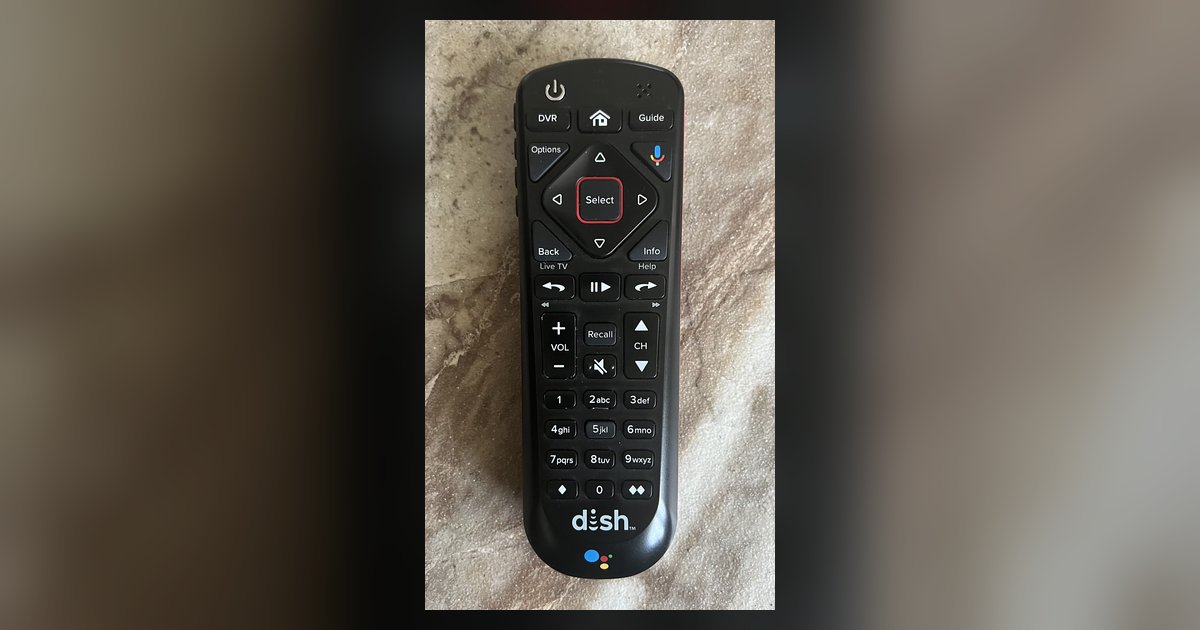
The remote likely lost its TV audio code or was never locked to control your TV's volume specifically. Reprogram the remote by navigating to Settings > Remote Control > TV > Pairing Wizard on your receiver's screen and following the on-screen instructions.
Why the dish remote volume won’t control the TV
When your Dish remote changes channels and input on the smart TV but the volume buttons produce no response, the issue is almost always a split in the code mapping. The Dish remote uses separate infrared codes for basic TV functions (power, input, channel up/down) and for audio control. During initial setup, the remote may have picked up a partial code that handles navigation but omits the volume commands. This happens frequently because many smart TVs have a “basic TV control” code that works for power and input but lacks the specific audio sub-code. The volume buttons then default to controlling the Dish receiver itself, which does nothing to the TV’s audio. The core problem is that the remote holds a functional identity code for the television but lacks the dedicated audio profile, a state no other provider’s support guide would describe as a split mapping inside a single programmed device slot.
Checking if the remote is locked to TV volume
To confirm whether the remote is actually set to control the TV’s volume, press the TV mode button at the top of the remote. Look for a red or green light to stay on for a few seconds, indicating the remote is now in TV mode. Then press the volume up button while pointing the remote at the TV. If the TV’s on-screen volume bar appears, the remote is locked to the TV. If nothing changes, the remote is likely still in SAT (satellite) mode, or it has switched to an AUX device such as a soundbar. You can also test by pressing the MUTE button: if the Dish receiver mutes instead of the TV, the volume buttons are not assigned to the TV. To fix this, you must reprogram the remote specifically for the TV’s audio, not just for basic control.
Reprogramming the TV code for volume control
For older DISH remotes (e.g., ViP models), start by pressing and holding the TV mode button until all mode buttons light up, then enter a three-digit remote control code and press the '#' button. For modern remotes, use the on-screen TV Pairing Wizard via Settings > Remote Control. Press the POWER button on the remote; if the TV turns off, the code is valid. Test the volume buttons. If they work, the remote is now fully paired. If not, repeat the process with the next code. For many smart TVs, especially Samsung and LG, using the on-screen TV Pairing Wizard or automatic code search often enables volume control. If no code works, use the on-screen TV Pairing Wizard or the 'Teach Commands' learning feature to program the volume control. After reprogramming, you should be able to setup smart TV with dish for full audio control.
When the TV brand has no working code
Some newer smart TV brands, particularly obscure models or those from 2023 onward, have no compatible Dish remote code at all. In that case, the remote cannot learn the volume commands via standard codes. You can use the Dish remote’s “learning” feature: press HOME twice, select Settings > Remote Control > choose the desired device > TEACH COMMANDS, then follow the on-screen instructions. Place the TV’s original remote within 4 inches of the Dish remote and follow the on-screen instructions to teach the volume command. The Dish remote will learn that signal. If the TV remote is lost or broken, the only workaround is to use the TV’s original remote for volume control, though you could alternatively use Spectrum remote with Samsung smart TV if you have one available. This is also relevant when you have a soundbar connected via HDMI ARC, because the Dish remote may not pass volume commands through the TV to the soundbar. In all these cases, the Dish remote remains limited for volume unless a code or learning procedure succeeds, which is especially important when watching live TV on a smart TV, a key part of the broader topic of How to Watch Live and Cable TV on a Smart TV.