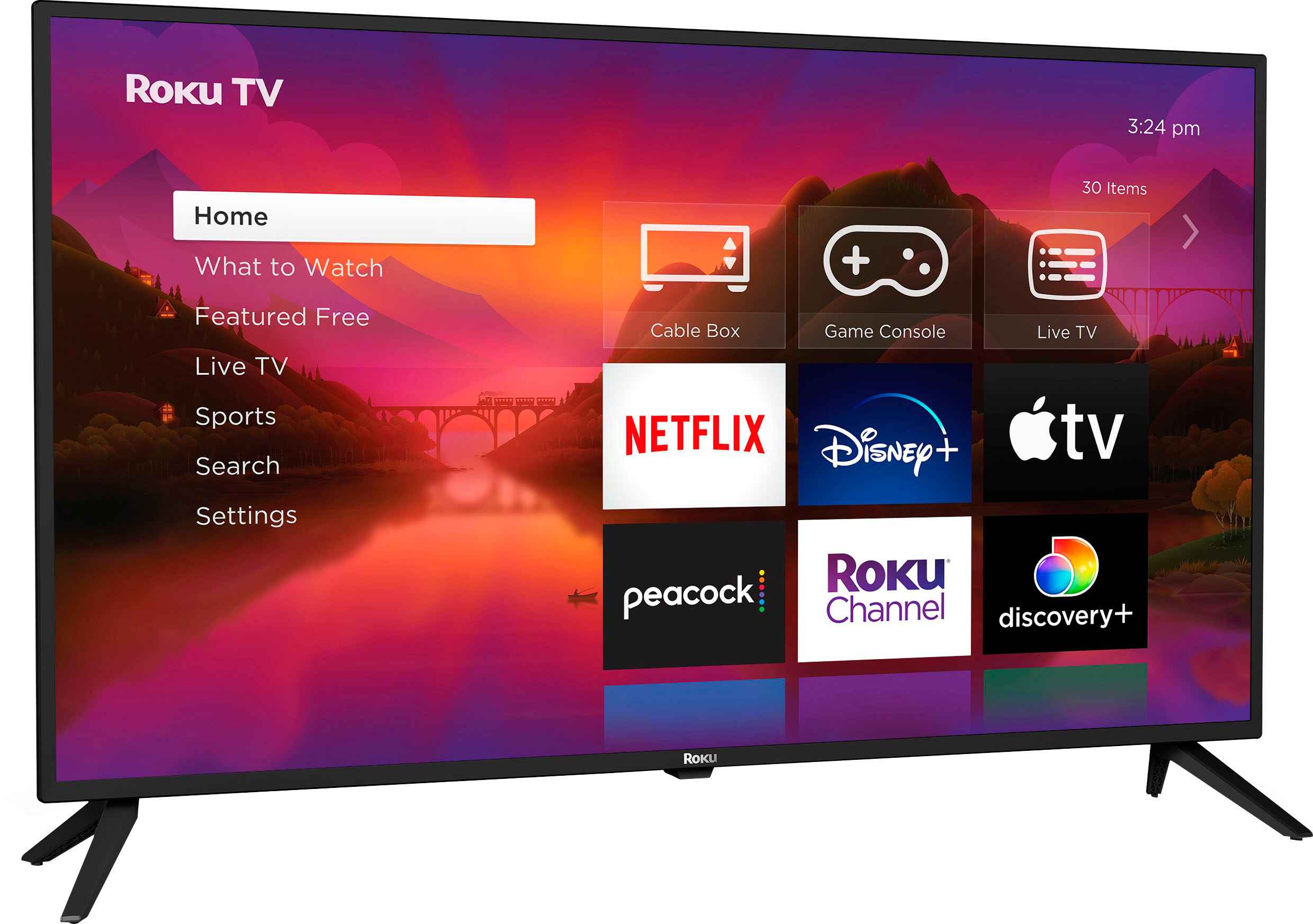
To sign out of your Roku TV, you cannot simply press a "sign out" button on the device itself. The two real methods to sign out of Roku TV are to unlink the TV from your account online or to perform a factory reset, depending on whether you need to protect your payment info or wipe all personal data before selling the TV.
How to sign out of your Roku TV: Your 2 options
Roku TVs do not have a standard "sign out" feature like a streaming app. Instead, you have two distinct options. The first is to unlink the device from your Roku account online, which removes the TV's association with your account and protects your payment information without deleting apps or settings. The second is a factory reset, which completely wipes all data, channels, and personal information from the TV. Choose the method that matches your need, whether you are signing out of streaming apps on a shared TV or preparing to sell the device. If you only need to switch profiles for a single service, you can sign out of Amazon prime on Roku without affecting your entire device.
Option 1: Unlink your Roku TV from your account online
Unlinking is the best choice if you want to secure your account on a borrowed or shared TV without losing the channels and settings already installed. This method does not factory reset the TV or deactivate your Roku account. However, it does not cancel any Roku-billed subscriptions; you must manage those separately on my.roku.com.
- Go to my.roku.com and sign in to your Roku account.
- Find your device under "My devices" or "My linked devices."
- Click on the device, then select "Remove device from account" or "Unlink."
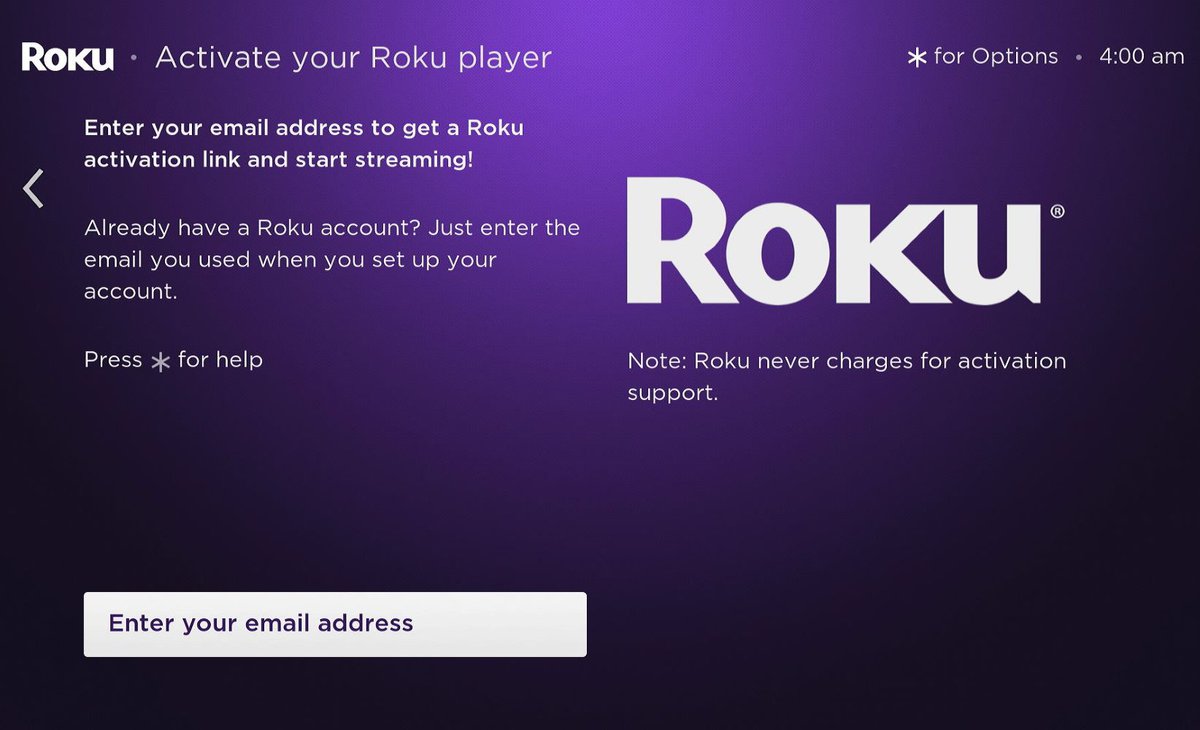
After unlinking, the TV will no longer be connected to your account. Your payment methods and personal information are no longer accessible on that device. If you later need to change accounts on Roku TV, you can link a different account during the TV's setup process.
Option 2: Factory reset your Roku TV to remove everything
A factory reset is a last resort. It erases all data, including installed channels, preferences, and login information. Use this method only if you are giving away or selling the TV, or if you cannot access your Roku account online.
Method A: On-screen menu (using your Roku remote)
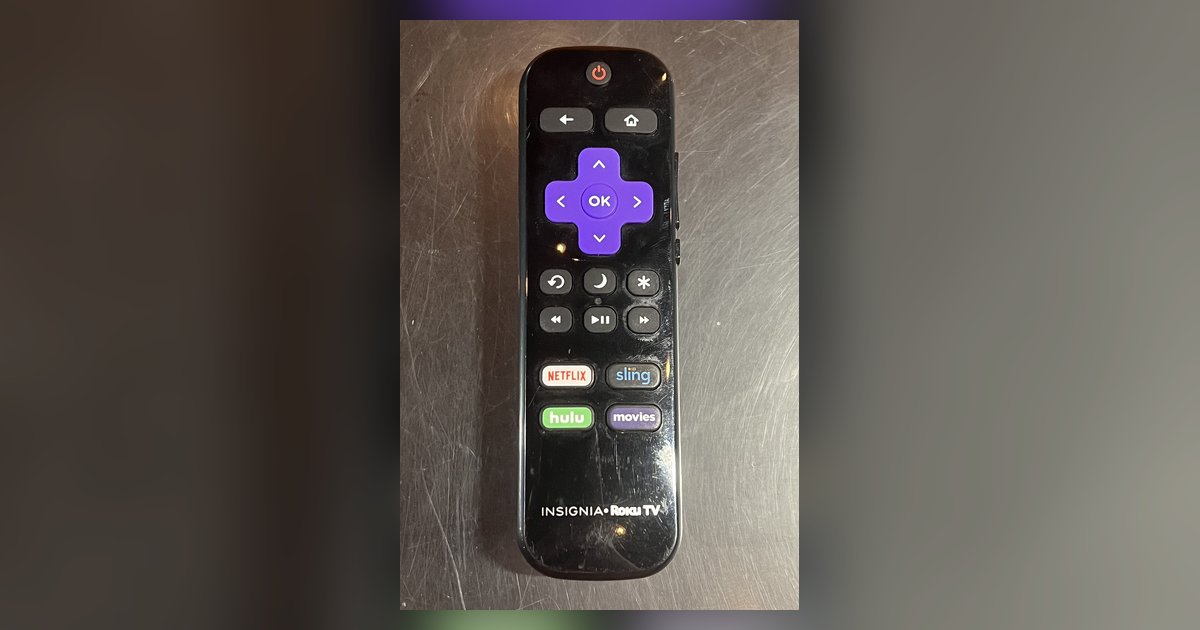
- Press the Home button on your Roku remote.
- Navigate to Settings, then select System.
- Choose Advanced system settings, then Factory reset.
- Select "Factory reset everything" and follow the on-screen instructions.
Method B: Physical reset button
If your Roku TV has a physical Reset button (usually on the back or side), power on the TV, then press and hold the button for about 10-12 seconds until the status LED blinks rapidly.
Method C: Button combination for newer models
For some newer Roku TV models (Pro Series, some Plus and Select Series) without a physical reset button, hold the "Power" and "Find My Remote" buttons simultaneously for 12 seconds.
After any factory reset method, the TV will restart and require you to go through the initial setup process, just like a new device. This is the only way to completely remove your account and all personal data from the TV.