To set up a Roku account, go to my.roku.com/signup on any web browser and enter your personal details to create a free account. This account is required to activate your Roku TV, player, or streaming device, and once you have it, you can set up Roku on my TV to finish linking the hardware. If you also want free over-the-air channels, you can connect TV antenna to a Roku device for live local broadcasts. You can complete the entire process online in just a few minutes.
How to set up a Roku account online
The most direct way to set up a Roku account is through the official signup page at my.roku.com/signup. You'll need to provide your name, email address, and create a secure password. Roku requires that you be at least 18 years old, or the legal age of majority in your country, to create an account. After entering your information, select "Save and Continue" to move forward in the process. Creating the account itself is completely free, and Roku never charges any fees for account creation or device activation.
Adding a payment method (or skipping it)
During the signup flow, you'll be asked to add a payment method. This step is entirely optional, and you can select "Skip" if you don't want to enter credit card or other payment details right now. However, adding a payment method is recommended if you plan to sign up for free trials, subscribe to streaming services, or purchase and rent content through your Roku device. You can always add, edit, or remove payment information later from your account settings on my.roku.com.
Verifying your email address
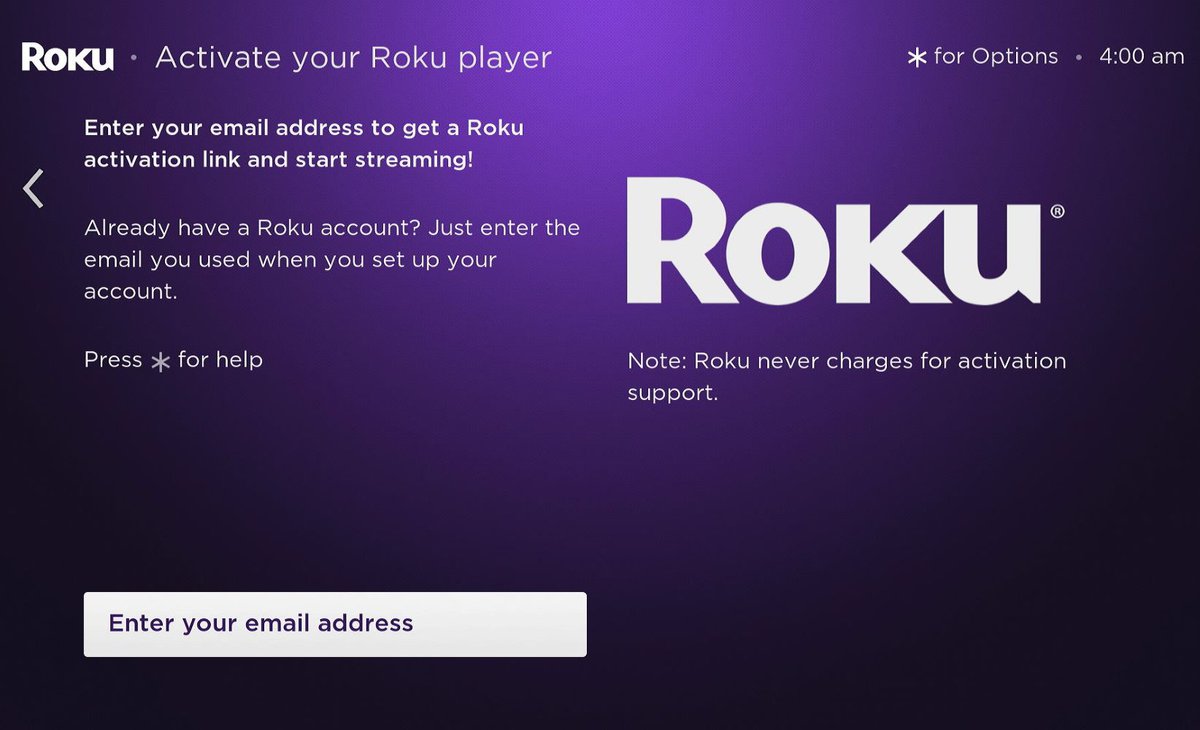
After submitting your signup information, Roku sends a verification email to the address you provided. Clicking the verification link in that email is a mandatory step to complete your account setup. If you don't see the email in your inbox, check your spam or junk folder, wait a few minutes, or try re-entering your email address on the Roku device. Keep in mind that activation links expire after 15 to 20 minutes, so click the link promptly after receiving it. If the link has expired, you can request a new one by starting the email verification process again.
Setting a PIN and parental controls
When you set up a Roku account, you'll be prompted to create a PIN and choose parental control settings. The PIN adds a layer of security for making purchases and adding channels, while parental controls let you restrict content based on ratings to keep certain channels or programs off-limits. These settings are part of the initial account creation flow, but you can adjust them anytime through your account preferences. Setting a PIN is especially useful if multiple people, including children, use your Roku device.
Linking your Roku device during setup
If you're setting up a new Roku device, the on-screen setup will display a unique activation code on your TV. To link that device to your new account, go to my.roku.com/link on your computer or smartphone and enter the code shown on your screen. This step connects the device to your account, enabling you to start streaming immediately. Roku recommends linking all your Roku devices to a single account so you can manage purchases, subscriptions, and settings from one place. Using one account across multiple devices also keeps your channel lineup and preferences consistent.
Alternative ways to create an account
Beyond the web-based method, you can create a Roku account directly on your Roku device by following the on-screen instructions during initial setup. If you own a Roku Smart Home device, such as a security camera or smart light, you can create an account through the Roku Smart Home mobile app by selecting "Create account" and following the prompts. You can also set up a Roku account through The Roku Channel website by selecting the user icon in the top-right corner, choosing "Create account," and completing the signup form. All these methods lead to the same free account and work with your Roku ecosystem.
Troubleshooting account creation issues
If you don't receive the activation email after signing up, first check your spam or junk folder, then wait a few minutes and try again. If the verification link has expired, re-enter your email address on the Roku device or at the signup page to trigger a new email. For login or activation problems, confirm that your device is connected to the internet and that you're entering the correct email and password. Before considering a factory reset, verify your account identity and network connection, as most issues stem from a typo in your email, a weak Wi-Fi signal, or an outdated activation link. If problems persist, you can contact Roku support through their official help center for assistance with account creation or device activation. The "contact Roku" option is available on the support page if you need direct help resolving a persistent issue.