To find out what Roku is charging you for, the most reliable method is to sign into your Roku account online at my.roku.com. There you can review your Roku-billed subscriptions and purchase history to identify exactly what is causing the charge on your credit card.
How to find out what Roku is charging me for online
Logging into your account on the Roku website is the primary way to see all charges billed through Roku. This method works regardless of which device you own and gives you the most complete picture.
- Go to my.roku.com and sign in with the email address and password linked to your Roku account.
- Navigate to the "Subscriptions" section. Here you will see every active subscription that is billed through Roku, including services like Disney+, Hulu, or Sling TV.
- Select "Purchase history and invoices" to see charges for content, products, and subscriptions. This provides a chronological list of every transaction, including rentals, one-time purchases, and subscription fees.
Reviewing this page lets you match each charge to a specific service or purchase so you can decide what to keep or cancel.
How to check a charge directly on your Roku device
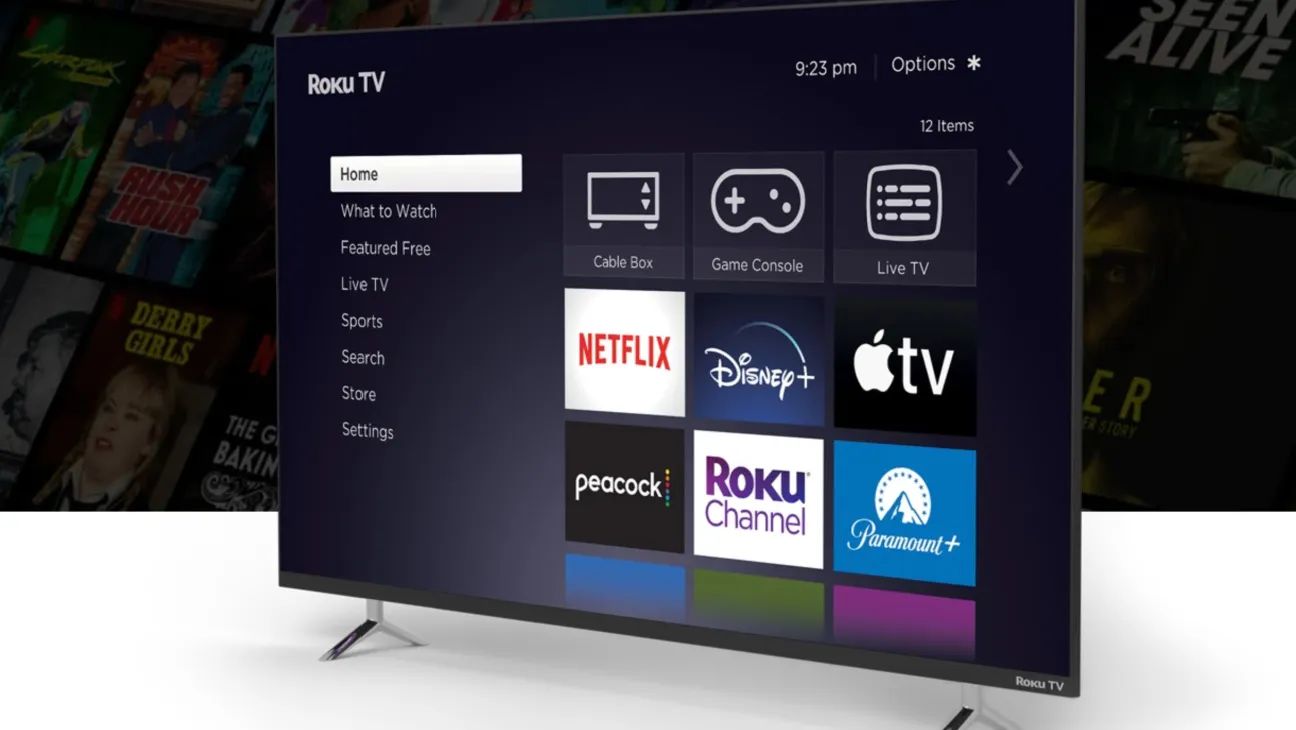
If you prefer not to use the website, you can check subscription details right on your Roku device. This method is useful when you want to quickly see what a specific channel is charging you.
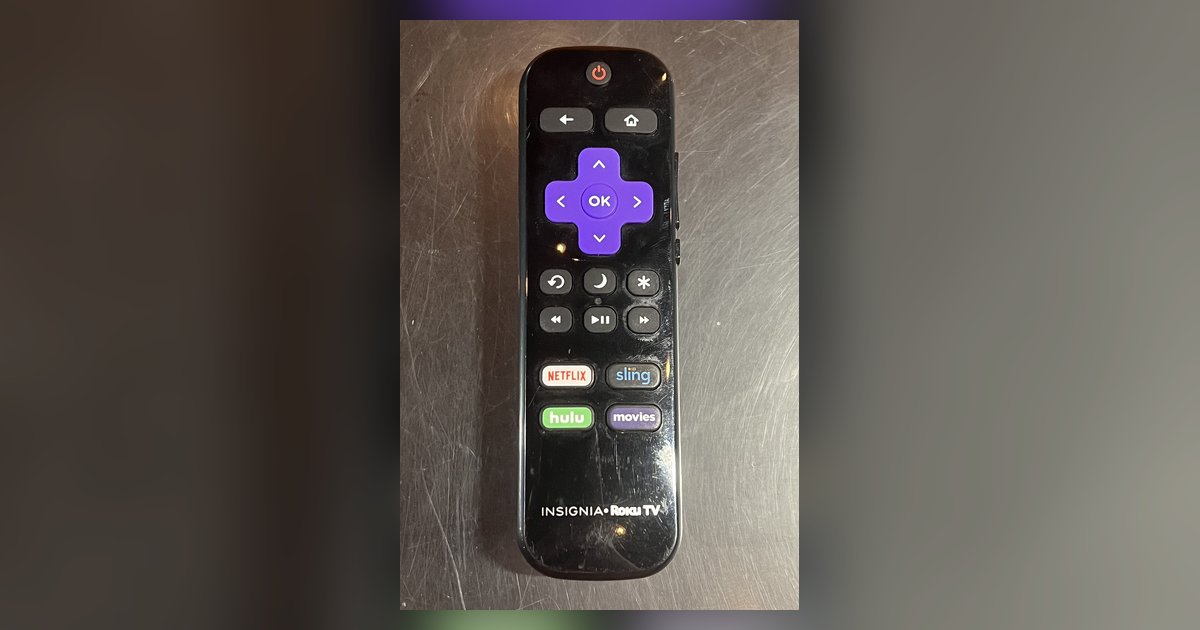
- Press the Home button on your Roku remote to return to the main screen.
- Highlight the channel or app you want to investigate.
- Press the Star (*) button on your remote to open the options menu.
- Select "Manage subscription" from the menu. This will display renewal dates, pricing, and other details for any Roku-billed subscription tied to that channel.
This approach works only for subscriptions that Roku bills you for directly, not for services you signed up for through another provider.
How to identify a Roku charge on your bank statement
When you see an unfamiliar charge on your credit card or bank statement, the billing descriptor can help you identify it. Roku charges will appear as "Roku," "Roku for ___," or "The Roku Channel." Some charges may list a parent company's name, such as "Roku for CBS Interactive" for Paramount+ or "Roku for Warner Media Global Digital Services LLC" for HBO Max. If you see a descriptor like "Roku for CBS Interactive," you know that charge is from a third-party service that uses Roku as its billing partner.
Why a charge might not show up in your Roku account
Not every streaming charge you see on your bank statement will appear in your Roku account history. Subscriptions purchased directly through other streaming services, such as Netflix, Amazon Prime Video, or Apple TV+, are billed by those providers and will not show up on my.roku.com. You must manage those subscriptions through the respective service's website or app. Additionally, if you have multiple Roku accounts, a subscription or purchase might be linked to a different email address than the one you are checking. Try signing in with any other email addresses you may have used to see if the charge appears there.
How to stop unwanted Roku charges in the future
Preventing unwanted charges starts with setting up a Roku PIN. A PIN blocks unauthorized purchases and subscriptions on your device, so no one can add a paid channel or rent content without entering the code. You can set this up in your account settings on the Roku website. Remember that your Roku account itself is always free, Roku never charges for creating an account, activating a device, or providing customer support. If you need further help, you can contact Roku through their support website, live chat, or phone. To find the best way to reach them, search "How Do I Contact Roku" on the Roku support site. If you're troubleshooting account issues and need to access your device settings without the standard controls, you can find Roku IP address without remote or wifi to connect directly.
\nRelated reading: Does Signing Out Of Roku TV Delete My Roku Account Or Cancel Subscriptions.