Go to my.roku.com, sign in, and click 'Payment methods' to see every card and PayPal account attached, or navigate to Settings > Payment method on your Roku device to view your default payment method. The Roku device itself only shows your default payment method, not the full list of saved methods.
The only place to see your Roku payment methods
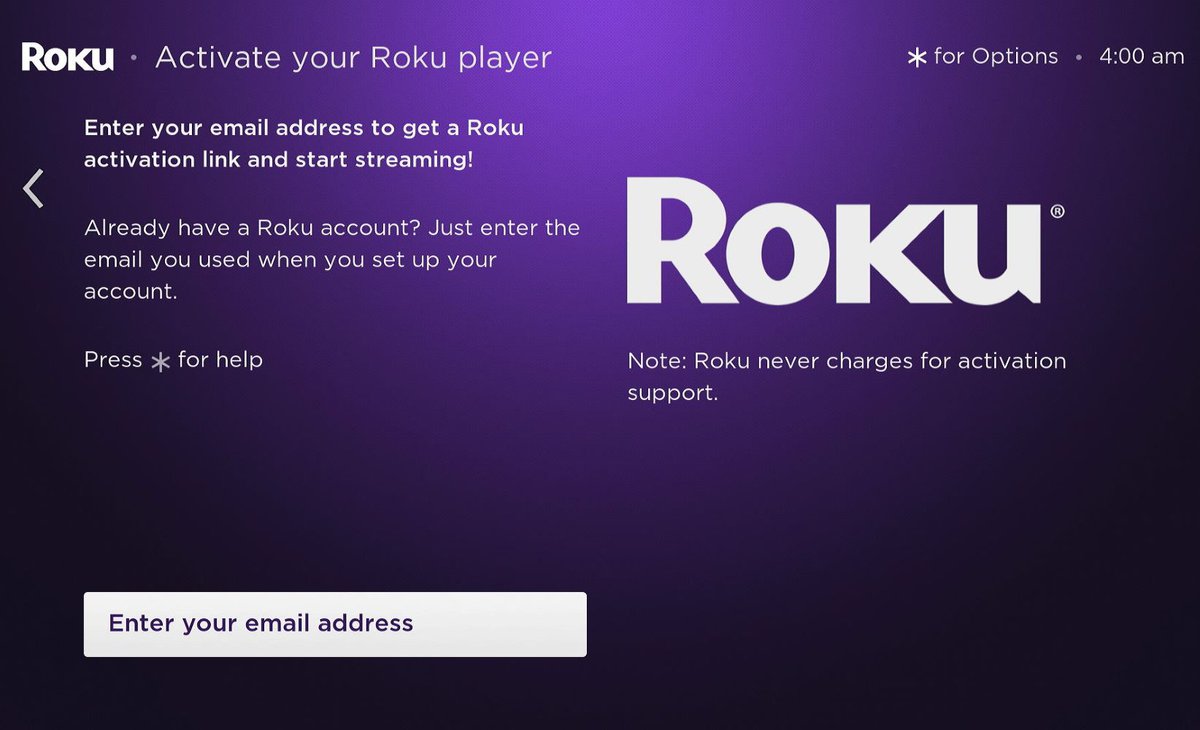
Open a web browser on any computer, phone, or tablet and navigate to my.roku.com. Sign in with the email address and password you use for your Roku account. Once you are on your account dashboard, look for the "Payment methods" link in the left-hand navigation menu or under the "Account" section. Click on it. The page that loads will show a table or list of every payment method currently saved to your Roku account. Each entry will display the last four digits of the card number, the card type (Visa, Mastercard, American Express), and the billing address you entered. If you have linked a PayPal account, it will also appear here, showing the email address associated with that PayPal account. You can add a new method, remove an old one, or set a default method from this same screen. This is also where you need to go if you are following a guide that tells you to update your payment methods after you change Roku email, because the new email will not automatically move your saved payment methods, you must manually verify they are still valid here. Before making any changes, you might also want to understand how changing your Roku email and purchase history interact, so you know your existing purchases remain safe.
Why you can't find it on your TV
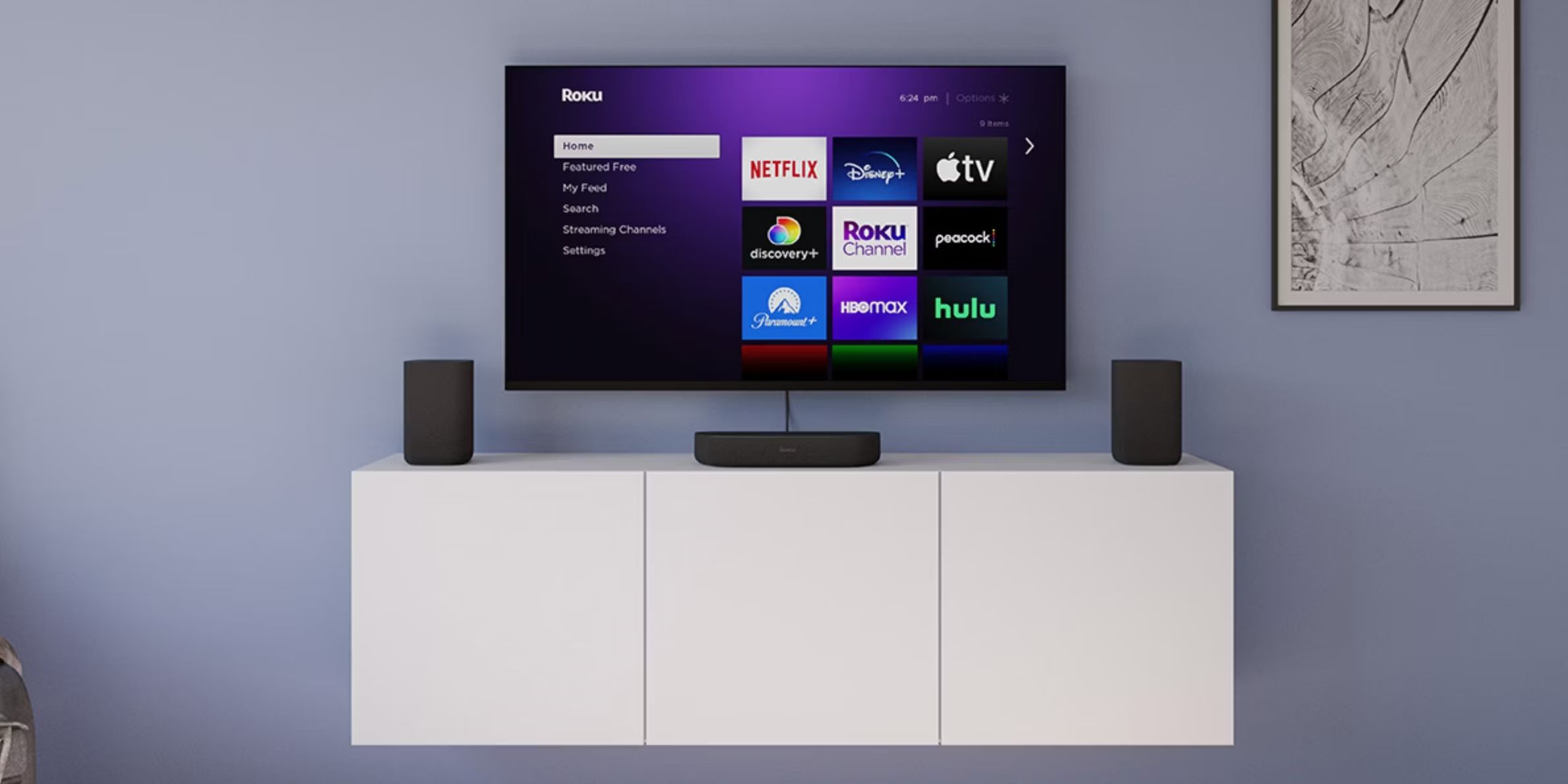
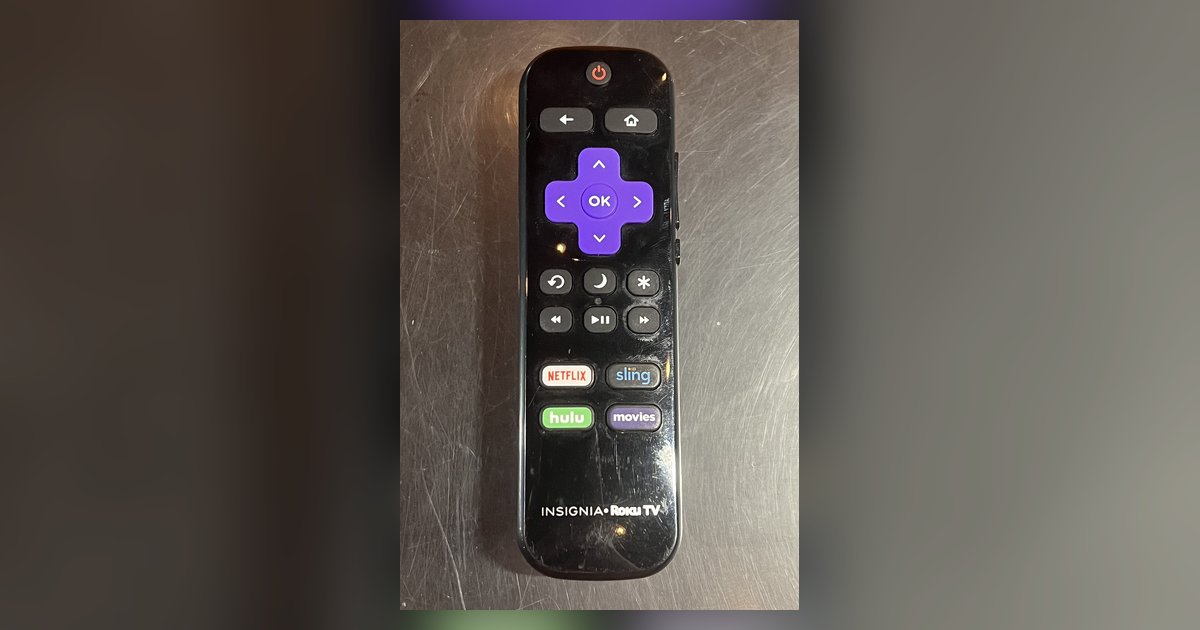
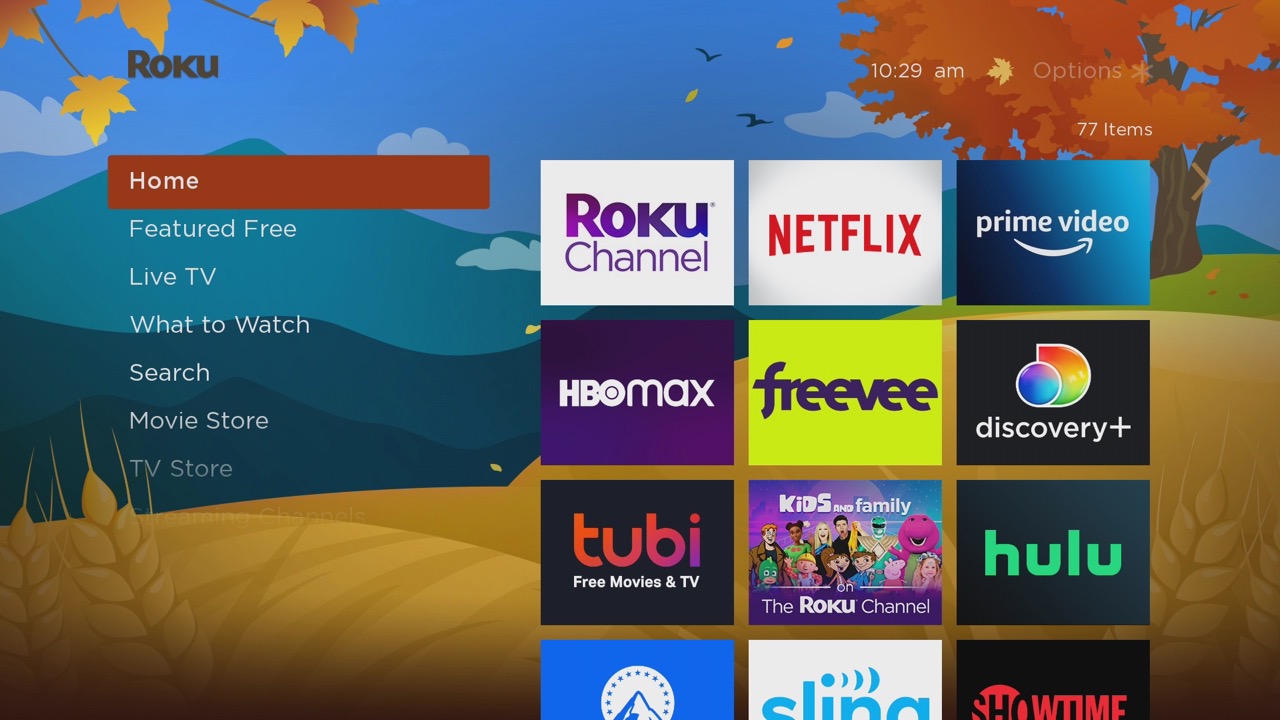
The Roku device interface is designed for quick purchases, not account management. When you open the Roku home screen, go to Settings, then select "Payment method," you will only see one payment method: the one currently set as your default for buying or renting movies, TV shows, and subscriptions through the Roku Channel Store. That screen does not show any other saved cards or PayPal accounts. This limited view causes confusion because users expect to see the full list they saw on the website. The device intentionally hides the rest to keep the on-screen interface simple and to avoid exposing multiple sensitive payment details on a shared TV screen. If you need to see every method, you must use the website. Similarly, if you are troubleshooting a payment issue after you change PayPal @username, the TV will not show the old or new PayPal details, only the website will reflect the update.
When a method is missing from the list
Roku only lists payment methods that you entered directly into your Roku account. Subscriptions you signed up for through Amazon Prime Video Channels, Apple iTunes, or a streaming service's own website (like Netflix or Hulu) are billed by those companies, not by Roku. Those payment methods will never appear on Roku's Payment methods page. To manage or update them, you must log into the service where you originally subscribed. For example, if you subscribed to a channel through Amazon, you go to Amazon's website to change the card. If you used Apple's in-app purchase, you adjust your Apple ID payment settings. Always check the billing source first before assuming Roku has lost your payment info.