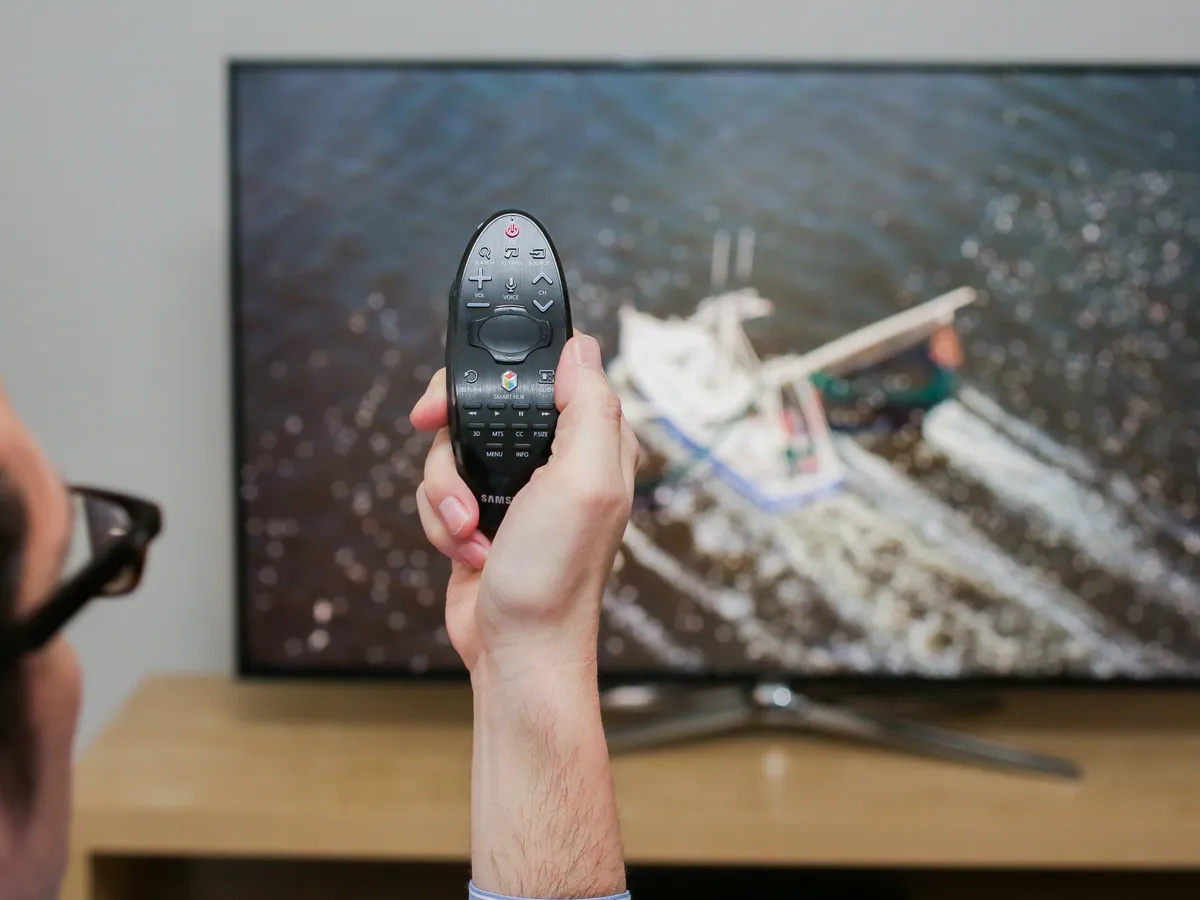
Getting the Fios app on a Samsung smart TV isn't possible with a direct download, because Verizon does not support the Fios TV Mobile or Fios TV Home app on Samsung's Tizen operating system. The most reliable way to watch your Fios TV subscription on a Samsung set is to connect a compatible streaming device.
Can you get the Fios app on Samsung smart TV?
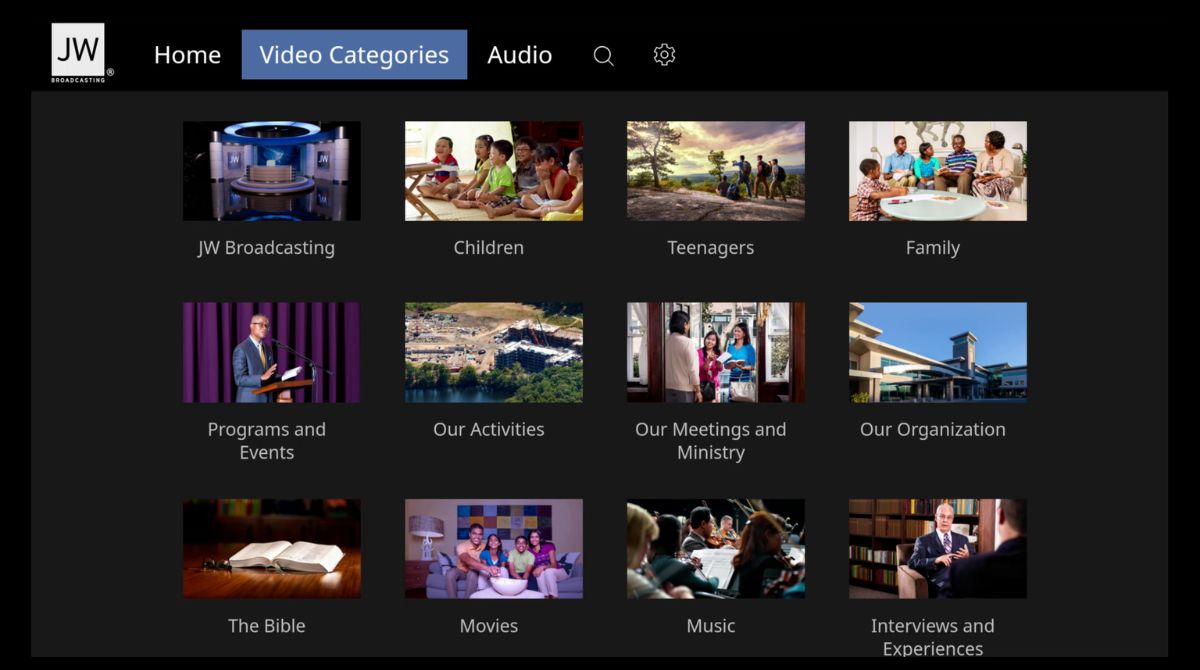
No, the native Fios TV app is not available for Samsung Smart TVs. Verizon’s Fios TV Mobile app is designed for smartphones and tablets only, and the Fios TV Home app is built exclusively for qualifying streaming devices like Apple TV 4K, Apple TV HD, and Amazon Fire TV. You cannot install either of these directly on a Samsung TV, but if you own an LG set you can similarly add Apple TV app to LG smart TV to access a different streaming ecosystem, and you can also download jw.org app on Samsung smart TV for faith-based content that is directly supported on the platform. The workarounds below are the only ways to watch Fios content on your Samsung screen.
The best way to watch Fios on a Samsung TV: use a streaming device
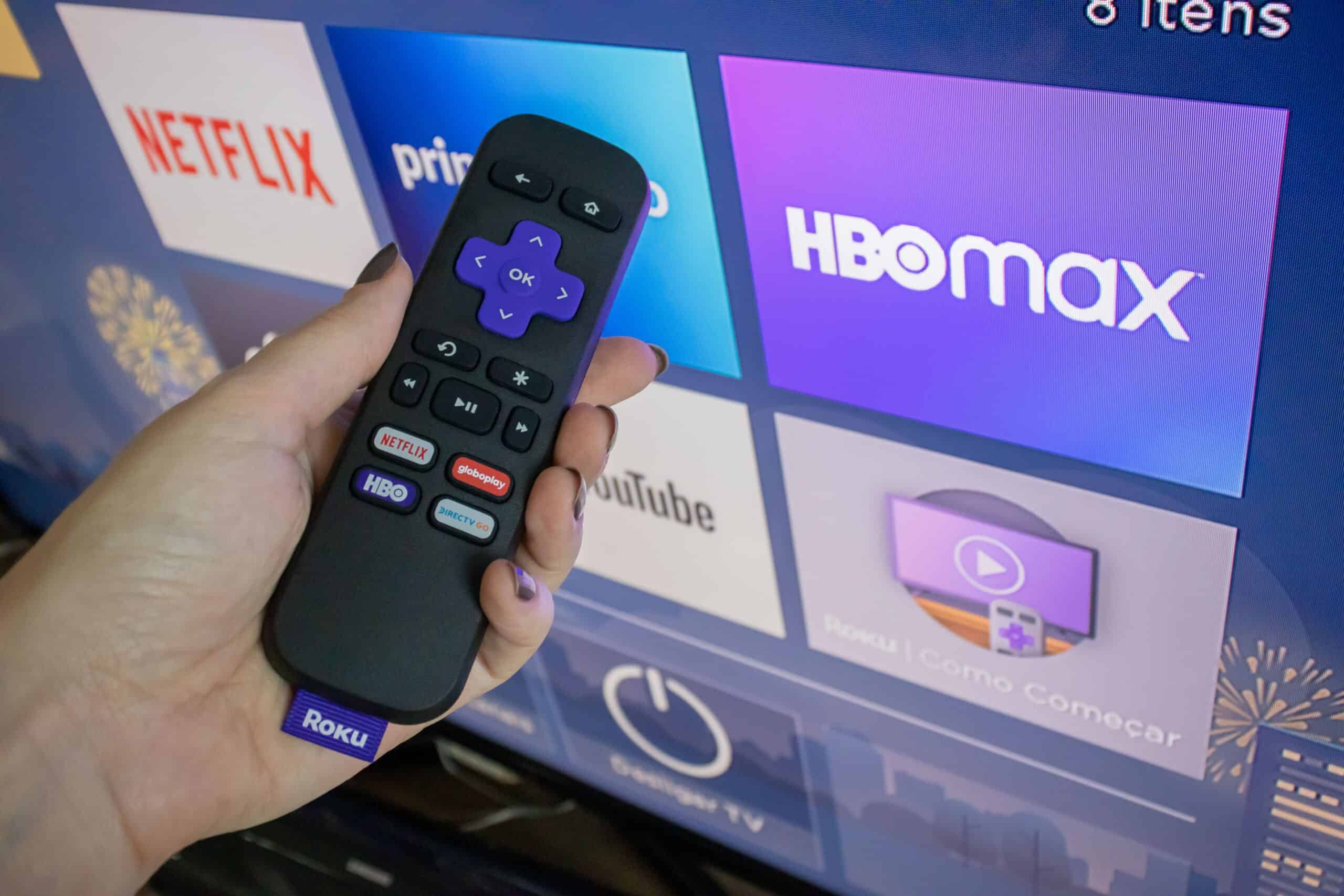
Connecting a supported streaming device to your Samsung TV is the primary solution. This method uses the Fios TV Home app, which provides live channels, On Demand content, and DVR management. Before you begin, confirm you have a Fios TV and Fios Internet subscription, a Fios Quantum Gateway Router or Fios Router, and at least one installed Verizon Media Server, Fios TV+, or Fios TV One set-top box. Non-Verizon routers may have limitations with this app.
- Connect an Apple TV 4K, Apple TV HD, or Amazon Fire TV device to your Samsung TV using an HDMI port.
- Turn on your Samsung TV and select the correct HDMI input for the streaming device.
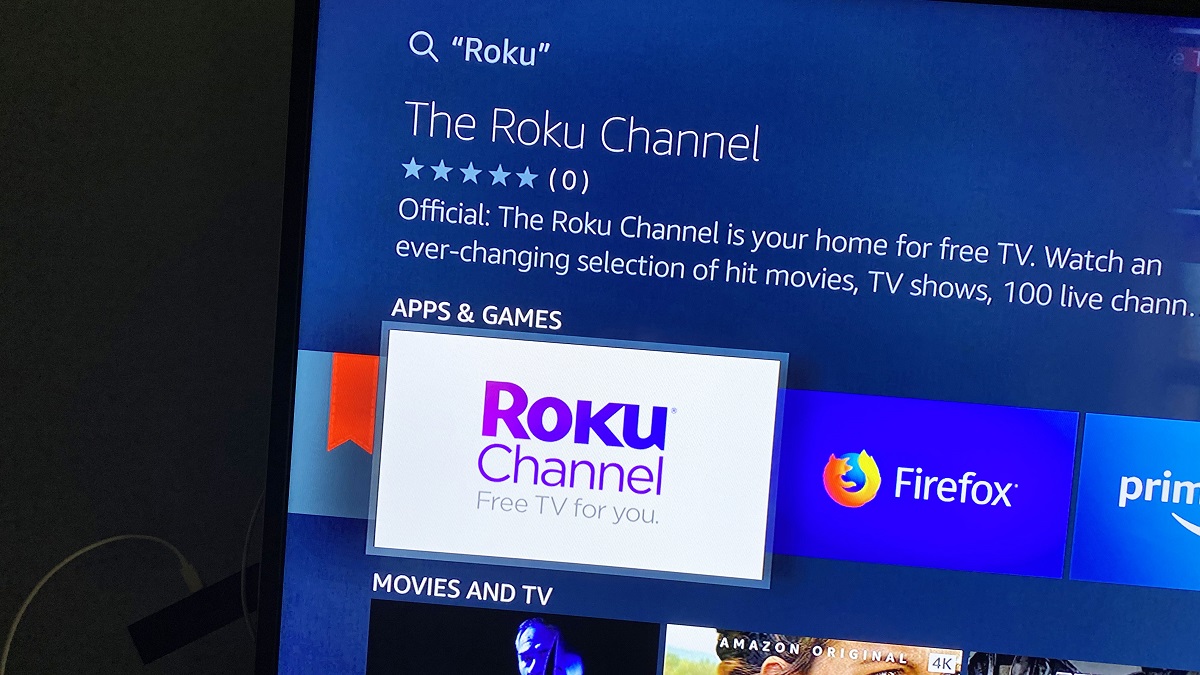
- On the streaming device, navigate to its app store and search for "Fios TV Home."
- Download and install the Fios TV Home app.
- Open the app and sign in using your Verizon Fios username and password.
- Browse live channels, On Demand titles, and manage your DVR directly from the app.
This setup delivers the full Fios experience on your Samsung TV without needing a separate cable box in the room.
How to cast Fios to your Samsung Smart TV from a mobile device
If you do not want to buy a streaming device, you can cast Fios content from your phone or tablet to the TV. This method uses the Fios TV Mobile app, which supports Chromecast (First, Second, Third Generation, and Ultra). Your Samsung TV must have Chromecast built-in or a connected Chromecast dongle.
- Ensure your mobile device and Samsung TV are connected to the same Wi-Fi network.
- Install the Fios TV Mobile app on your iOS device (iOS 12 and higher), Android device (Android 5.0 and higher), or Amazon Kindle/Fire device (Android 5.0 and higher).
- Open the app and sign in to your Fios account.
- Select the show or channel you want to watch.
- Tap the Cast icon (a rectangle with a Wi-Fi symbol in the corner) within the app.
- Choose your Samsung TV from the list of available devices.
- The content will begin playing on your TV while your mobile device acts as a remote.
This approach is convenient for quick viewing but requires a mobile device to control playback.
What about the old 2012 Fios app for Samsung TVs?
In 2012, Verizon released a FiOS TV app for compatible Samsung Smart TVs and Smart Blu-ray players. That app offered live channels and On Demand content without a set-top box. This app is long discontinued and no longer supported. Any online instructions referencing it are outdated and will not work on current Samsung TV models or software versions. Ignore those references and use one of the modern methods above.
Troubleshooting Fios streaming issues on your Samsung TV
When using a streaming device or casting, most problems stem from network or subscription requirements. If you experience buffering, missing channels, or app errors, check these common fixes:
- Confirm your Fios Router is a Fios Quantum Gateway Router or Fios Router. Non-Verizon routers may block certain channels and DVR features.
- Verify all devices, your Samsung TV, streaming device, and mobile device, are on the same home network.
- Ensure your Fios TV and Fios Internet subscriptions are active and in good standing.
- If using the Fios TV Home app, check that at least one Verizon Media Server, Fios TV+, or Fios TV One set-top box is installed and functioning in your home.
- Restart your router and streaming device.
- Update the Fios TV Home or Fios TV Mobile app to the latest version from the app store.
For persistent issues, Verizon customer support can verify your account setup and network configuration. Following these steps will help you reliably watch Fios content on your Samsung TV, whether you choose a streaming device or casting from a mobile device. If you are interested in installing streaming apps on a smart TV, the same general process applies to other supported services on Samsung's platform.