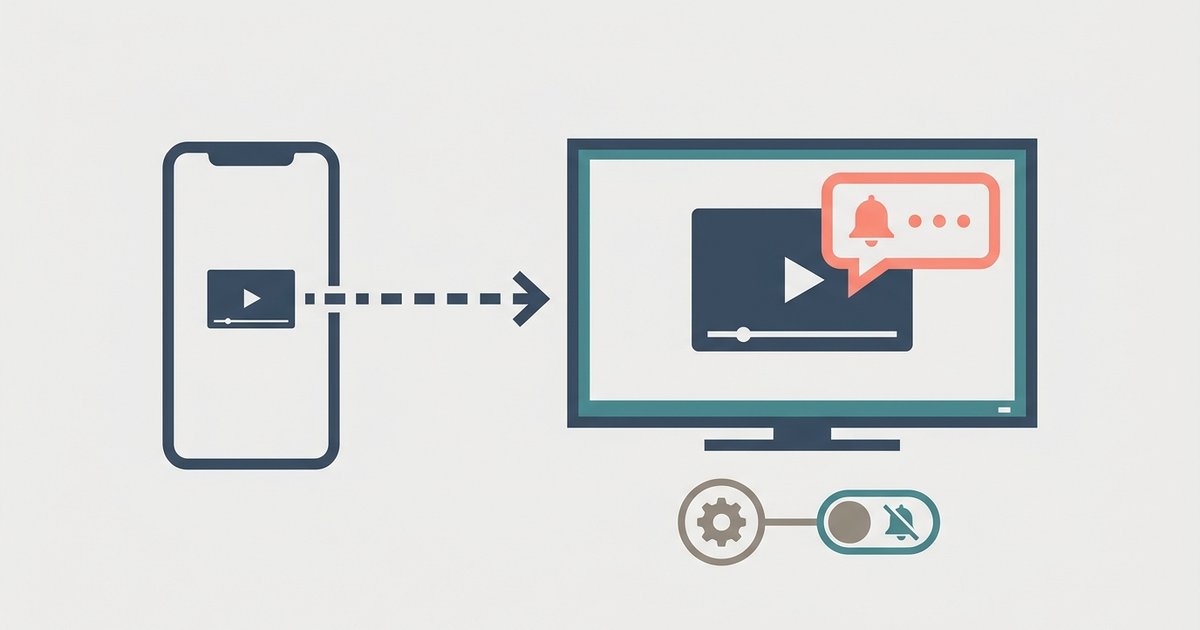
Enable 'Do Not Disturb' or 'Focus Mode' on your phone before connecting; screen mirroring shows your exact phone screen, so blocking notifications at the system level prevents them from appearing on the TV.
Why notifications still appear on silent or vibrate while you stop TV notifications
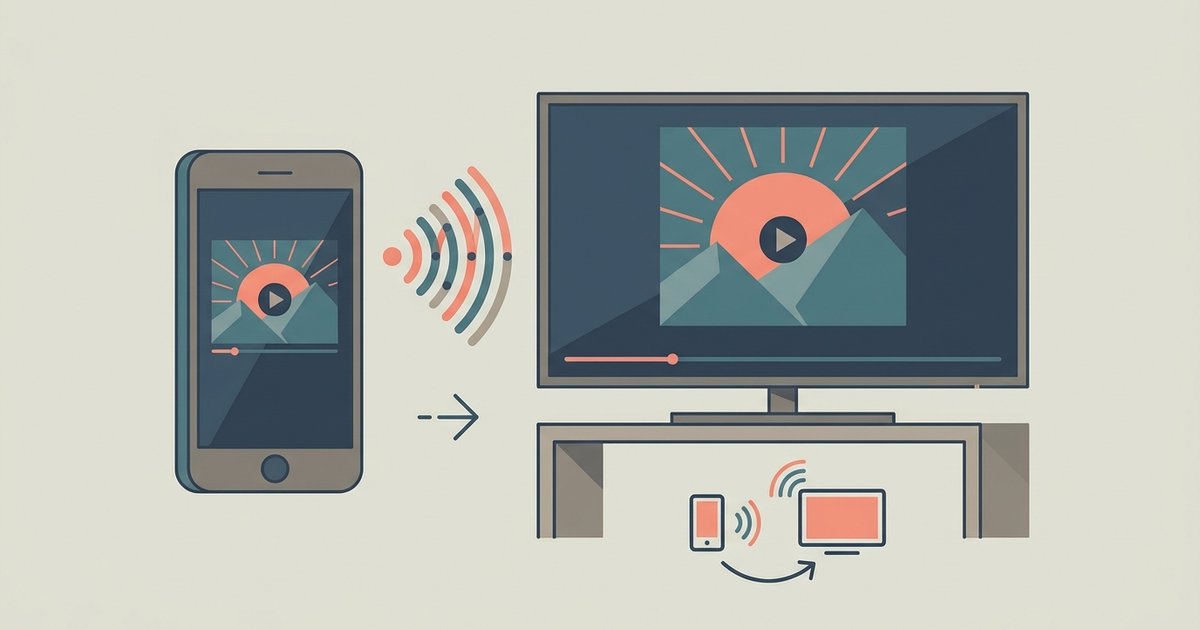
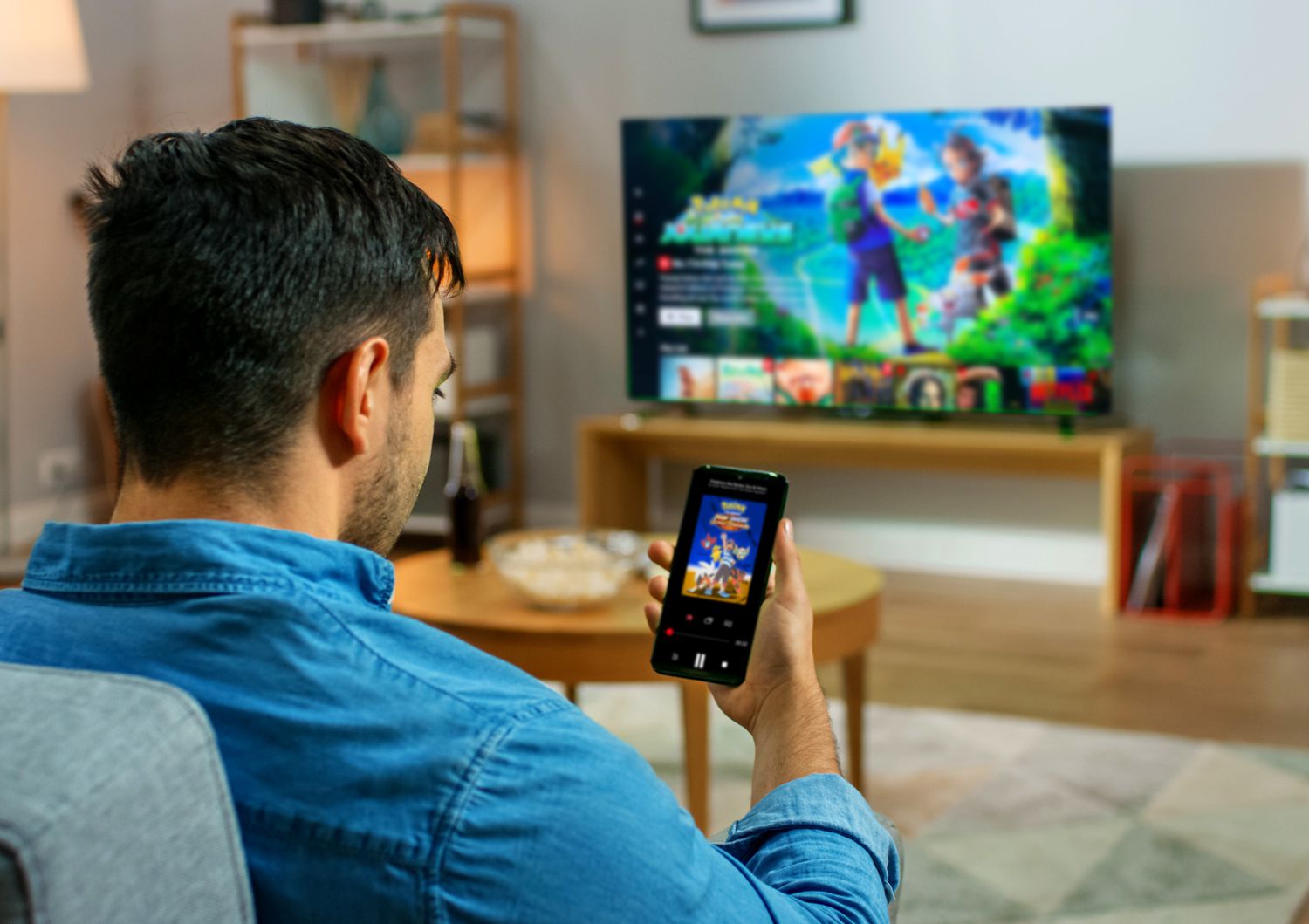
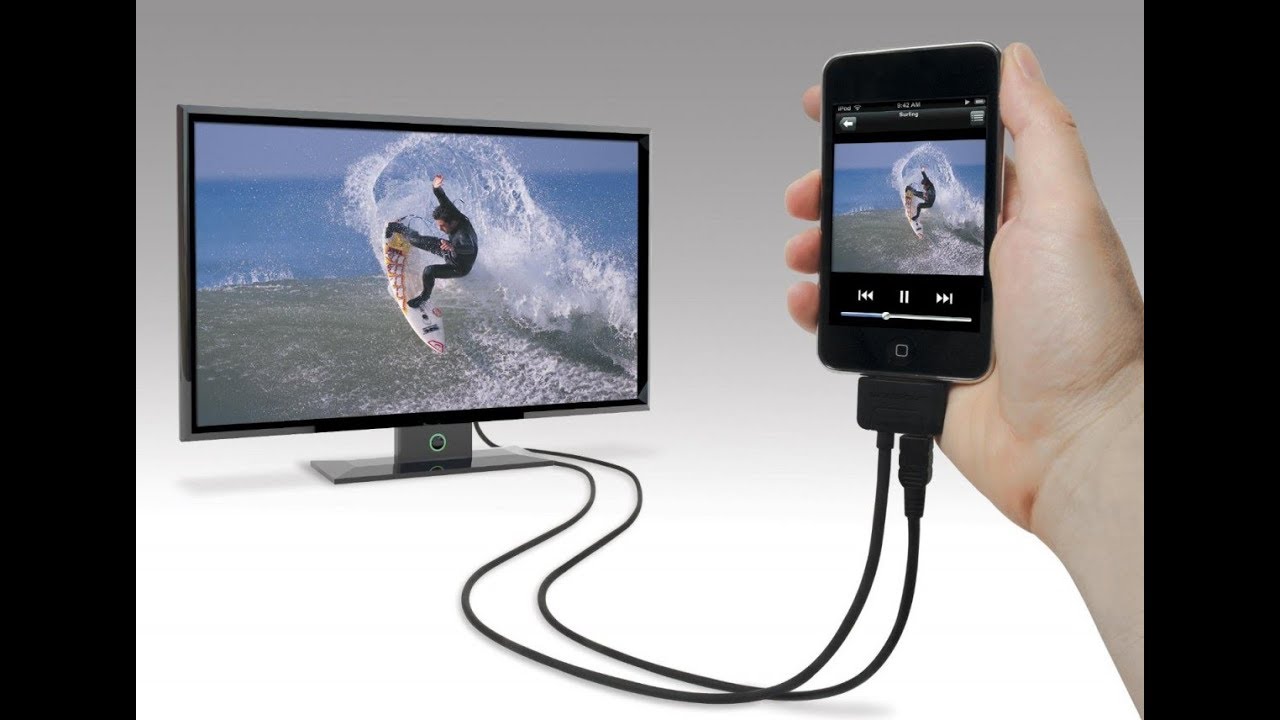
Screen mirroring duplicates your display visually. Muting sound does not stop notification banners from popping up on the TV screen. When you mirror, the TV shows every pixel your phone renders. That includes incoming iMessage banners, WhatsApp previews, calendar alerts, and app pop-ups. Silencing the phone only kills the audio chime. The notification still slides down from the top of your phone’s screen. That exact slide is mirrored in real time. The TV has no separate notification system or privacy filter. It is a direct clone of your phone’s display. This is why muting, turning down media volume, or even enabling vibration mode offers zero protection against a private text appearing in full view of everyone watching the TV.
The quick privacy fix before you cast
Before you connect your phone to your TV, activate Do Not Disturb or the equivalent Focus Mode. On an iPhone, open Control Center, tap the crescent moon icon, and confirm it activates. On Android, pull down the Quick Settings panel and tap the Do Not Disturb tile. Both modes suppress all notification banners, lockscreen previews, and visual pop-ups system-wide. For an even stricter approach, go into your phone’s Do Not Disturb settings. Manually block “Notifications from apps” and “Notifications from people” entirely during mirroring sessions. If you use an Android phone with a custom skin like One UI or MIUI, check the Display or Advanced Features settings for any available option to hide notifications during screen mirroring. This automatically strips out incoming alerts without you needing to toggle Do Not Disturb. On iPhones, you can also create a custom Focus Mode named “Casting” that blocks all apps except essential ones like the casting app itself.
When your phone ignores do not disturb during mirroring
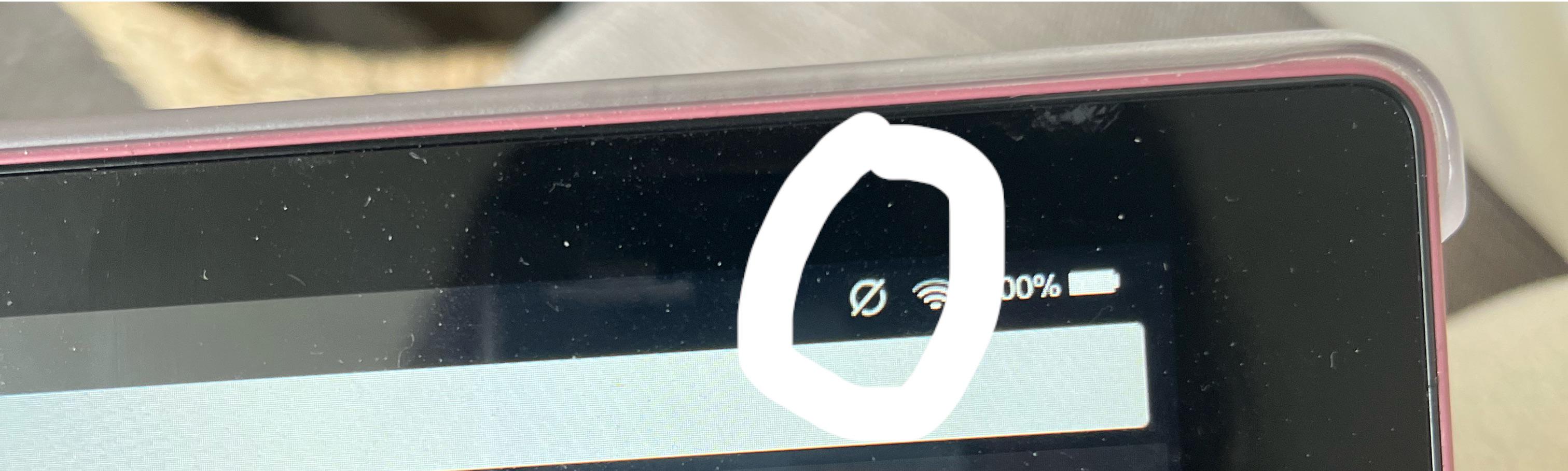
Even with Do Not Disturb enabled, alerts may still break through if you have allowed “Starred” contacts or repeated caller settings. On both iOS and Android, Do Not Disturb has exceptions. iPhone has an “Allow Calls From” list. Android has “Priority conversations” and “Repeat callers” options. If you have a starred contact or a close family member set as an exception, their texts and calls will bypass the block and appear on your TV screen. To fix this, open Do Not Disturb settings and set “Allow Calls From” to “No One.” Disable “Repeated Calls,” which lets a second call from the same number within three minutes ring through. On Android, also clear the “Priority conversations” list entirely before mirroring. For a permanent solution during casting, consider using a dedicated app like “Notification Off” or Samsung’s “SoundAssistant” to create a mirroring-specific profile that blocks all visual alerts. If you are screen mirroring a device that lacks native Do Not Disturb, such as an older Fire tablet, you can still prevent leaks by closing all messaging apps before starting the cast. Each of those guides includes device-specific tips for hiding notifications during mirroring. The key is to test your setup with a dummy message before an actual private alert arrives.
Enable 'Do Not Disturb' or 'Focus Mode' on your phone before connecting. This is the only reliable way to keep private messages and alerts off the big screen, because simply turning your phone volume down does nothing to stop visual pop-ups. Unlike other guides, we explain why muting fails and how to handle devices without native Do Not Disturb, including step-by-step exceptions removal that stops starred contacts from breaking through your block. If your interruptions are compounded by screen mirroring lagging or stuttering, addressing that will also prevent delayed notification bursts from arriving all at once. For a complete walkthrough on screen mirroring to a TV, see our broader topic of How to Screen Mirror to Any TV.