If your Fitbit not vibrating is a recent problem, the fix is almost always a quick setting change. The most common causes are Sleep Mode, Do Not Disturb (DND), Water Lock, or a critically low battery, and this guide walks you through each solution step by step.
Why your Fitbit is not vibrating in sleep mode
Sleep Mode and Do Not Disturb are the primary reasons your Fitbit stops vibrating because they mute notifications, goal celebrations, and reminders. To check and disable Sleep Mode on devices like the Charge 6, open the "Settings" app, select "Quiet modes," and toggle off "Sleep Mode." You can also swipe down from the clock face and tap the crescent moon icon to turn it off quickly. On the device itself, navigate to the settings menu and look for "Do Not Disturb" or "Quiet modes" to ensure both are disabled. In the Fitbit app, go to your device settings and verify that these modes are not scheduled or active. Once turned off, test your notifications to see if vibrations return.
2. Double-tap to disable Water Lock
Water Lock mode disables the screen and side button to prevent accidental inputs, which can affect how you perceive vibrations, though notifications and alarms may still appear on the tracker. To turn off Water Lock on models like Inspire 2, Charge 5, or Charge 6, firmly double-tap the screen. You should see the lock icon disappear and the screen become responsive again. If you are unsure whether Water Lock is active, check for a water droplet icon on the display.
3. Charge your Fitbit to rule out a low battery
A low or critically low battery can prevent your Fitbit from vibrating for notifications. When the battery drops below four hours remaining, phone notifications are disabled entirely. After charging, test the vibration by triggering a notification or alarm. This is a key first step because a simple lack of power is often the culprit.
4. Restart your Fitbit the right way
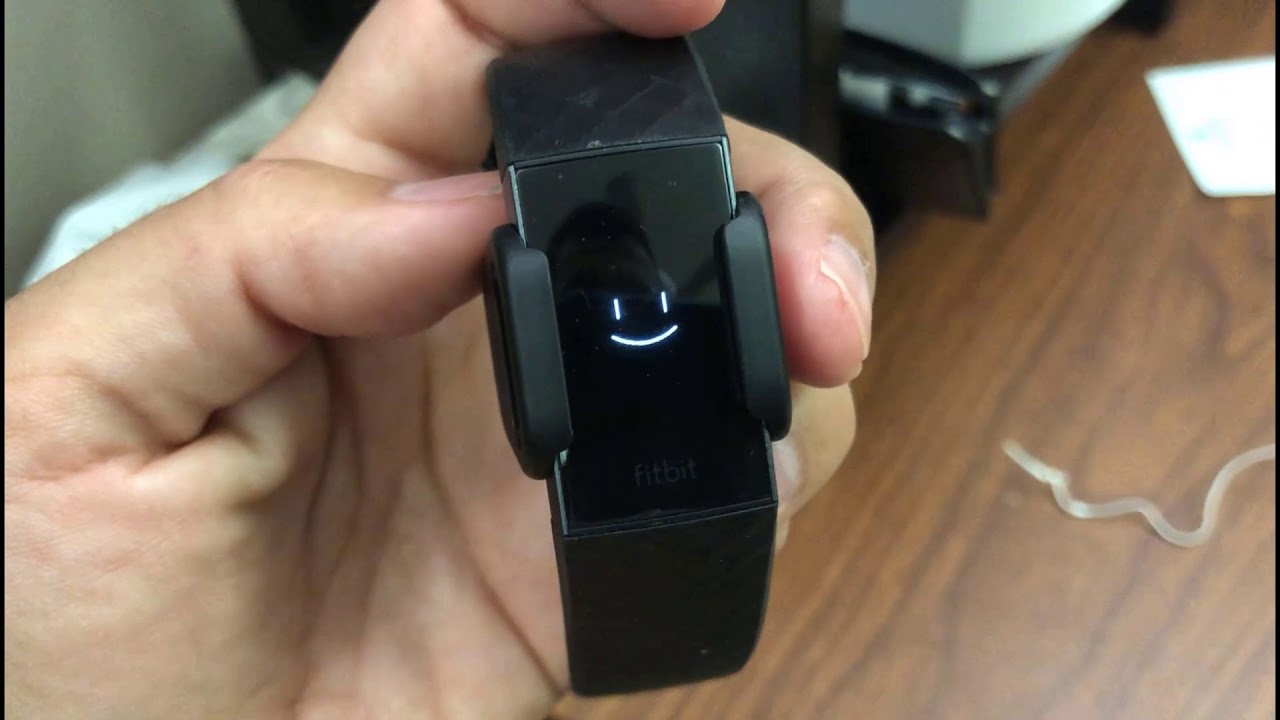
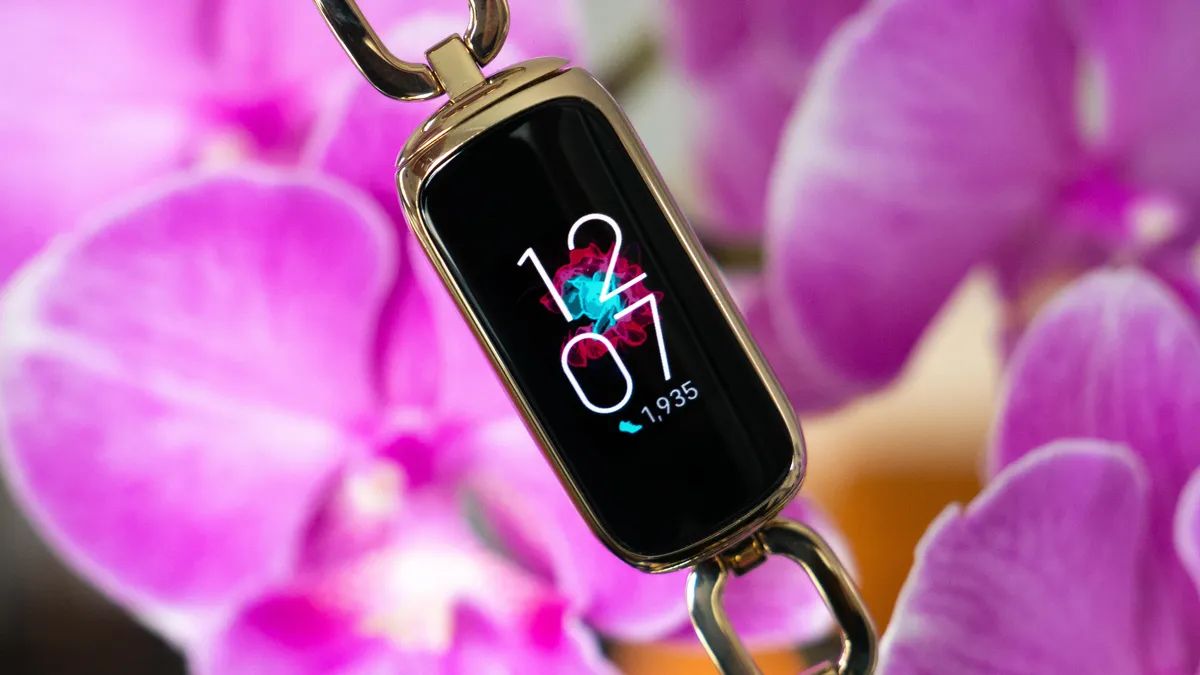
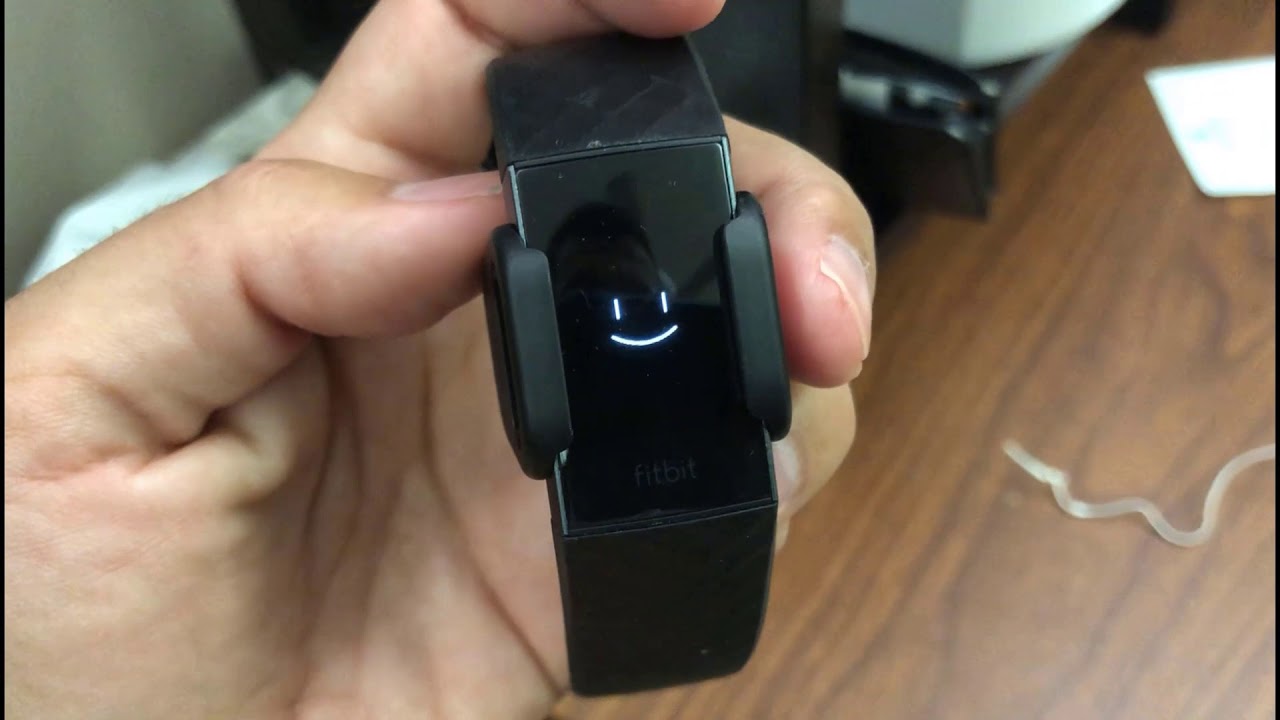
Restarting your Fitbit is often the quickest fix for many issues. To restart most Fitbit devices, connect it to its charging cable and hold the buttons for 10 seconds until the Fitbit logo appears and the device vibrates. Specific steps may vary by model; for example, on the Charge 6, press the button on the charger three times within 8 seconds. If you need help with other models, see the Fitbit setup and syncing instructions for your device. For the Charge 5, you might benefit from a guide on locating the reset button on Fitbit Charge 5. And for the Luxe, refer to a step-by-step guide to resetting your Fitbit Luxe. After the restart, check if vibrations are working again.
5. Test the vibration motor and check phone settings
You can test if the vibration motor is working by plugging some models, such as the Luxe or Charge 2, into their charging cable, which should cause a vibration. If you feel a buzz, the motor is fine and the issue is likely software-related. On the phone side, try turning your phone's Bluetooth off and on again, force quitting and restarting the Fitbit app, or uninstalling and reinstalling the Fitbit app. Ensure the Fitbit app has the necessary permissions to send notifications and that the specific apps you want are enabled within the app settings.
6. Update software and clean your device
Outdated software can cause vibration issues. Check for updates through the Fitbit app on your phone by navigating to the device settings section and selecting the software update option. Ensure your Fitbit is charged and connected to a stable Wi-Fi network during the update. Additionally, clean your device gently with a soft, lint-free cloth lightly dampened with water. Use a cotton swab moistened with isopropyl alcohol to clean around the vibration motor area, removing any dirt or debris that might be blocking it. Allow the device to dry completely before testing.
When to contact Fitbit Support
If you have tried all the steps above and your Fitbit still does not vibrate, the issue may be a hardware problem. Contact Fitbit Support through their website, live chat, or support ticket system. They can assist with warranty and repair services if needed. Before reaching out, ensure you have tried the basic fixes, as support will likely ask you to repeat these steps. Persistent vibration failure after troubleshooting indicates a potential motor or internal component issue that requires professional attention.