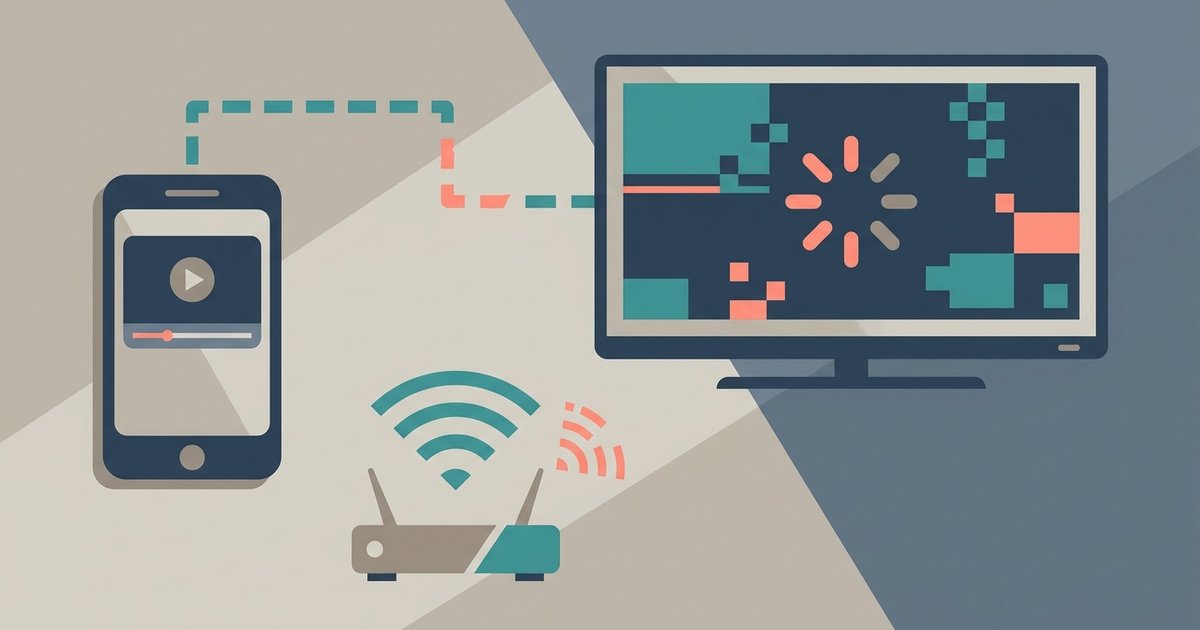
Screen mirroring stutters because real-time video encoding overwhelms your phone’s processor or your Wi-Fi network can’t handle the sustained burst of data, which is different from just having a 'connected' signal. The fix is usually lowering the stream quality or switching from peer-to-peer mirroring to a direct streaming protocol where the TV fetches the content itself.
Why screen mirroring lag happens even with full Wi-Fi bars
Even with full Wi-Fi bars, the constant encoding and transmission of every pixel change creates a demand that a simple "connected" status never reveals. Unlike generic troubleshooting guides that stop at restarting your router, this page identifies the exact bottleneck in your specific setup by separating network failure from processor overload, a distinction no other manufacturer-agnostic guide makes.
The difference between casting and true mirroring
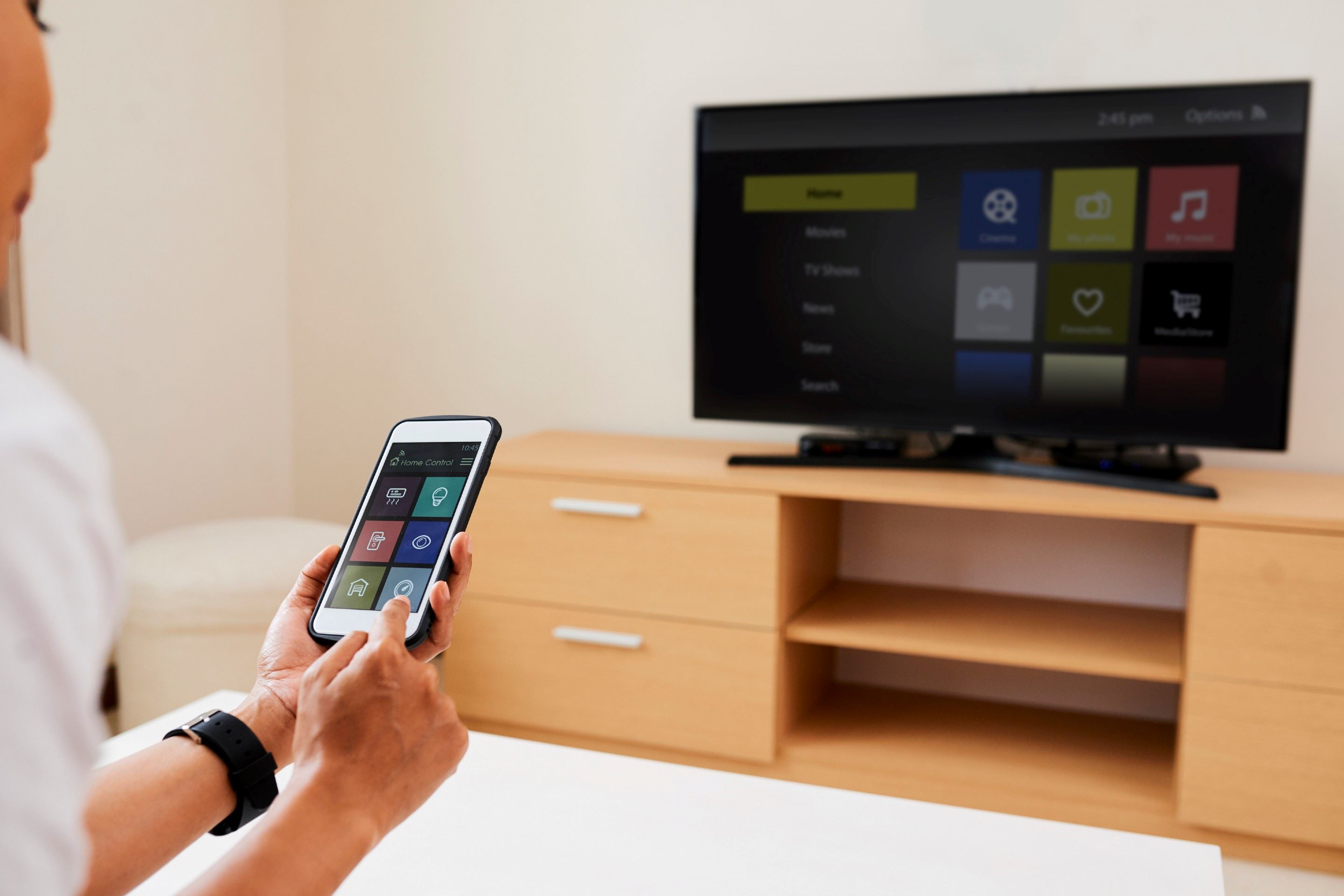
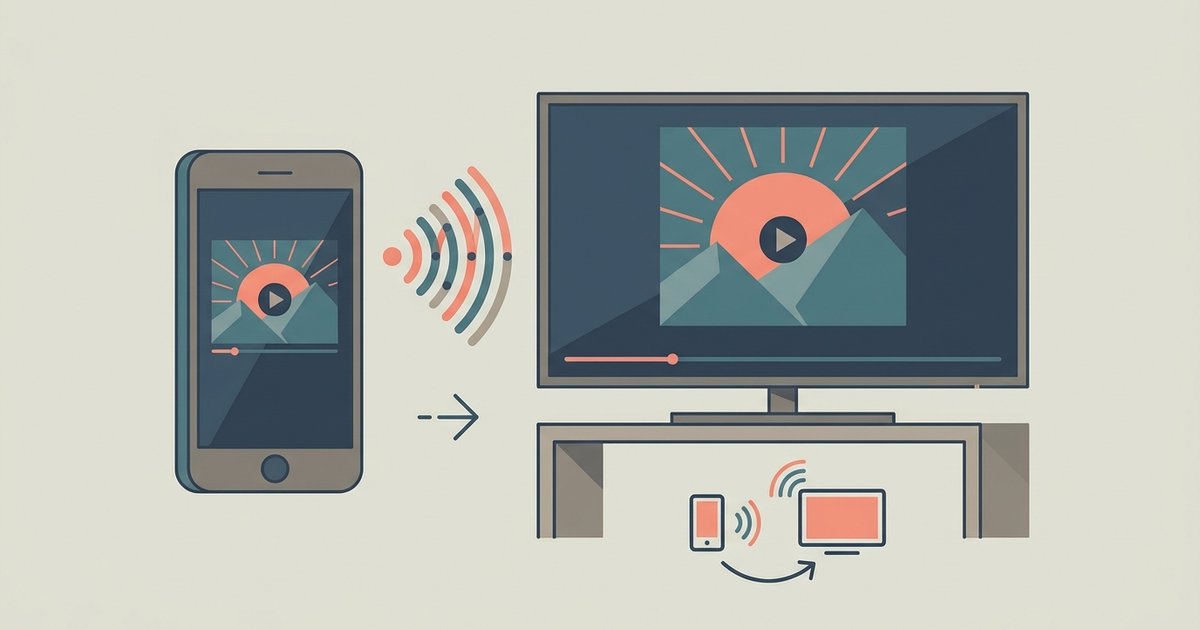
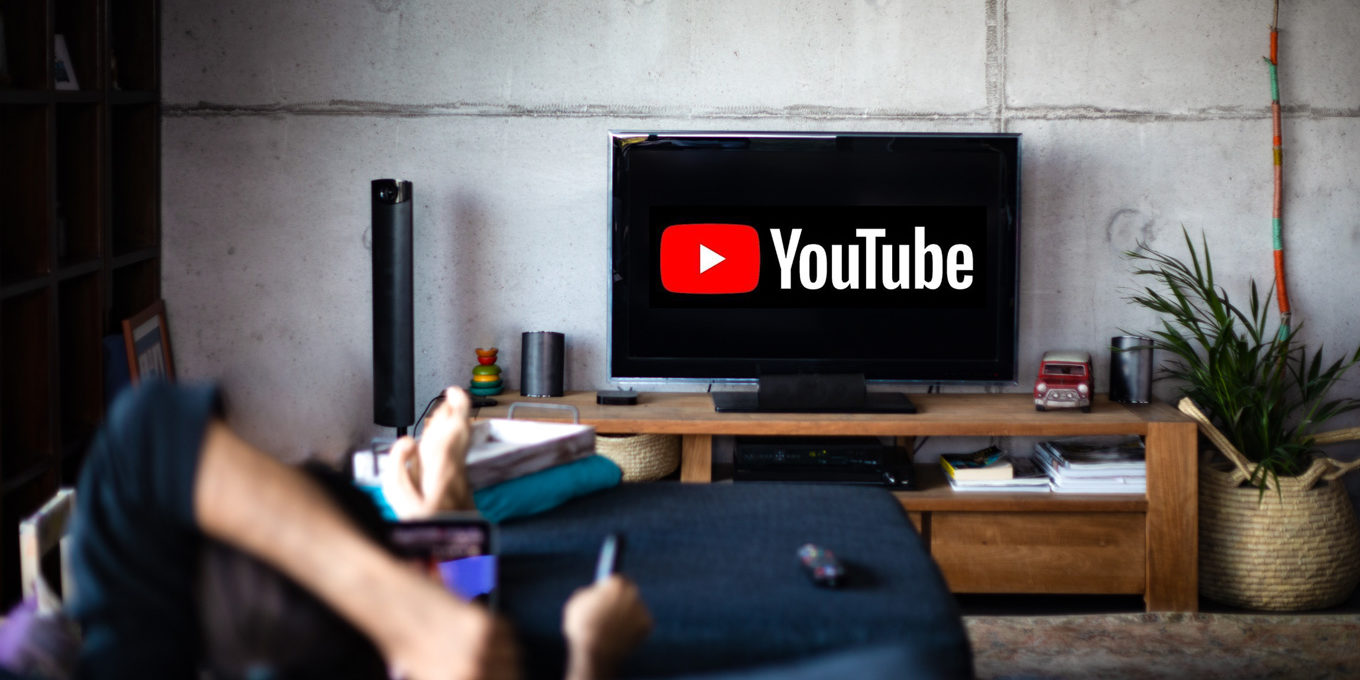
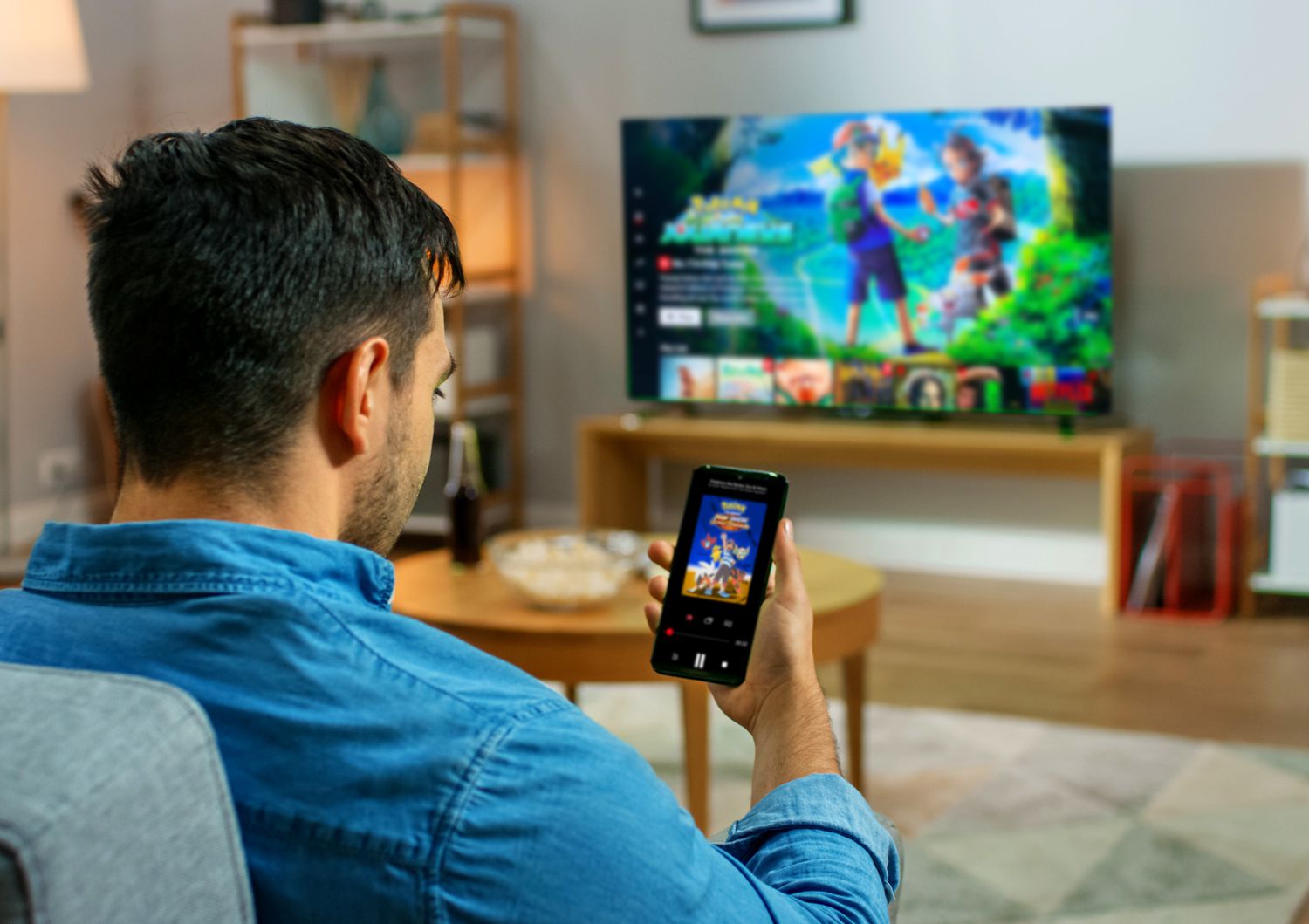
When you use a "cast" button inside Netflix or YouTube, your phone sends a simple URL to the TV, and the TV streams the video directly from the internet. That barely touches your phone’s CPU. True screen mirroring, however, forces your phone to encode every frame of your display in real time, compress it, and send it over Wi-Fi, a process called "screen encoding." This is why confusing the two leads people to expect flawless performance. If you open an app and tap the cast icon, the TV handles the heavy lifting. But if you use the system-level mirroring feature, for example, when you connect your phone to your TV via Miracast or AirPlay, your phone becomes a live video encoder. A mid-range phone can easily drop frames when mirroring a game or a fast-scrolling feed, whereas a dedicated cast session runs smoothly on the same hardware.
When your router is the bottleneck
Even with a strong Wi-Fi connection, your router can introduce stuttering. Screen mirroring needs sustained upload bandwidth from your phone to the router, then low-latency forwarding to the TV. If other devices on your network are streaming 4K video, downloading large files, or video-calling, your router’s buffer can fill up, a phenomenon called bufferbloat. This causes the video stream to pause while the router clears its queue, and you see a freeze even though the Wi-Fi icon shows full bars. Many home routers prioritize download speed over upload fairness, so a slow upstream from your phone gets dropped. You can test this by temporarily disconnecting other devices or enabling Quality of Service (QoS) settings to prioritize the phone’s traffic. Additionally, if you use a dual-band router, ensure both your phone and TV are on the same 5 GHz band, as 2.4 GHz often suffers from interference from microwaves and neighboring networks.
When the problem is your phone, not the network
Your phone’s ability to encode a smooth video stream depends on available CPU and GPU resources. Background apps running notifications, syncing photos, or updating widgets consume processing power. Low battery mode deliberately throttles the CPU to save energy, which cripples real-time encoding. Thermal throttling is another common cause: after 10-15 minutes of mirroring, the phone’s chipset heats up, and the system reduces clock speed to protect the hardware, causing frames to drop. You can check this by closing all background apps, charging the phone, and disabling battery saver before starting mirroring. Some phones also have a "Performance" or "Game Mode" setting that prevents thermal throttling for short sessions. If you own a device like the Amazon Fire tablet 10, note that its processor is often less powerful than flagship phones, so stuttering during mirroring is more likely even on a clean network.
Why moving closer doesn't always fix it
Physical proximity to the TV or router solves a weak signal, but it does nothing for processor lag or interference from a crowded Wi-Fi channel. If your phone is already within three feet of the TV and still stutters, the bottleneck is almost certainly encoding speed or channel congestion. Many homes have dozens of Wi-Fi networks visible on the 2.4 GHz band, and your phone may be fighting for airtime even when the signal is strong. You can confirm channel interference by using a Wi-Fi analyzer app to see if your router’s channel overlaps with neighbors. Switching to a less crowded channel, or forcing the 5 GHz band, may help. However, if you are trying to screen mirror on TCL smart TV or screen mirror on Philips smart TV, those TVs often default to a specific mirroring protocol (like Miracast or Wi-Fi Direct) that creates its own peer-to-peer network. This bypasses your router entirely, so moving closer to the TV directly improves the direct link. But even then, the phone’s encoding load remains unchanged, and a busy CPU will still cause stuttering regardless of distance. For a deeper understanding of how to avoid these issues, explore the broader topic of how to screen mirror to any TV, including the nuances of screen mirroring to a TV across different devices and environments.