The Short Answer
You can share files between Android and iPhone using cross-platform messaging apps, cloud storage, email, or a simple browser-based transfer tool. The best method depends on the file size and what you already have installed.
Start With What You Already Use
Most people already have at least one app that works on both platforms. Before installing anything new, check if one of these is already on both phones.
WhatsApp, Telegram, or Signal
These messaging apps let you send files to yourself. On Telegram or Signal, create a group with one friend, then remove them so you are the only member left. Now you have a private channel where you can drop photos, PDFs, and videos from one phone and pick them up on the other. WhatsApp lets you message your own number from the contacts screen. All three compress images by default, so if you need full quality, send the file as a document instead of a photo.
Google Drive, Dropbox, or OneDrive
Cloud storage apps run on both Android and iPhone. Upload a file from one device, open the same account on the other, and download it. This works well for documents and photos you want to keep. The downside is that large video files eat into your storage quota and take time to upload and download.
For a single document or a few photos, email is still the simplest cross-platform option. Most email providers cap attachments at 25 MB, so this only works for small files. Send the email to yourself, then open it on the receiving phone and download the attachment.
Use Apple and Google's Built-In Tools
Both companies offer official methods to move files between their ecosystems. These are worth setting up if you regularly switch between devices.
Move Files From Android to iPhone
Apple provides a dedicated app called Move to iOS on the Google Play Store. It transfers contacts, message history, photos, videos, and calendars from an Android phone to an iPhone during setup. Apple's guide walks through the process step by step. This is a one-time migration tool, not something for everyday file sharing, but it handles a large batch transfer cleanly.
Nearby Share and AirDrop
Android's Nearby Share and Apple's AirDrop do not talk to each other directly. If you are trying to send a file between the two platforms in person, you cannot use either one. That is why the methods in this article focus on internet-based transfers that work across both systems.
Android File Sharing Settings
If you are sending files from an Android phone and the other person cannot receive them, check that the sharing method you are using has the right permissions. Google's file sharing support page explains how to manage Nearby Share, Bluetooth, and other sharing settings on Android. It is a useful reference if your Android phone is not behaving as expected.
Share Files Without Installing Anything
Sometimes you need to hand a file to someone quickly. You do not want them to install an app, create an account, or fiddle with settings. A browser-based transfer tool solves this.
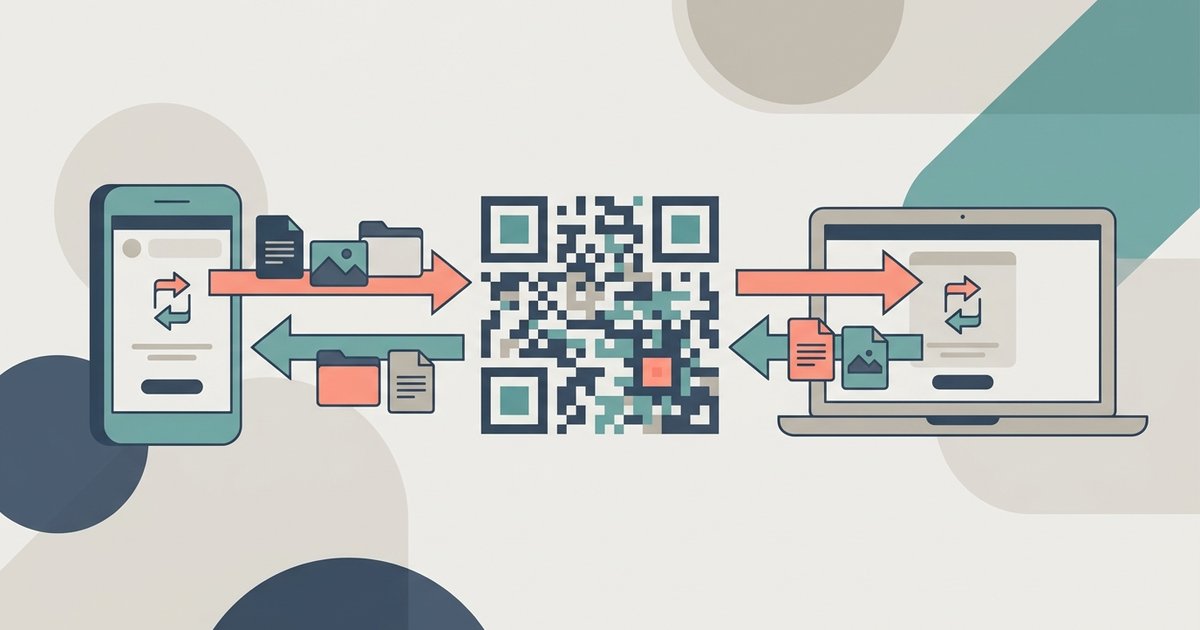
ShareIt Online lets you upload a file up to 3 GB and get a link or QR code the other person can open in their browser. No app, no sign-up, and the link expires on its own after a set time. Here is how it works:
- Open the site on the sending phone.
- Tap the upload area and pick your file.
- The site generates a link and a QR code.
- Share the link through a messaging app, or let the other person scan the QR code with their camera.
- They open the link in their browser and download the file.
This is especially handy when you are with someone whose number you do not have, or when you are helping a family member who is not comfortable installing new apps. The file transfers peer-to-peer through the browser, so it works on any modern phone with a web connection.
Behind the scenes, this kind of tool relies on the browser's ability to handle files directly. The File API documentation on MDN explains how web applications read and transfer files without needing plugins or downloads. You do not need to understand the technical details, but it is reassuring to know that the mechanism is built into every modern browser and does not require anything extra on your phone.
Transfer Large Video Files
Videos are the trickiest files to share because they are often too big for email or messaging apps. Here are the most reliable methods, ordered by file size.
Under 100 MB
Telegram and Signal handle files up to 2 GB, but they compress video by default. Send the file as a document to preserve the original quality. WhatsApp compresses everything and caps files at 2 GB, but the compression is aggressive, so expect a noticeable drop in video quality.
100 MB to 3 GB
Use ShareIt Online or a cloud storage app. The browser tool avoids the upload-then-download delay of cloud storage because the transfer happens directly once the link is opened. If you use Google Drive or Dropbox, upload on Wi-Fi and share a view-only link. The recipient can stream or download the file without it counting against their storage.
Over 3 GB
Cloud storage is your best option here. Google Drive offers 15 GB free, and files uploaded from an Android phone do not always count against that quota if they are in certain formats. Check your plan. Upload the video, generate a shareable link, and send that link through any messaging app. The recipient downloads it directly from the cloud.
Share Photos Without Losing Quality
Messaging apps compress photos to save data. If you want the original resolution, you need to bypass that compression.
- In WhatsApp, tap the plus icon, choose "Document," and select the photo from your files. This sends it as an uncompressed file.
- In Telegram, tap the paperclip, choose "File," and pick the photo.
- Use a cloud storage app and share a link to the photo or album.
- Email the photo as an attachment, but only if the file is under the provider's size limit.
For a batch of high-resolution photos, create a zip file on the sending phone first. Most Android phones and iPhones let you select multiple photos and compress them into a single zip from the share menu. Send that zip file through any of the methods above, and the recipient gets every photo at full quality in one download.
What To Do When It Does Not Work
File transfers fail for predictable reasons. Here is how to troubleshoot the most common problems.
The File Is Too Large
Check the size limit of the method you are using. Email caps at 25 MB. WhatsApp compresses but technically allows up to 2 GB. Cloud storage works for anything up to your available space. If a transfer stalls, switch to a method with a higher limit or split the file into smaller pieces.
The Recipient Cannot Open the File
Android and iPhone handle file formats differently. A .pages document will not open on Android. A .apk file is useless on iPhone. Stick to universal formats: PDF for documents, JPEG or PNG for images, MP4 for video, and ZIP for collections of files. If the recipient needs a specific app to open something, tell them which one before you send it.
The Transfer Is Too Slow
Large files over a cellular connection take a long time and may eat into data plans. Both phones should be on Wi-Fi for anything over 50 MB. If you are using a cloud service, the upload speed of the sending phone matters as much as the download speed of the receiving one. Be patient, or wait until both devices are on a fast connection.
The Link Expired
Browser-based transfer tools and some cloud services set links to expire after a certain time or number of downloads. If the recipient says the link does not work, generate a new one and resend it. Check the expiration settings before you share the link so you know how long the other person has.
Pick the Right Method for Your Situation
No single method is best for every scenario. Match the tool to what you are doing right now.
- Quick photo to a friend: WhatsApp or Telegram, sent as a document if quality matters.
- Large video to a family member: Cloud storage link or a browser transfer tool.
- One-time transfer to a stranger or acquaintance: Browser-based link or QR code, no app required.
- Moving all your data to a new iPhone: Apple's Move to iOS app.
- Work document between your own devices: Email it to yourself or save it in a cloud folder you access from both phones.
Sharing files between Android and iPhone is a solved problem. You just need to pick the approach that fits the file size, the relationship you have with the recipient, and what you both already have installed. Start with the simplest option that works, and only reach for a new tool when the file demands it.
Frequently asked questions
How to send full quality photos from android to iphone?
Send the photo as a document file instead of an image. In WhatsApp, tap the plus icon and choose Document to attach the photo. In Telegram, tap the paperclip and choose File. Both methods bypass the default compression. For multiple high-resolution photos, create a zip file first, then send that zip through any messaging app or cloud storage link.
Can I use AirDrop to send files to an Android phone?
No. AirDrop only works between Apple devices. Android's Nearby Share also does not communicate with AirDrop. For in-person transfers between Android and iPhone, use a browser-based tool that generates a link or QR code, or rely on a cross-platform messaging app you both already have installed.
Why is my video blurry after sending it from Android to iPhone?
The messaging app compressed your video. WhatsApp, Telegram, and Signal all compress video by default to save data. To preserve original quality, send the video as a document file rather than as media. If the file exceeds the app's document size limit, upload it to cloud storage and share a view-only link instead.
How to transfer files from android to iphone without installing any app?
Use a browser-based transfer tool. Open the site on the sending phone, upload your file, and get a shareable link or QR code. The recipient opens that link in their own browser and downloads the file directly. No app installation, account creation, or sign-up is required on either device.
\nRelated reading: How To Connect External Hard Drive To Android Tablet, How To Transfer Files From Android To iPhone Via Bluetooth, and Switching SIM Card From Android To iPhone: A Comprehensive Guide.