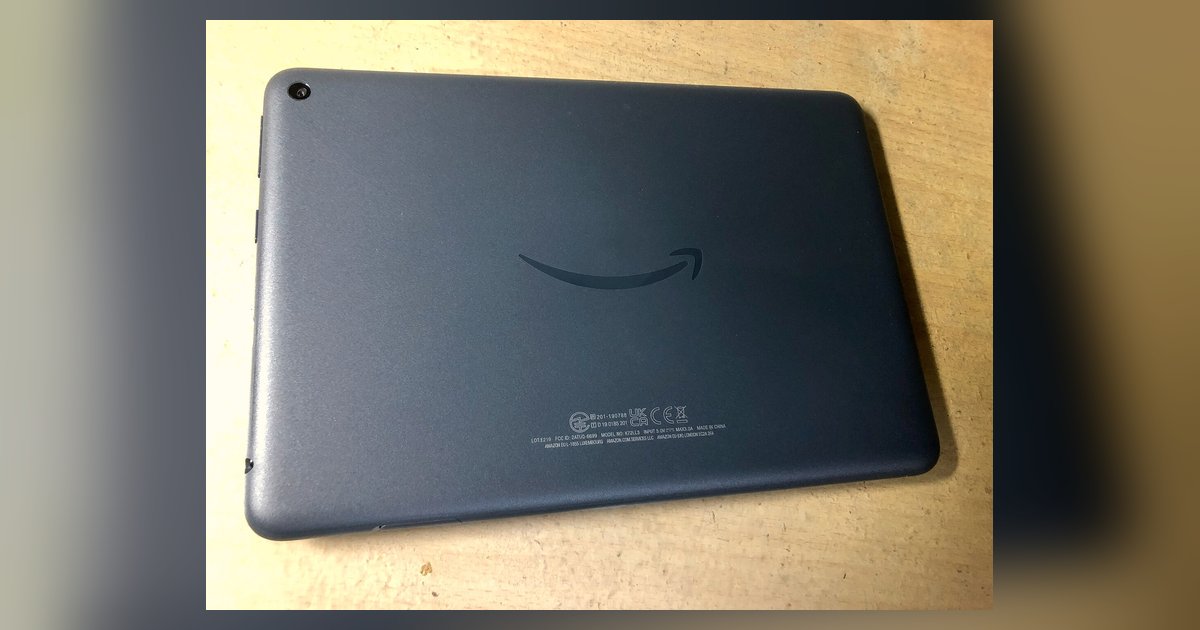
Free up space and manage fire tablet storage
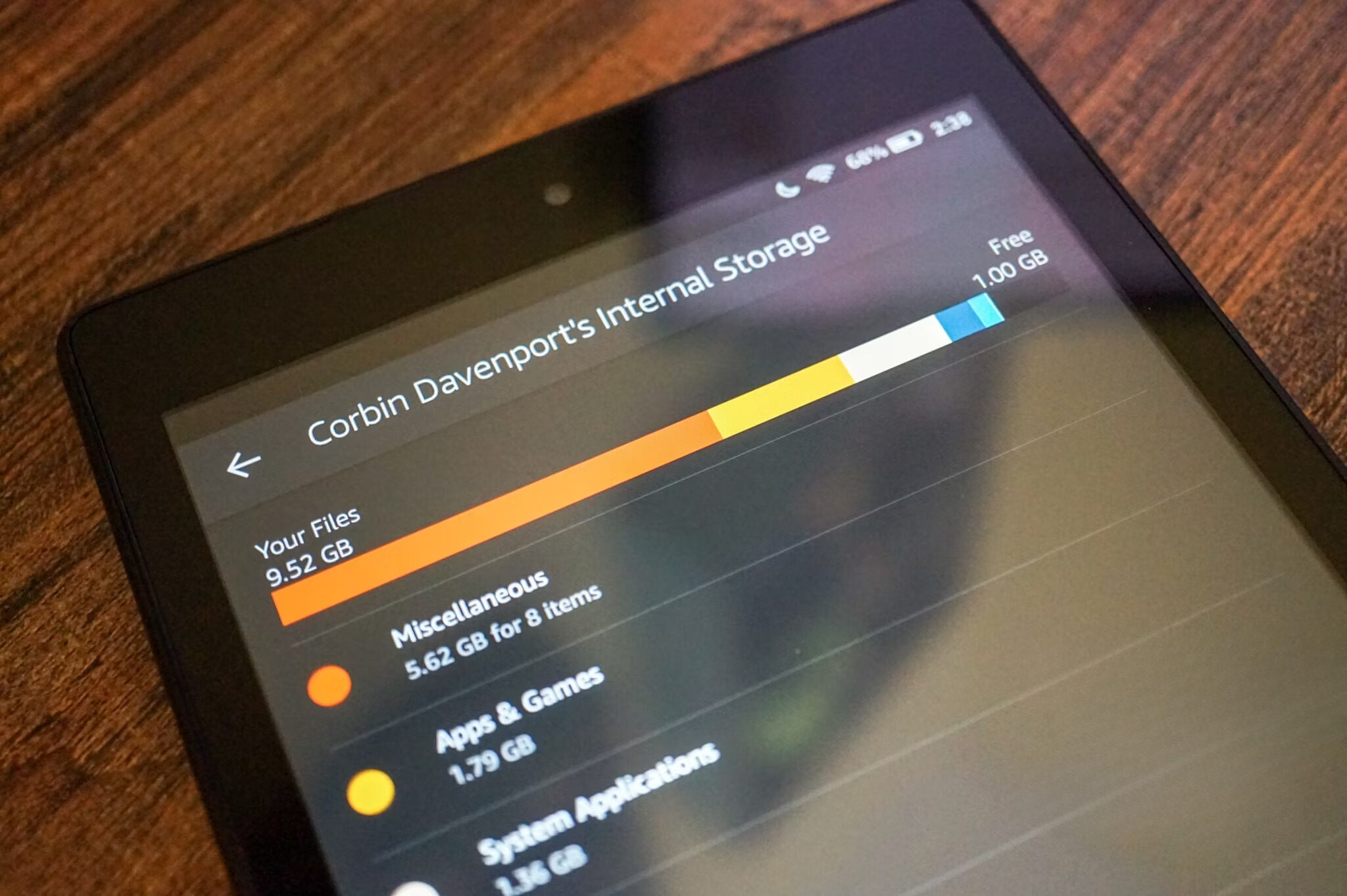
To effectively manage Fire tablet storage, start by reviewing your downloads folder, where forgotten PDFs and screenshots often pile up. Open the Docs or Files app, navigate to Downloads, and long-press any item you no longer need. From there you can delete files from file manager on Amazon Fire tablet by tapping the trash icon. This is a quick way to recover a few hundred megabytes without affecting your apps. For a deeper clean, head to Settings > Storage (or Settings > Device Options > Storage on some Fire OS versions). You will see a breakdown of what is using your device space, typically system data, apps, cached files, and media. Tap Internal Storage and then look for the apps list to identify the largest offenders. If you remove a game you rarely play, you can then clear storage on Amazon Fire tablet by choosing the Clear Cache option for remaining apps, which wipes temporary data without deleting your progress or login info. Should you accidentally remove a photo or document, act quickly: open the Photos app, tap the Albums tab, and scroll to the Trash folder. Items stay there for 30 days before permanent deletion, so you can find deleted photos on Amazon Fire tablet by selecting any thumbnail and choosing Restore. Remember that even with an SD card inserted, your Fire Tablet treats built-in memory and external storage separately, apps and some app data can only live on the tablet's onboard space, so a 'not enough space' error often means the core system partition is full regardless of SD card capacity. Regularly checking these two spots will keep your device running smoothly, and unlike other tablets, the Fire Tablet's trash-based photo recovery gives you a full 30-day safety net that doesn't require a separate cloud subscription.
Expand storage with an sd card
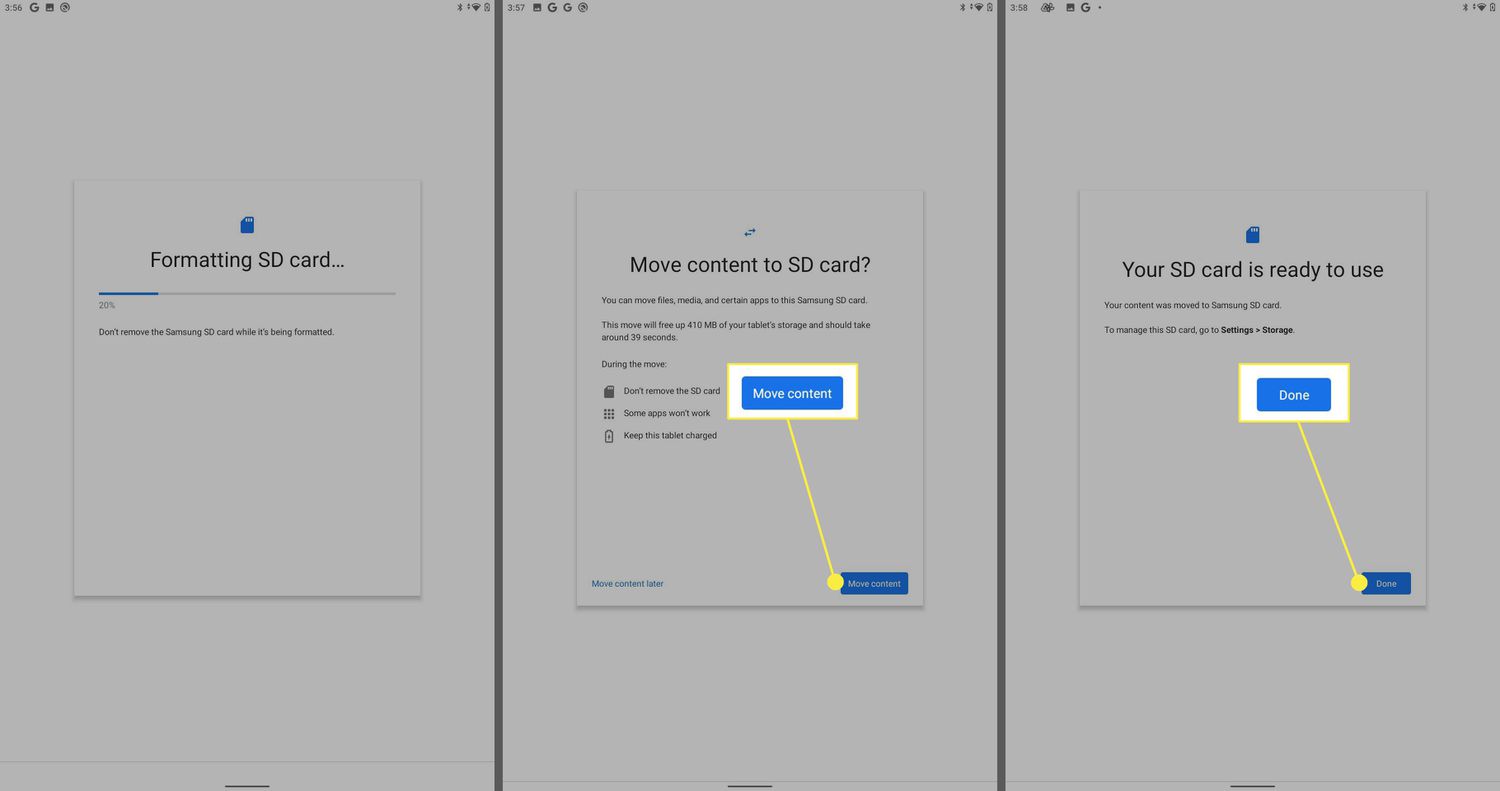
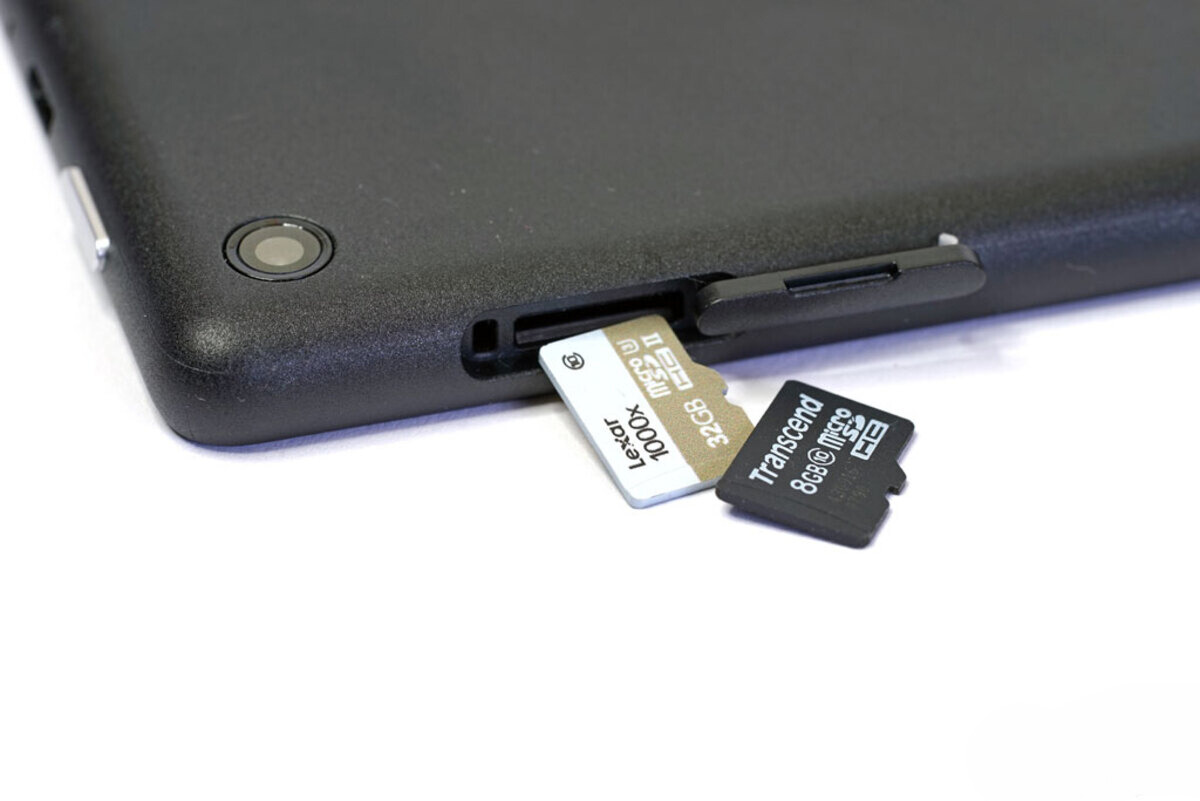
Before you buy a card, you need to know the right SD card sizes for Fire tablets, because different generations support different maximum capacities, some max out at 128 GB while others can handle 512 GB or more. Insert the card into the slot (often under a flap on the back or side) until it clicks. Once installed, the tablet will prompt you to format it; choose "Use as portable storage" so you can move photos and videos onto it manually. To add storage to Amazon Fire tablet effectively, set your camera and download apps like Netflix or Audible to save new content directly to the SD card in their respective settings. However, remember a central limitation: not all apps can be moved to the SD card, and many Amazon pre-installed apps and some games are incompatible, so even a 512 GB card won't fix the "not enough space" error if your system drive is full of app caches, temporary files, and background logs. If the card stops working or you want to swap it, you must first unmount it in Settings > Storage before you remove sd card from Fire tablet; yanking it out while the tablet is writing data can corrupt the card. If the tablet doesn't recognize the card, try re-seating it, reformatting it to FAT32 on a computer, or testing the card in another device to rule out a hardware fault.
Solve 'not enough space' errors
When you get an error that says "not enough space" even though you have a card in the slot, the problem is almost always that your Fire tablet's built-in storage is full. The tablet treats its onboard memory and the SD card as two separate places. Apps and their core data, including system updates, can only be installed on the device's main drive. You might be wondering why your Fire tablet storage full with an SD card, and the answer is that the SD card holds your photos, videos, documents, and music, but it cannot hold the app itself, which is a limitation unique to Amazon’s Fire OS compared to standard Android.
To fix this, start by going to Settings > Storage and look at the local storage bar. If it is nearly full, you need to free up space. The fastest fix is to uninstall apps you rarely use. Next, go to your tablet's application settings in Settings, find the list of installed apps, tap an app, and check if it has a "Move to SD card" option, many apps offer this, but not all. For apps that cannot be moved, clear their cache by tapping "Clear Cache" at the bottom of the app info screen. Finally, connect your tablet to a computer, or use the built-in Files app, to move large video files and downloaded books off the system partition and onto the SD card. After doing these steps, you should see the "not enough space" message disappear.