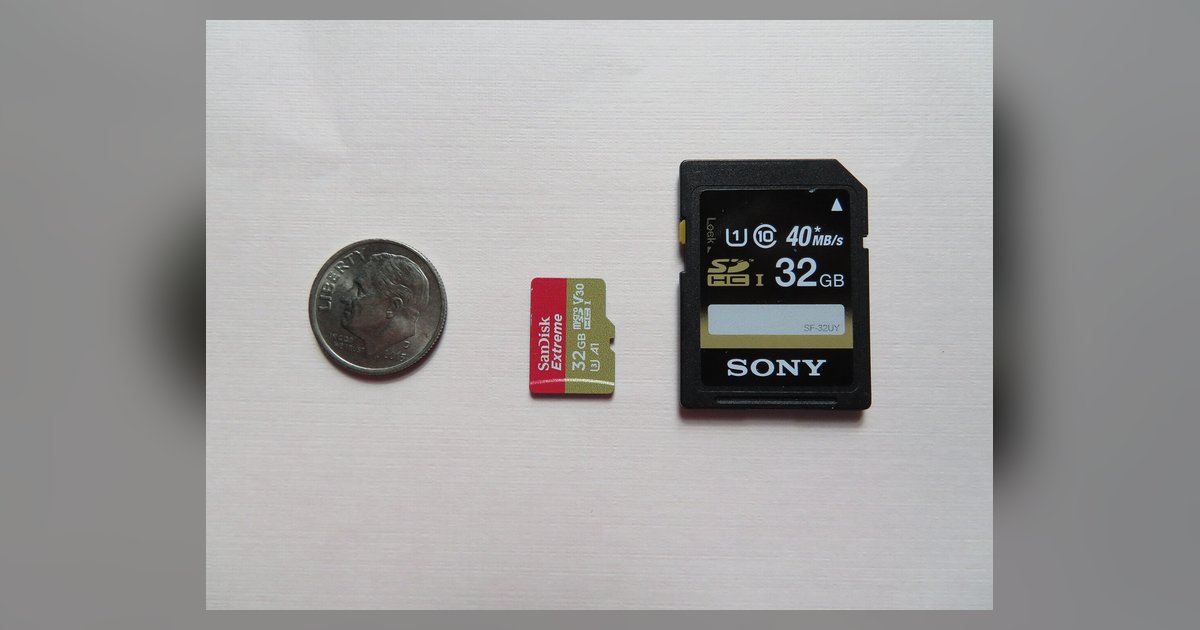
Your laptop supports any SDXC card up to 2TB as long as it has an SDXC-compatible slot, regardless of age. If the slot is only SDHC, it will reject the card entirely and cap you at 32GB.
The real limit is the sd card capacity standard, not the number
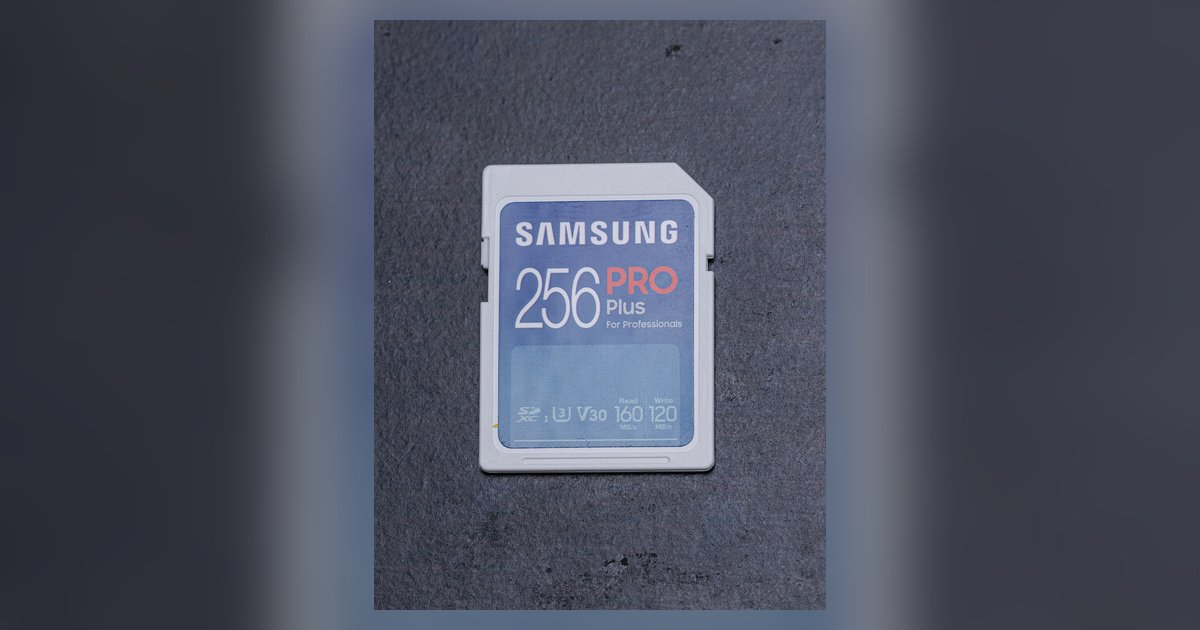
The maximum capacity your laptop’s built-in SD reader can handle is determined solely by which SD standard it implements: SD, SDHC, or SDXC. The original SD standard tops out at 2GB. SDHC (Secure Digital High Capacity) supports cards from 4GB up to 32GB. SDXC (Secure Digital eXtended Capacity) supports cards from 64GB up to a theoretical 2TB. A laptop from 2010-2015 may have an SD, SDHC, or SDXC slot, but the exact standard depends on the chipset and manufacturer. Neither the laptop’s age nor its operating system (Windows 7, 8, or 10) changes this, only the physical slot’s electrical and protocol compatibility matters. For example, a 2012 Dell Latitude with an SDXC slot will read a 1TB card, while a 2010 netbook with an SDHC slot will not, and if you ever need to remove a card that won't eject, here's how to handle an SD card stuck in laptop slot won't come out.
Why a modern 1TB card fails in an older slot
When you insert an SDXC card into an SDHC-only slot, the reader’s hardware cannot negotiate the new command set that SDXC cards require. The slot sees the card’s physical size and pin layout as correct, but the electrical signaling differs: SDHC slots use the “Standard Capacity” protocol, while SDXC cards use the “eXtended Capacity” protocol with different register addresses and higher-speed bus modes. As a result, the laptop either shows no drive letter at all, or it prompts a “You need to format the disk in drive X: before you can use it” error. This format prompt is misleading, formatting would destroy the card’s file system and still fail because the slot cannot address the card’s capacity beyond 32GB. The card itself is fine; the slot is simply incompatible.
Checking your laptop's sd reader without the manual
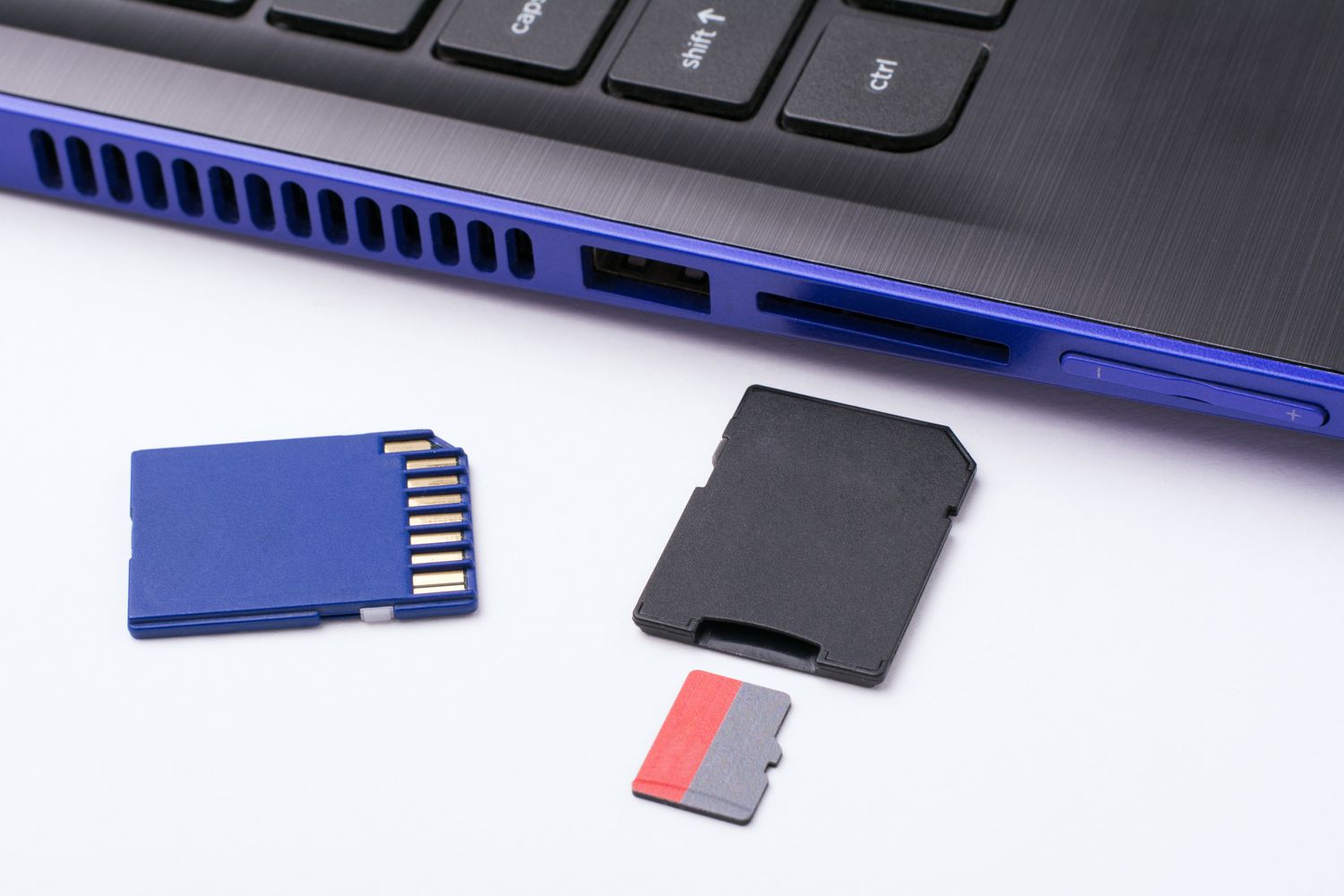
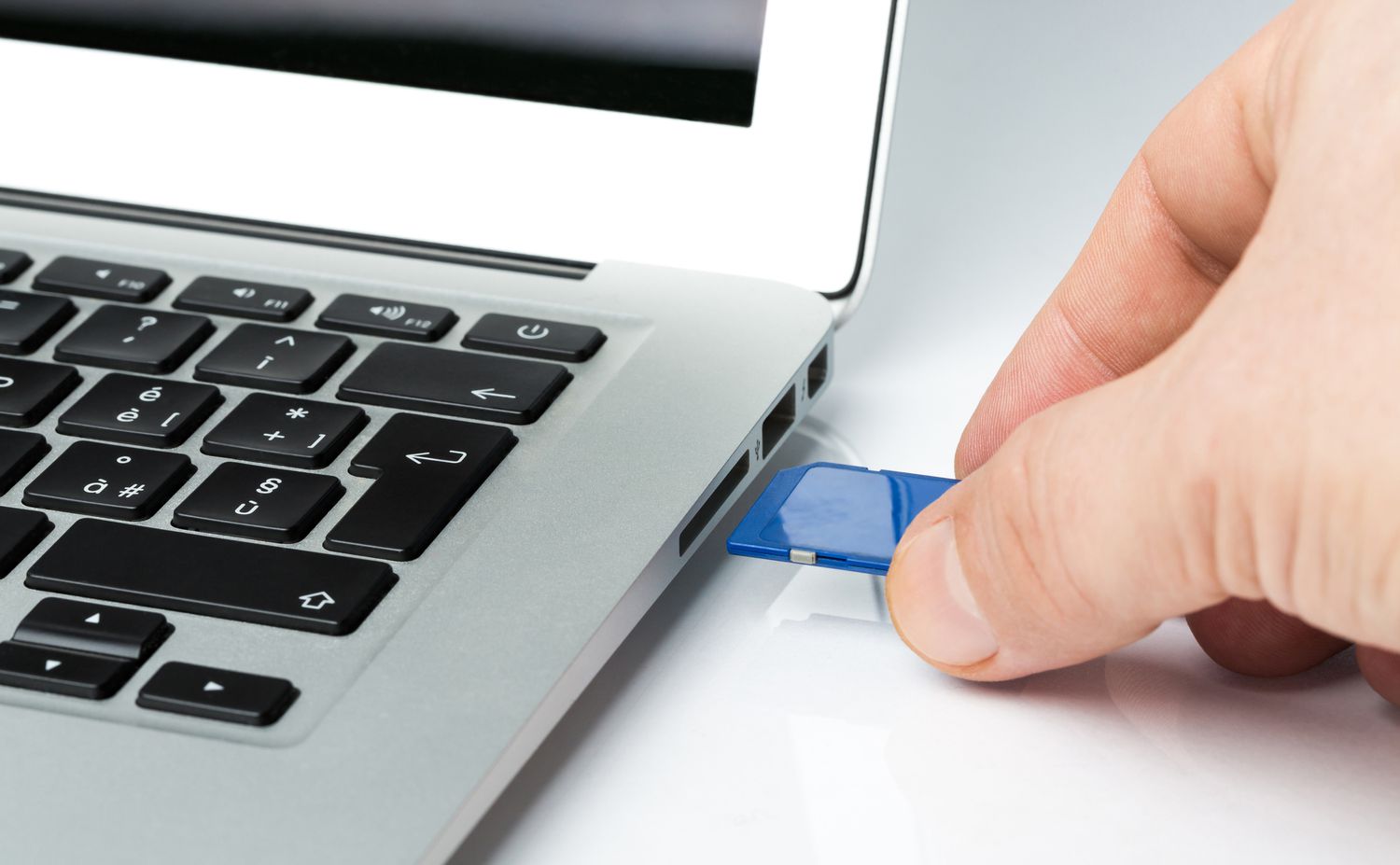
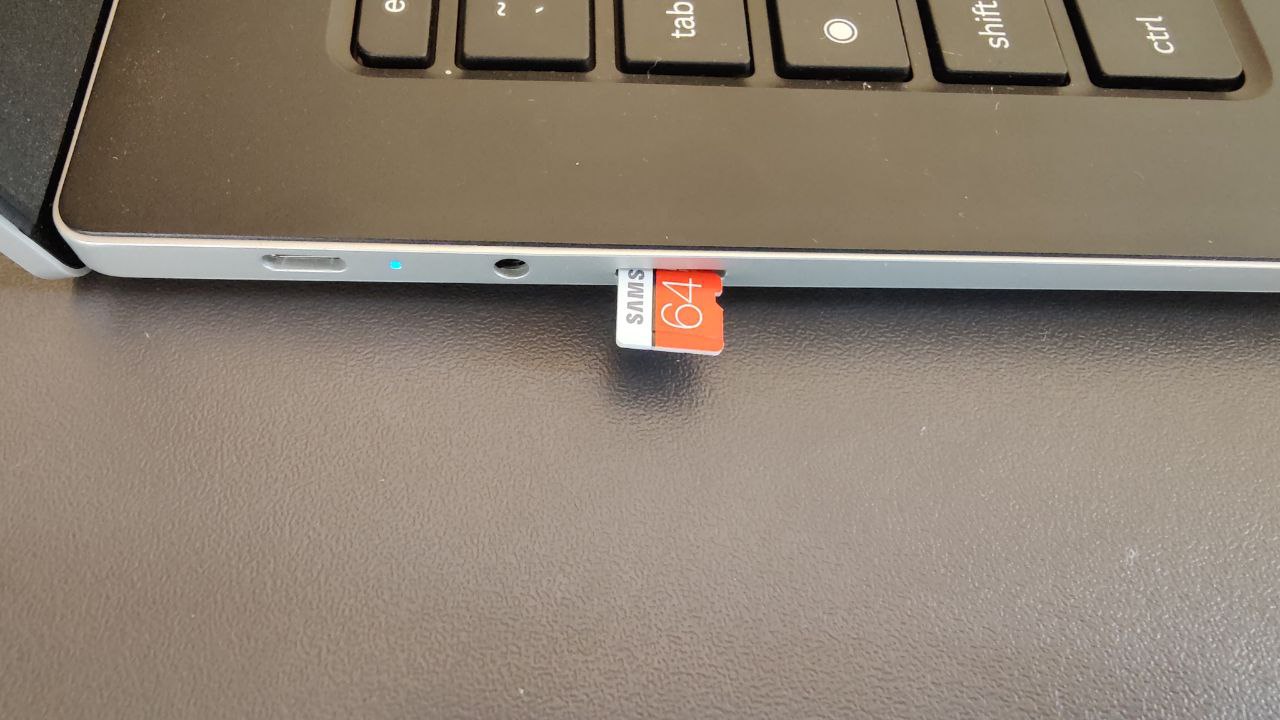
You can identify your slot type in three ways without hunting for a manual. First, look at the physical slot: many laptops print a tiny logo next to the reader. An “SDXC” logo (often with “XC” in a small font) confirms SDXC support. An “SDHC” logo means the slot maxes out at 32GB. If no logo is visible, open Device Manager (press Windows+X, select Device Manager), expand “Memory technology devices,” and double-click “Realtek PCIE CardReader” or similar. Under the “Details” tab, choose “Hardware IDs.” If the value contains “SDXC,” you have SDXC support. Alternatively, use System Information (run “msinfo32”) and look under storage-related categories for entries that mention “SDXC.” If all else fails, insert a known 64GB card; if it appears as a drive, the slot is SDXC.
What to do when your slot maxes out at 32GB
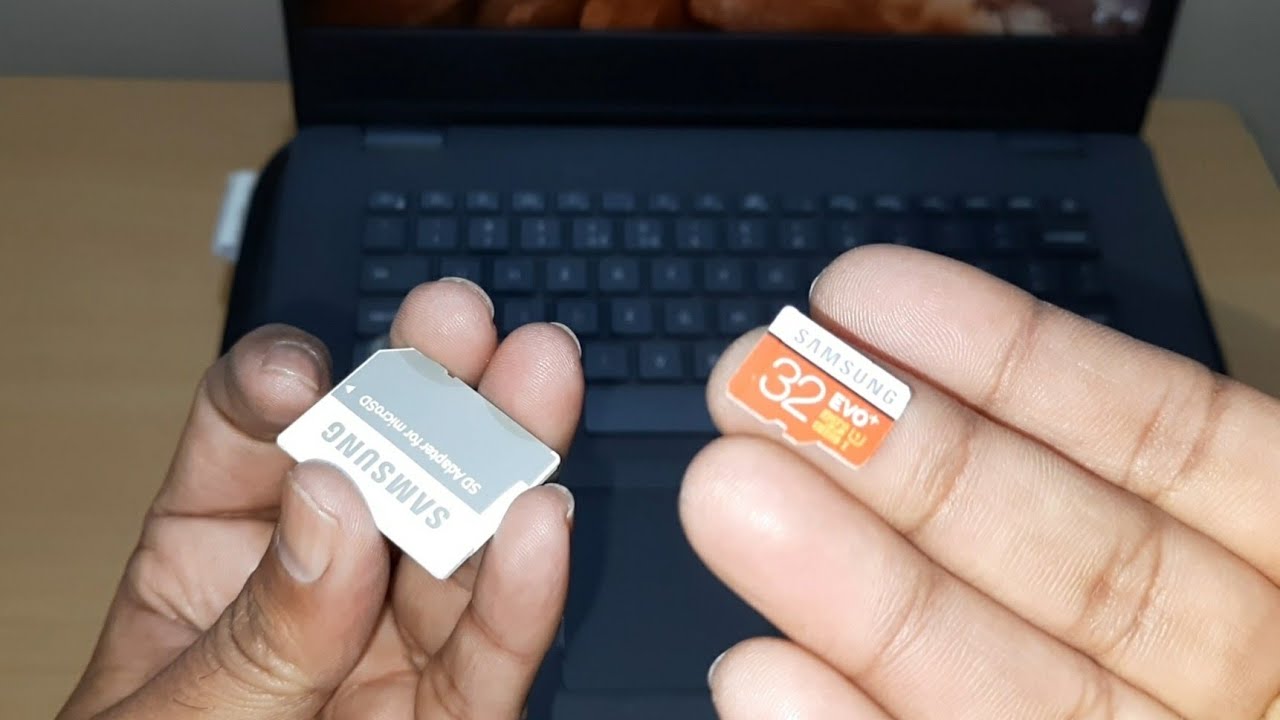
If your internal slot is SDHC-only and rejects your 1TB card, the fix is simple: buy a USB 3.0 SDXC card reader. This external device plugs into any USB port on your laptop and bypasses the internal slot’s hardware limit entirely. A USB SDXC reader uses its own controller chip that fully supports the SDXC protocol, so your laptop sees the card as a standard external drive. You can then use an sd card reader to transfer files at the reader’s maximum speed (often 5Gbps with USB 3.0). For even smaller tasks, you can use a microSD card without an adapter by inserting it directly into a microSD-to-USB reader. To actually write files, simply insert sd card into laptop via the reader, and it will appear in File Explorer. This method works on any laptop with a USB port, regardless of the internal slot’s age.