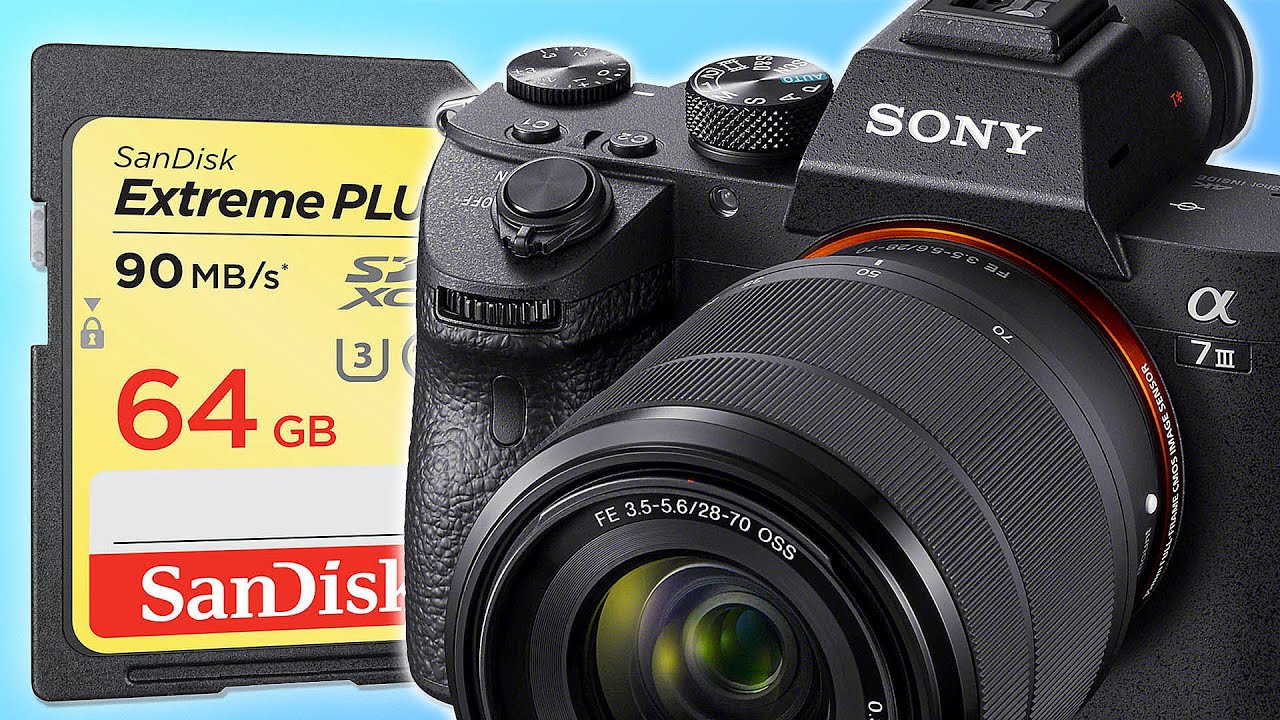
To format an SD card on a Sony A7III, press MENU, go to the Setup tab, select Format, and choose the desired card slot. This process permanently erases all data, so always back up your files first.
Before you format your SD card on a Sony A7III
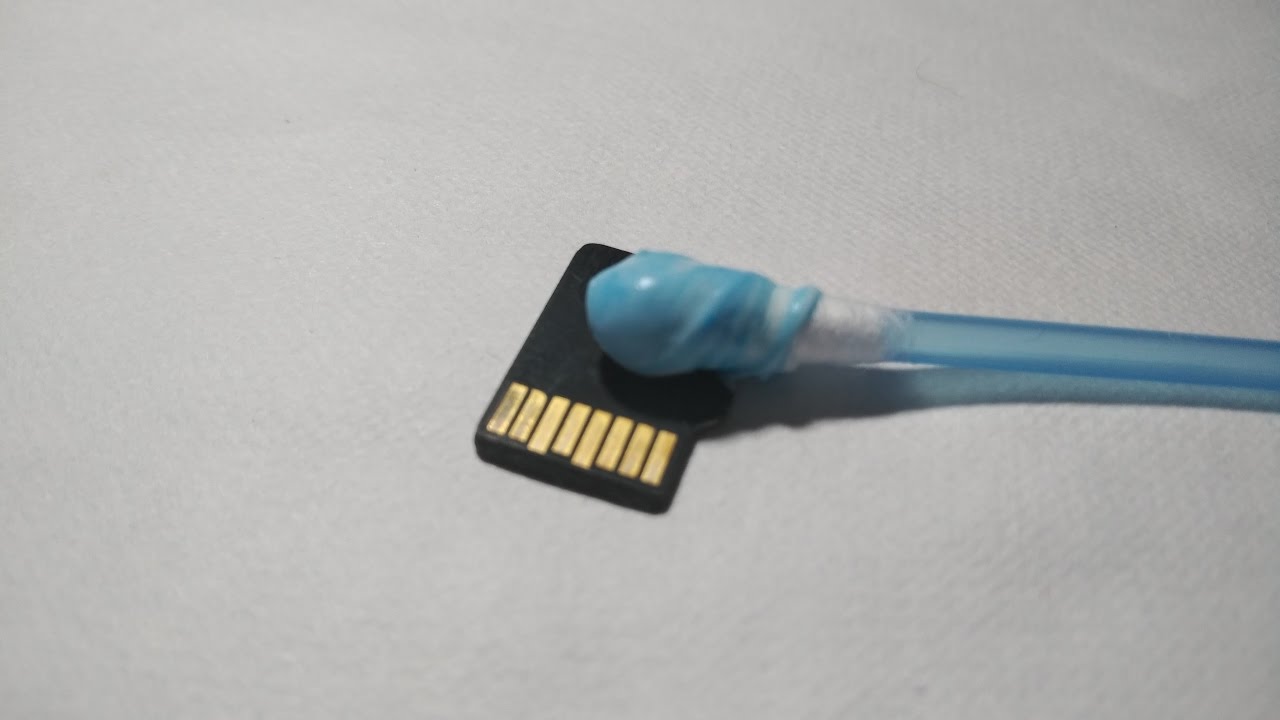
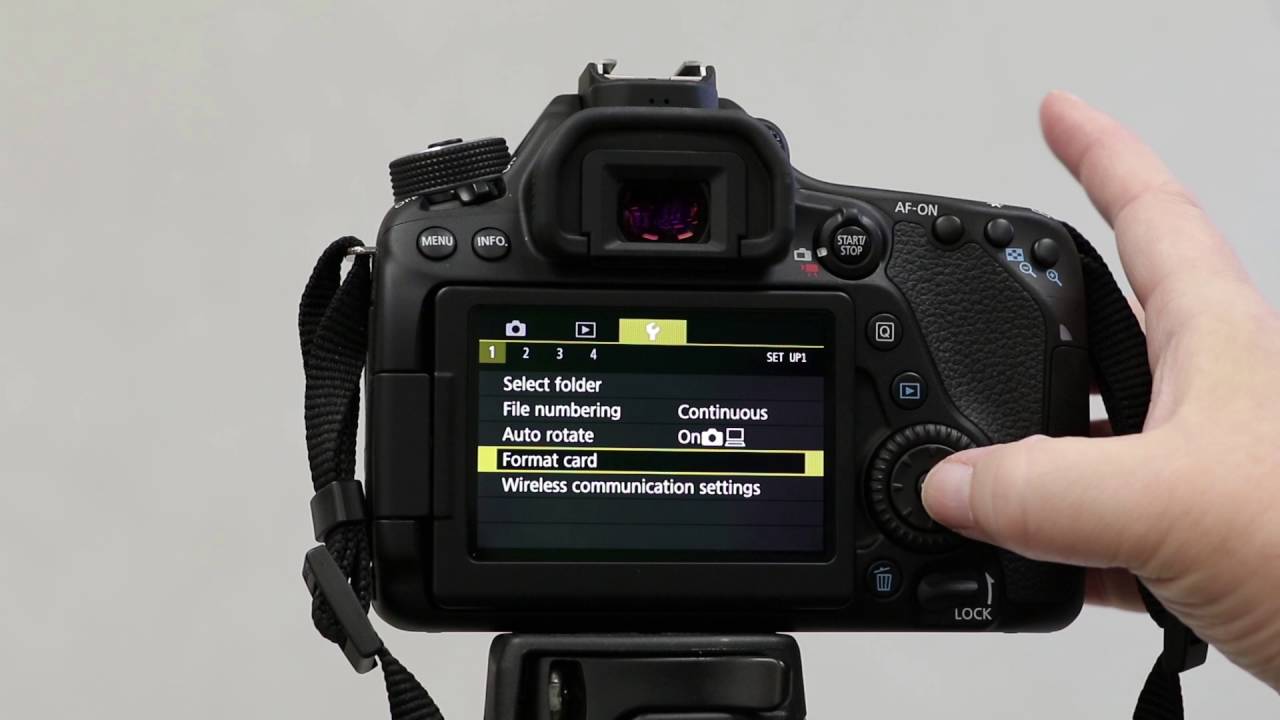
Formatting permanently erases all data, including protected images and registered settings, and is unrecoverable. Always save valuable data on a computer or other device before formatting, and if the card has been exposed to dust or moisture, clean sd card contacts first to prevent write errors. If you also shoot with a different system, the steps to format sd card on canon camera differ slightly in menu layout. You cannot format the memory card if the remaining battery charge is less than 1%. The access lamp lights up during formatting. Do not remove the memory card while the access lamp is lit up.
How to format an SD card in a Sony A7III
- Press the MENU button on your camera.
- Navigate to the Setup menu (the toolbox icon).
- Select Format.
- Choose the desired memory card slot (Slot 1 or Slot 2).
- Confirm the format when prompted.
It may take a few minutes to complete formatting, depending on the memory card. Wait for the process to finish before turning off the camera or removing the card.
Quick format vs. full format: what's the difference?
There are two types of formatting: Quick formatting and Full formatting. A quick format erases the file system index but not all data sectors, making it faster. Perform full formatting when the speed of recording to or reading from the memory card has become slow, or when you want to erase data completely. Full formatting takes longer than quick formatting because all areas of the memory card are initialized. If you press the Delete button after selecting Format, a message to perform full formatting will be displayed. You can launch full formatting by selecting Enter.
Why you should always format in-camera
Format the memory card on the camera itself. If you format the memory card on a computer, it may not be usable depending on the format type. In-camera formatting optimizes the memory card to your specific camera's file system, minimizing potential errors. A memory card format provides a fresh start, erasing all data and preparing the card for new photos and videos. If you must use a card in a different camera, format it in the new camera before shooting to guarantee proper file system setup and minimize potential errors.
\nRelated reading: How To Insert SD Card Into Laptop.