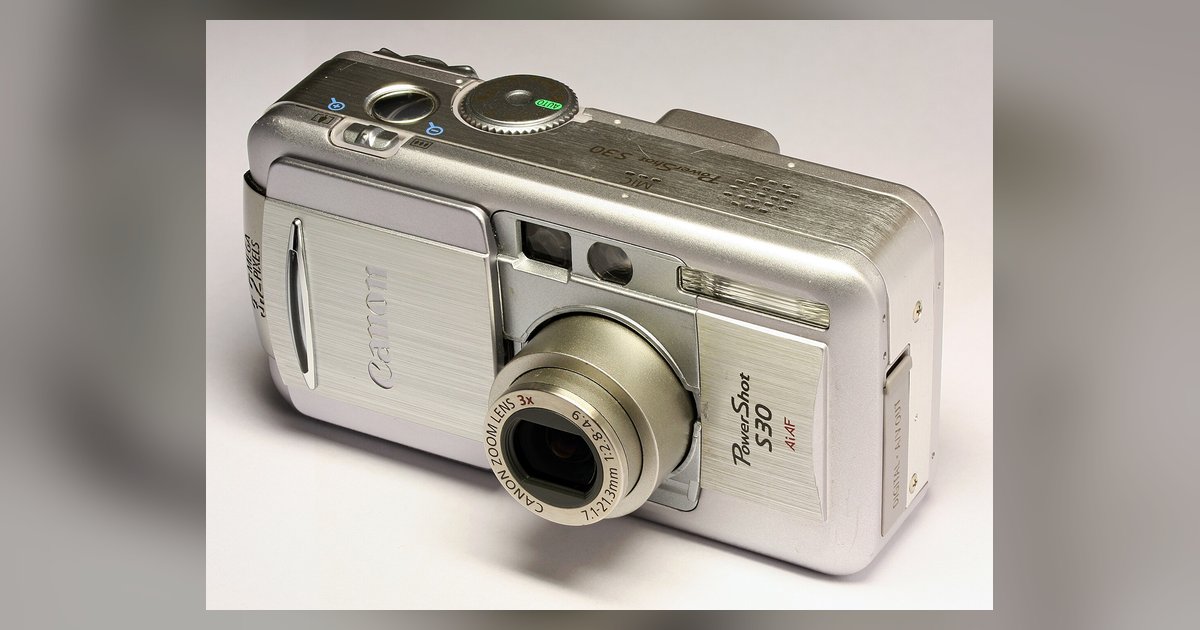
Your Canon PowerShot SX740 HS requires an SD, SDHC, or SDXC card formatted to FAT32 or exFAT. It does not support SDUC cards, and using a card larger than 32GB without formatting it correctly will cause a 'Card Error'.
The three powershot memory card types explained
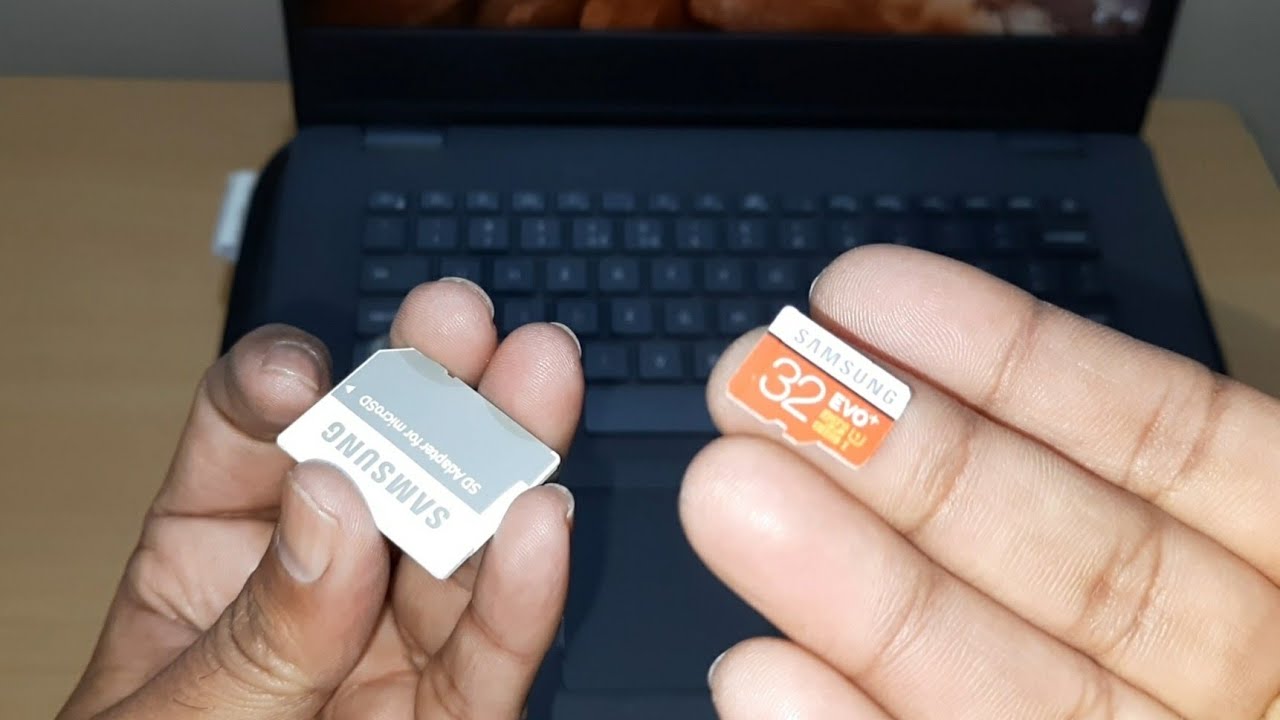
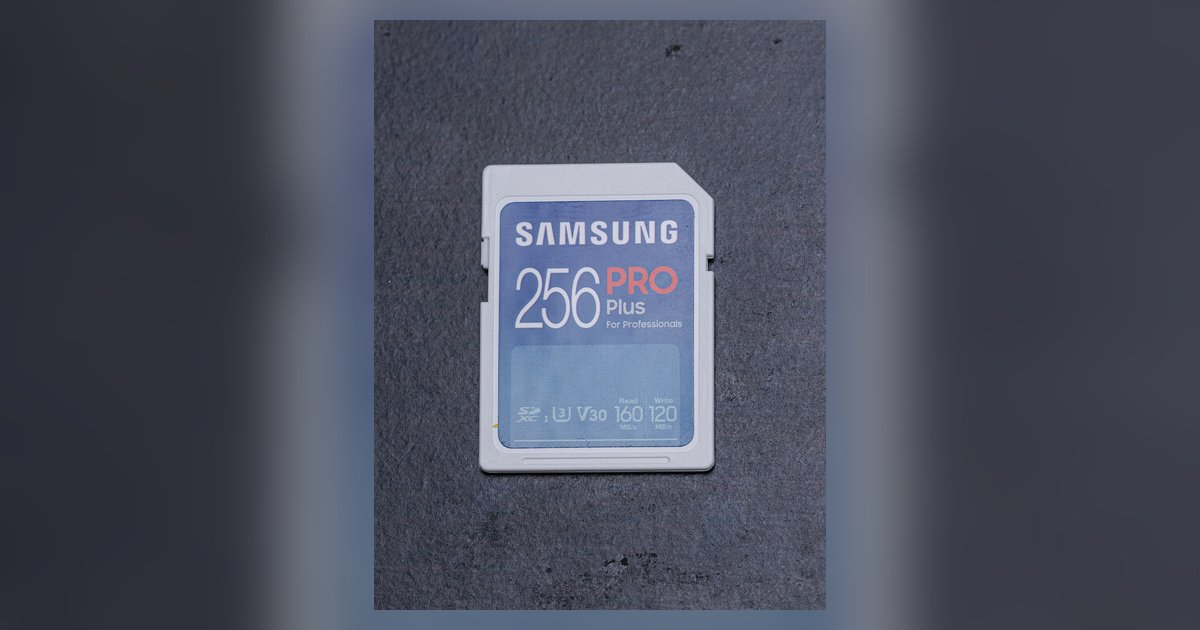
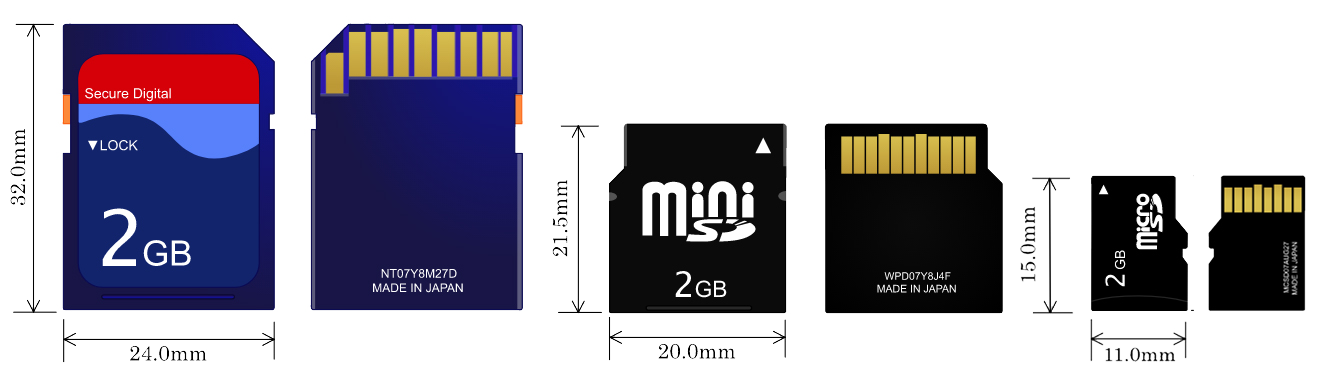
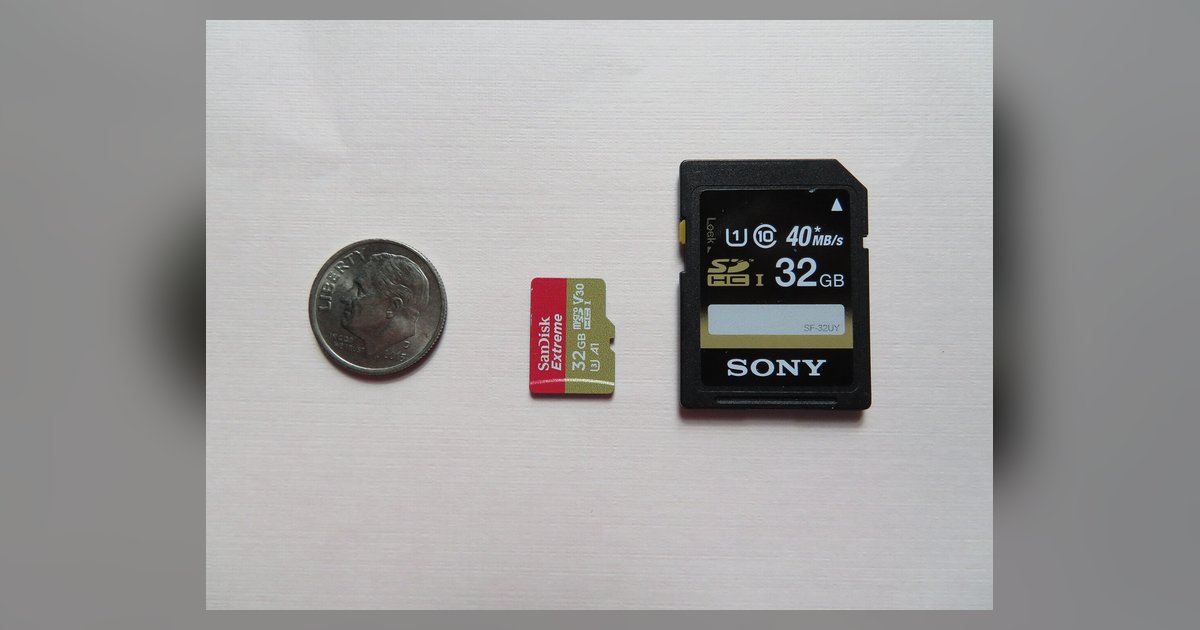
The SD standard has three generations your PowerShot can accept. SD cards hold up to 2GB and use the FAT16 file system. SDHC (Secure Digital High Capacity) cards range from 4GB to 32GB and are formatted as FAT32. SDXC (Secure Digital eXtended Capacity) cards start at 64GB and go up to 2TB, using the exFAT file system. Your SX740 HS physically accepts all three because the slot has the same shape, but the camera’s firmware reads only these three types. If you insert an SDUC card, the fourth generation that starts at 2TB and goes to 128TB, the camera will not recognize it at all, because the SDUC bus protocol is not supported in any current PowerShot model.
When the card is too new or too big
The specific failure case you might encounter is an SDUC card or a massive 1TB SDXC card failing because the camera’s exFAT implementation cannot address the storage beyond a certain threshold. Canon’s firmware on the SX740 HS is designed to handle SDXC cards up to 256GB reliably. A 512GB or 1TB card may appear to work briefly but then produce a 'Card Error' when you try to record video or burst shoot, because the memory controller cannot map the full capacity. To avoid this, stick to 256GB or less, and always buy cards labeled SDXC (not SDUC) from reputable brands like SanDisk, Lexar, or Sony.
Older models that use compactflash
If you own a vintage Pro-series or early G-series PowerShot, such as the PowerShot G1 or G3, or the Pro 90 IS, you need a Type I or Type II CompactFlash card. These cameras have a physical CF slot that cannot accept any SD variant, even with an adapter. The card capacity limit for those models is typically 2GB or 4GB, and they require formatting to FAT16 or FAT32 in the camera. Trying to force an SD card into a CF slot will damage both the card and the camera. Always check the manual for the specific model number before buying any memory card.
Formatting the card so it works
The critical step to fix a 'Card Error' is low-level formatting the card inside the camera’s menu rather than on a computer. Insert the card, press the Menu button, navigate to the 'Function settings' (gear icon) or 'Set up' menu, select 'Format card', and confirm with 'OK'. This creates the correct DCIM folder structure and assigns the proper file system (FAT32 for cards 32GB and under, exFAT for cards 64GB and up). If you format on a computer, the camera may still reject the card because the clusters are misaligned. After formatting, you can download pictures from canon powershot by connecting the camera via USB or removing the card and using a card reader, then finish by moving photos to a computer for safekeeping.
Unlike any other camera resource, this guide explains that the Canon PowerShot SX740 HS firmware is designed to handle SDXC cards up to 256GB reliably, and cards larger than that may produce a 'Card Error' during video recording or burst shooting because the memory controller cannot map the full capacity.
\nRelated reading: How To Clean SD Card.