Transfer photos to computer from your phone
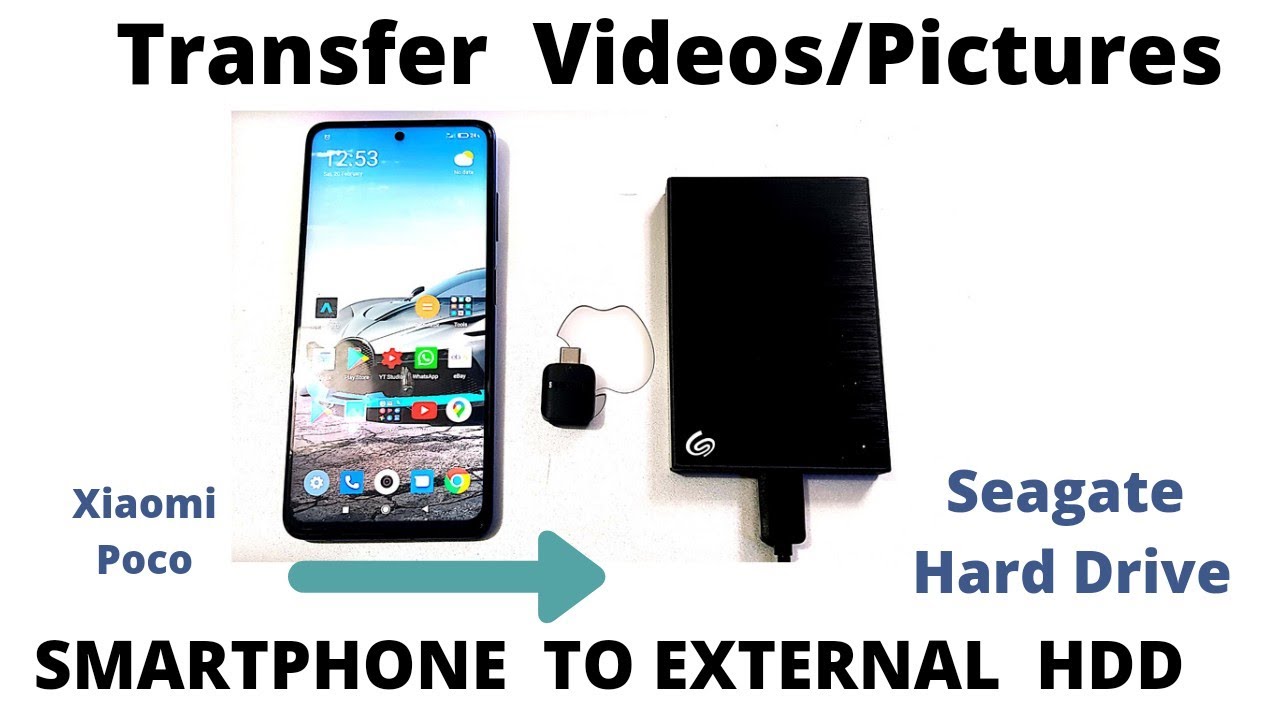
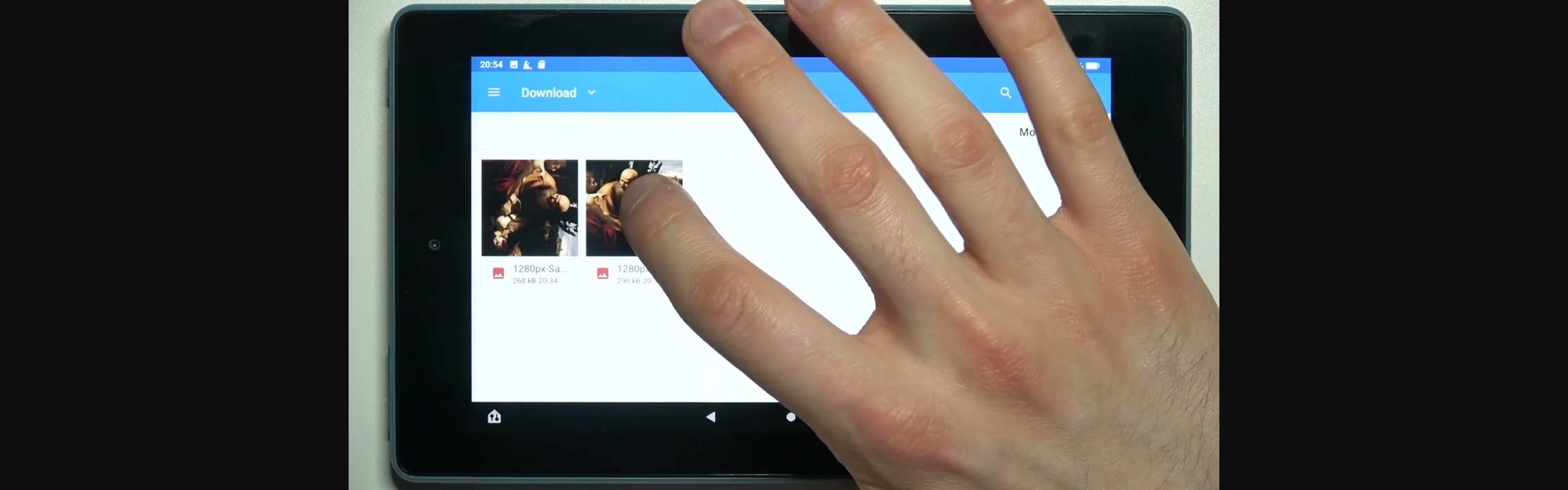
To transfer photos to computer, plug your Android phone into your computer with a USB cable. A notification will appear on the phone. Tap it and change the setting to "File transfer" or "MTP." Your computer will then show the phone as a drive. Open it, navigate to the DCIM or Pictures folder, and drag the photos to a folder on your desktop. If you own a Samsung, you can follow the same general steps, though the exact menu labels differ slightly from other brands. You can download photos from Samsung phone to computer using those same instructions if the folder names don't match what you see. For a Motorola device, the process is nearly identical, but the cable connection can sometimes fail to trigger the file-transfer prompt. If that happens, restart both devices and try a different cable. For wireless transfer, you can use Microsoft Phone Link or Quick Share on Windows, select the photos, and send them over Wi-Fi (AirDrop only works between Apple devices). That method works well for transferring pictures from Motorola razr to PC when you don't have a cable handy. Whichever route you choose, always check first whether the photos are on internal storage or a removable SD card. The card often shows up as a separate folder, and skipping that check is why many transfers seem to "lose" pictures.
Get photos off your camera
If your photos are still on the camera, you have three clear paths to get them onto your computer. The right one depends on what you have on hand. The most straightforward method is to connect the camera directly with its USB cable. Once plugged in and powered on, the computer should recognize it as a removable drive, letting you simply drag the files off. If you prefer to skip the cord entirely, you can run the canon PowerShot wireless transfer setup without a cable, which uses the camera's built-in Wi-Fi to send images to your computer over your home network. A third option is to remove the memory card from the camera and insert it into your computer's card reader. Just be sure to check the canon PowerShot memory card compatibility list beforehand, as using an unsupported card type can cause read errors or corruption. If you plug in the camera and nothing happens, you are dealing with a canon PowerShot camera not recognized by computer situation. Try a different USB port, a different cable, or restarting both devices. If that fails, you may need to install the camera's driver software from the manufacturer's website. For a full walkthrough of each method, you can download pictures from canon PowerShot using steps that cover cable, wireless, and card-based transfers in detail. Unlike other guides, we explain what to do when the computer sees nothing at all.
Save photos from your email or convert them
If the photos are sitting in an email, you will need to get them out of the message and onto your computer as standalone files. In your email client, open the message that contains the picture. Locate the attached image, then right-click it or long-press on a touch screen, and choose Save As. This is the most direct way to download photos from Outlook email without altering the original file's format. Once saved, the image may still be in a web-friendly format like PNG. You can change that during the save process or afterward. To ensure broad compatibility, you can download an image as a JPEG if needed. Open the saved photo in any basic image viewer. Click Save As or Export, and select JPEG from the format dropdown. Name the file something you will recognize, and store it in a folder you can find later. That single step prevents the "file not supported" errors that often trip people up after a successful email download.