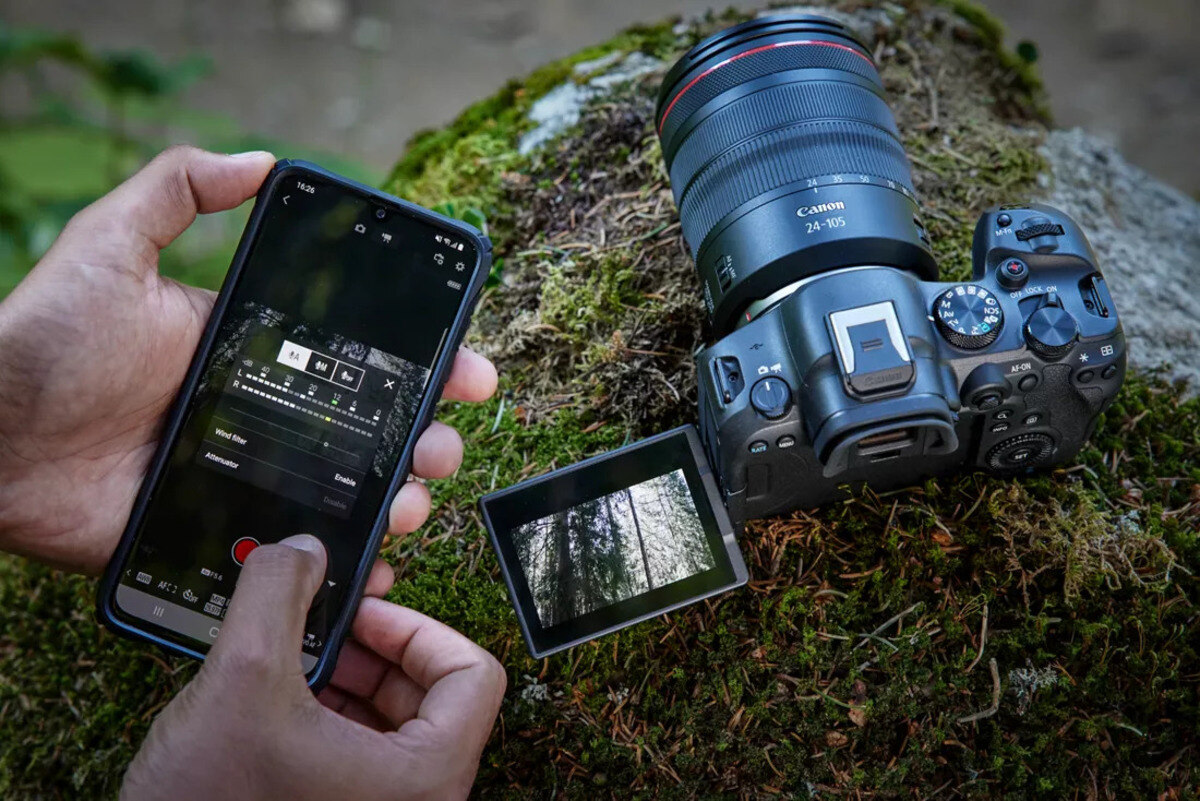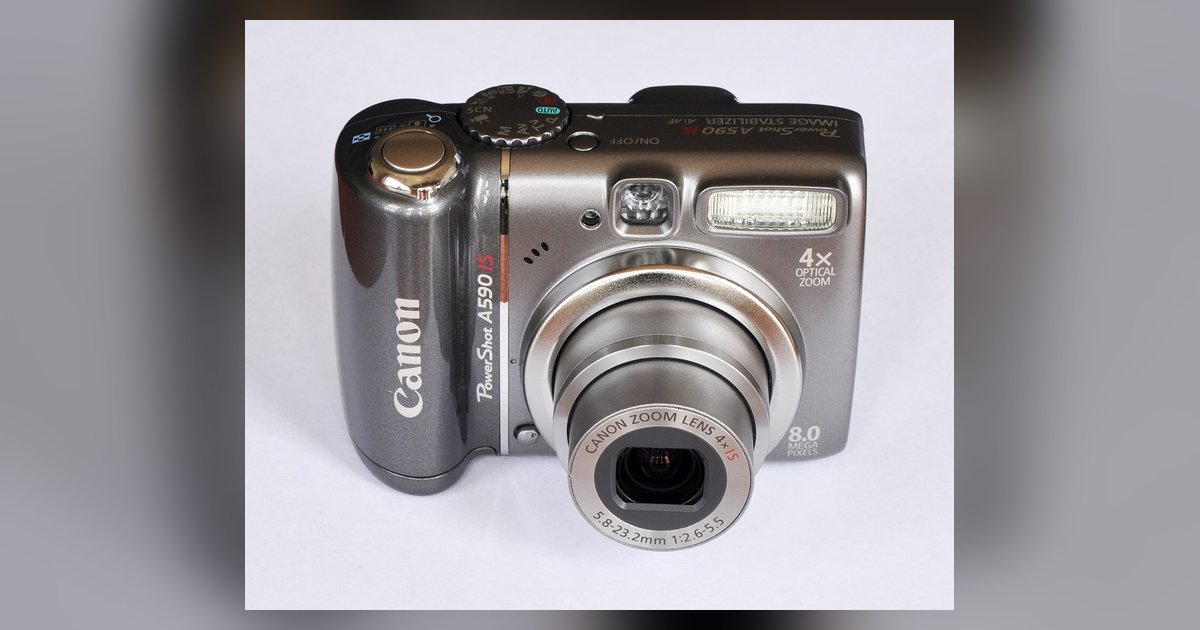
If your Canon PowerShot is not recognized, set the camera's USB connection mode to 'PTP' or 'MTP' in the wrench menu, or remove the memory card and use a dedicated USB card reader instead. If the camera still isn't recognized, the USB port on the camera may be for charging only on newer models.
Check the Canon PowerShot USB connection mode
On some Canon PowerShot cameras, the USB mode may default to a setting like 'Auto' or 'Normal'. This can confuse a computer that expects a standard mass storage or camera protocol. Check your camera's setup menu for any USB-related settings and consult your model's manual for available options. PTP or MTP may work depending on your computer and software. Once you save the change, reconnect the camera via USB. The computer should now detect it as a camera device and let you download pictures from Canon PowerShot. If the menu shows no such option, consult your camera's manual for supported connection methods. Check Canon's support site for any available firmware updates for your model.
Use a memory card reader instead
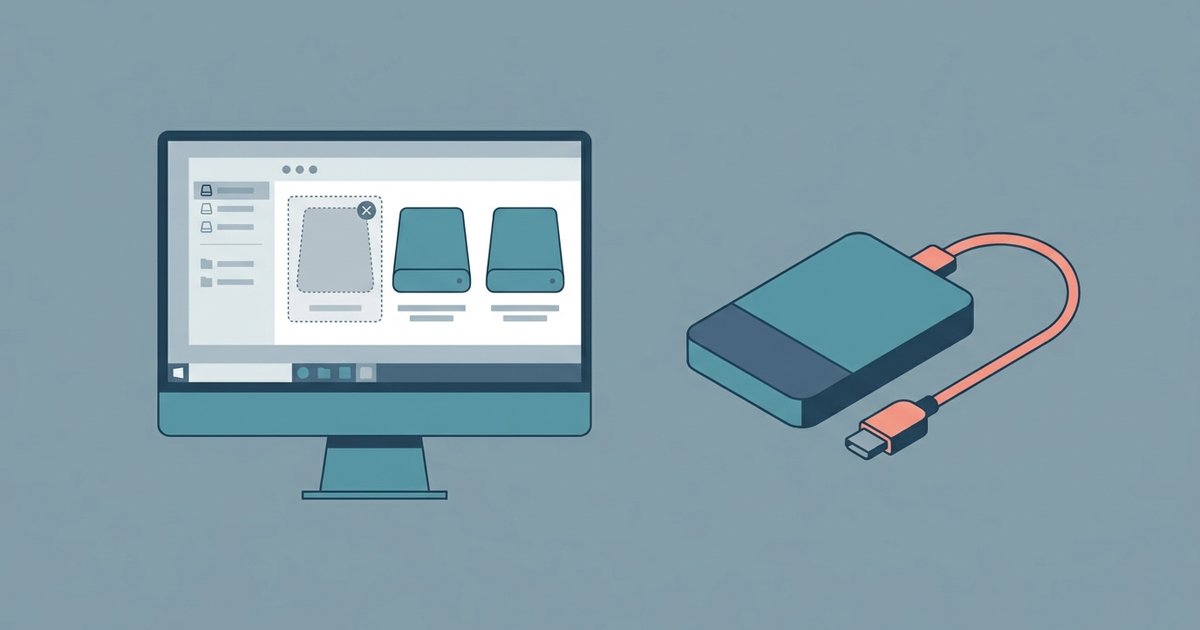
If changing the USB mode still yields no recognition, bypass the camera entirely. Remove the SD card from the PowerShot and insert it into your computer's built-in memory card slot. You can also use a cheap USB card reader that plugs into any USB port. This method eliminates all camera software, driver, and cable issues because the computer sees the card as a standard drive. It is often faster than USB transfer, especially for large batches of photos. Card readers support higher speeds than most camera USB ports. For users who need to extract images from email attachments, the same local files can be saved directly. Once the images are on your hard drive, you can convert or export them. For example, you can download an image as a JPEG from any photo editing software if the original is in a different format.
When the USB port is for charging only
Some newer Canon PowerShot models may use the USB port only for charging. Check your camera's manual or specifications online. In such cameras, the USB port may not support data transfer, and the menu may lack related options. The only way to get photos off such a camera is to take out the SD card and use a card reader as described above. Check your camera’s manual or specifications online. If it says “USB charging only” or “USB for battery charging,” no amount of driver reinstalls, cable swaps, or menu changes will make the computer recognize it. In that case, the card reader is your permanent solution, unless your model supports a canon PowerShot wireless transfer setup without a cable, which lets you skip the card reader entirely. This method works identically whether you need to download pictures from Canon PowerShot or transfer files from any other camera that uses an SD card, and the same principle applies when moving photos to a computer from a phone or email.