A blinking light with no recognition almost always signals a power starvation issue or a drive controller failure, not a simple cable fault. If the drive beeps or clicks along with the blink, the internal mechanism has physically failed and DIY recovery is impossible.
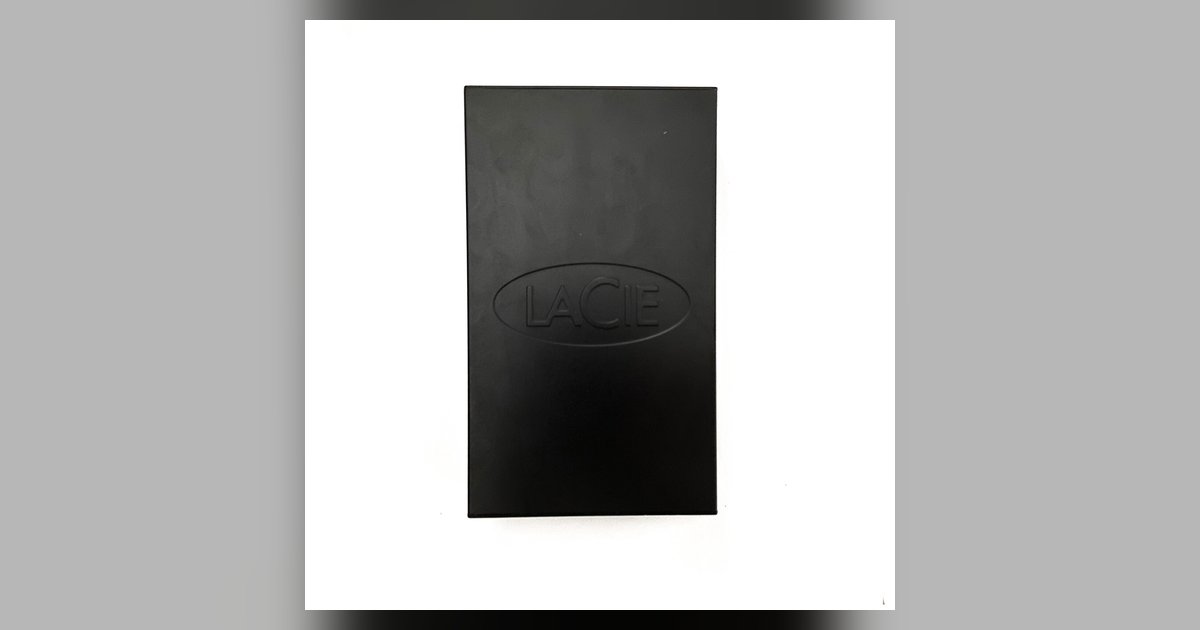
Lacie drive blinking: steady slow vs rapid blink
A steady slow blink typically means the drive has entered a power-saving standby mode and is waiting for a data signal from the host computer. This often occurs when the drive is connected to a USB port that cannot deliver enough current to spin the platters. It also happens when the operating system has put the drive to sleep after a period of inactivity. A rapid blink may indicate the drive is actively trying to initialize but failing. This usually happens because the internal controller cannot communicate with the disk mechanism. If you see a rapid blink, unplug the drive, wait 30 seconds, and reconnect it directly to a powered USB 3.0 port on the back of the computer. Listen for any mechanical sounds. Silence combined with a rapid blink points to a dead bridge board. Clicking or scraping sounds point to physical head failure.
The power-only USB trap
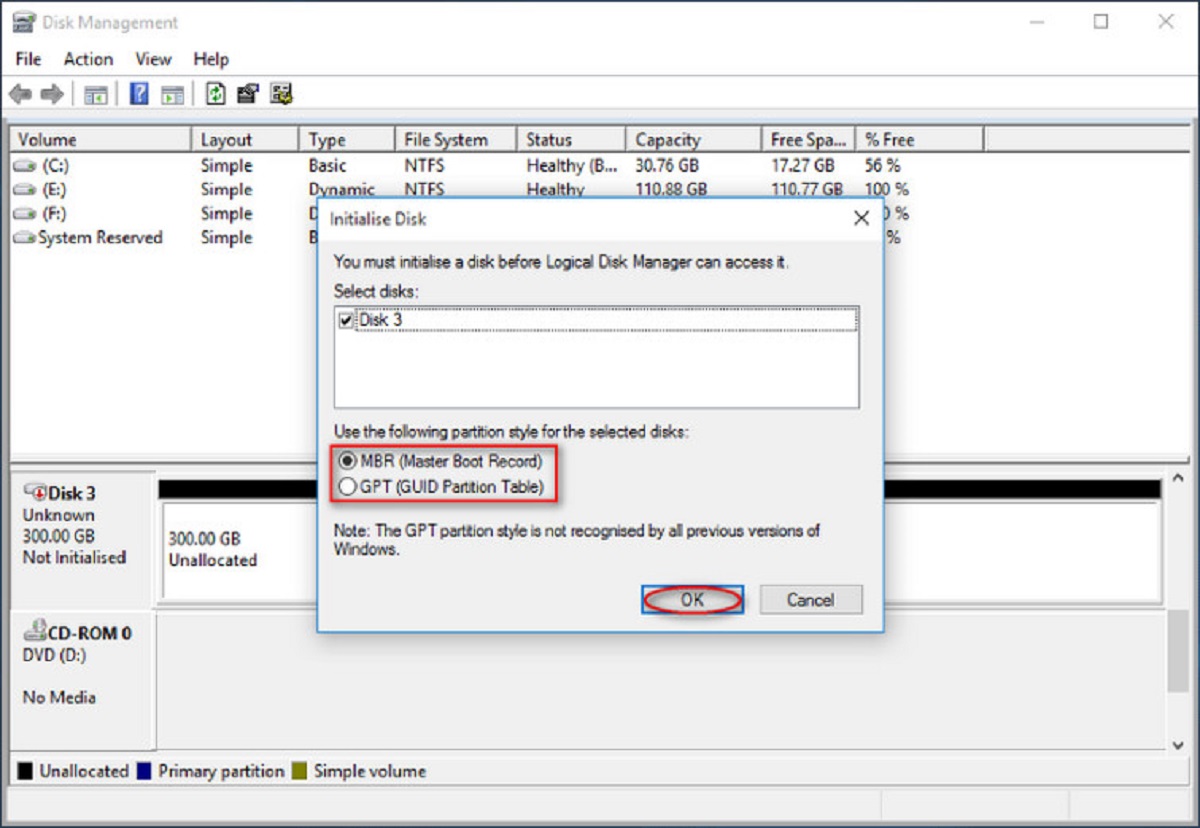
Using a USB-C to USB-C cable or an underpowered hub makes the LED light up but starves the spinning motor of the 12V rail it needs to mount. Many LaCie drives, especially larger desktop models, require external power adapters. A USB-C cable that only carries data and limited power may light the LED but cannot spin the platters. This leaves the drive invisible to the operating system. To avoid this trap, always use the USB cable that shipped with the drive. Plug it directly into a powered USB port on the motherboard, never a front-panel port, a hub, or an adapter unless the adapter explicitly supports sufficient power delivery for your drive model. If you need to move files from iCloud to external hard drive, first ensure the drive is mounted by checking Disk Utility (macOS) or Disk Management (Windows). A blinking light with no listing in either tool confirms a hardware power issue. If the drive remains stubbornly invisible despite correct power, you may need to safely wipe a lacie drive before selling it to protect your data before disposal.
When the enclosure is dead but the disk is alive
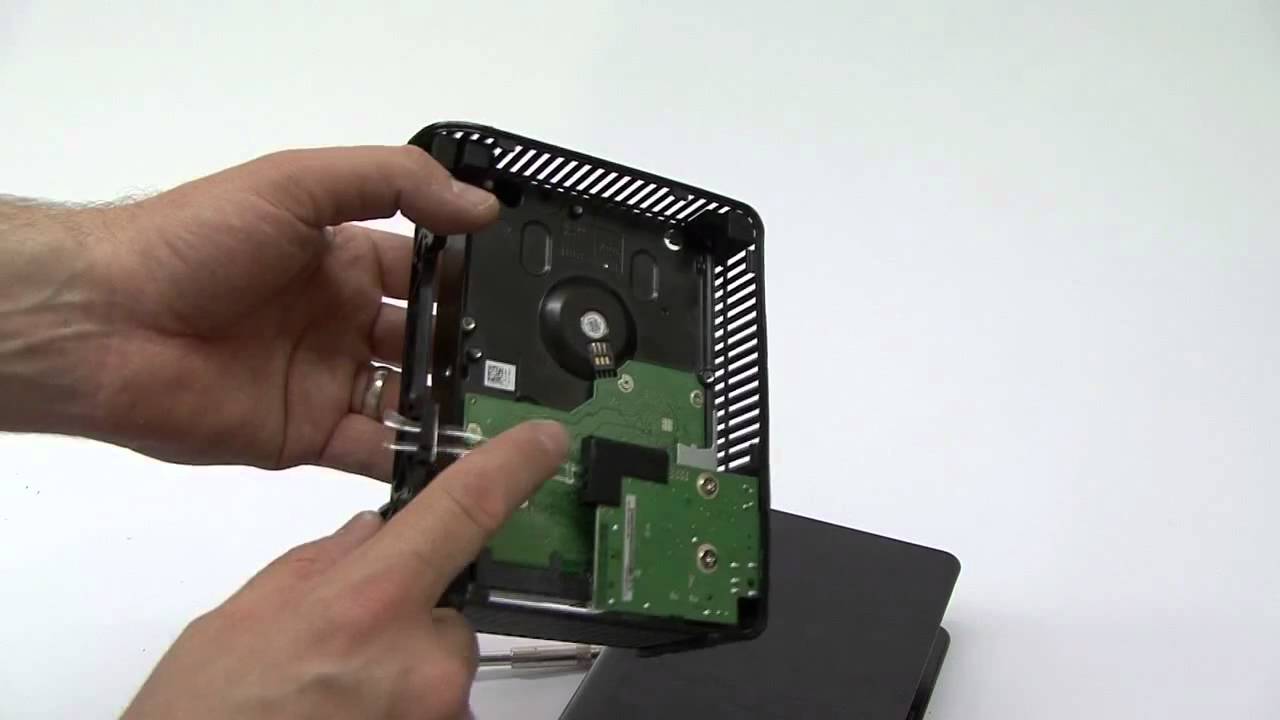
The telltale sign that the SATA-to-USB bridge board has failed while the hard drive inside still spins is a steady slow blink with no clicking, beeping, or scraping. The drive feels warm but never shows up in any disk utility. When you hear the platters spin up normally but the computer never acknowledges the drive, the bridge board has likely failed. This small circuit converts SATA signals to USB. Shucking the drive is the only way to recover data. Carefully open the enclosure, disconnect the SATA-to-USB adapter, and connect the bare hard drive directly to a desktop computer’s internal SATA port or a known-good SATA-to-USB dock that does not rely on the original bridge board. This method works because the hard drive itself is still healthy. You can then use the bare drive with standard tools or file explorer to copy data off. If you need to move files from Google drive to external hard drive, shucking is a last resort only after confirming the bridge board is the culprit.
The click of death and other fatal sounds
The hard limit where a blinking light accompanied by rhythmic clicking, beeping, or screeching means the read/write heads have crashed and professional data recovery is the only option. A rhythmic click, exactly one click per second, is often described as the "click of death." It indicates the heads are repeatedly parking and failing to land on the platters. A high-pitched beep or screech means the spindle motor is seized or the platters are scraping against the heads. In both cases, do not power the drive again. Each additional power cycle can grind away more data. If you need to backup files with seagate external hard drive after recovering data from a failed LaCie, send the damaged drive to a clean-room recovery service that charges per gigabyte recovered. Costs vary depending on the extent of the head crash. No software, freezer trick, or percussive maintenance will fix a physically failed drive.
Before attempting any software fix, confirm that the drive receives adequate power from a wall outlet, not a computer port. You must also confirm that you are using the original power adapter rated for your specific drive model.