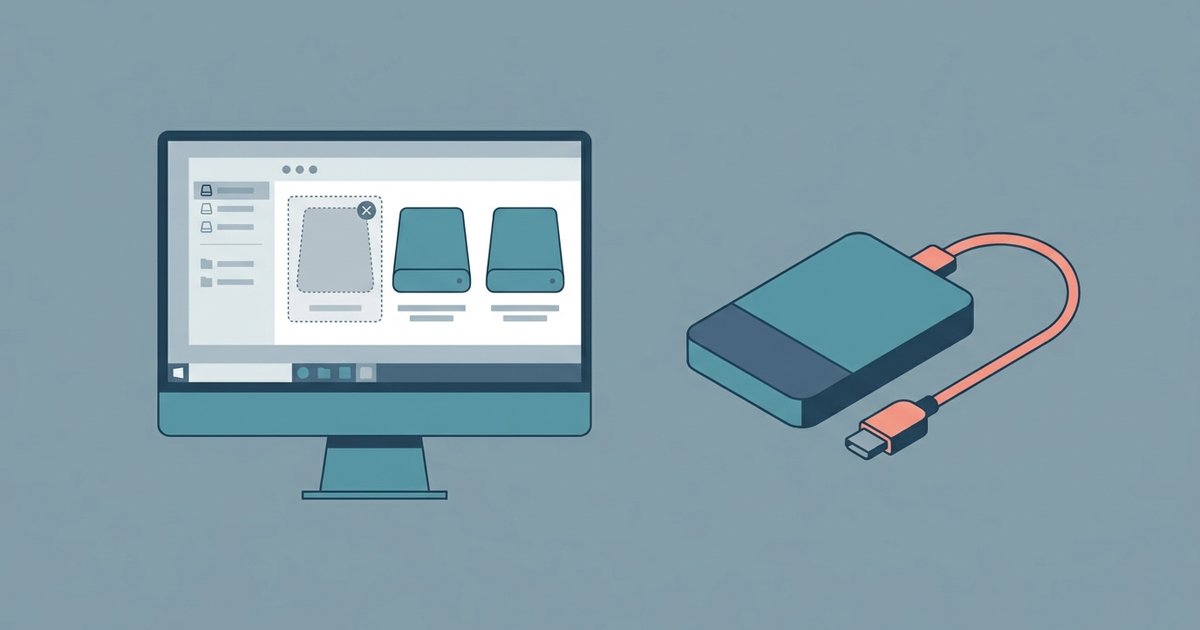
The drive isn't showing up because macOS isn't detecting its hardware, often due to insufficient power, a faulty cable, or a physical connection issue, not a formatting problem. If the drive doesn't appear in Disk Utility at all, the issue is before the operating system level, so formatting or disk repair tools won't help.
Check system information for a lacie drive not showing
Before you assume your LaCie drive is dead, open System Information, not Disk Utility. Click the Apple menu, hold the Option key, and select System Information. In the left sidebar, click USB or Thunderbolt, depending on your drive’s connector. Look for any entry that says “LaCie,” “LaCie Rugged,” or a generic storage device with a manufacturer ID. If you see it listed here, your Mac’s hardware detected the drive. The problem is a software-level mounting issue, often resolvable with a restart or a different port. If you see nothing at all in the USB or Thunderbolt tree, the Mac never saw the drive. This means the issue is physical. This step is critical because it tells you whether you should bother trying to repair the disk or instead focus on cables and power. If the drive is physically dead and you plan to dispose of it, you should still safely wipe a lacie drive before selling it if it ever spins up again.
Why a missing drive is usually a power problem
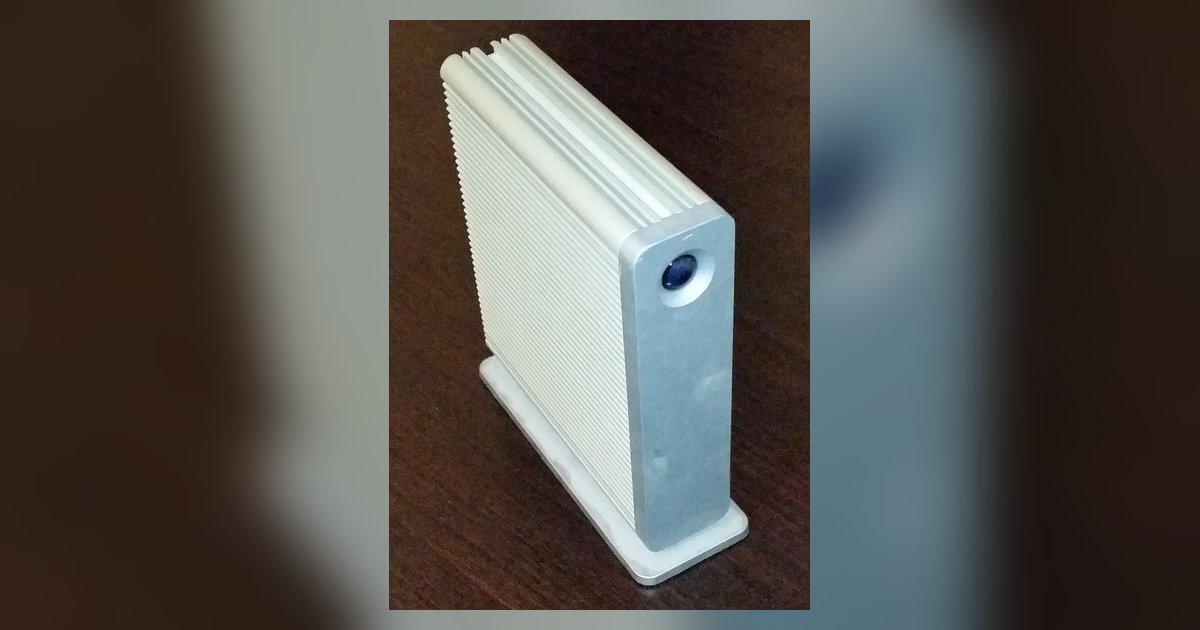
Bus-powered LaCie drives, especially the Rugged series and portable models, are notorious for failing to appear in Disk Utility when plugged directly into a single USB-C port on a MacBook. A single USB-C port typically delivers only 5 volts and up to 900 milliamps. Many LaCie drives require more power than some USB ports can provide to spin the platter or power the SSD controller. When the port can’t supply enough juice, the drive’s logic board stays alive but the disk itself never initializes. macOS never sees it as a storage device. The fix is either to use the included USB-C to USB-A cable with the AC adapter that came in the box, or to plug the drive into a powered USB hub that has its own external power supply. If you’re using a Thunderbolt 3 or 4 port, try a different port on the opposite side of the laptop. Some MacBooks have asymmetrical power delivery. This is also why you should never try to use lacie external hard drive through a passive, unpowered hub. The voltage drop will guarantee invisibility.
When the drive is dead, not just missing
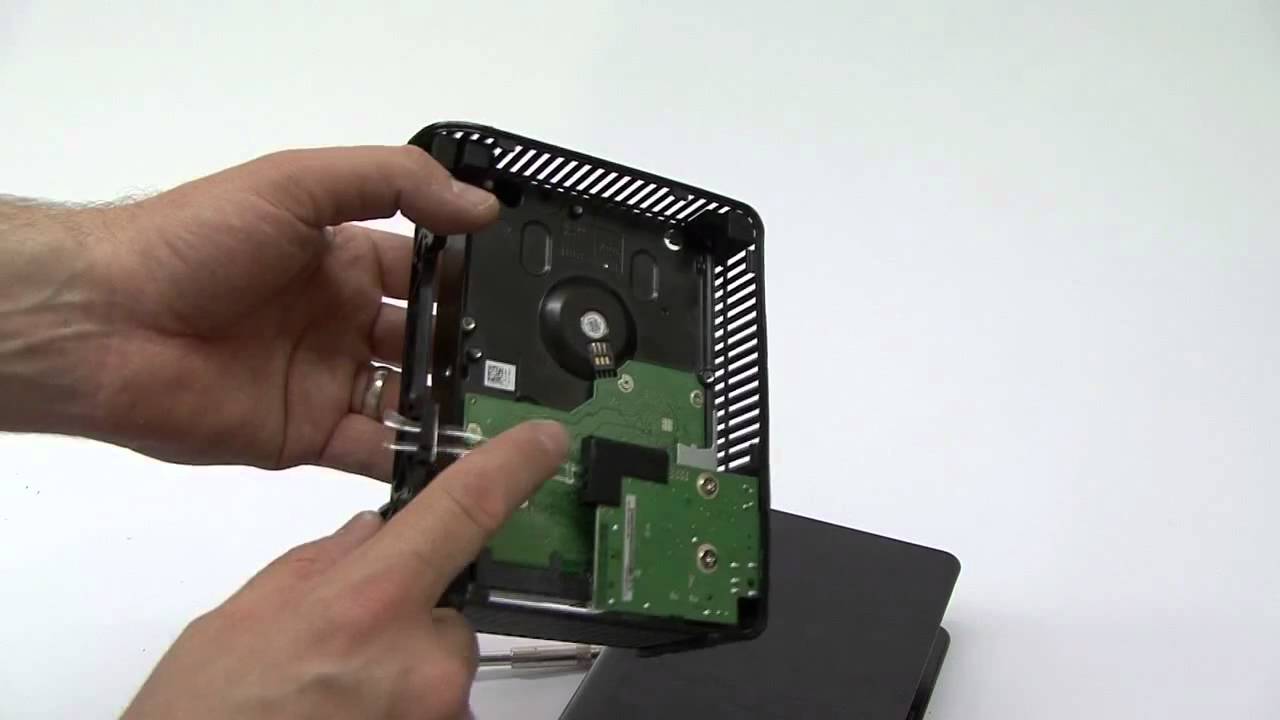
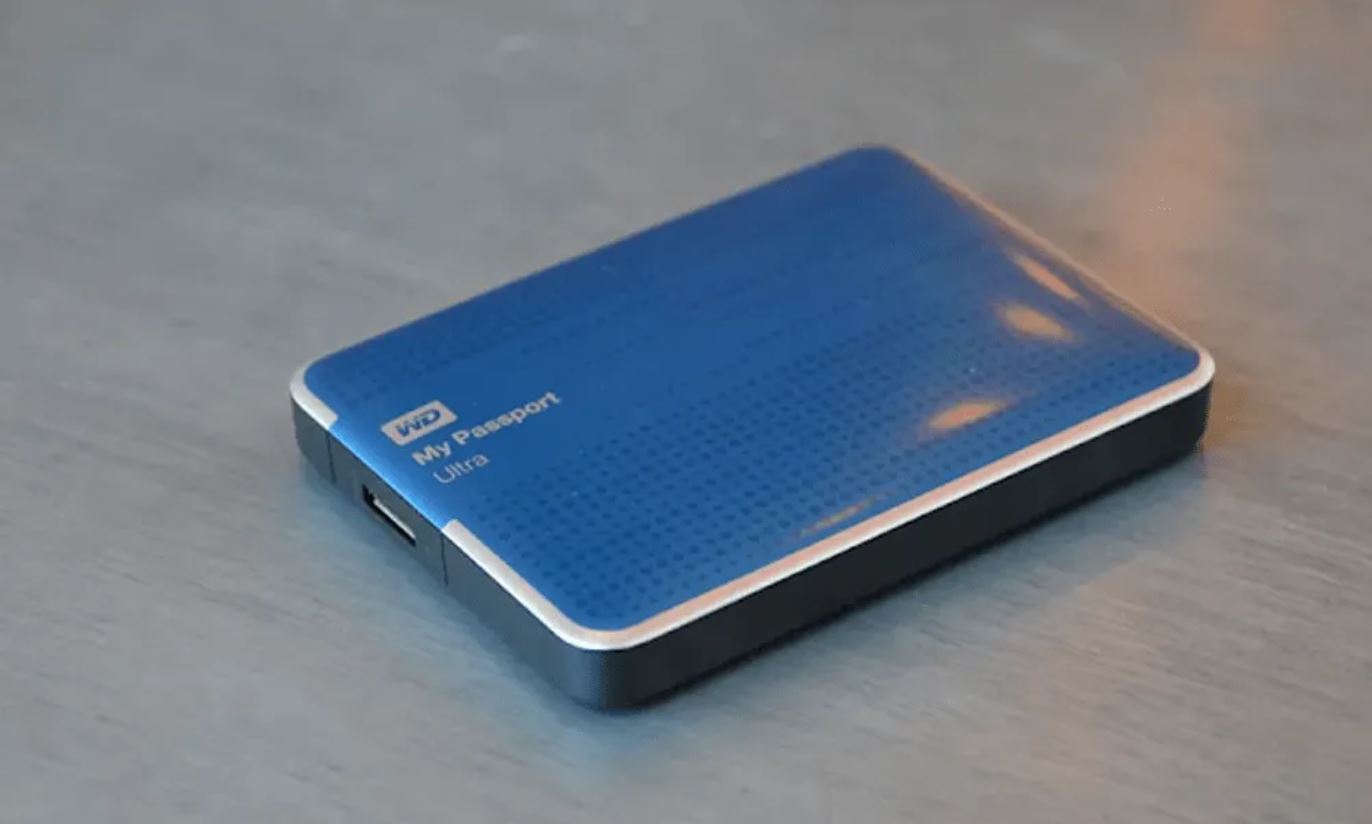
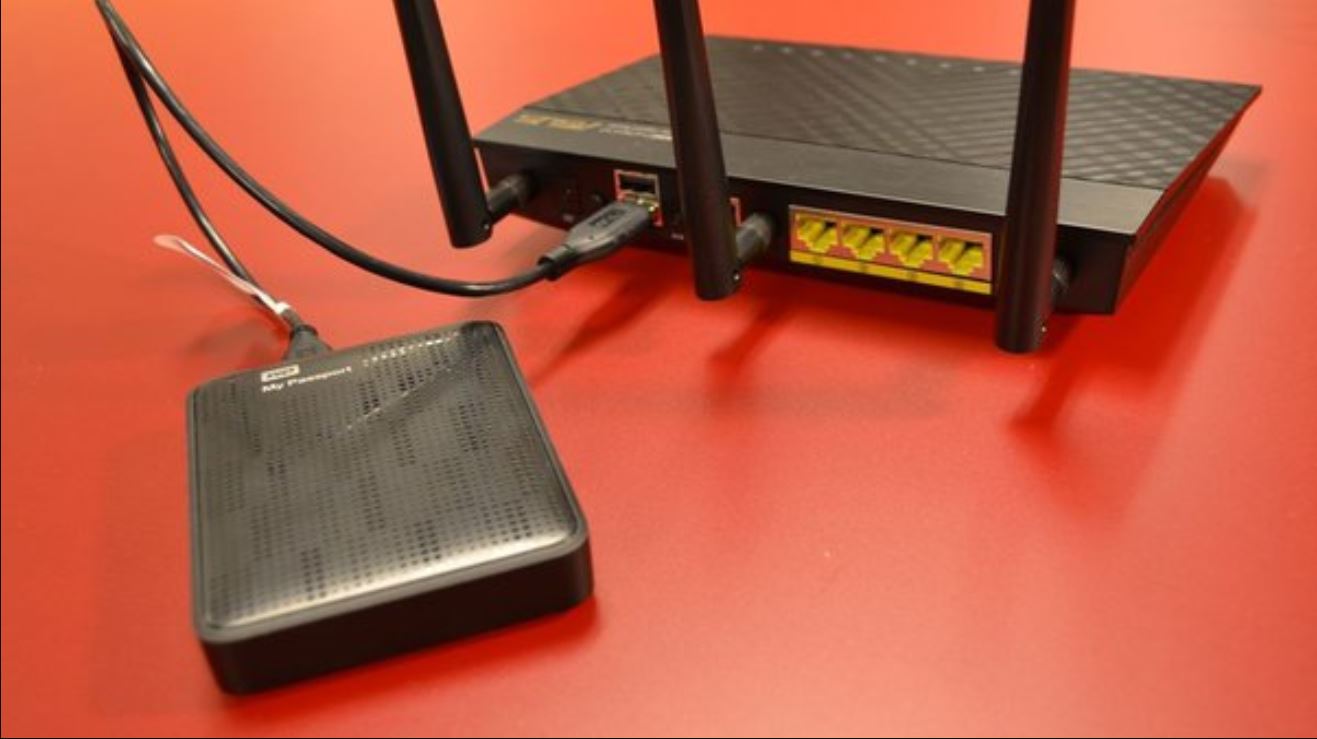
If System Information shows nothing under USB or Thunderbolt after trying three different cables, two different Macs, and a powered hub, the drive is likely physically dead. The controller board may have fried, the internal SATA connector may have snapped, or the drive’s motor may have seized. In this state, no amount of software tricks will bring it back. That includes Disk Utility’s First Aid, terminal commands like diskutil list, or third-party recovery apps. You can still attempt a last resort. Remove the drive from its enclosure if it’s a traditional hard drive, not an SSD. Connect it directly to a desktop Mac via a SATA-to-USB adapter. If that works, the enclosure’s controller board is the problem, not the actual disk. If the bare drive still doesn’t appear, the platters or heads have failed. At this point, your only option is a professional data recovery service, which can cost hundreds to thousands of dollars. To prevent this, always use a surge protector, never yank the cable, and keep a second copy of your files on an external drive so your data lives in two places. Similarly, if you rely on cloud storage for work, you should keep an offline backup on an external drive, once you have a working drive, you can upload files to my passport a hard disk drive to establish that safety net.
Unlike other drives, LaCie Rugged models require more startup power than a single MacBook USB-C port can provide, making a powered hub or AC adapter mandatory for detection.