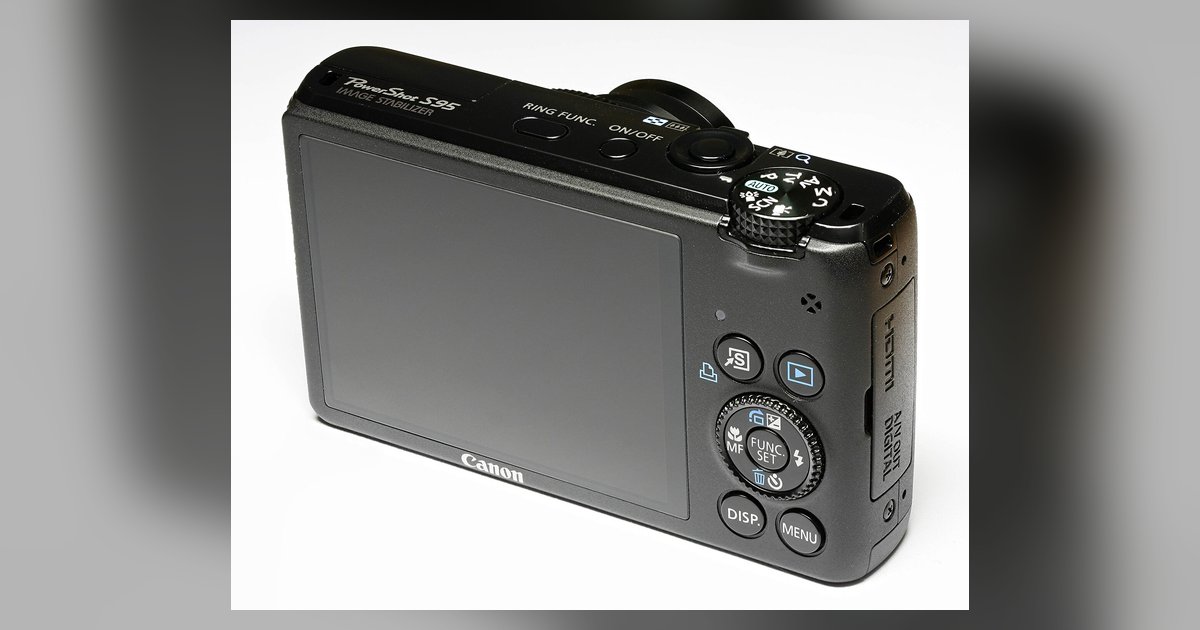
Press the Wi-Fi button on your camera or navigate to the wireless communication menu, choose to connect to a smartphone, and then use the Canon Camera Connect app to scan the QR code or join the camera's temporary Wi-Fi network to complete pairing.
Putting the camera in Canon PowerShot wireless transfer mode
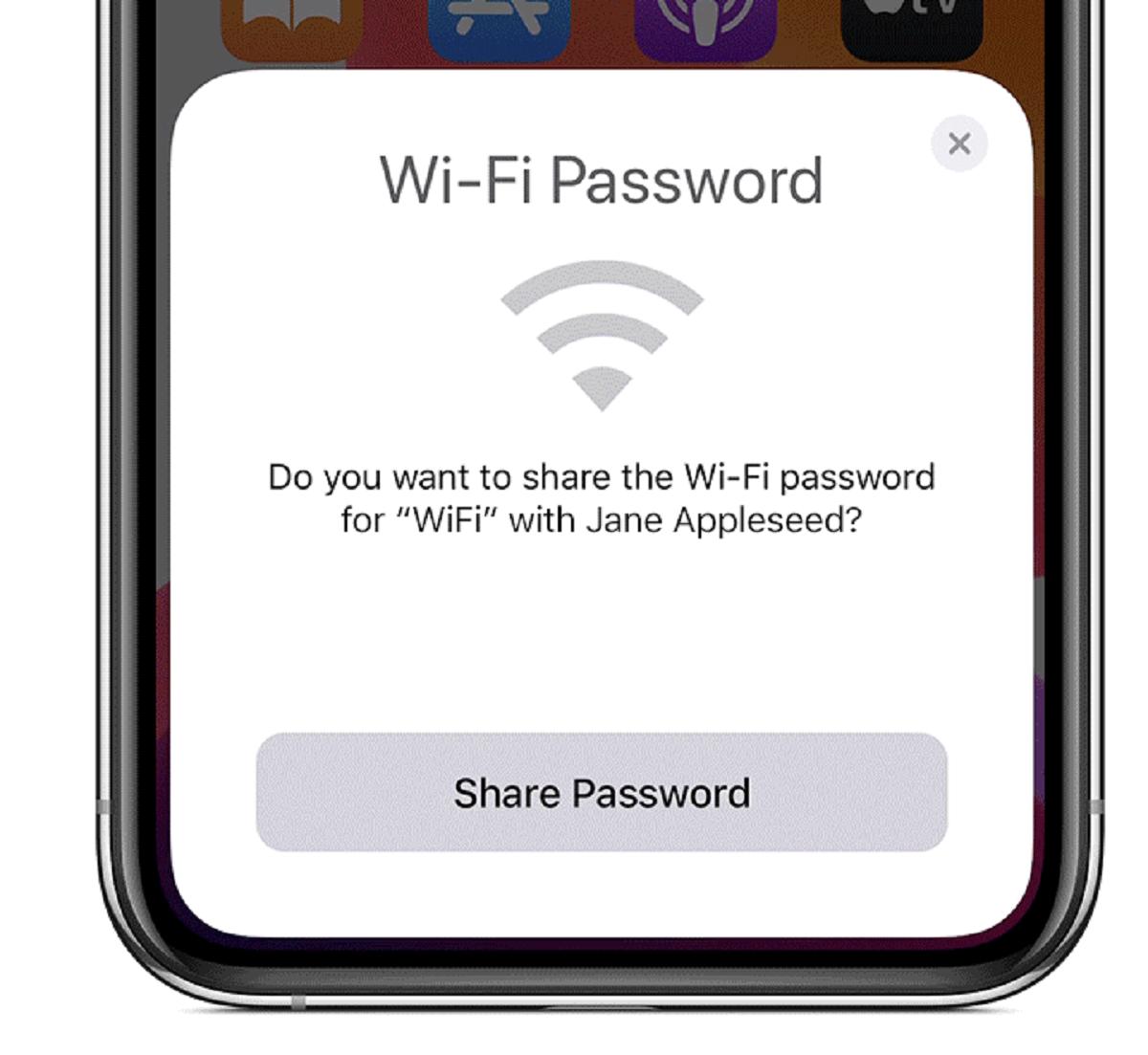
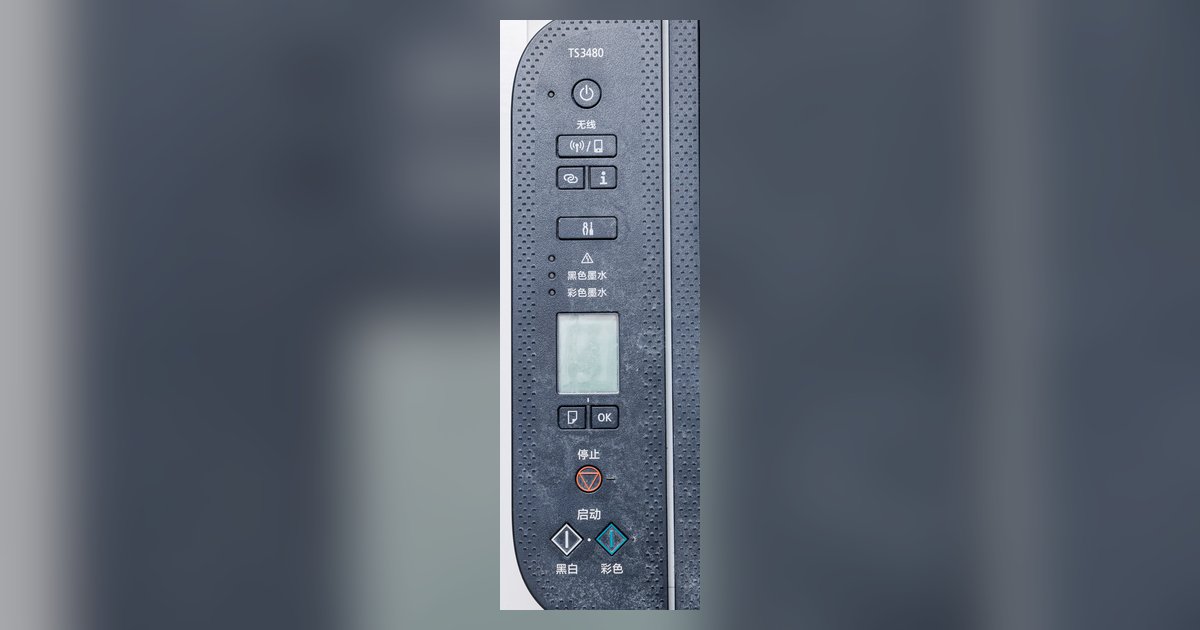
On PowerShot models with a dedicated Wi-Fi button (usually marked with a wireless icon), press that button once to bring up the wireless menu. If your camera lacks a dedicated button, press the Menu button. Navigate to the Wi-Fi/Bluetooth settings, often under the wrench or settings tab, and select “Wireless communication” or “Wi-Fi/Bluetooth connection,” then “Connect to smartphone.” After choosing that option, the camera will either display a QR code on its screen or broadcast a temporary wireless signal named something like “Canon_PowerShot_XXXX.” On newer models, the camera prompts you to “Add a device to connect to” and shows a QR code. On older models, it will show the signal name and a password. Do not press any other buttons. Leave the camera on this screen until the phone connection is established, but if your computer fails to detect the camera over USB later, see canon PowerShot camera not recognized by computer.
Connecting the Canon Camera Connect app
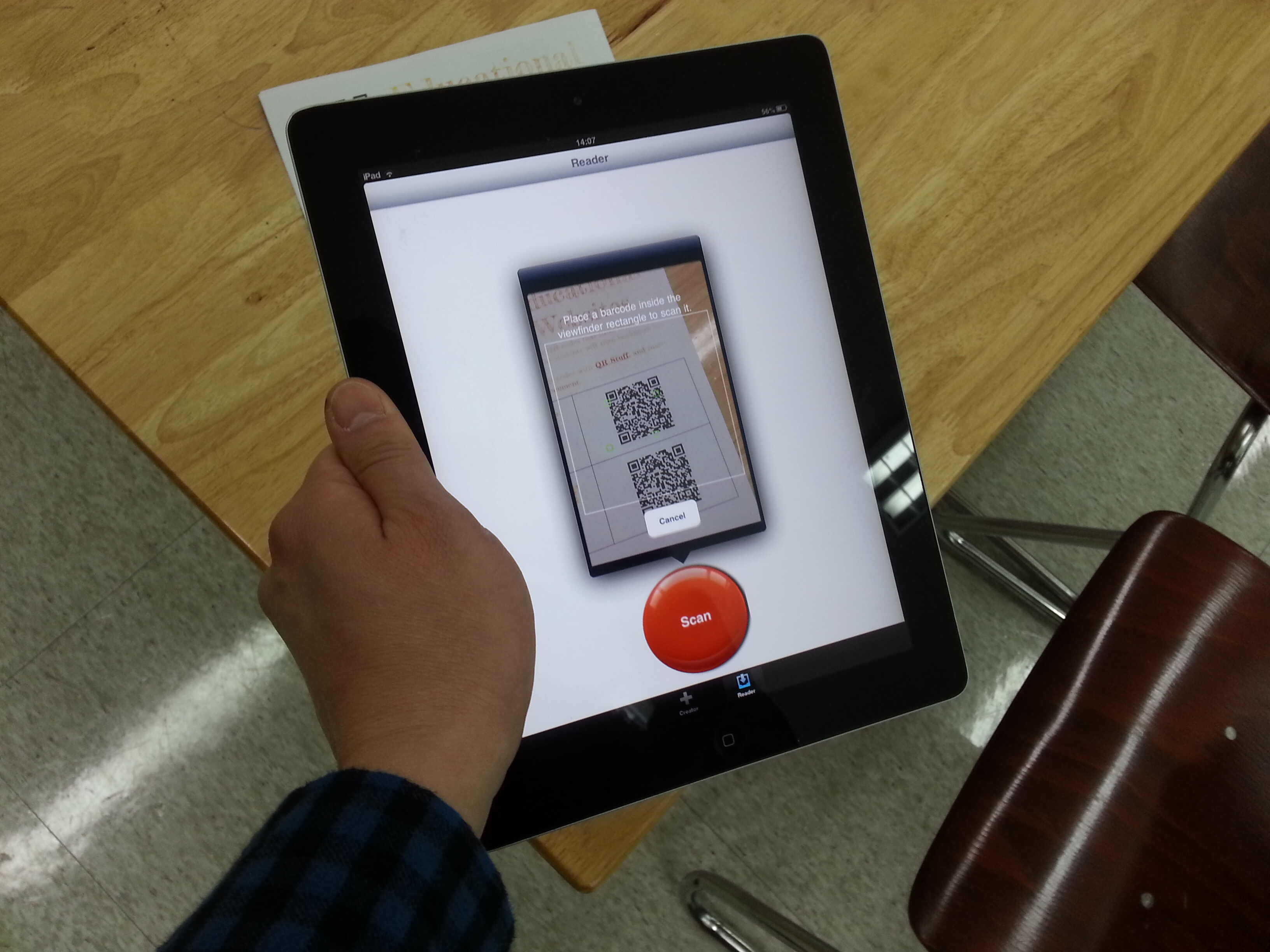
For Bluetooth pairing, you must not connect via your phone’s standard Wi-Fi settings first. Instead, open the Canon Camera Connect app. Download it from your app store before starting. On the app’s main screen, follow the instructions to connect to your camera. If your camera showed a QR code, choose “Scan QR Code” within the app and point your phone at the camera’s screen. If the camera displayed a signal name and password, manually connect to that network in your phone's Wi-Fi settings, then return to the app. Tap it, and your phone will switch to that temporary connection. Wait for a confirmation message on the camera and tap “OK” on the camera. Only after both devices show success can you browse and download pictures from canon powershot directly in the app.
This direct sequence bypasses the need for any USB cable, letting you transfer images wirelessly as soon as both devices recognize each other. Unlike generic file-transfer apps, Canon Camera Connect reads the camera’s live QR pairing code to establish a session without ever leaving the app.
When the camera won’t connect
The most common failure happens because your phone automatically switches back to a known Wi-Fi connection with internet, like your home or office, after a few seconds. This kills the direct camera-to-phone link. The fix is to disable auto-join for your known Wi-Fi networks or temporarily forget them before opening the app. This disables mobile data and prevents the phone from searching for other signals. Alternatively, after joining the camera’s broadcast, go to your phone’s Wi-Fi settings and disable auto-join for the camera's network or turn off automatic connection to other known networks. If your phone still drops the connection, stay in the Canon Camera Connect app and ignore any “No Internet” warnings. The app works entirely over the local Wi-Fi link, and the phone does not need internet access to transfer images. On rare occasions, the camera may also require you to confirm the pairing on its screen again. If the app cannot find the camera, re-enter pairing mode on the camera and repeat the scan. Once connected, you can select individual photos or batches to transfer. The app will save them to your phone’s gallery without any cable. For a broader look at moving photos to a computer, you can review the steps for transferring from a phone or email.