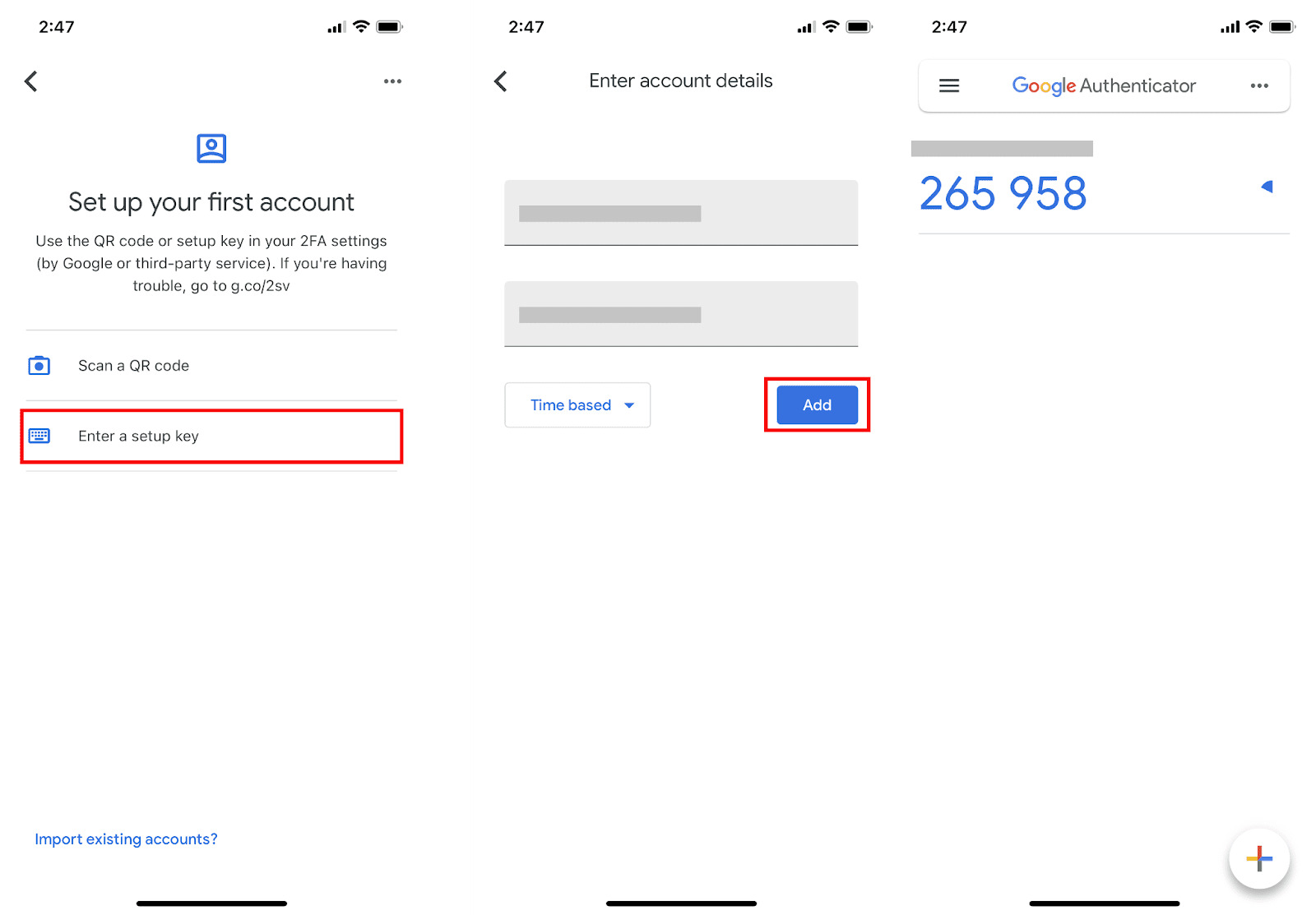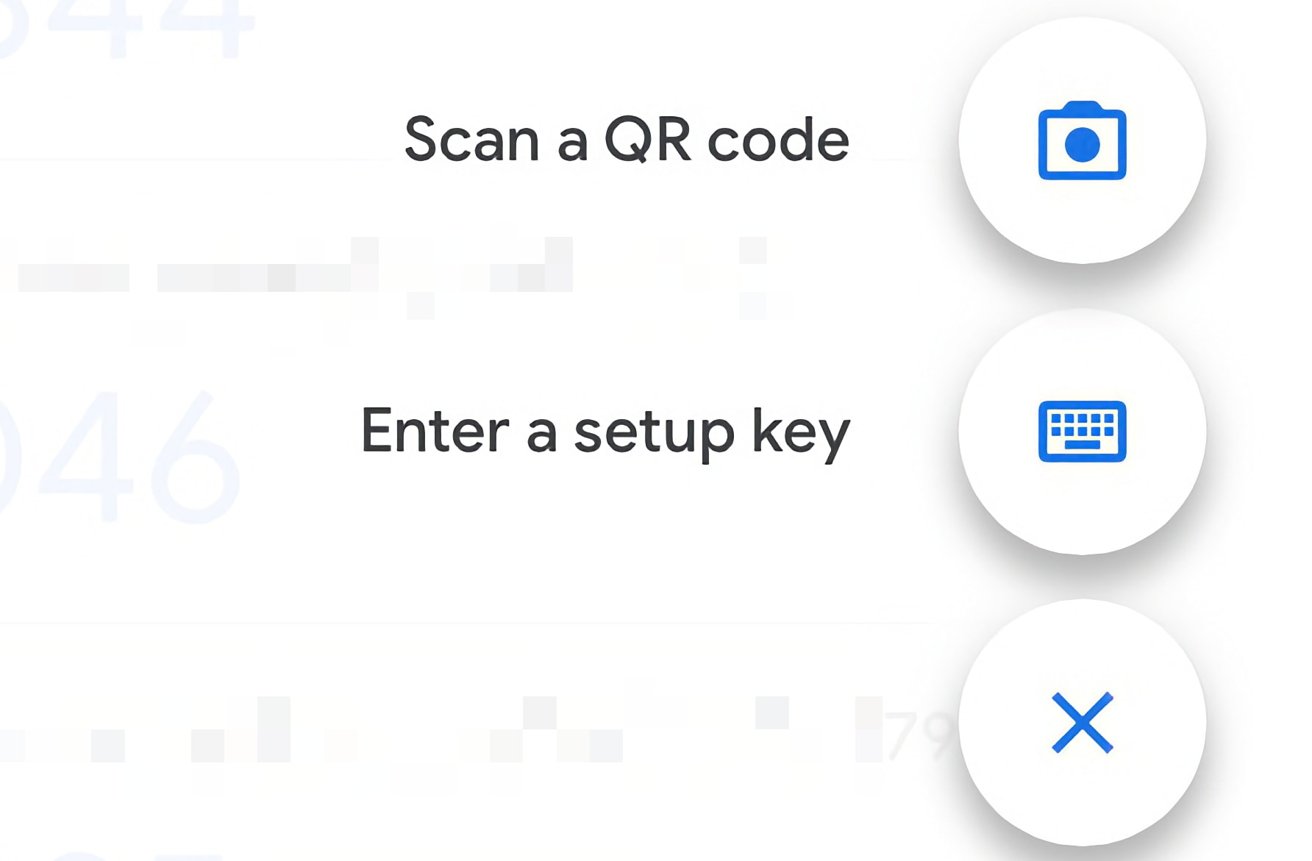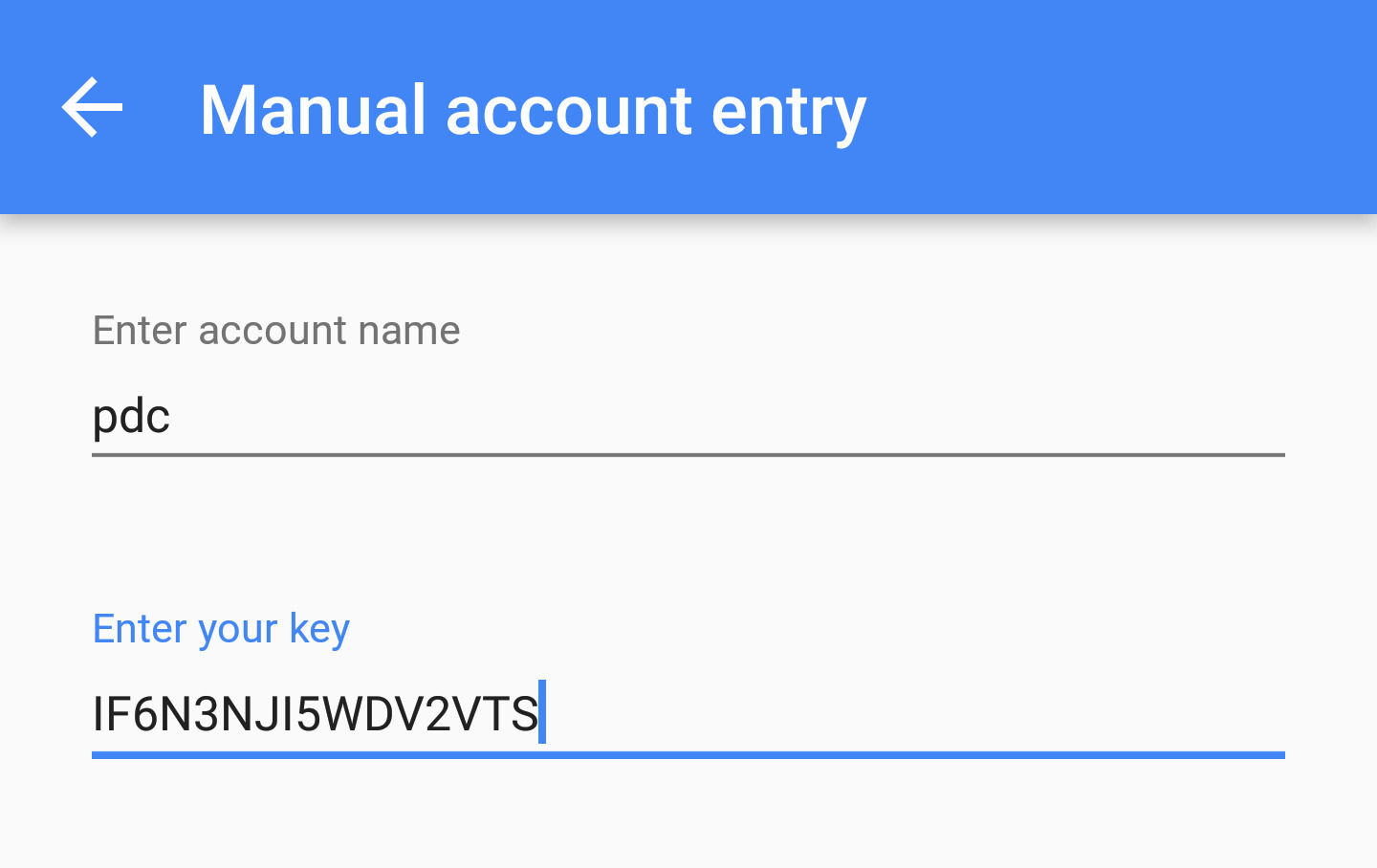
To recover your Google Authenticator key, the fastest method is to use the built-in transfer feature while you still have access to your old phone. If you have already lost the device and have no backup, you must use each third-party service's separate account recovery process, as the app itself cannot restore deleted keys.
Recover your Google Authenticator key when you still have the old phone
If you still have the phone with Google Authenticator installed, you can move your accounts to a new device without losing access. This is the primary recovery scenario for most people who get a new phone or need to reinstall the app.
- Open Google Authenticator on the old phone.
- Tap the Menu (three dots or lines).
- Select "Transfer accounts," then "Export accounts."
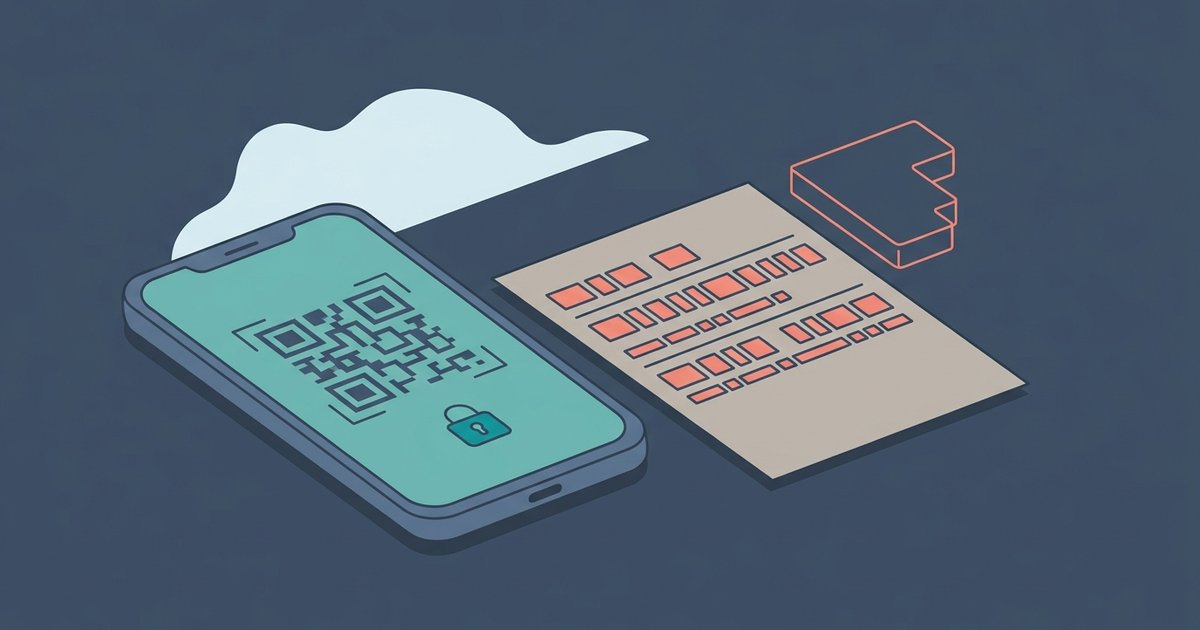
- The app will display one or more QR codes on the screen.
- On the new phone, install Google Authenticator and tap "Get started."
- Choose "Import existing accounts?" or go to Menu > "Transfer accounts" > "Import accounts."
- Select "Scan QR code" and point the camera at the code shown on the old device.
Once the scan completes, the accounts will appear on your new phone and begin generating codes immediately.
What to do if you lost your phone and have no backup
If your old phone is gone and you never enabled cloud backup or saved your keys, Google Authenticator cannot help you recover the codes. The app stores each key locally on the device, and there is no central server that holds a copy. In this situation, you must turn to each third-party service that was protected by the authenticator app. Follow that service's account recovery process, which typically involves answering security questions, receiving a code via email or SMS, or providing proof of identity. This is the only path to regain access when no backup exists.
Why deleted keys cannot be recovered from the app
Once an individual key is deleted from the Google Authenticator app, it cannot be retrieved directly from the app itself. Even if you had cloud sync enabled, if the deletion syncs to the cloud, there is no option to restore a previous snapshot of the cloud sync. The app does not keep a history or trash folder for removed accounts. This means that accidentally deleting a key while trying to reorganize your codes will permanently remove it, and no amount of reinstalling or restarting the app will bring it back. Understanding this limitation sets realistic expectations and prevents wasted effort searching for a recovery feature that does not exist.
Prevent losing access again
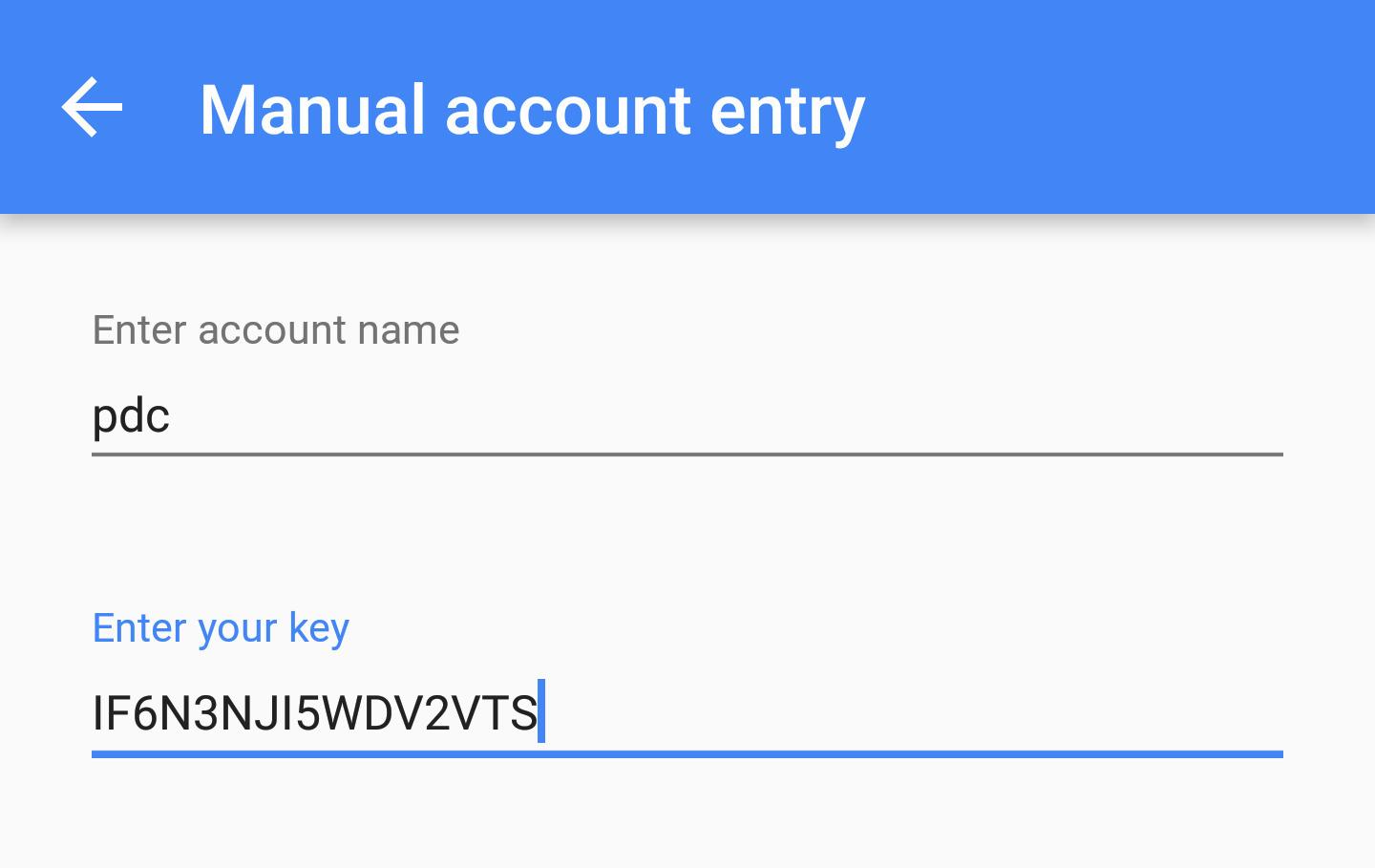
To avoid repeating this situation, take proactive steps now. Enable cloud backup within Google Authenticator's settings if your version supports it, but remember that if you delete a key and that deletion syncs, the backup will also lose the key. The safest method is to save the backup codes provided by each service when you first set up two-factor authentication. These codes are one-time-use fallbacks that work even if you lose the authenticator app entirely. It is also helpful to understand the difference between the secret key and backup codes: when you want to integrate Google Authenticator with a new account, you typically scan a QR code that contains the secret key, but the key on Google Authenticator is the unique alphanumeric string that the app uses to generate your time-based codes. For long-term safety, know how to use a setup key in Google Authenticator to manually add accounts if QR scanning fails, and keep a secure offline copy of each setup key. If you ever switch authenticator apps, you can transfer Google Authenticator to Microsoft Authenticator by exporting accounts from the old app and importing them into the new one, provided you still have the original device. Finally, be clear on the distinction between Google Authenticator backup codes and the secret key: backup codes are emergency one-time passwords given by the service, while the secret key is the permanent seed used to generate all future codes. Save both in a password manager or a safe physical location, and you will never need to recover a lost key again.