To add another account in Google Authenticator, open the app and tap your profile picture or initials in the top right corner, then select "Add another account" and sign in to the new Google Account. This process lets you add another account in Google Authenticator for syncing codes, while a separate method using the plus button lets you add third-party services like Facebook or Yahoo for two-factor authentication codes.
Before you add another account in Google Authenticator
Make sure the Google Authenticator app is installed on your phone and that it is already set up for your primary Google Account. This guide covers two distinct paths: adding a Google Account to sync codes across devices, and adding a third-party service to generate 2FA codes within the app.
How to add another Google Account for code syncing
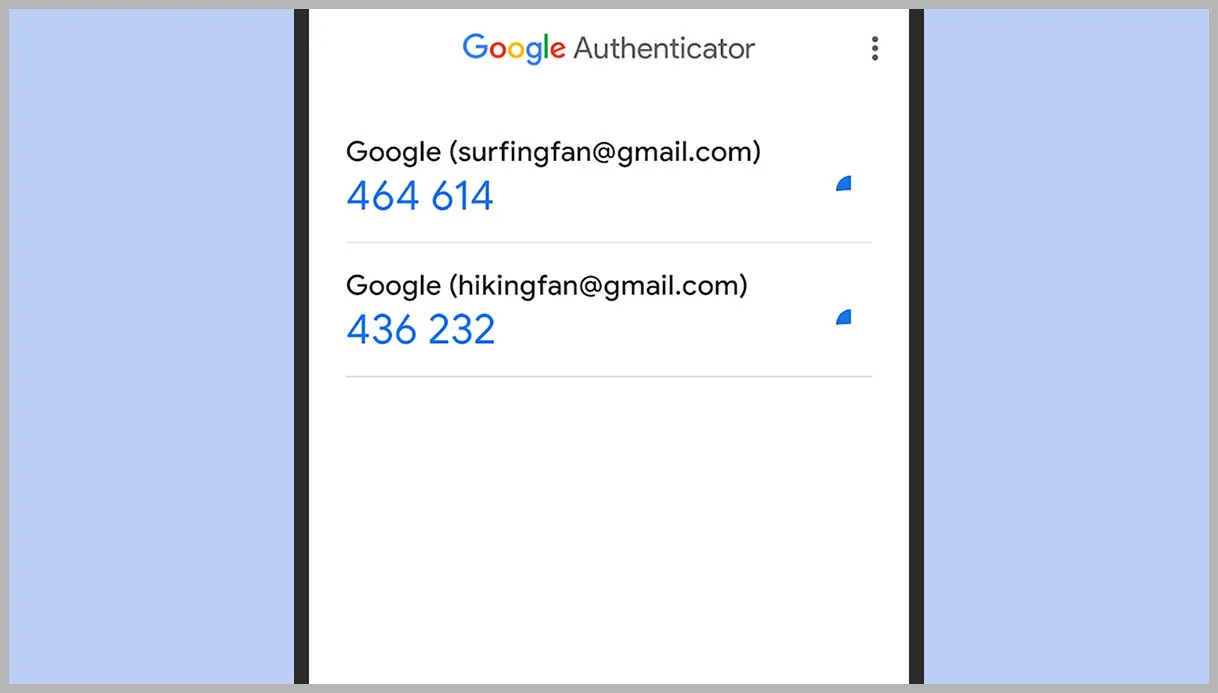
This is the primary method for adding another Google Account so that verification codes are saved and synced to that account. On the home screen of the Google Authenticator app, tap your profile picture or initials located in the top right corner. Tap "Add another account". Select the Google Account you wish to add, or sign in to a new Google Account. When prompted to start saving codes to the Google Account, tap "Allow". Your codes will now sync to that account, making them accessible from other devices where you sign in. For Android devices, Google Authenticator requires Android version 6.0 or above. For iOS devices, Google Authenticator requires iOS version 4.0 or above to synchronize codes across all your devices.
How to add a third-party account with a QR code or setup key
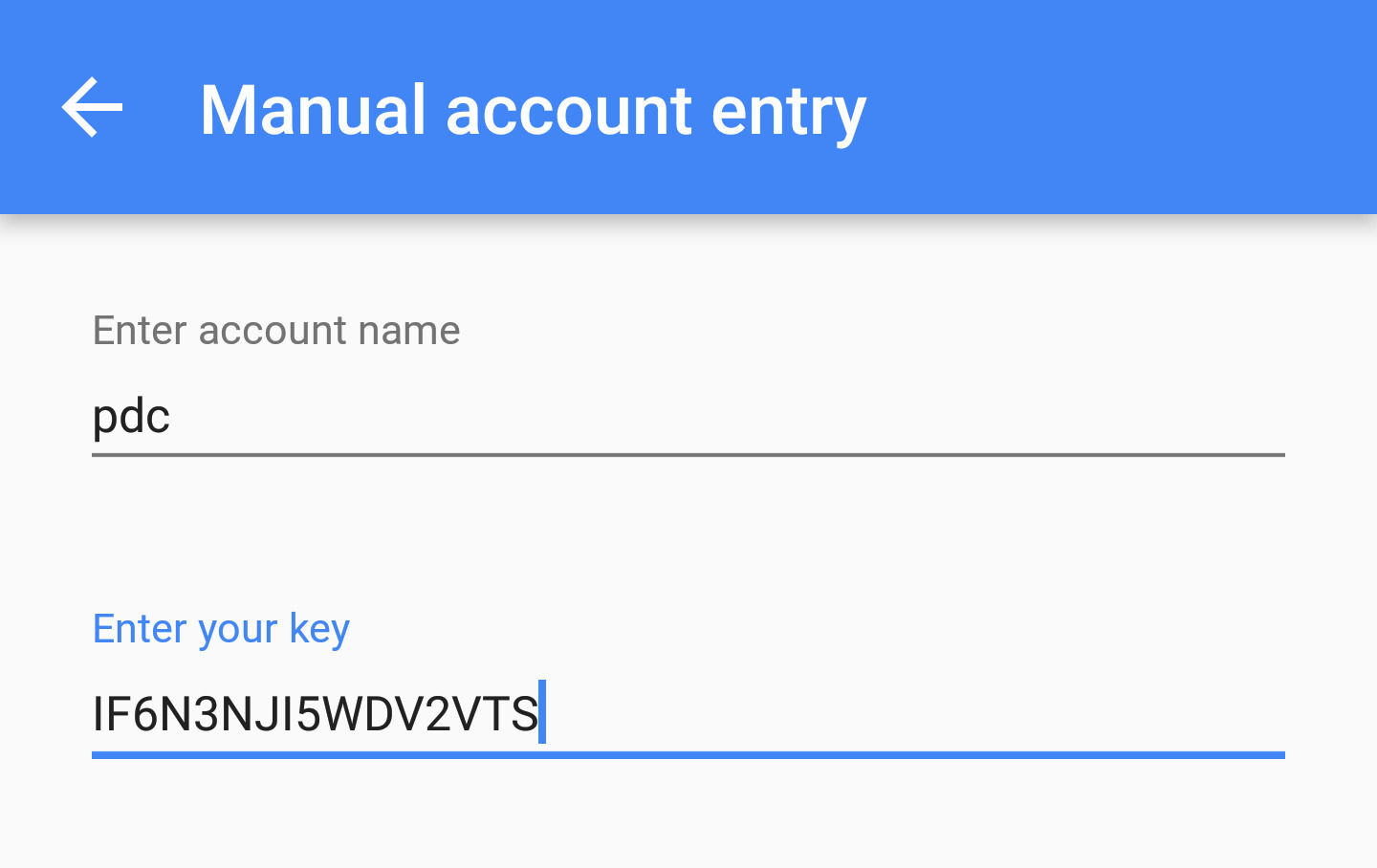
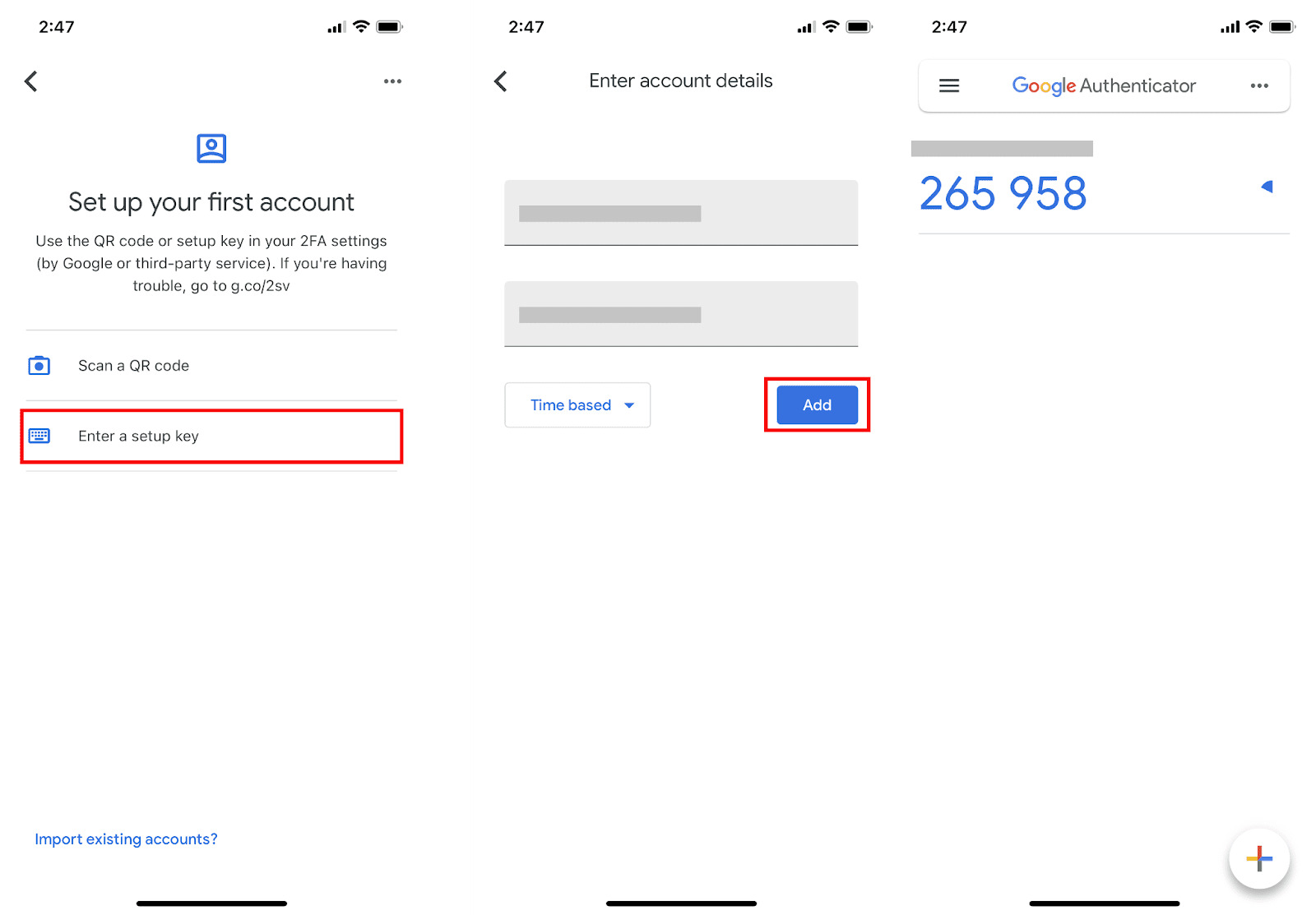
To add a service that is not a Google Account, such as a social media platform or email provider, use the alternative method. Tap the plus button on the main screen. If you scan a QR code, align it within the camera viewfinder so the app can extract the account information. If you enter a setup key, type the text string provided by the service. After the app retrieves the account name and secret key, the account appears on the main screen with its verification codes. This is how you integrate Google Authenticator with services like Facebook or Yahoo. For example, to add Facebook to Google Authenticator, select the QR code or setup key option from Facebook's security settings and follow the prompts in the app. Similarly, to add Yahoo email to Google Authenticator, use the same process from Yahoo's account security page.
Enter the verification code to finish setup
After linking the third-party account in the app, you must confirm the setup on the service's website. Locate the six-digit verification code next to the account name in Google Authenticator. Enter that code into the field provided on the service's website. The code changes every 30 seconds, so enter it while it is still valid. Once the service verifies the code, two-factor authentication is active for that account.
Tips to avoid losing access to your accounts
Enable cloud backup for Google Accounts so that your synced codes can be restored if you lose your device. For third-party services, save the backup codes they provide during setup and store them in a secure place. Ensure your device's time is set to automatic in the system settings; a time mismatch can cause verification codes to be rejected. Keeping these measures in place helps prevent being locked out of your accounts if your phone is lost or replaced.