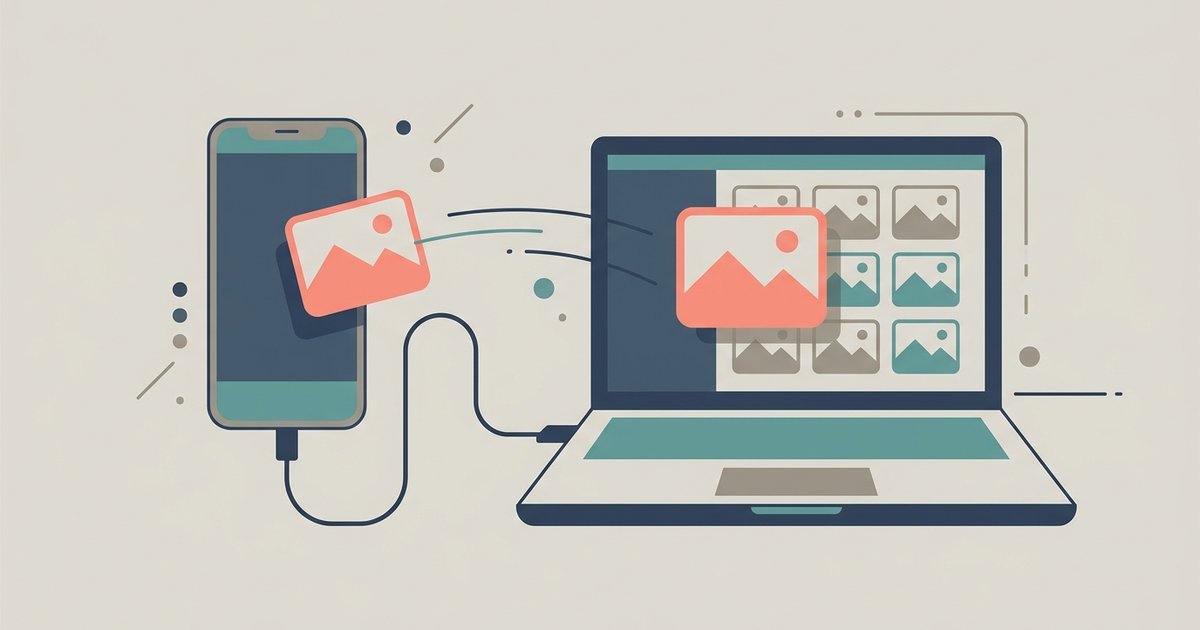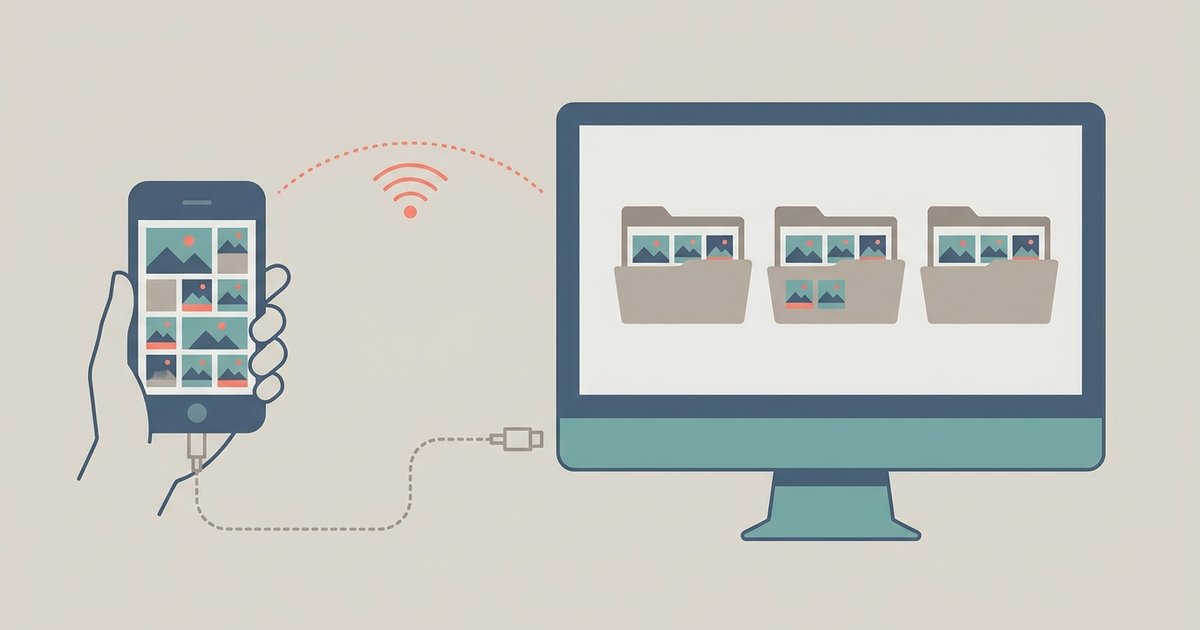
To transfer photos from a phone to a computer, plug the phone in with a USB cable and import with the computer's photo app, or use a wireless route that matches your devices: AirDrop from an iPhone to a Mac, Phone Link or Quick Share from Android to Windows, or a cloud photo library on any pair. When your phone and computer don't match, a browser-based transfer with a link or QR code moves photos in their original quality without installing anything.
iPhone to Windows PC
With a USB cable:
- Connect the iPhone to the PC with its cable and unlock the phone.
- If the iPhone asks whether to trust this computer, tap Trust and enter your passcode.
- On the PC, open the Photos app, select Import, then choose the option to import from a connected device.
- Pick the photos you want, or select all, and start the import.
iPhones save photos in HEIC format by default. Windows can open HEIC files once the HEIF image extension is installed from the Microsoft Store. If you would rather receive ordinary JPEG files, go to Settings, then Photos on the iPhone, and under Transfer to Mac or PC choose Automatic, which converts photos to a compatible format during the transfer. Keep Originals copies the HEIC files as they are.
Without a cable: if you use iCloud Photos, install iCloud for Windows and turn on Photos to download your library to the PC. Microsoft's Phone Link also connects iPhones to Windows, though its features for iPhone are more limited than for Android.
iPhone to Mac
- AirDrop is fastest for a handful of photos. Select them in the Photos app, tap Share, then AirDrop, and choose your Mac.
- The Photos app on the Mac imports everything at once. Connect the iPhone with a cable, unlock it, open Photos on the Mac, select the iPhone in the sidebar and choose what to import.
- Image Capture, built into macOS, copies photos straight into a folder you pick instead of a Photos library.
- iCloud Photos keeps both devices in sync automatically if you are signed in with the same Apple Account on each.
Android to Windows PC
With a USB cable:
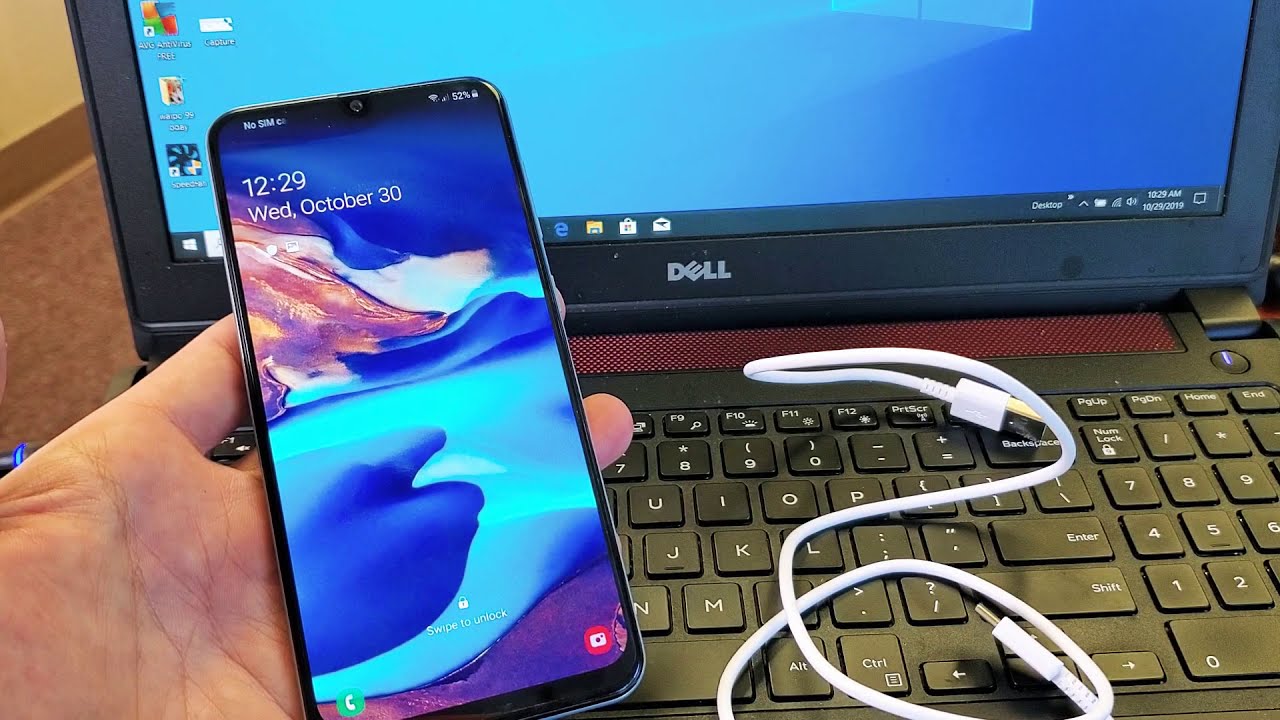
- Connect the phone to the PC and unlock it.
- Tap the USB notification on the phone and choose File transfer or Transfer photos (PTP). The default charging-only mode does not show your files.
- Open the Photos app on the PC and import from the connected device, or open File Explorer, open the phone and copy photos from the DCIM folder, usually inside a subfolder called Camera.
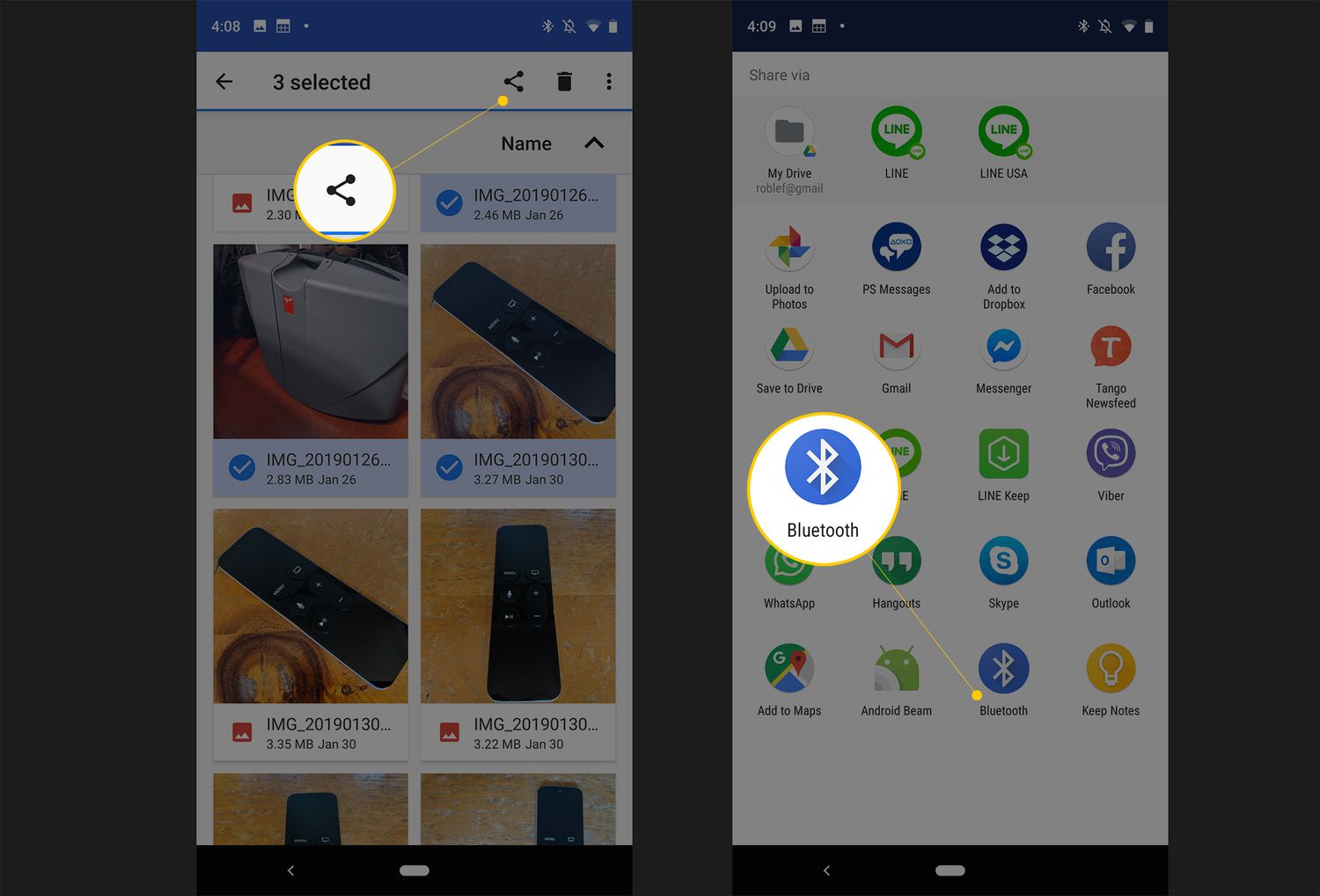
Without a cable: Quick Share sends photos from Android phones to nearby Windows PCs once Google's Quick Share app is installed on the PC. Phone Link shows your recent phone photos on the PC, and Google Photos backs up your library so you can download it on any computer.
Android to Mac
This is the awkward pairing, because macOS does not show an Android phone's storage the way Windows does. Two options work well:
- Image Capture over USB. Set the phone's USB mode to Transfer photos (PTP), then open Image Capture on the Mac. Many Android phones appear there as a camera, and you can import the photos to any folder.
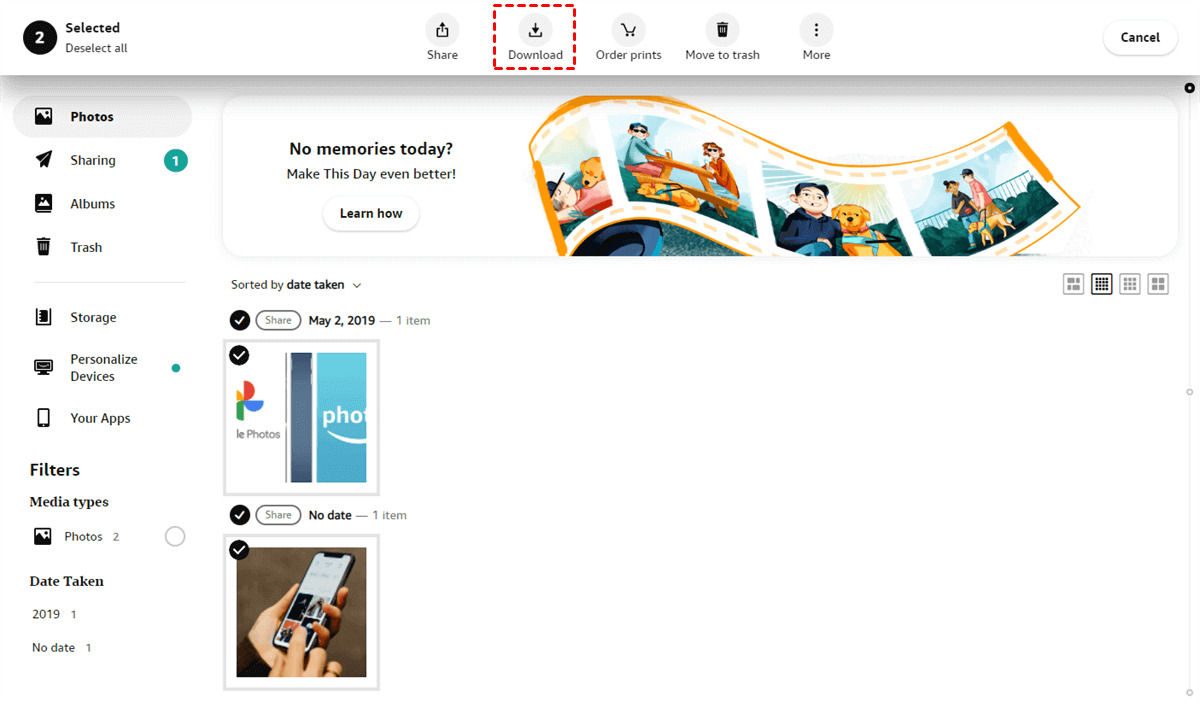
- Google Photos. Back up the photos from the phone, then download them on the Mac from photos.google.com.
Any Phone to Any Computer, Without Installing Anything
When the built-in routes don't fit, for example on a work PC where you can't install apps, a friend's computer you don't want to sign in on, or an Android phone with a Mac, a browser-based transfer works on every device. ShareIt.onl shares photos online in original quality, straight from your phone's browser:
- Open ShareIt.onl in your phone's browser and add the photos from your library. You can send up to 100 files, or 3 GB in total, per share without an account.
- Choose how long the link should last. For a transfer to your own computer, the shortest option is enough.
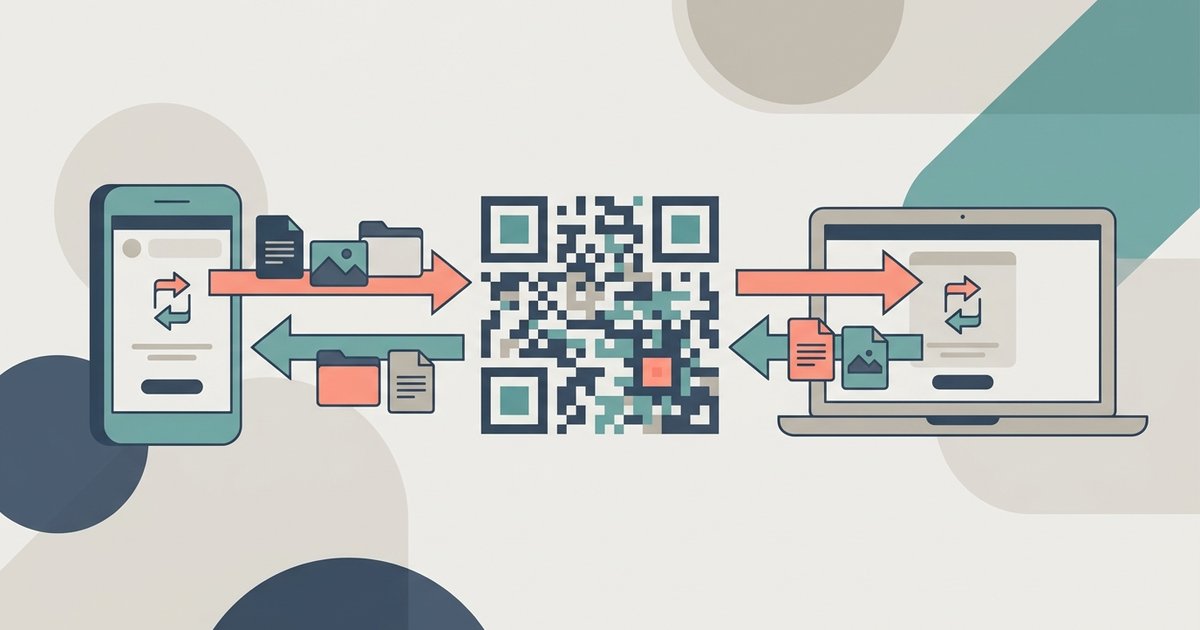
- When the upload finishes, open the short link on the computer, or scan the QR code in the other direction when sending photos from a computer to a phone.
- Download the photos on the computer. For private photos, add a password or turn on delete after first download before you create the link.
Because the files are uploaded and downloaded as they are, you avoid the compression that happens when you email photos to yourself or send them through a messaging app.
Which Method Should You Use?
| Phone and computer | Quickest for a few photos | Best for the whole library |
|---|---|---|
| iPhone and Windows | Browser transfer or Phone Link | USB import with the Photos app, or iCloud for Windows |
| iPhone and Mac | AirDrop | Photos app import or iCloud Photos |
| Android and Windows | Quick Share or Phone Link | USB import with the Photos app |
| Android and Mac | Browser transfer | Image Capture over USB, or Google Photos |
If the Computer Doesn't See Your Phone
- Unlock the phone. A locked phone hides its photos from the computer.
- Check the USB mode on Android. It must be set to file transfer or PTP, not charging only.
- Tap Trust on an iPhone. If you tapped Don't Trust by mistake, unplug the cable and plug it in again to get the prompt back.
- Try another cable or port. Some cables only carry power, not data.
- Look for photos stored in the cloud only. With iCloud Photos or Google Photos set to save space on the phone, some originals are not on the device and will not import over USB until they download.
The Bottom Line
For a whole photo library, a USB import with the computer's photo app is still the most complete method. For everyday transfers, use the wireless option built for your pair of devices. And when the phone and computer don't match, or the computer isn't yours, send the photos through the browser with a link or QR code and download the originals on the other side.
\nRelated reading: How To Download Photos From Samsung Phone To Computer, How To Download Pictures From Sim Card To Computer, and How To Transfer Data From Tablet To Phone.