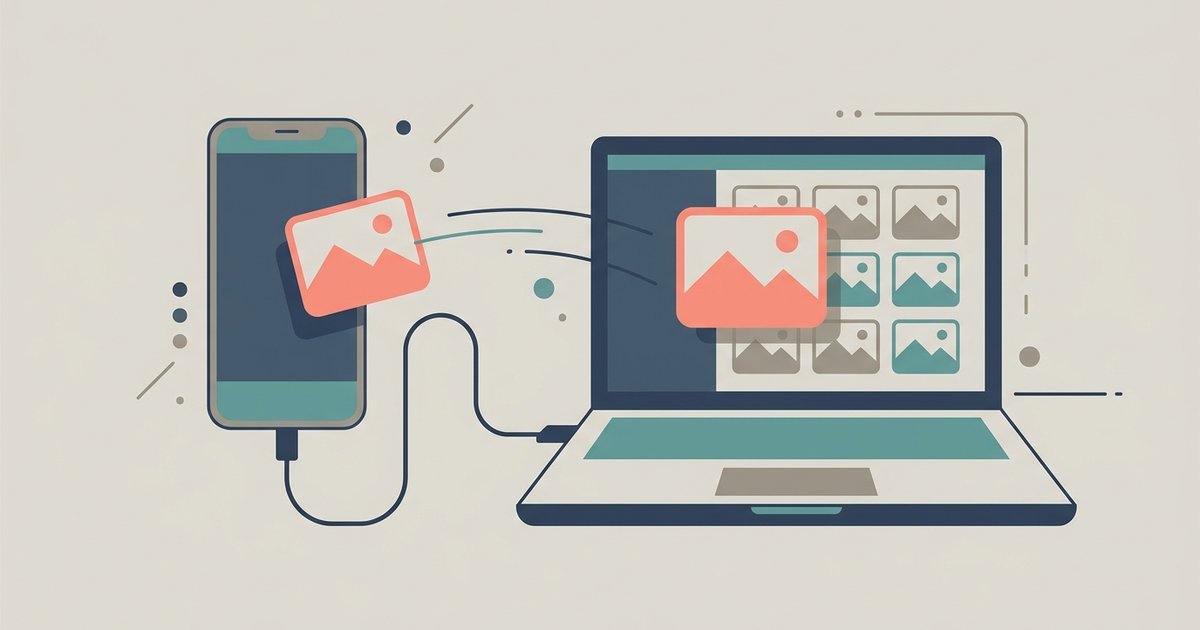
Transfer photos to computer from your phone To transfer photos to computer, plug your Android phone into your computer with a USB cable. A notification will appear on the phone....
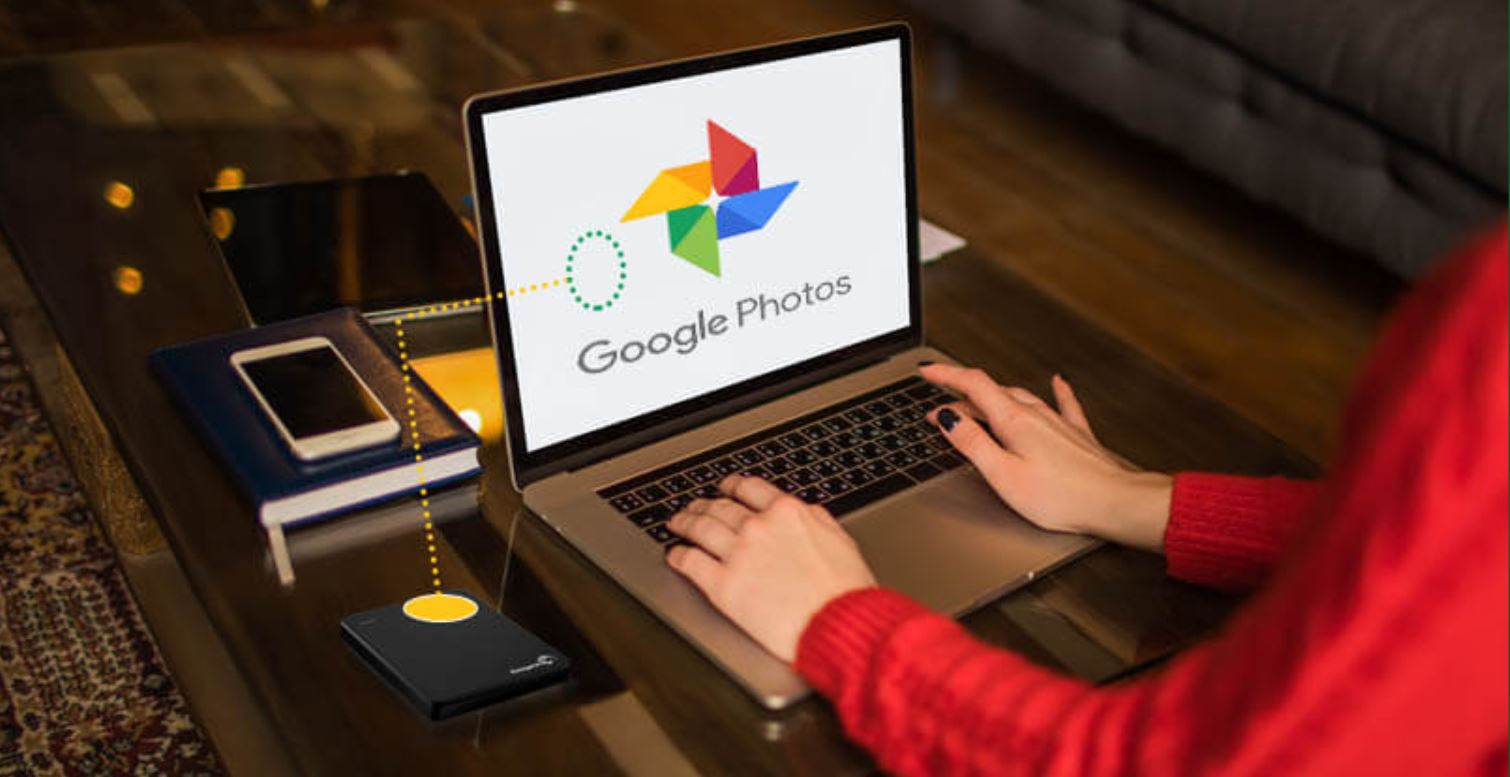
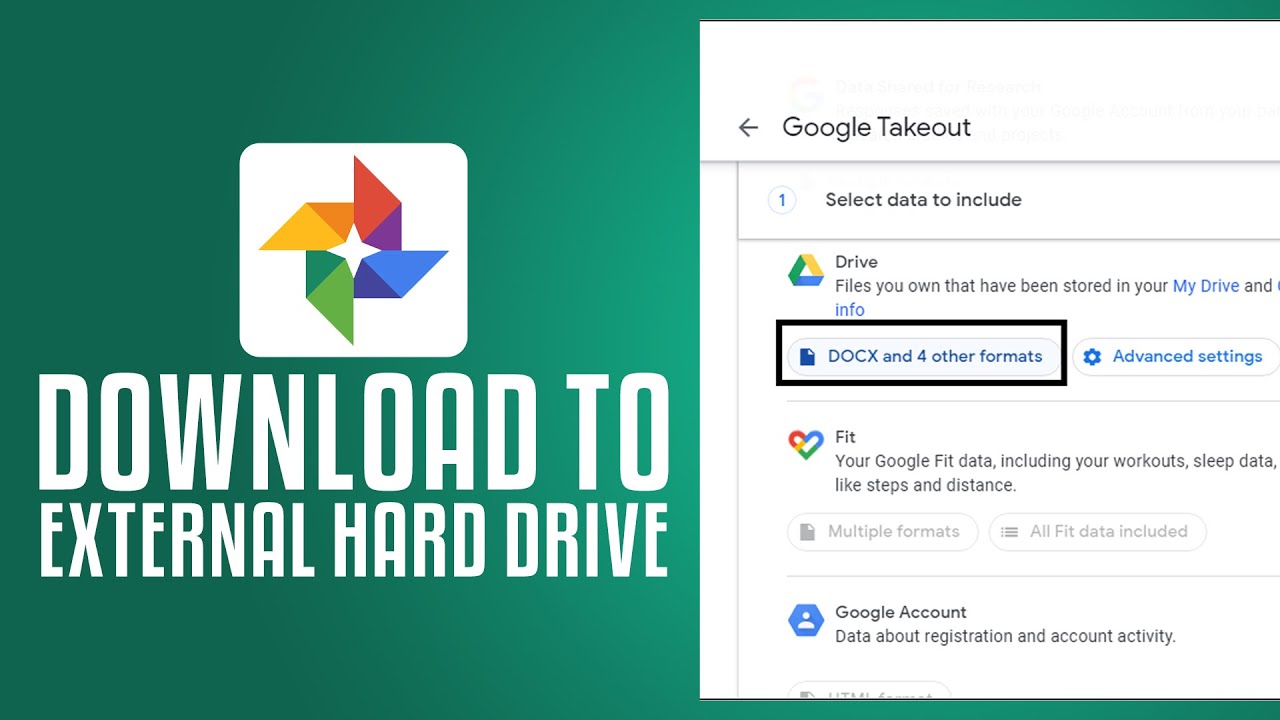
To transfer Google Photos to an external hard drive, use Google Takeout to export your entire library into downloadable archive files, then extract and copy those photos to your drive....
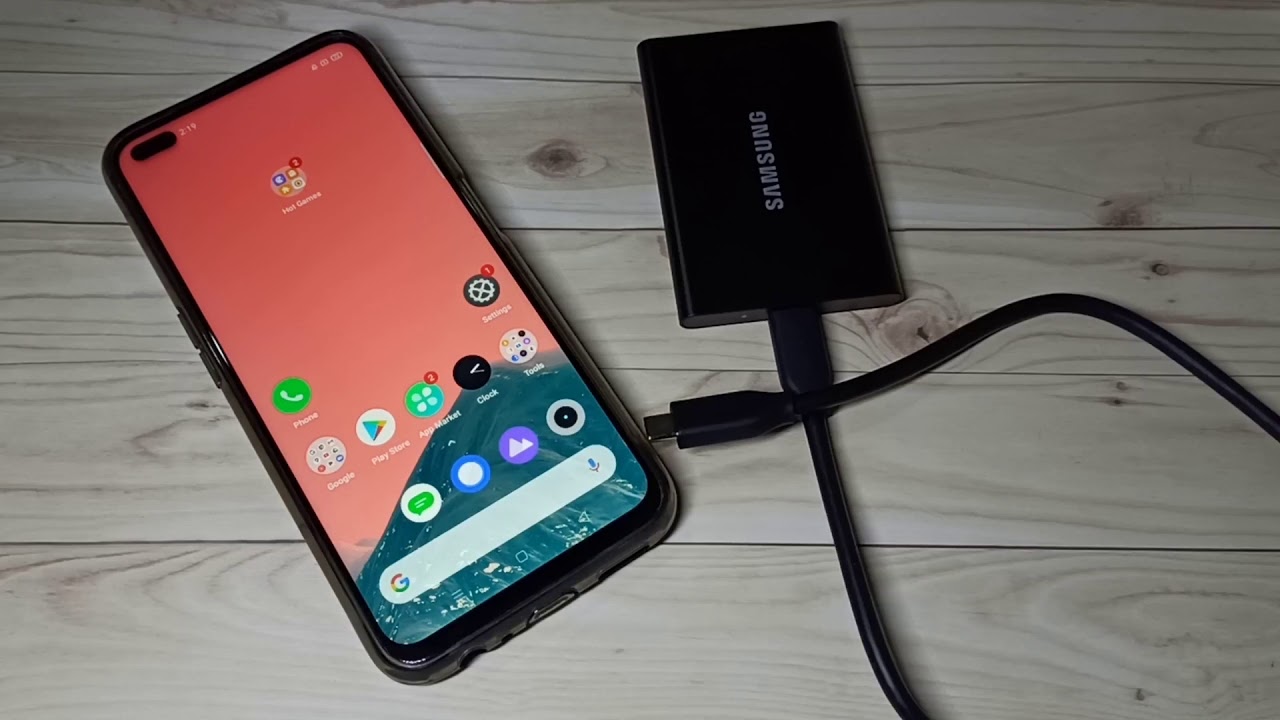
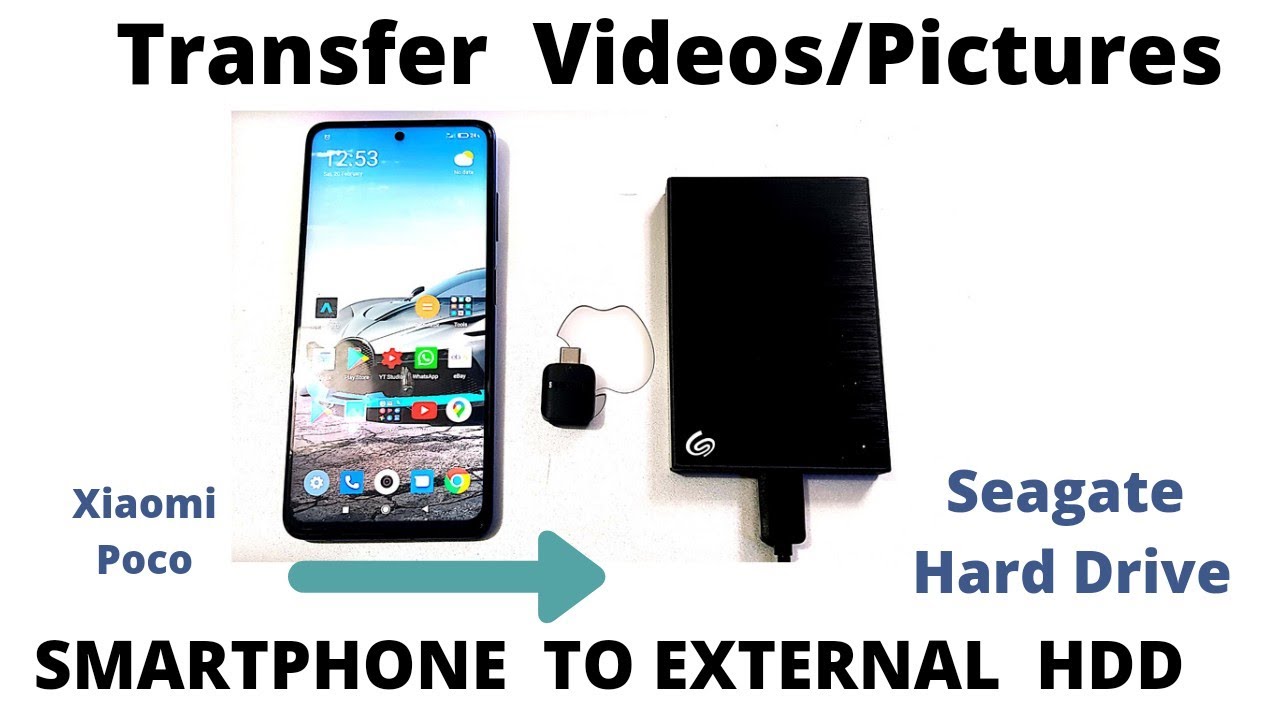
To move pictures from Android to an external hard drive, you connect the drive to your phone using an OTG cable, then use a file manager app to copy the...
How To Transfer Pictures To Seagate External Hard Drive To transfer pictures to a Seagate external hard drive, connect the drive to your computer via USB, then copy and paste...
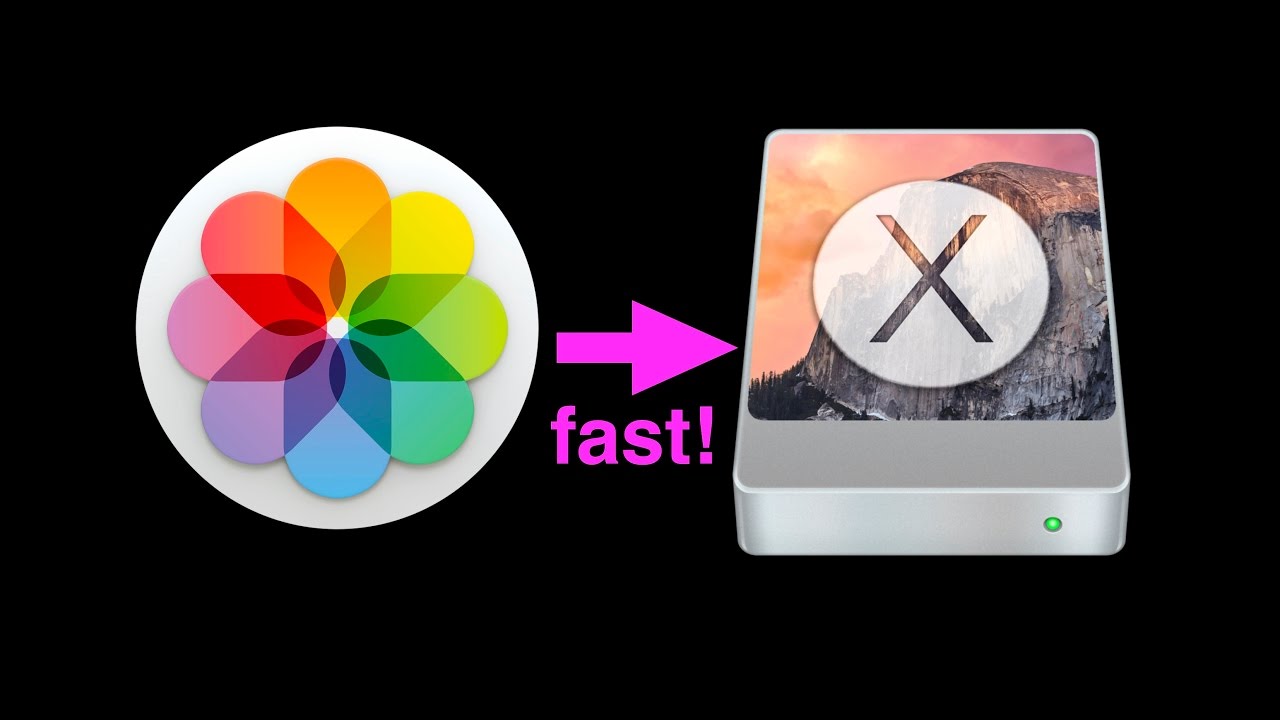
To transfer photos to an external hard drive, you need to connect the drive, copy your photo files from your computer, and paste them into the drive's folder. This process...
To download all photos from Instagram in one go, the only complete and secure method is Instagram’s official “Download Your Information” tool, which gives you a full copy of your...
The Official Way to Download Photos from Snapchat The safest and most reliable way to download photos from Snapchat is to use the app's built-in Memories feature, which lets you...
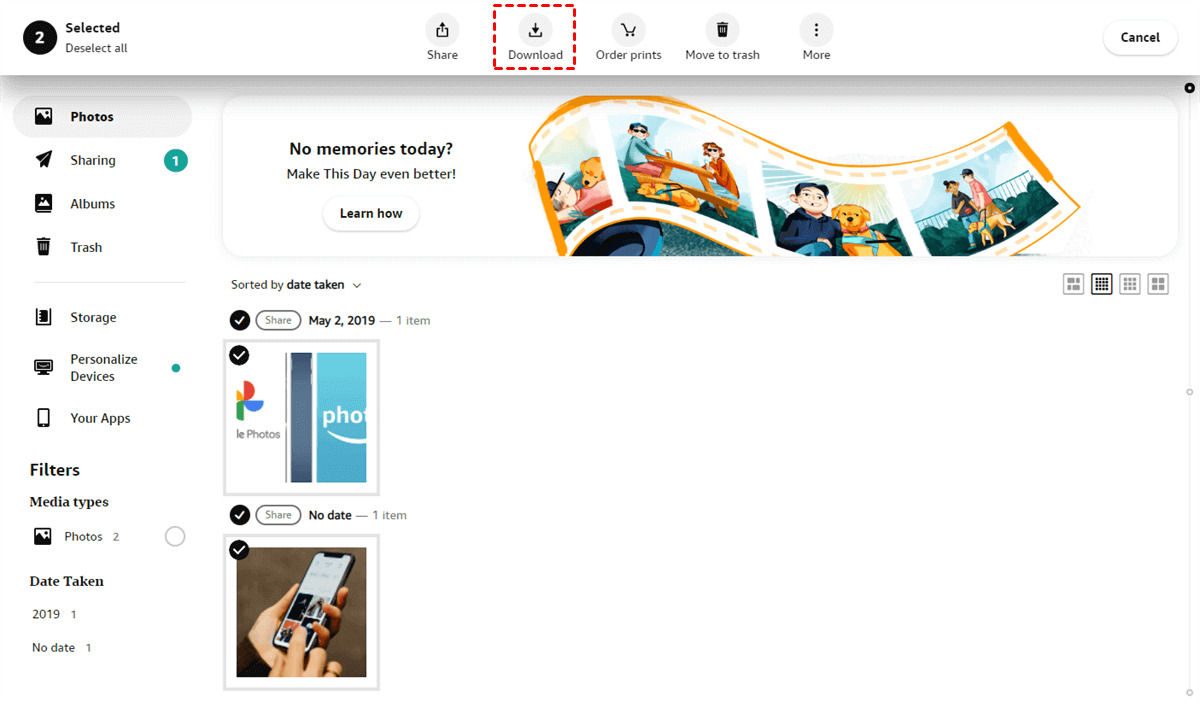
To download pictures from Amazon Photos, sign in at amazon.com/photos, select the photos using the checkmark icon, click the Download button, choose your preferred quality and format, and the files...
To download full resolution photos from Google Photos, you must first verify that your images were uploaded using the "Original quality" setting, as only those files retain their full pixel...
The only built-in method to download all photos from Google Photos to an external hard drive in one bulk operation is Google Takeout, which lets you export your entire library...
To download all photos from Google Photos at once to your PC, you must use Google Takeout, as the direct download method on photos.google.com is limited to around 1200 photos...
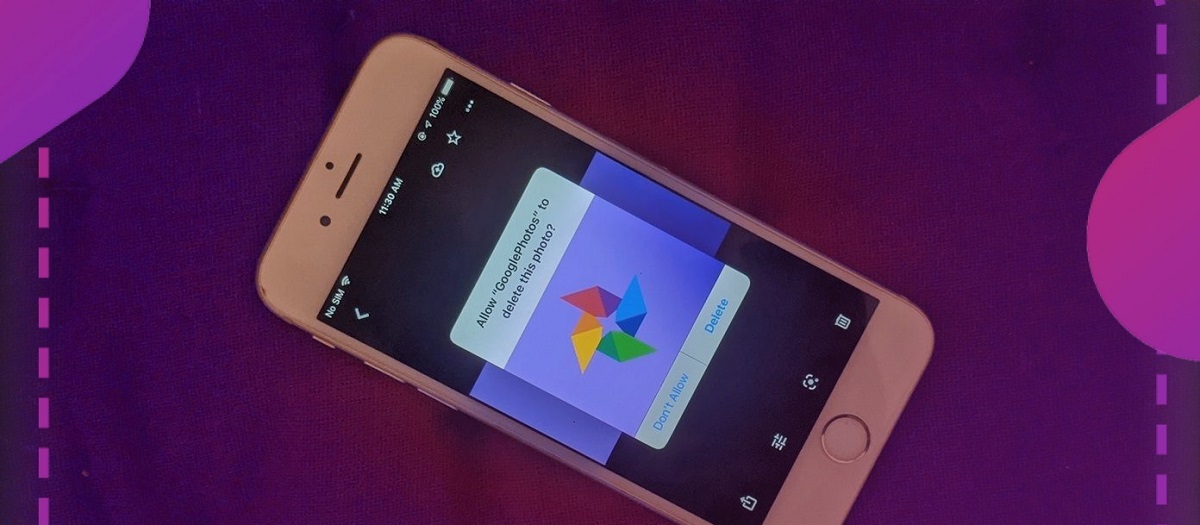
To delete photos from your phone but not Google Photos, use the "Free up space" feature in the Google Photos app for bulk removal, or the "Delete from device" option...
This website uses cookies so that we can provide you with the best user experience possible. Cookie information is stored in your browser and performs functions such as recognising you when you return to our website and helping our team to understand which sections of the website you find most interesting and useful.
Strictly Necessary Cookies
Strictly Necessary Cookie should be enabled at all times so that we can save your preferences for cookie settings.
If you disable this cookie, we will not be able to save your preferences. This means that every time you visit this website you will need to enable or disable cookies again.