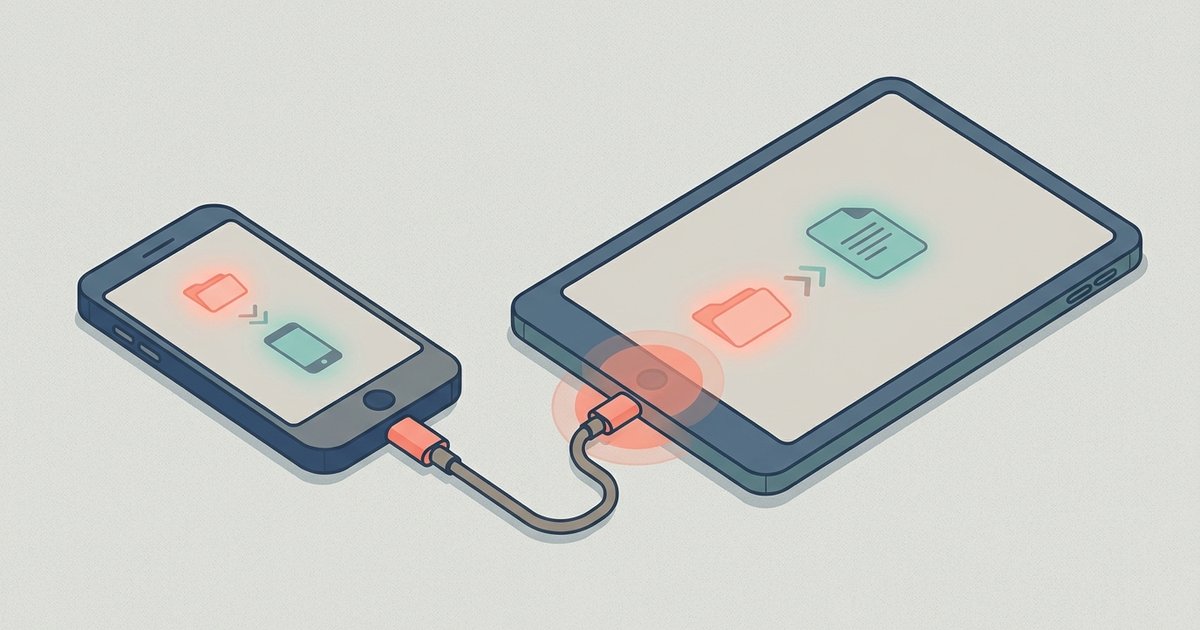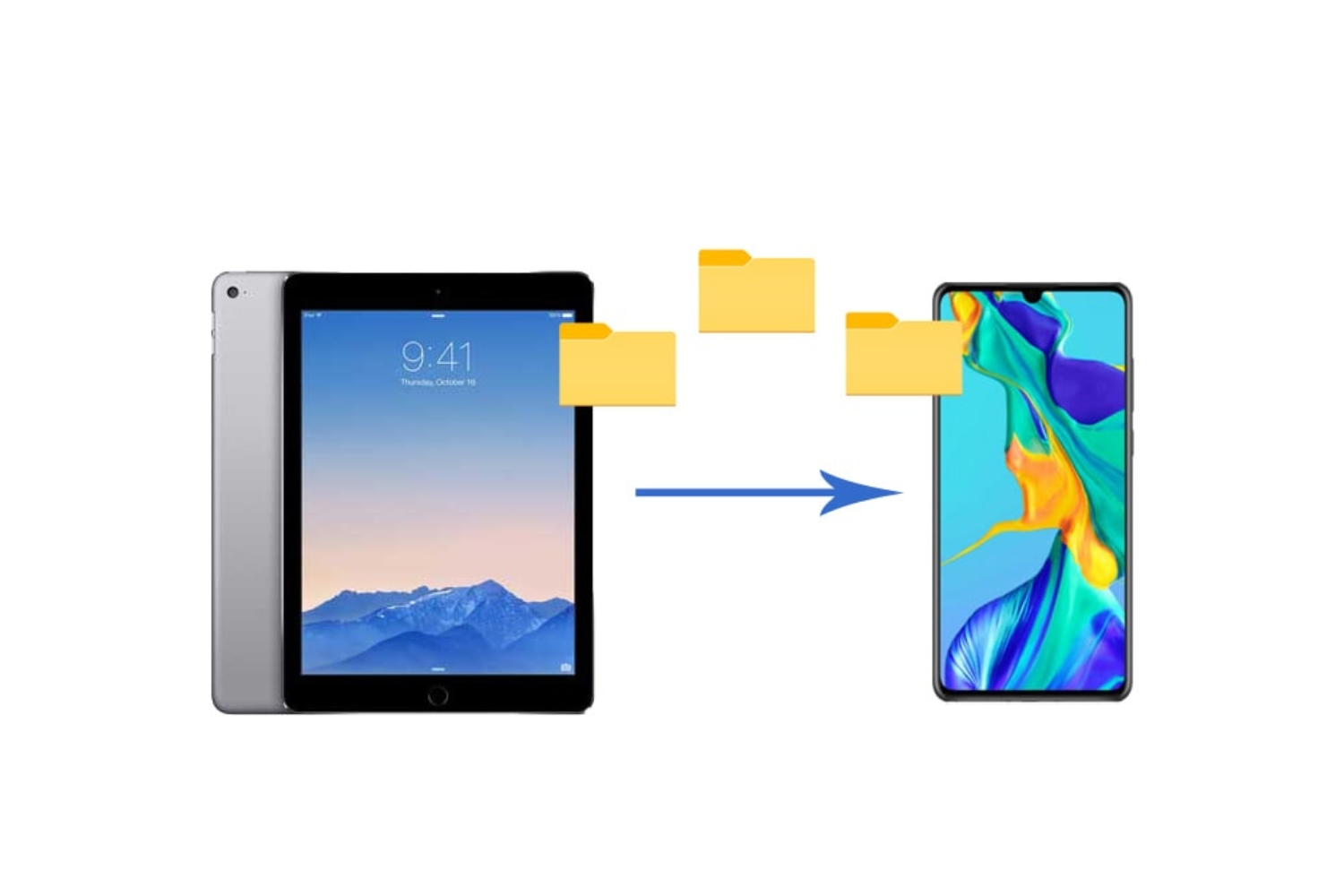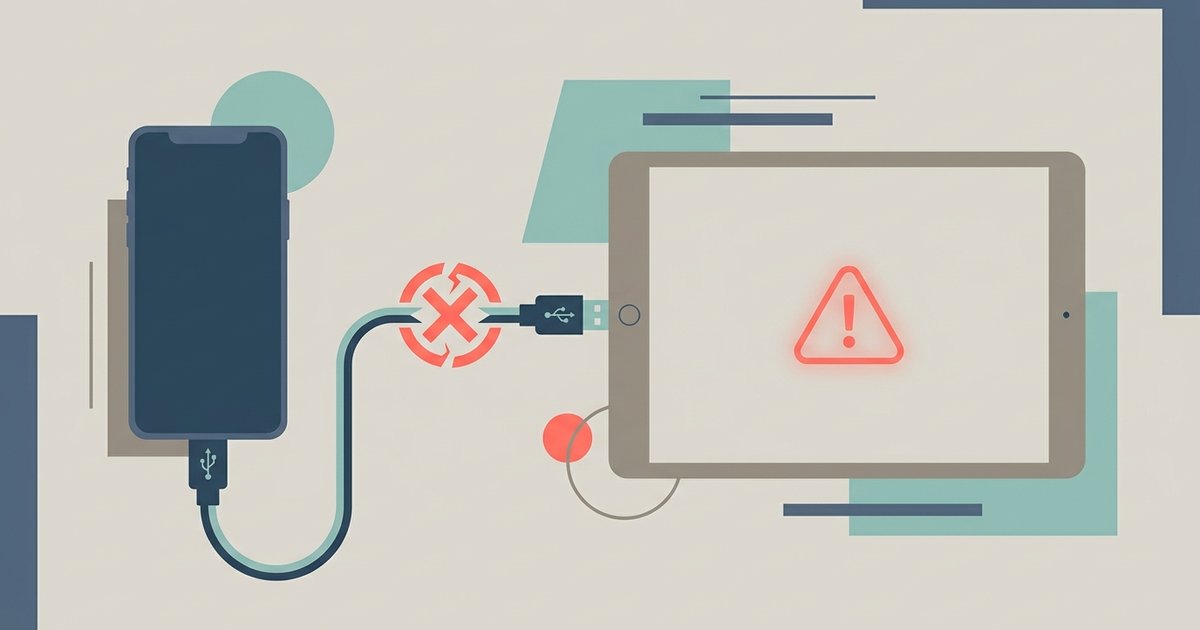
Android tablets lack the USB host-to-host drivers needed for a direct cable link, so the connection fails silently with a charging-only state or a 'connected device not supported' error. You cannot browse phone files from a tablet via USB like you would on a PC.
The android USB connection failed: charging-only dead end
When you plug your phone into your tablet via USB-C or an OTG cable, the phone immediately detects a power source and switches to charging mode. The MTP (Media Transfer Protocol) file transfer notification never appears. This happens even after you tap the USB notification on the phone and try to select options like "File Transfer" or "PTP," because the tablet does not provide the required host handshake. The tablet’s USB controller does not act as a host to the phone, so the phone does not present its storage as a drive. The phone sees only a power delivery port, so it stays in charging-only state. The tablet’s screen remains blank, and no file manager pop-up appears on either device. If you want to move files without a computer, you need to use a shared Wi-Fi network, cloud storage, or a dedicated app that bypasses the cable altogether. For example, many users search for how to sync my Android phone to my tablet using a local FTP server or a third-party sync tool, since the cable path is a dead end.
When the tablet shows 'connected device not supported'
If your tablet does attempt to respond, you may see a "Connected device not supported" or "USB device not recognized" error on the tablet’s screen. This specific error confirms that the tablet’s USB port cannot enumerate the phone as external storage. The tablet’s kernel cannot read the phone’s MTP stack as a standard mass storage device in this configuration. Using an OTG (On-The-Go) adapter alone may not fix this if the tablet still cannot act as a host to another Android device. The adapter enables host mode on a compatible device but does not install missing host-to-host routing logic. The tablet still expects a peripheral, not another Android device acting as a host. For a direct cable approach to work, you would need software support that bridges the two USB stacks, which consumer tablets do not ship with. This is why articles about how to transfer pictures from Android phone to tablet almost always recommend wireless methods like Bluetooth, Nearby Share, or a cloud upload, because the wired path fails at the hardware level.
The developer options trap
Many users enable USB debugging under Developer Options or change the "Default USB Configuration" to "File Transfer" in hopes of forcing a connection. These settings still won’t make a direct cable connection work. USB debugging is a feature for a computer running Android Debug Bridge (ADB) to send commands; it does not turn the tablet into a host that can mount phone storage. Changing the default USB configuration sets which mode the phone tries first when plugged into a host device. When the tablet fails to act as a host, the phone falls back to charging regardless of that default. These settings control how the phone behaves when connected to a host, not how the tablet behaves as a host. If you want to manage files between devices without a PC, you need to connect your tablet to your computer wirelessly or use a local network app. The same limitation applies in reverse: if you search for how do you connect your phone to your tablet, the answer is always wireless, because the USB cable cannot bridge two Android devices as peers.
This is a fundamental hardware and software limitation: a tablet’s USB port is designed to act as a host for peripherals like keyboards or flash drives, not as a client to another Android device, and no amount of cable swapping or setting toggling can override that design. For the broader topic of moving files between phone and tablet, you will need to explore alternative methods such as Wi-Fi transfer apps, cloud storage, or a computer intermediary.