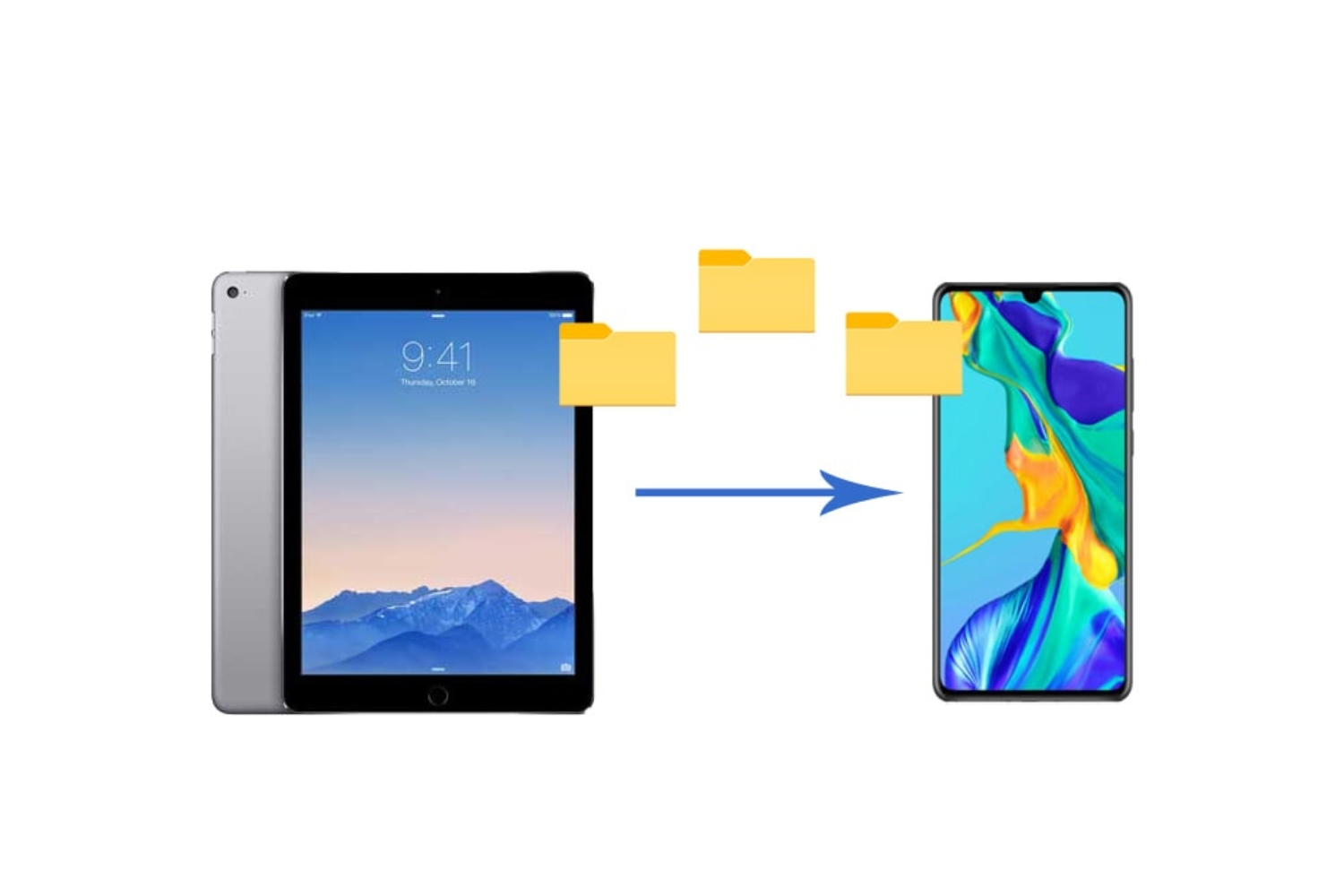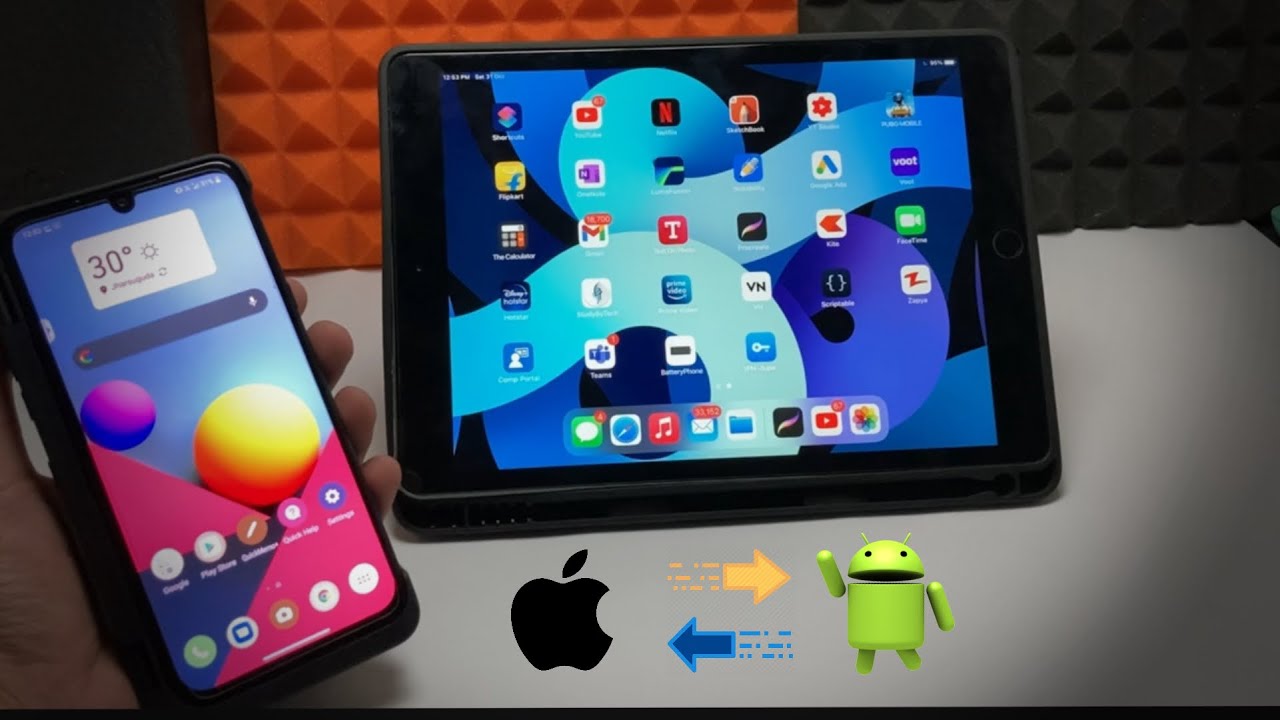
The fastest way to transfer files from android phone to tablet is to use Quick Share, a built-in wireless feature that requires no cables or computer. This method works on any Android device running Android 6.0 or later and handles photos, videos, documents, and links in seconds.
The fastest way to transfer files from Android phone to tablet: Quick Share
Quick Share (formerly Nearby Share) is the most direct and recommended method for transferring files between Android devices. Both your phone and tablet must have Bluetooth and Wi-Fi turned on for it to work.
- On your Android phone, open the file you want to send (such as a photo, video, or document).
- Tap the Share icon, then select Quick Share from the list of options.
- On your Android tablet, make sure Quick Share is set to receive. You can set it to be visible to "Your devices," "Contacts," or "Everyone for 10 minutes" in the Quick Share settings.
- Your phone will search for nearby devices. When your tablet appears, tap its name.
- Accept the incoming file on your tablet. The transfer begins immediately.
This method is ideal for moving files between phone and tablet because it uses a direct peer-to-peer connection, meaning no internet is required and transfers happen at high speed. Quick Share works on Android 6.0 and later, and it is now the unified standard across Android devices, replacing the older Nearby Share brand.
How to transfer files on Samsung Galaxy devices with Smart Switch
Samsung Galaxy users have a dedicated tool called Smart Switch that offers both wireless and wired transfer options. This app is specifically designed for moving data between Samsung phones and tablets.
For a wireless transfer, open the Smart Switch app on both devices. On the sending phone, select "Send from this phone." On the receiving tablet, select "Receive on this phone." Then choose "Wireless" as the connection type. The devices will pair automatically, and you can select which data to transfer.
Smart Switch supports two-way transfers, so it is equally useful when you need to move data in the opposite direction. It can handle contacts, messages, photos, and app data in one session.
How to transfer files with a USB cable and OTG adapter
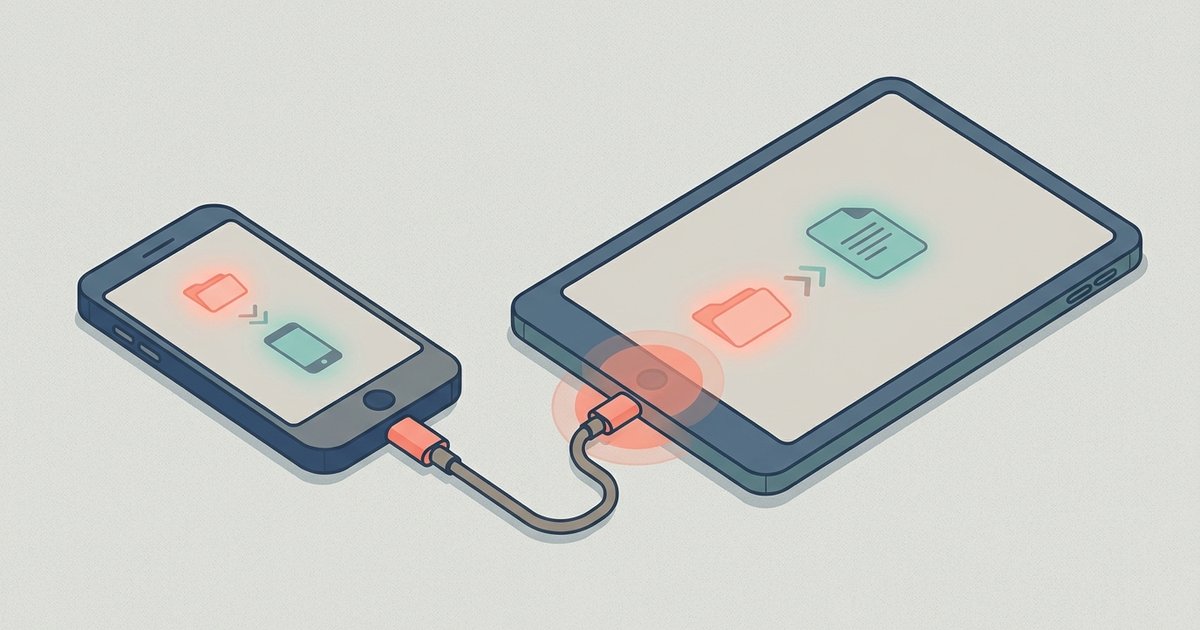
To connect your phone to your tablet using a cable, you will typically need a USB OTG (On-The-Go) adapter. This is necessary because most Android phones and tablets have USB-C or Micro-USB ports that cannot directly connect to each other without an adapter.
- Connect the USB OTG adapter to your tablet. If your tablet uses USB-C, you may need a USB-C OTG adapter.
- Plug one end of a USB cable into the adapter and the other end into your phone.
- On your phone, swipe down from the top of the screen and tap the USB notification. Select "File Transfer" or "Media Device" mode.
- On your tablet, open the file manager app. Your phone will appear as a connected storage device.
- Browse the files on your phone, select what you want to copy, and paste them into a folder on your tablet.
This wired method is reliable for large files and does not require an internet connection. It is also useful if you need to transfer pictures from Android phone to tablet and want to avoid any wireless interference.
How to send files from your phone to tablet with Bluetooth
Bluetooth is a wireless option best suited for smaller files like documents or a few photos. It does not require an internet connection or a Wi-Fi network.
- Enable Bluetooth on both your Android phone and tablet. Go to Settings > Connected devices > Pair new device on the tablet.
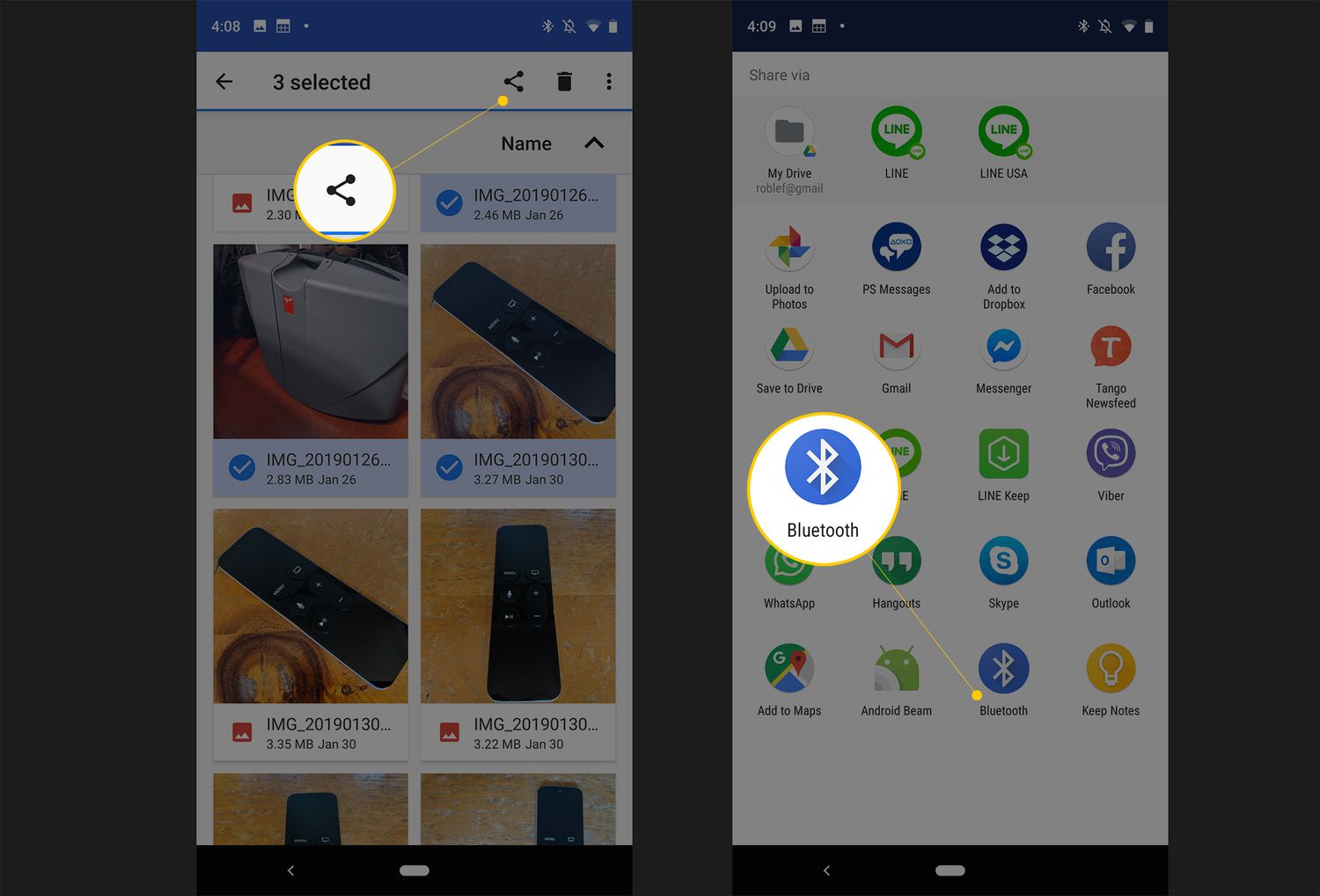
- On your phone, select the file you want to share and tap the Share icon.
- Choose Bluetooth from the sharing options. Your phone will scan for nearby devices.
- Select your tablet from the list. A pairing request will appear on the tablet, accept it.
- The file will transfer. Bluetooth is slower than Quick Share or Wi-Fi Direct, so this method is best for small files.
How to use cloud storage to move files between devices
Cloud storage services like Google Drive allow you to upload files from your phone and then download them onto your tablet. This method requires an internet connection on both devices.
- On your Android phone, open the file you want to transfer and tap the Share icon.
- Select your cloud storage app (such as Google Drive) from the sharing options.
- Choose a destination folder and upload the file.
- On your Android tablet, open the same cloud storage app and log into the same account.
- Navigate to the folder where you uploaded the file, then tap to download it onto your tablet.
Cloud storage is excellent for moving files between phone and tablet when you are not in the same room, as long as both devices have internet access. It also serves as a backup for your files.
Tips for a smooth file transfer
To prevent errors during any wireless transfer method, keep your phone and tablet screens awake until the transfer completes. If the screen turns off or the device goes to sleep, the connection may drop and the transfer could fail.
For Quick Share and other Wi-Fi-based methods, ensure both devices are connected to the same Wi-Fi network. This stabilizes the connection and improves transfer speed. If you are using Quick Share, also confirm that Bluetooth is enabled on both devices, as Quick Share uses Bluetooth for device discovery.
When using a USB cable with an OTG adapter, make sure the cable is data-capable, not just a charging cable. A charging-only cable will not allow file transfer. If you need to transfer data from tablet to phone, simply reverse the roles: connect the OTG adapter to the phone instead of the tablet.