
This tag collects practical, step-by-step guides for anyone using an Android, Samsung, Amazon Fire, or other common tablet. The articles are written for everyday owners, people who have just bought a tablet, are setting one up for a child, or are trying to fix a sudden problem on their own. Whether you are a beginner or just someone who prefers clear instructions over trial and error, these pieces assume no prior technical knowledge and focus on actions you can take directly on the device.
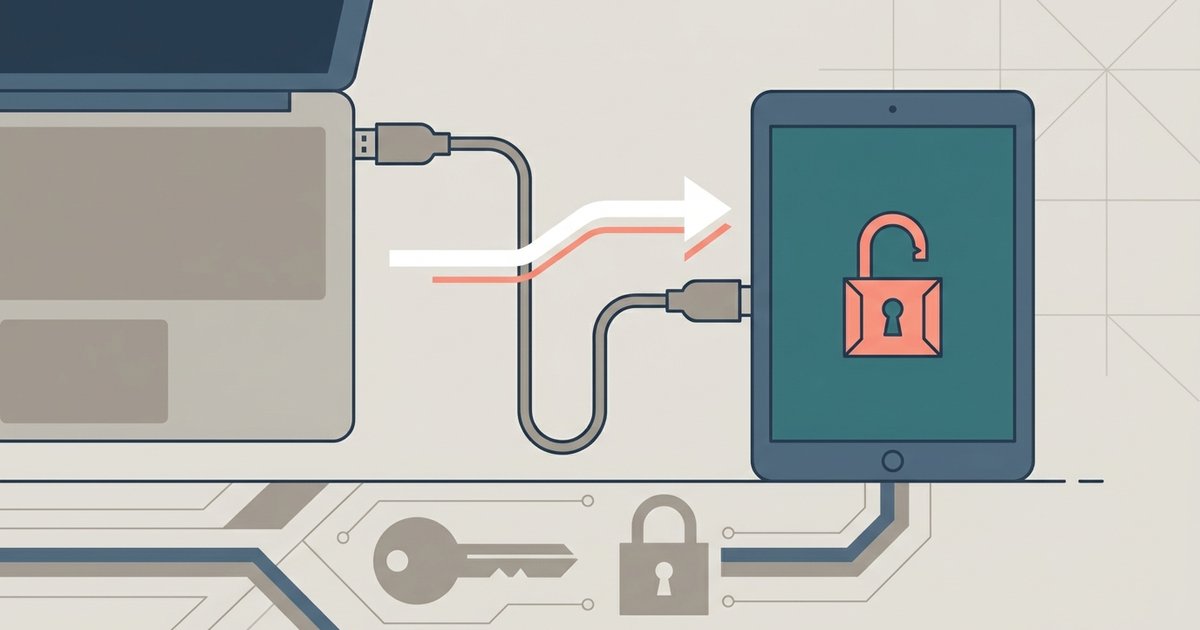
The articles fall into two broad themes. First, there are recovery and access problems: forgotten passwords, locked screens, safe mode loops, and devices stuck on a Google account. These pieces help you regain control of your own tablet, with a strong emphasis on legitimate methods such as factory resets, official account recovery, and unlocking steps that respect the device’s security. Second, there are everyday setup and usage tasks: connecting a tablet to a TV or printer, transferring photos from a phone, making video calls, changing the language, cleaning up storage, or copying apps between devices. Several articles also cover family-focused controls, such as blocking apps on a Fire tablet, removing a child’s profile, or getting a kid’s tablet out of Kid Mode.
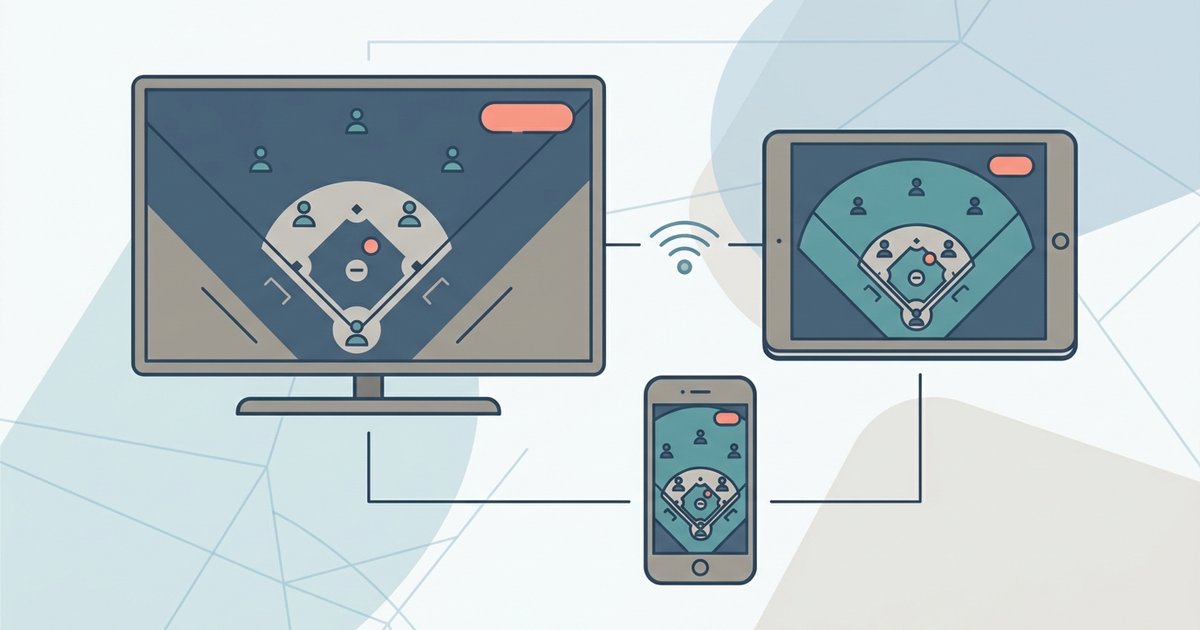
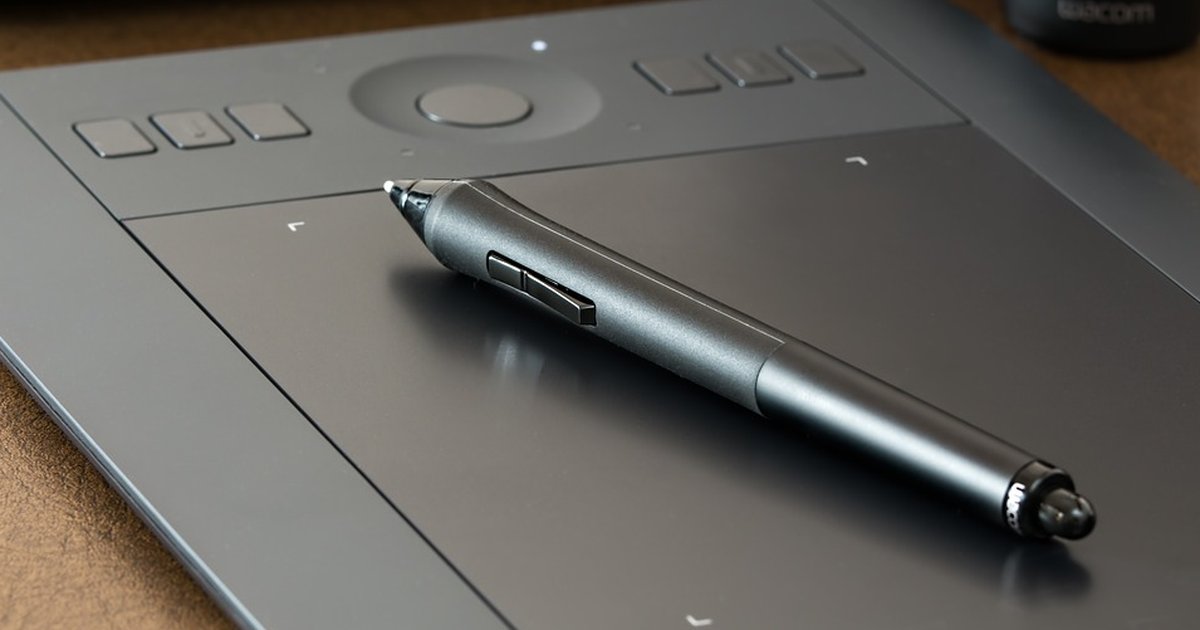
Specific topics you will see include connecting to HDMI, transferring pictures from an iPhone, pairing a Huion pen, and fixing the “Google Play Services has stopped” error. A handful of articles also address responsible recycling and how to handle a lost tablet, framing those actions as safe, legal alternatives to risky workarounds. Overall, this tag helps you operate, maintain, and troubleshoot your tablet without needing to visit a repair shop or search through scattered forum posts.