Boot into TWRP recovery and use the 'Backup' button to select Boot, System, Data, and Vendor partitions, then store the resulting folder on an external SD card or PC immediately.
Why apps and adb fail for full firmware backup
Apps like Titanium Backup or Helium run inside the Android user space. They only have access to files visible through the Android file system. They cannot read the raw blocks of partitions like Boot or Vendor. ADB backup commands suffer the same limitation. They dump app data and settings, but never the boot image or system libraries. If you wipe the System partition to install a custom ROM, those in-Android backups become useless. The operating system they depend on no longer exists. To safely update old tablet Android firmware without this risk, you need a full partition image. The only way to capture a bootable copy of your entire firmware is from a custom recovery environment that bypasses Android entirely, giving direct block-level access to every partition.
Exact partitions to select in twrp
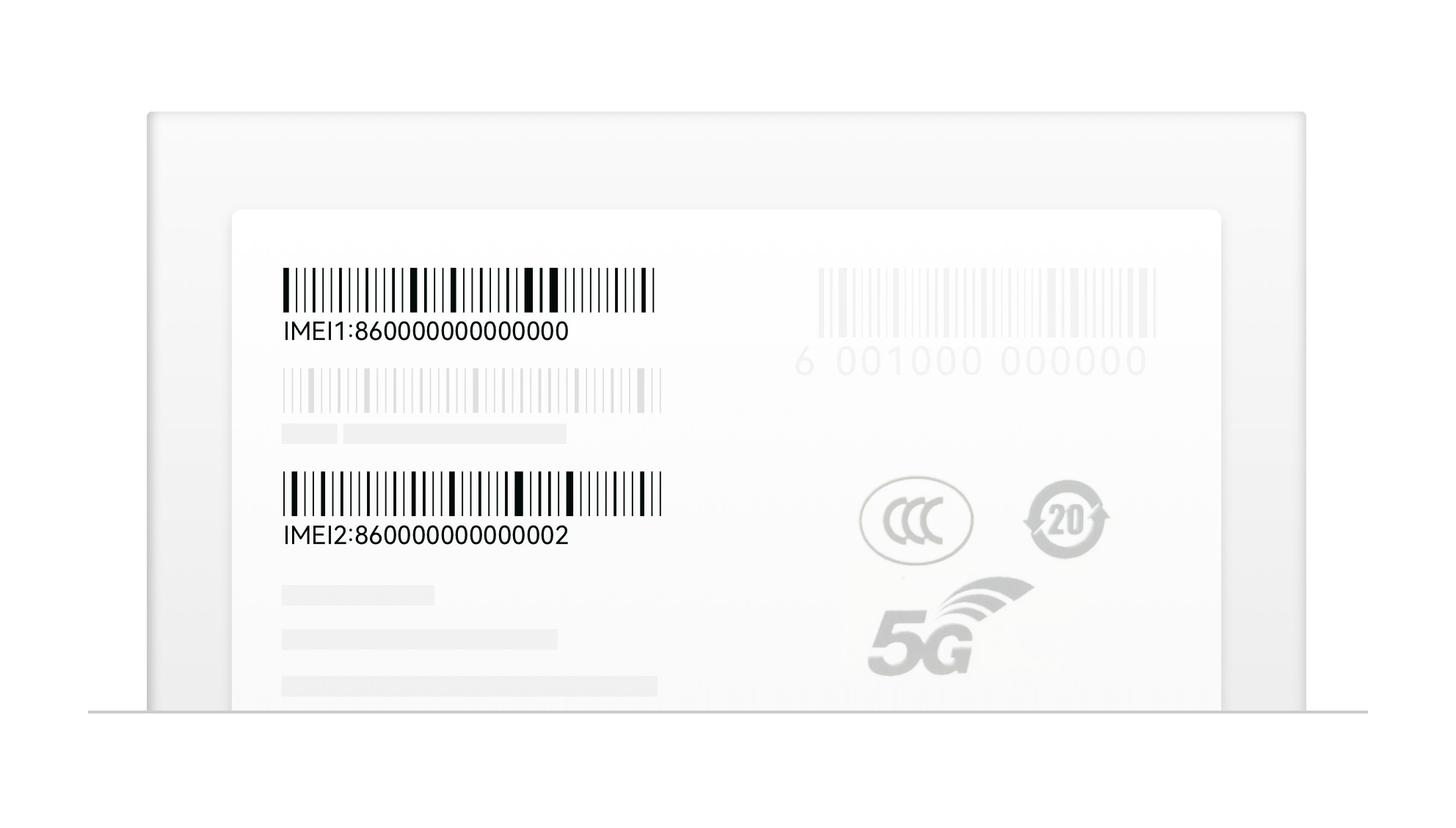
In TWRP's Backup menu, check these boxes: Boot, System, and Data are essential, and consider Vendor if your device has one. Boot contains the kernel and ramdisk that start the device. System holds the main Android framework and preinstalled apps. Data stores your user accounts, settings, and installed apps. Vendor includes hardware-specific drivers and firmware blobs. Skipping Vendor is a common mistake on modern tablets. Without it, a new ROM may bootloop because the graphics, Wi-Fi, or touchscreen drivers are missing. Do not select Cache or Recovery unless you specifically need them. EFS, which contains critical IMEI data, should be backed up separately if possible. Cache is temporary and rebuilds automatically. Recovery is overwritten by TWRP itself. EFS (on some devices) contains IMEI data that you should back up separately with specific tools or dd commands. After selecting, swipe to start the backup. TWRP creates a folder named with your device's serial number and timestamp, typically in /sdcard/TWRP/BACKUPS/.
Moving the backup off the tablet before you wipe
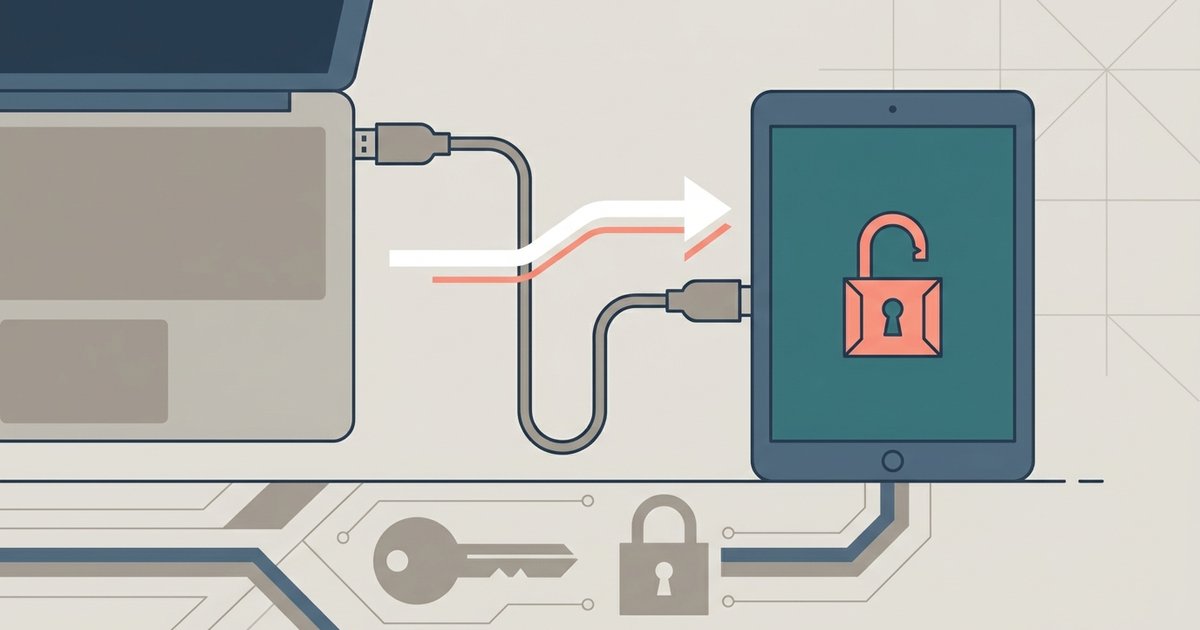
Before you wipe internal storage to install a new Android OS on tablet, copy that TWRP backup folder to an external microSD card or to your computer via MTP. If you leave the backup on internal storage and then perform a factory reset or a wipe of the Data partition during the flashing process, the backup folder is deleted along with all your user data. To transfer via MTP, connect the tablet to a PC while still in TWRP. Enable MTP in TWRP's Mount menu, then drag the backup folder from the tablet's internal storage to your desktop. If you have a microSD slot, insert a card and use TWRP's file manager to move the folder to /external_sd/TWRP/BACKUPS/. Without this step, you have no fallback if the new ROM fails, so you would need to install Android OS on tablet from PC from scratch.
Then store the resulting folder on an external SD card or PC immediately. A full firmware backup is the only safety net that lets you revert to your current working state if a new ROM fails to boot. TWRP is the only tool that can capture the raw partition images needed for a complete restore.