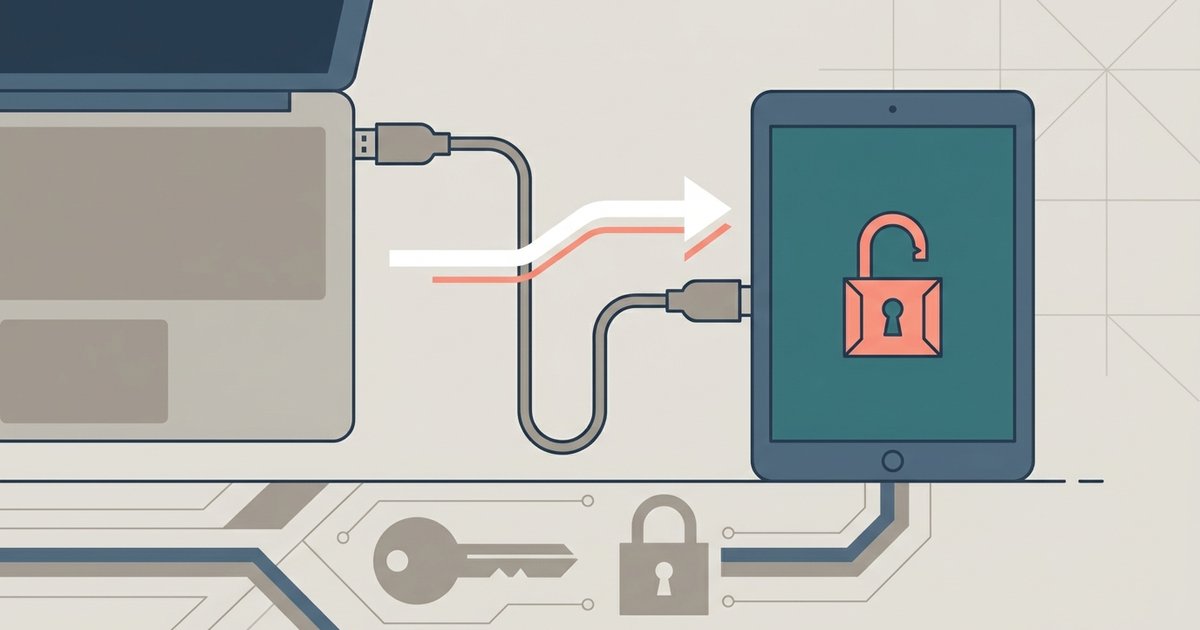
Connect your tablet to a computer in fastboot mode and run the command `fastboot oem unlock` or `fastboot flashing unlock`, then confirm the wipe on the tablet's screen. This will factory reset your device and void its warranty.
The fastboot command to unlock android tablet bootloader
The correct terminal syntax depends on your tablet's bootloader protocol. For older or some specific devices, use `fastboot oem unlock`. For newer tablets, the standard command is `fastboot flashing unlock`. Run either command while the tablet is in fastboot mode, you reach this by holding Power + Volume Down at boot. If the command succeeds, the screen will display a confirmation prompt; use the volume keys to select “Yes” and press the power button. Some tablets require a second command, `fastboot flashing unlock_critical`, to fully open partitions needed to install new Android OS on tablet. Always wait for the “OKAY” message in the terminal before disconnecting.
Why your tablet still refuses to unlock
If fastboot returns “FAILED (remote: unknown command)” or “unlock is not allowed,” the OEM Unlocking toggle in Developer Options is likely greyed out. This happens when the tablet’s carrier SIM-lock is active, or when the system-on-chip is a non-unlockable variant like Qualcomm’s “locked” SKU. Check Settings > Developer Options > OEM Unlocking: if it’s grey, the bootloader cannot be opened via software. Some tablets also require an official unlock code from the manufacturer, which carriers often refuse for SIM-locked devices. Without that toggle enabled, no fastboot command will work. In rare cases, a tablet with a MediaTek or Rockchip SoC may ignore fastboot entirely and require a different tool like SP Flash Tool to put Linux on the tablet instead.
What you lose the second it unlocks
The moment you confirm the unlock, the tablet performs a mandatory factory reset, wiping all apps, accounts, and local files. This is irreversible, even if you relock the bootloader later, the data is gone. More critically, most tablets permanently trip a hardware fuse that voids the warranty and disables certain security features. For example, Samsung tablets may permanently trip a hardware fuse that disables certain security features. Similarly, some tablets may lose Verified Boot, and streaming apps like Netflix might refuse to play HD content due to broken DRM. After unlocking, you can install Android OS on tablet from PC or flash custom ROMs, but you may no longer receive official OTA updates unless you manually re-lock the bootloader. If your goal is simply to update old tablet Android, unlocking the bootloader is overkill; a factory reset or sideloaded OTA update often suffices without the permanent trade-offs.
How to update old tablet Android without unlocking
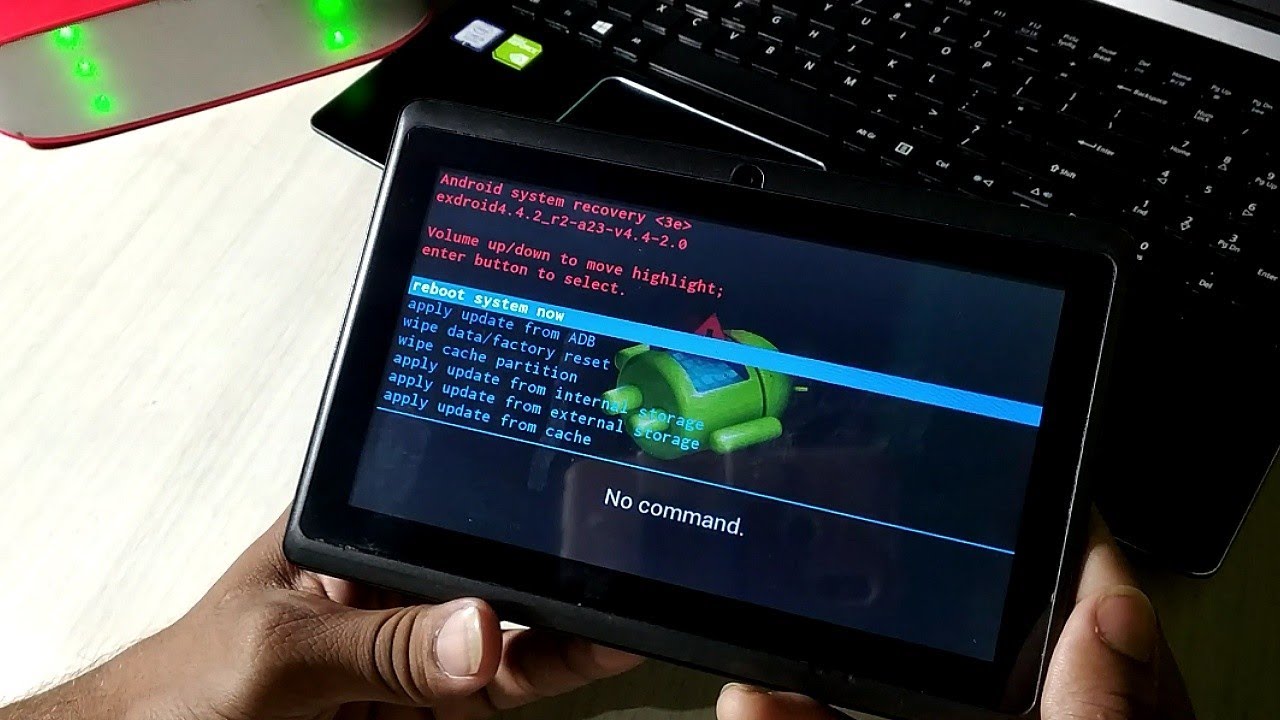
Book a two-hour window when you will not need the tablet. Arrive at Settings > System > System Update and tap “Check for update.” Use the main Settings entrance, not the quick-settings shortcut, which can skip the full server handshake. Skip any “Advanced” or “Beta” sub-menus. If no update appears, download the official OTA package from the manufacturer’s support page onto a PC, then sideload it via recovery mode by holding Power + Volume Up at boot and selecting “Apply update from ADB.” This method delivers the latest official Android version without touching the bootloader.