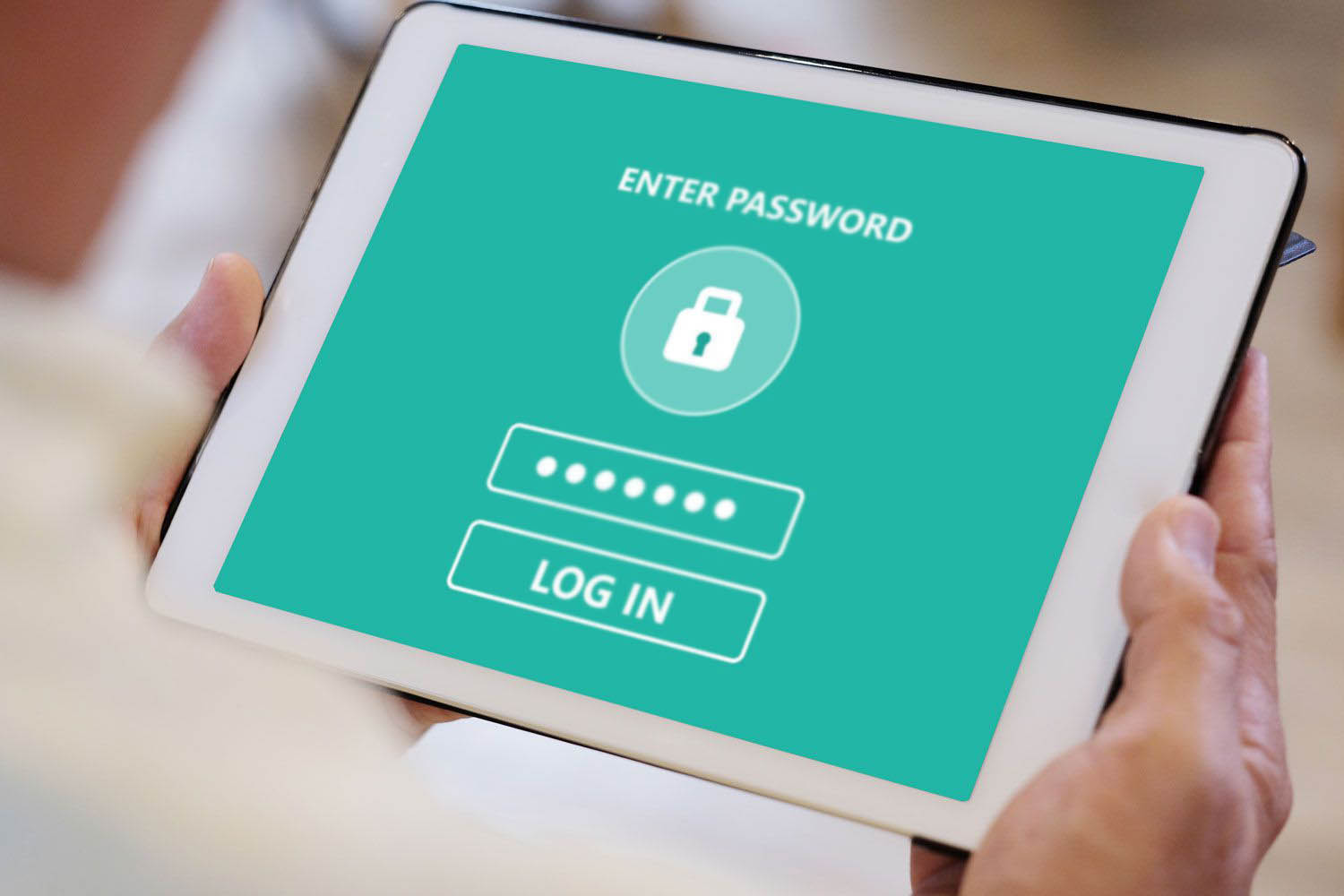
To reset a tablet if you forgot the password, you must perform a factory reset, which erases all personal data from the device. The exact process differs depending on whether you have an Android tablet or an iPad, so choose the section below that matches your device.
Before you reset a tablet if you forgot the password: A critical warning
A factory reset removes everything on your tablet: apps, photos, accounts, and files. There is no way to recover this data after the reset unless you already have a backup. This process is the final option for unlocking a locked tablet, and it works by wiping the device completely so you can set it up as new. If you own a Samsung device, you can follow the specific button combinations to hard reset Samsung tablet without password when the screen is inaccessible. The steps for Android tablets and iPads are different, so read the correct section for your device.
How to factory reset an Android tablet from Recovery Mode
If you cannot unlock your Android tablet and remote unlock options are not available, you can reset it using Recovery Mode. This method uses hardware buttons and works on most Android tablets regardless of the manufacturer.
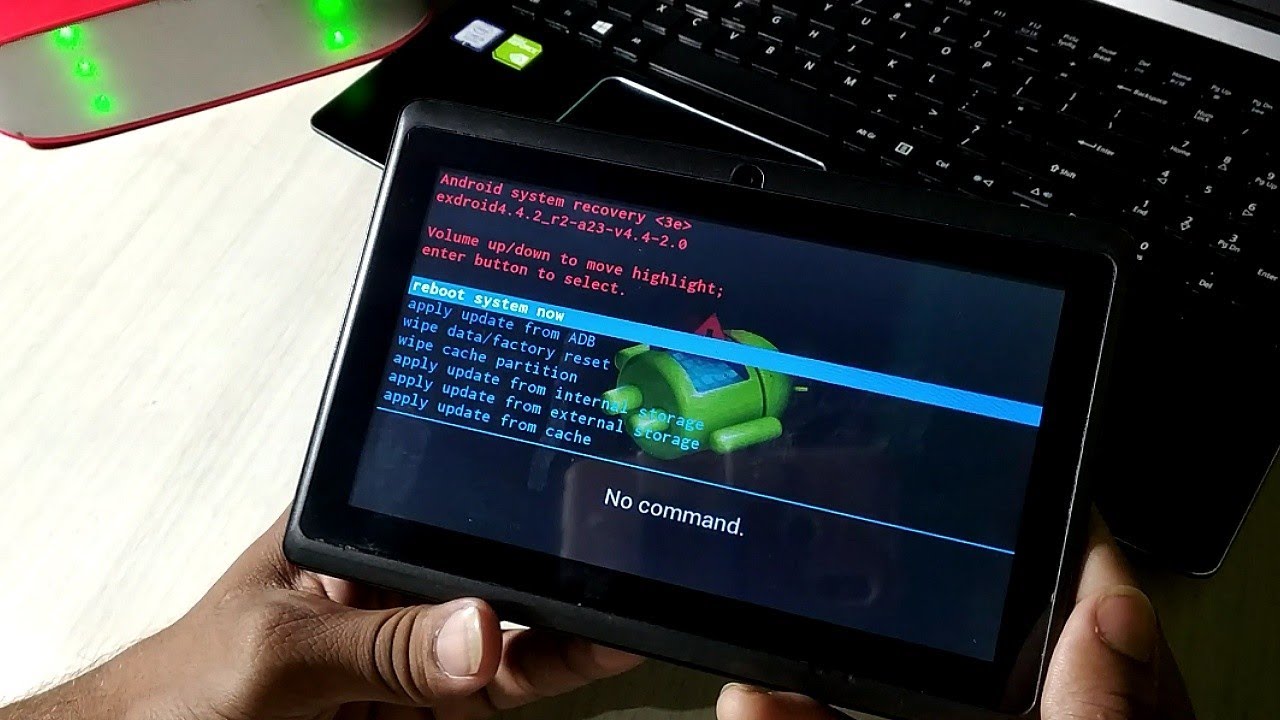
- Power off and boot into Recovery Mode. First, turn the tablet completely off. Then press and hold the correct button combination for your device, typically Power + Volume Down or Power + Volume Up, until the Recovery Mode menu appears.
- Navigate to 'Wipe data/factory reset' and confirm. Use the volume buttons to scroll through the menu options. Highlight "Wipe data/factory reset," then press the power button to select it. Confirm the action when prompted.
- Select 'Reboot system now'. After the wipe completes, the Recovery Mode menu returns. Use the volume buttons to highlight "Reboot system now" and press the power button. The tablet will restart as a blank device.
How to erase an iPad if you forgot the passcode
For iPads running iPadOS 17 or later, you can erase the device directly on the screen if you have an internet connection and Find My enabled. If that method is not available, you must use a computer.
On-device method (iPadOS 17+)
- Enter incorrect passcodes repeatedly until the screen displays "[Device] Unavailable."
- Tap "Forgot Passcode?" then tap "Start [Device] Reset."
- Enter your Apple ID password to confirm the erase. The iPad will wipe itself and restart.
Note: If you recently changed your passcode on iPadOS 17+, you may have a 72-hour window to use your old passcode instead of erasing the device.
Computer method (Finder/iTunes)
- Connect the iPad to a Mac (using Finder) or a PC (using iTunes or the Apple Devices app).
- Put the iPad into Recovery Mode by following the on-screen prompts for your model.
- Select the option to restore the iPad. The computer will erase the device and install the latest iPadOS.
What to do after resetting your tablet
Once the reset finishes, the tablet will boot to the initial setup screen. Connect to Wi-Fi and follow the on-screen prompts to set it up as new. On Android tablets, you may encounter Google Account Verification (also called FRP) if the device was previously signed into a Google account. This step requires the original Google account credentials to proceed.
\nRelated reading: How To Unlock Onn Tablet Forgot Password.