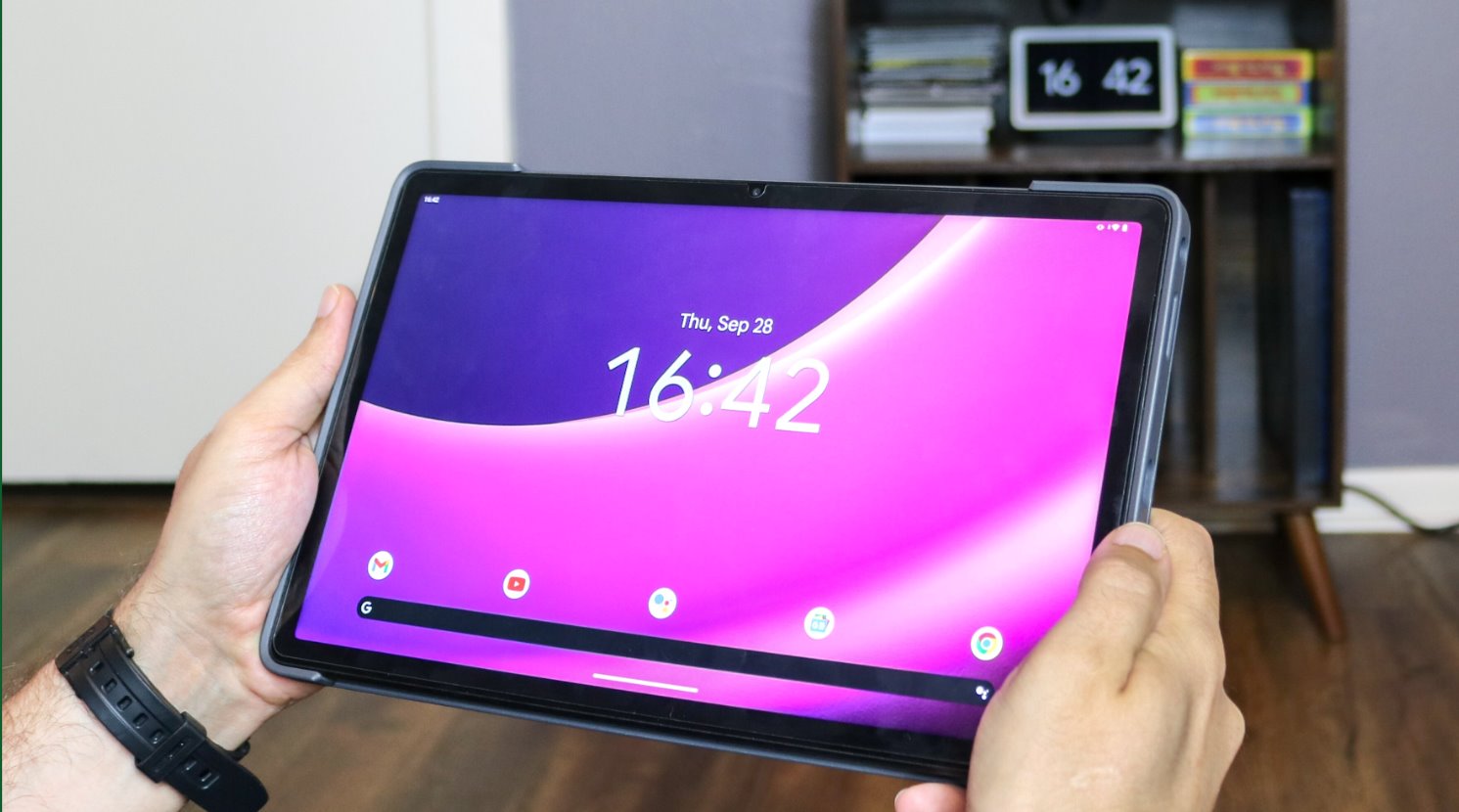
If you've misplaced your tablet, the fastest way to find it is through its built-in tracking service. To find your tablet, you need to know your device's operating system and meet three prerequisites: the tablet must be powered on, connected to Wi-Fi or mobile data, and have location services enabled.
Find your lost iPad with Apple's Find My
For iPads, use the Find My app on another Apple device or go to iCloud.com/find and sign in with your Apple ID. In the app, navigate to the Devices tab and select your missing iPad. You can then turn on Lost Mode to track its location, lock it, and display a contact message. This is especially helpful because it locks the device with a passcode and shows a custom message with your phone number, so a good Samaritan can return it without accessing your data.
Locate your Android tablet with Google's Find My Device
For Android tablets, open the Find Hub app (also called Find My Device) or visit android.com/find in a web browser and sign in with the Google Account linked to your tablet. On the interface, you can see your tablet's last known location on a map, make it play a sound (even if on silent), secure the device with a PIN, pattern, or password, or remotely erase its data. The sound feature is ideal when you know the tablet is nearby but can't spot it, it plays a loud ring for five minutes at full volume.
Track a Samsung Galaxy tablet with SmartThings Find
For Samsung Galaxy tablets, use the SmartThings Find or Samsung Find app, or visit the SmartThings Find website or Samsung Find website and sign in with your Samsung account. This service allows you to track your device's location, make it ring for one minute at maximum volume, remotely lock it with a PIN, or erase all data. A unique advantage is Samsung's Offline finding feature in SmartThings Find, which allows other nearby Galaxy devices to detect and relay the location of your missing device when it's offline for 30 minutes or more. To use this, ensure Remote controls or Lost device protection is enabled in your device's Security and privacy settings (typically on by default when a Samsung account is added).
What to do if you can't find your tablet
If you've exhausted tracking options and the tablet is truly lost, take these essential security steps immediately. Change your account passwords to prevent unauthorized access to sensitive information. Report the loss or theft to local authorities, providing the tablet's make, model, and serial number, if you need to locate these details, find out what kind of tablet you have first. Contact your insurance company to file a claim if you have coverage. If your tablet has cellular capabilities, notify your mobile carrier so they can disable the SIM card. If you own a Fire device, you can still attempt to locate Amazon Fire tablet through your Amazon account before resorting to a remote wipe. Finally, consider a remote wipe using the find my device service to erase all data, ensuring nothing falls into the wrong hands.
Preventing future tablet loss
To avoid this situation again, adopt these practical habits. Designate a specific storage spot in your home or office where you always keep the tablet when not in use. Use a protective case that makes the device more visible and identifiable. Enable a lock screen password or biometric authentication for added security. Keep regular backups to a cloud service or external drive so you don't lose important files. Label your tablet with your contact information if you take it outside, increasing the chance of a return. By implementing these measures, you significantly reduce the risk of losing your tablet.
\nRelated reading: How To Reset Android Tablet With Computer.