To get a phone number on a tablet, the two most reliable methods are linking your tablet to your existing smartphone number or signing up for a virtual phone service that provides a new number over Wi-Fi. Which option works best depends on your tablet's brand and whether you need to use your current number or want a separate line. Once you have it set up, you can easily confirm my phone number on this tablet if you ever forget it.
Link your tablet to your iPhone or Android phone
The primary and most seamless method uses your existing phone number and works over Wi-Fi, allowing you to make and receive calls and texts from your tablet as if it were an extension of your phone. This approach requires both devices to be from the same ecosystem and signed into the same account.
Set up calls on an iPad with Apple Continuity
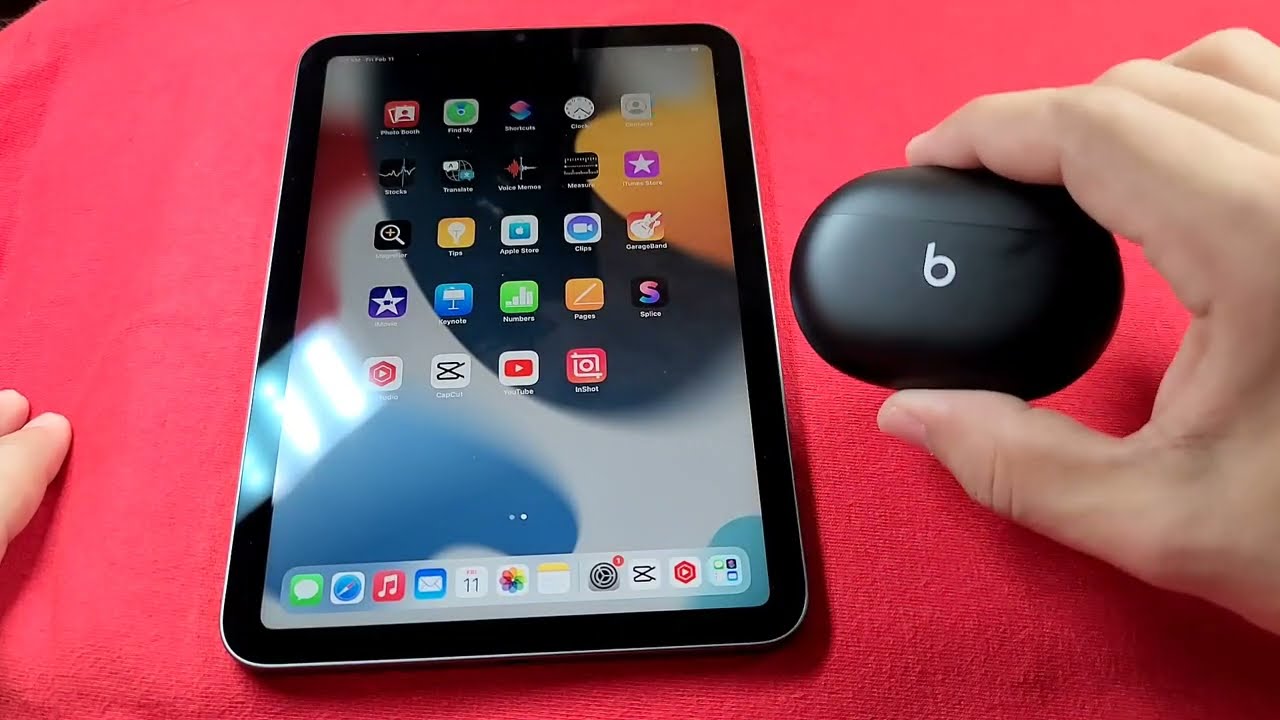
To make a phone call from your tablet using your iPhone's cellular connection, both devices must be signed into the same Apple ID, connected to the same Wi-Fi network, and located near each other. On your iPhone, go to Settings, then Phone, then Calls on Other Devices. Turn on "Allow Calls on Other Devices" and select your iPad from the list of eligible devices. Once enabled, you can initiate and receive calls directly on the iPad through the FaceTime app or the Phone app interface.
Set up calls on a Samsung Galaxy tablet
Samsung Galaxy tablets can make and receive calls and texts using a connected Samsung phone's number. On both your Samsung phone and tablet, sign into the same Samsung account. Enable the feature on both devices. After setup, calls and messages from your phone number will appear on the tablet, allowing you to respond from either device.
Get a new number with a virtual phone service
For tablets that cannot link to a phone, the best fallback method is signing up for a virtual phone service like Google Voice or TextNow. These services provide a free second number that works over Wi-Fi for both calls and texts. Download the app for your chosen service, create an account, and select a new phone number from the available options. You can then make calls and send messages directly from the app on your tablet, using your tablet's internet connection. This method is ideal for keeping your personal number private or for using a tablet without a smartphone companion.
What about using a SIM card in a cellular tablet?
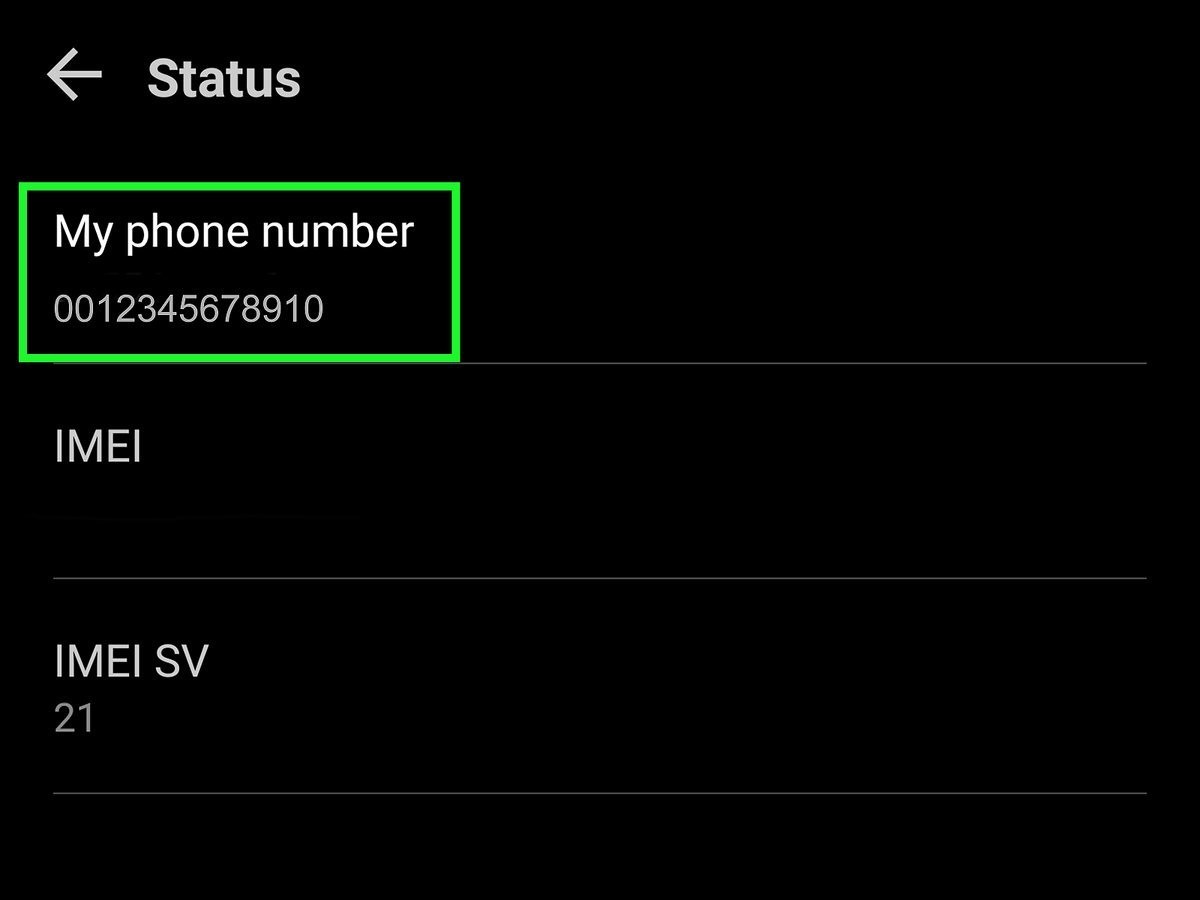
A crucial clarification based on verified facts: most tablets with a SIM slot can only use mobile data, not make traditional voice calls. While a phone SIM card can often provide mobile data in a cellular tablet, its ability to enable traditional voice calls and texts depends on the tablet's hardware and carrier policies. Some carriers may require a specific tablet or data-only SIM, or may block phone SIMs from making voice calls or sending texts in tablets. However, some cellular Android tablets, particularly specific Samsung Galaxy Tab models, include a built-in phone dialer and can make traditional voice calls and send SMS/MMS directly with an active SIM/eSIM and carrier support. To find your tablet phone number on such a device, navigate to Settings, then About tablet, and look for "My phone number." Always check your specific tablet model and carrier policy before assuming voice call capability.
Tips for managing calls and messages on your tablet
Once you have a phone number set up, organize your contacts into groups or folders for quick access. Enable notifications for calls and messages to receive timely alerts. Use call forwarding if you are using multiple devices with the same number so you never miss an important call. For group conversations, utilize messaging apps that offer group chat functionality. Customize your messaging app settings for notifications, privacy, and other preferences. If your virtual phone service offers call recording or voicemail, make use of these features. Finally, secure your messages by enabling end-to-end encryption if your app provides it, ensuring your conversations remain private.